1. はじめに
Thank you for choosing the MageGee G6 Wired Gaming Mouse. This ergonomic USB optical mouse is designed to enhance your gaming and work experience with its high precision sensor, adjustable speed levels, and vibrant LED backlighting. Please read this manual thoroughly to ensure proper setup and optimal performance.
2. セットアップ
2.1 パッケージ内容
- MageGee G6 Wired Gaming Mouse
- 取扱説明書
2.2 システム要件
- Operating System: Windows 10, Windows 8, Windows 7, Windows XP, WinME, Vista, Linux, etc.
- 利用可能なUSBポート
2.3 マウスの接続
- コンピューター (PC、ラップトップ、またはデスクトップ) で使用可能な USB ポートを見つけます。
- Plug the USB connector of the MageGee G6 mouse into the USB port.
- The mouse is plug-and-play; no additional drivers or software are required for basic functionality.
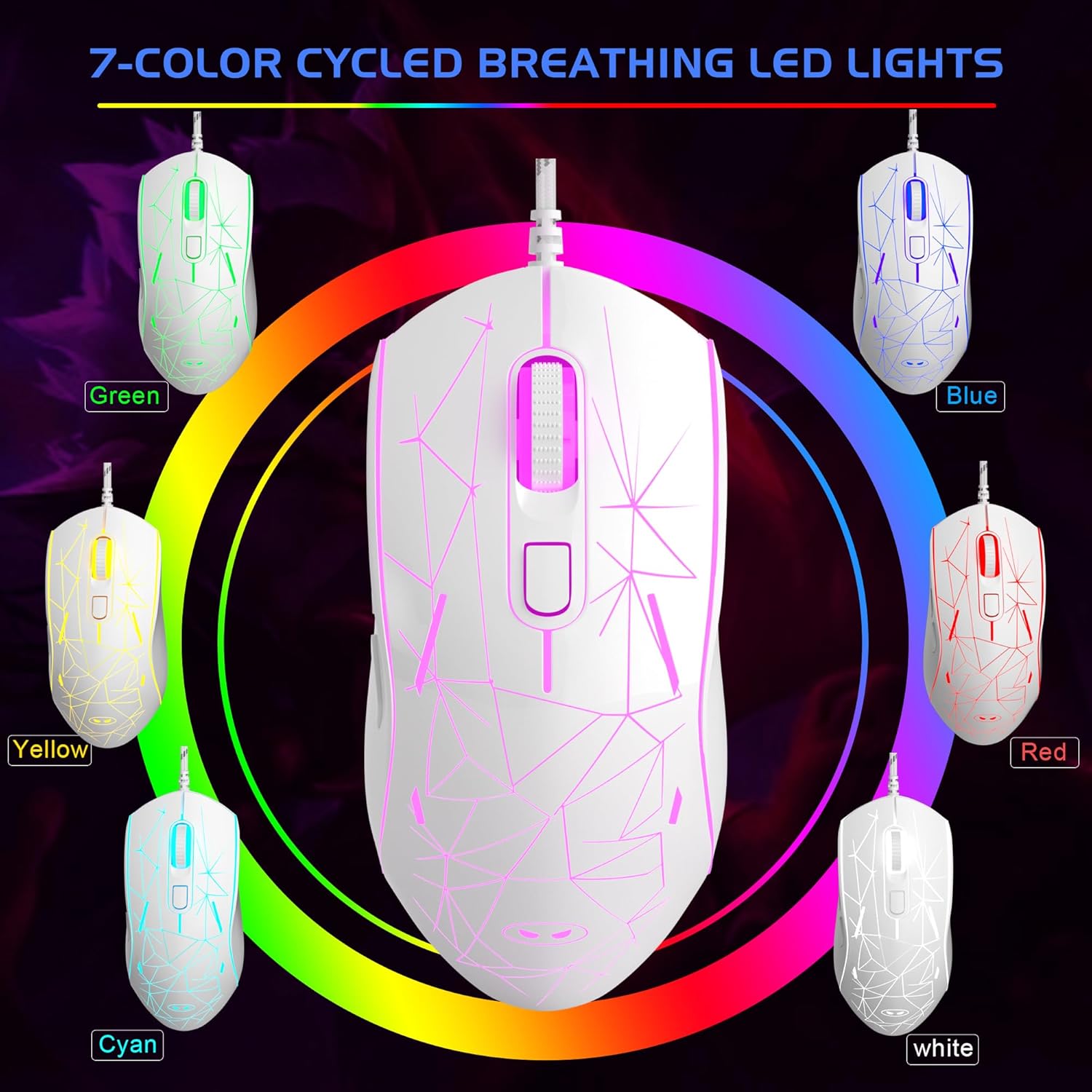
Image: The MageGee G6 Wired Gaming Mouse with its USB cable connected to a computer.
3. 操作手順
3.1 ボタンの機能
The MageGee G6 offers 6 flexible buttons for versatile control:
- 左ボタン: 標準的な左クリック機能。
- 右ボタン: 標準的な右クリック機能。
- スクロールホイール: 上下にスクロールし、中クリックボタンとして機能します。
- Speed Button (DPI Button): Adjusts the DPI (Dots Per Inch) sensitivity.
- 進むボタン: 前方に移動します web ブラウザまたはアプリケーション。
- 戻るボタン: 後方に移動します web ブラウザまたはアプリケーション。
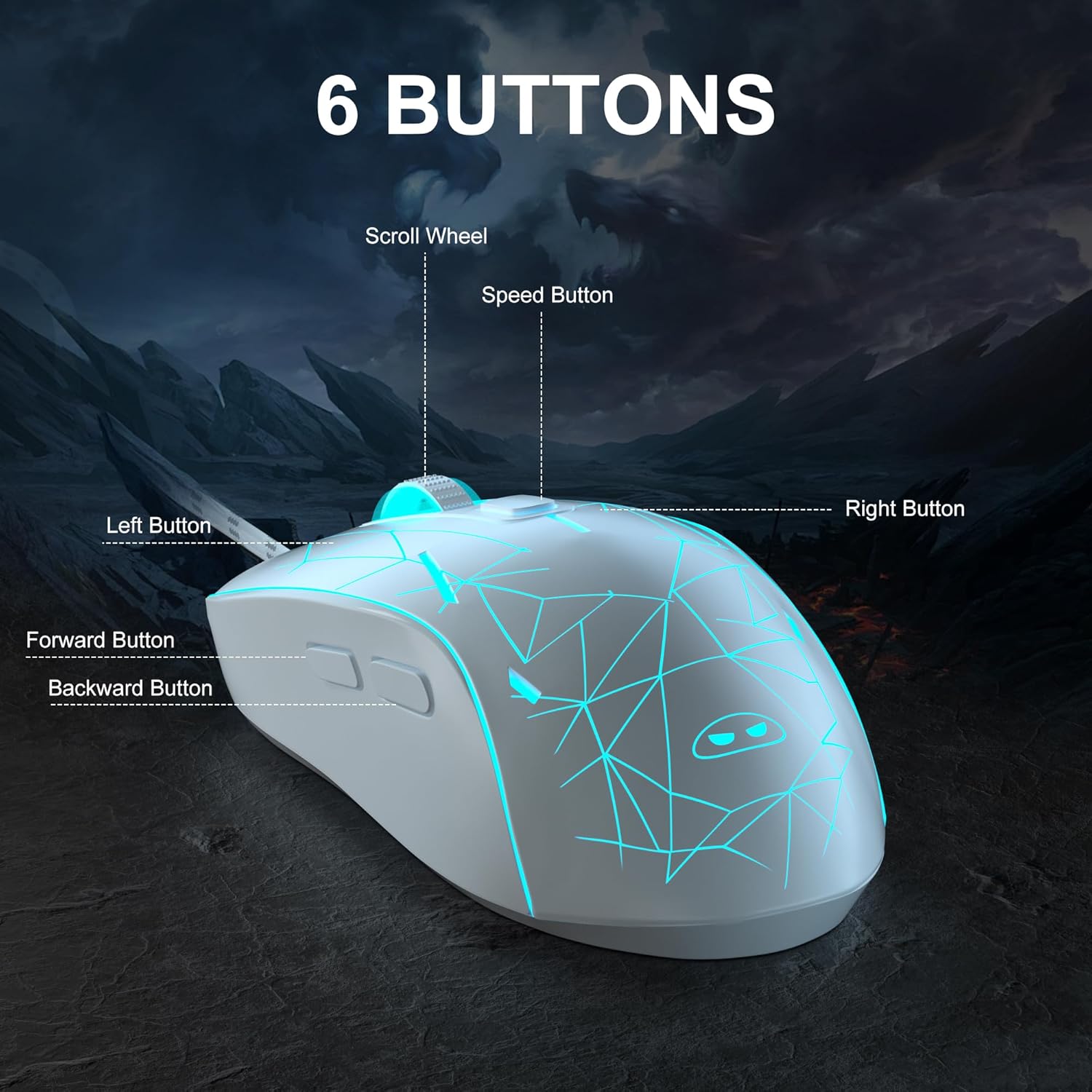
画像: 詳細な view of the MageGee G6 mouse highlighting the Left, Right, Scroll Wheel, Speed, Forward, and Back buttons.
3.2 Adjusting DPI Speed Levels
The MageGee G6 offers 6 adjustable DPI speed levels for precise cursor control:
- 600DPI
- 800DPI
- 1200DPI
- 1600DPI
- 2400DPI
- 3200DPI
を押す スピードボタン (located below the scroll wheel) to cycle through the different DPI settings. Each press will change the sensitivity, allowing you to find the optimal speed for your tasks or games.
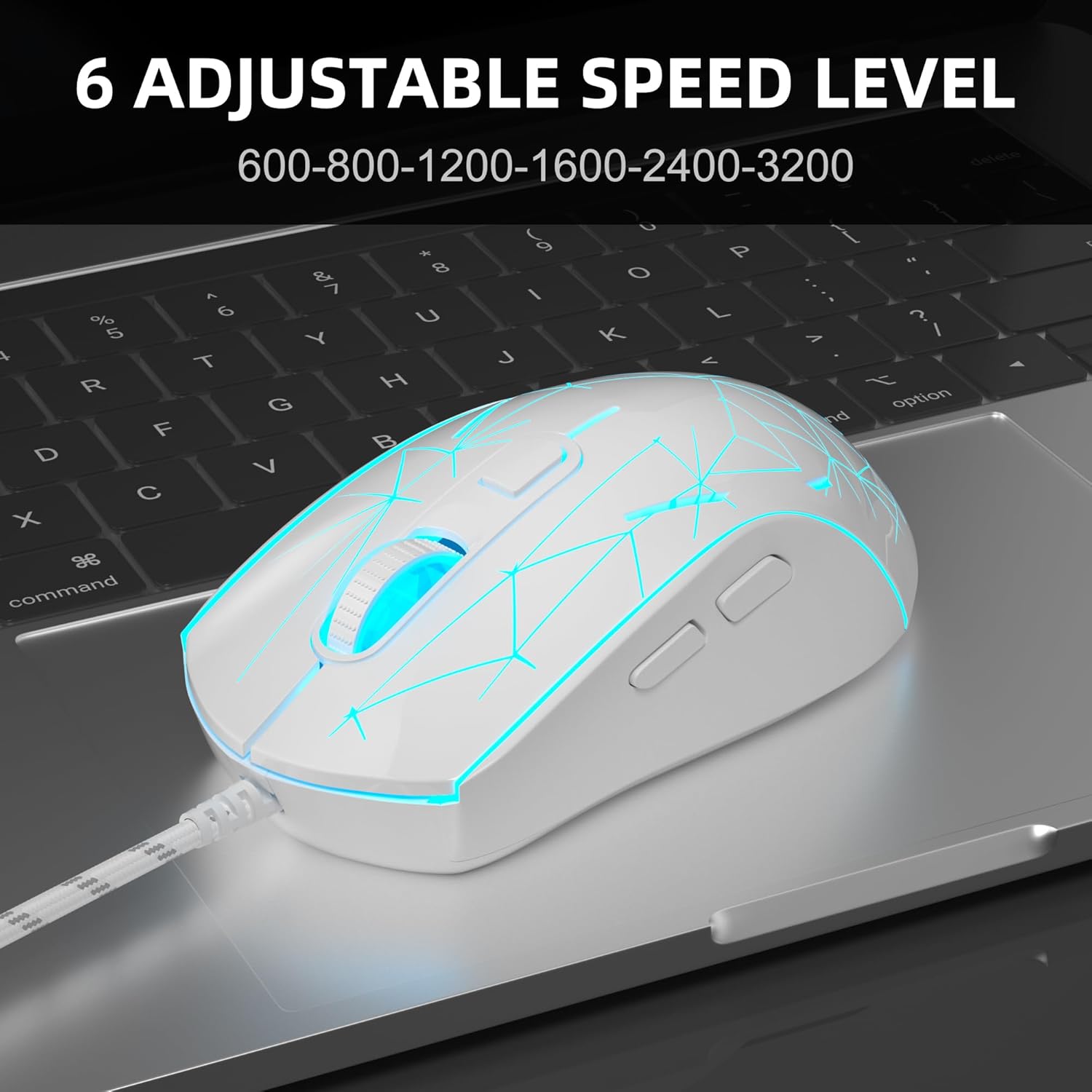
Image: The MageGee G6 mouse in use, demonstrating the adjustable DPI settings from 600 to 3200.
3.3 LEDバックライト制御
The MageGee G6 features 7-color breathing LED backlighting. You can control the lighting as follows:
- 色の変更: を押す スピードボタン そして 進むボタン simultaneously to cycle through and lock a specific color.
- ライトのオン/オフ: を押し続けます スピードボタン for 3 seconds to toggle the LED lights on or off.
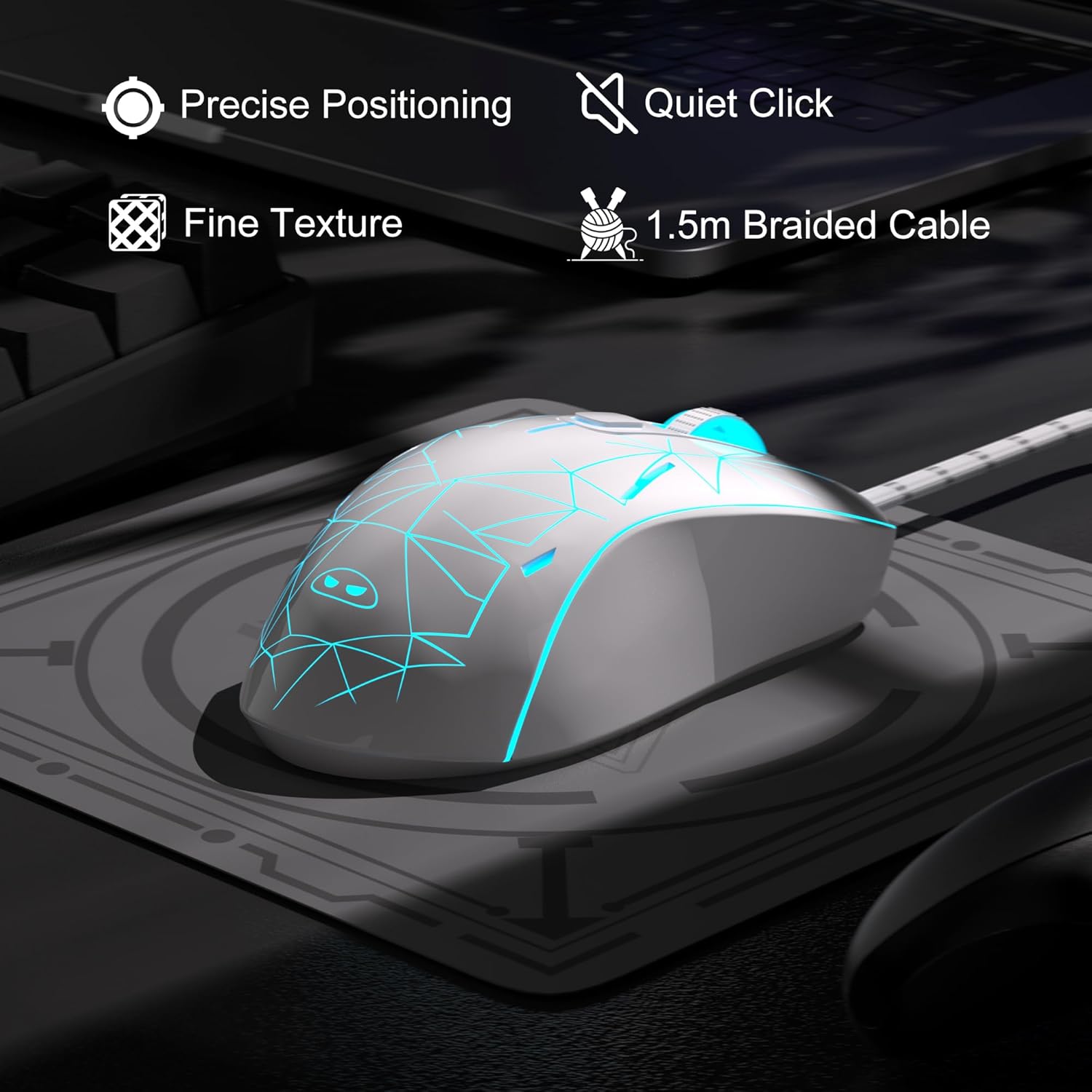
Image: The MageGee G6 mouse showcasing its 7-color breathing LED lights, including green, yellow, cyan, blue, red, and white.
4. メンテナンス
- クリーニング: マウスの清掃には、柔らかく乾いた布をご使用ください。刺激の強い化学薬品や研磨剤の使用は避けてください。
- ケーブルのお手入れ: Do not pull or twist the braided USB cable excessively to prevent damage.
- ストレージ: Store the mouse in a dry place away from extreme temperatures.
5。 トラブルシューティング
5.1 マウスが反応しない
- USB ケーブルがコンピューターの動作中の USB ポートにしっかりと差し込まれていることを確認します。
- マウスを別の USB ポートに接続してみてください。
- コンピュータを再起動します。
5.2 LEDライトが点灯しない
- マウスがコンピューターに正しく接続されていることを確認してください。
- を押し続けます スピードボタン for 3 seconds to toggle the LED lights on or off.
5.3 カーソルの動きが不規則
- マウスの底面にある光学センサーを柔らかい布で拭いてください。
- マウスを適切な表面 (マウス パッドなど) で使用していることを確認してください。
- Adjust the DPI sensitivity using the スピードボタン.
6. 仕様
| 特徴 | 詳細 |
|---|---|
| ブランド | マゲギー |
| モデル | G6 |
| 接続技術 | USB、有線 |
| 動き検出技術 | 光学 |
| DPI レベル | 600/800/1200/1600/2400/3200 (Adjustable) |
| ボタン | 6 (Left, Right, Scroll Wheel, Speed, Forward, Back) |
| LEDバックライト | 7色のLED(青、赤、緑、紫、シアン、黄、白) |
| ケーブル長さ | 1.5 meters (Durable Braided Cable) |
| 人間工学 | Ergonomic Design with Comfortable Grip |
| 互換性 | Windows 10, 8, 7, XP, WinME, Vista, Linux, PC, Laptop, Desktop |
| アイテム重量 | 5.6オンス |
| パッケージ寸法 | 5.31 x 3.62 x 1.65インチ |
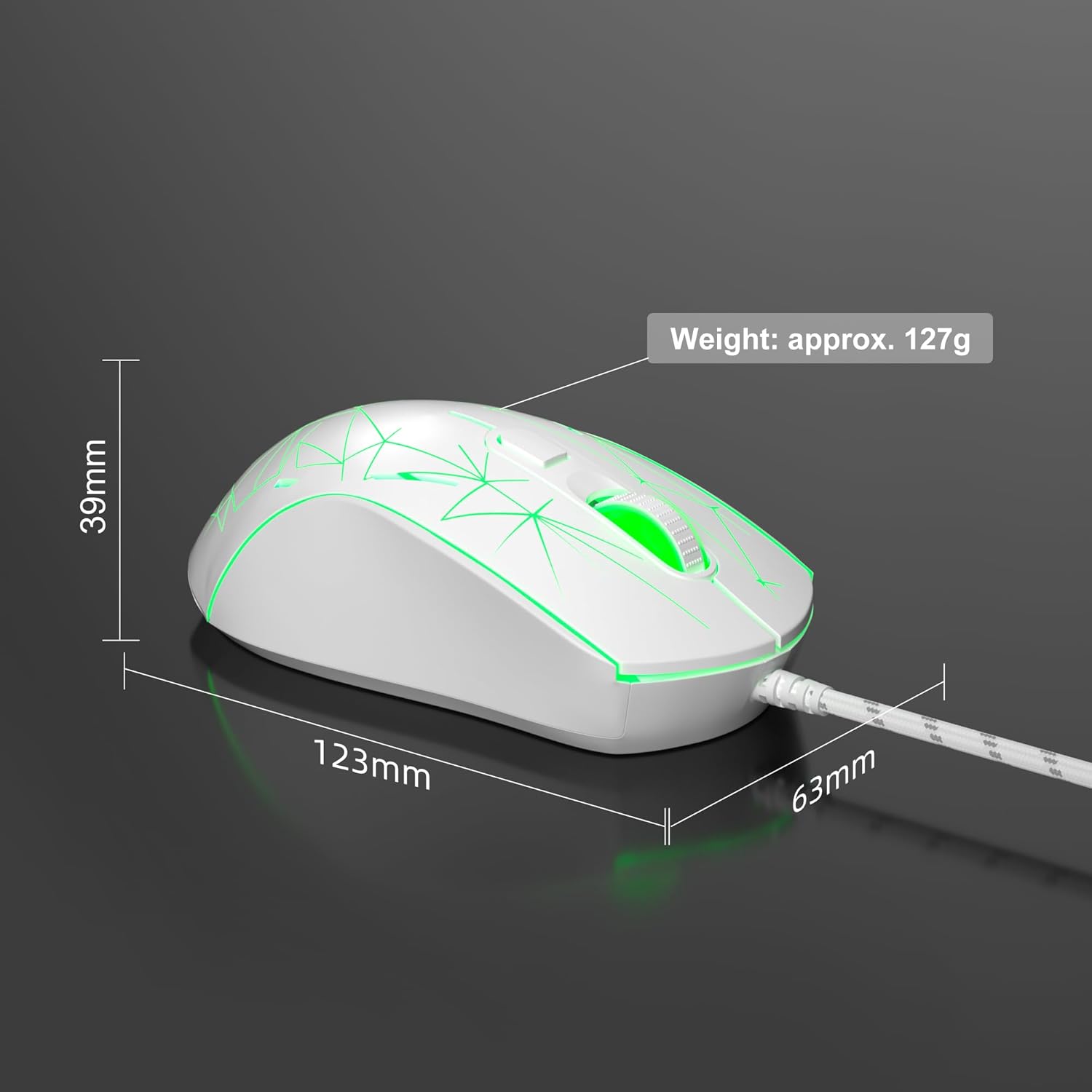
Image: Diagram illustrating the dimensions of the MageGee G6 Wired Gaming Mouse (123mm length, 63mm width, 39mm height, approx. 127g weight).
7.保証とサポート
For warranty information and customer support, please refer to the official MageGee web当サイトをご覧いただくか、販売店にお問い合わせください。保証請求のために購入時の領収書を保管してください。
MageGee is committed to technological and product innovation, providing quality computer peripherals. Our after-sales team is available to promptly respond and solve your problems.
訪問する MageGeeストア 詳しい製品と情報については、こちらをご覧ください。