
導入
This manual provides essential instructions for the installation, operation, and maintenance of your Swann Master-Series 4K HD 8 Camera 8 Channel NVR Security System, model SWNVK-876808-US. This system is designed to provide high-definition surveillance for your property, featuring 4K resolution cameras and an 8-channel Network Video Recorder (NVR) for reliable recording and monitoring.
Please read this manual thoroughly before setting up and using your security system to ensure proper functionality and to maximize its performance and longevity.
箱の中身
Carefully unpack all components and verify that you have received all items listed below. If any items are missing or damaged, please contact Swann customer support.
- Swann 8-Channel Network Video Recorder (NVR)
- 8 x 4K HD Security Cameras
- イーサネットケーブル(カメラ接続用)
- Power Adapters (for NVR and cameras)
- USBマウス
- 取り付けネジとプラグ
- Security Warning Stickers
- HDMIケーブル
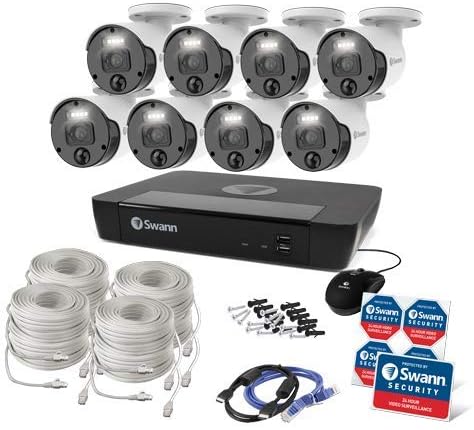
図1: Complete contents of the Swann Master-Series 4K HD 8 Camera 8 Channel NVR Security System kit, including the NVR, eight cameras, various cables, a USB mouse, and security stickers.
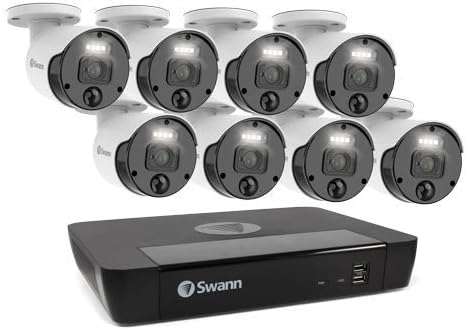
図2: The Swann Network Video Recorder (NVR) unit, which serves as the central recording and management hub for the security system.
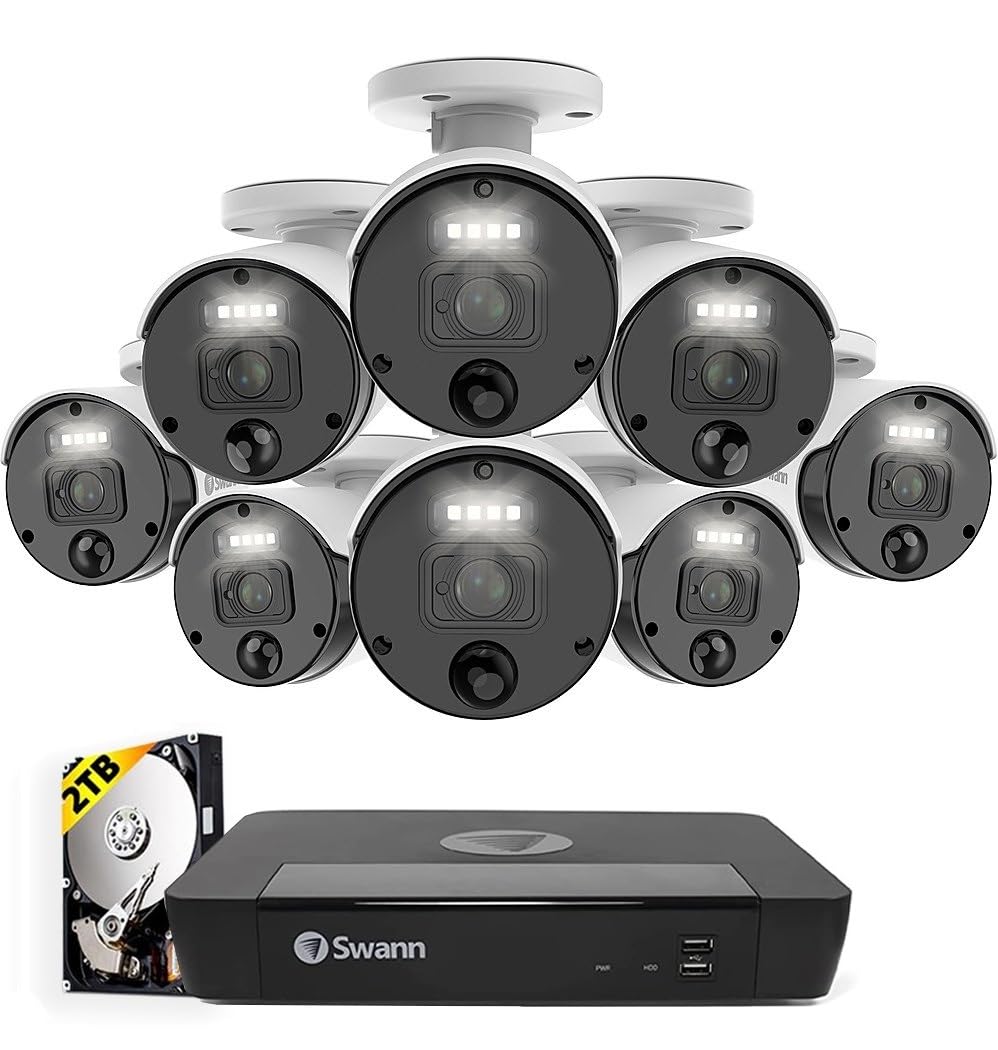
図3: The Swann Master-Series NVR unit shown with eight 4K HD security cameras, illustrating the core components of the surveillance system.
設定
1. NVR接続
- モニターに接続する: 付属の HDMI ケーブルを使用して、NVR の HDMI 出力ポートをモニターまたはテレビに接続します。
- USBマウスを接続します: USB マウスを NVR の USB ポートの 1 つに接続します。
- ネットワークに接続する: Connect an Ethernet cable from the NVR's LAN port to your router or network switch for internet access and remote viewing 機能。
- 接続電源: Plug the NVR's power adapter into the DC IN port and then into a power outlet. The NVR will power on automatically.
2.カメラの設置
- カメラのマウント: カメラの設置場所を適切に選び、クリアな視界を確保してください。 view and are protected from direct weather exposure. Use the provided screws and plugs to securely mount each camera.
- カメラをNVRに接続します。 Connect each camera to an available Ethernet port on the NVR using the provided Ethernet cables. The NVR will automatically detect and power the cameras (Power over Ethernet - PoE).
3. 初期設定
- 初回セットアップウィザード: Upon first power-up, the NVR will display a setup wizard on the connected monitor. Follow the on-screen prompts to configure basic settings such as language, date/time, and network settings.
- 管理者パスワードの設定: Create a strong, unique password for the administrator account. This is crucial for system security.
- ハードドライブの初期化: The wizard may prompt you to initialize the hard drive. Confirm to prepare it for recording.
システムの操作
ライブ View
初期設定後、NVRはライブ映像を表示します。 view 接続されているすべてのカメラの映像をモニターに表示します。単一カメラと view、マルチカメラグリッド view、およびシーケンス view NVR のインターフェースとマウスを使用します。
録音
- 連続記録: 通常、システムはデフォルトで連続録画するように構成されています。
- 動き検出記録: Configure specific cameras to record only when motion is detected within their field of view. Adjust sensitivity and detection zones as needed.
- スケジュールされた記録: Set specific times for recording, allowing for customized surveillance schedules.
再生
Access the playback menu on the NVR to review 記録されたfootage. You can search by date, time, and event type (e.g., motion detection). Use the timeline and controls to navigate through recordings.
Remote Access (Swann Security App)
リモート用 viewing and management, download the official Swann Security app on your smartphone or tablet. Follow the in-app instructions to pair your NVR system. This allows you to view インターネット接続があれば、どこからでもライブフィードを視聴したり、録画を再生したり、アラートを受信したりできます。
メンテナンス
- カメラのクリーニング: カメラのレンズは定期的に柔らかくてきれいな布で拭いてください。amp 鮮明な画像を保つために布で拭いてください。研磨剤入りの洗剤は使用しないでください。
- NVR換気: NVRユニットの過熱を防ぐため、十分な換気を確保してください。通気口に障害物がないようにしてください。
- ファームウェアの更新: Regularly check for and install firmware updates for your NVR and cameras. Updates often include security enhancements and new features. Refer to the Swann support web最新ファームウェアのサイト。
- ハードドライブ管理: NVRのハードドライブは自動的に最も古いファイルを上書きしますtage when it becomes full. Ensure your recording settings (e.g., continuous, motion detection) align with your storage needs.
- パスワードのセキュリティ: Change your administrator password periodically and use strong, unique passwords to protect your system from unauthorized access.
トラブルシューティング
No Video Display on Monitor
- NVR の電源がオンになっており、電源アダプタがしっかりと接続されているかどうかを確認します。
- NVR とモニター間の HDMI ケーブル接続を確認します。
- Ensure the monitor is set to the correct input source (e.g., HDMI 1).
Cameras Not Showing Live View / No Recording
- Check that each camera is securely connected to the NVR's Ethernet port.
- Ensure the Ethernet cables are not damaged.
- Verify that the NVR's hard drive is initialized and has sufficient space.
- Check camera settings within the NVR interface to ensure they are enabled and configured for recording.
リモートアクセスの問題
- Ensure the NVR is connected to your router and has an active internet connection.
- スマートフォンまたはタブレットのインターネット接続が有効であることを確認します。
- Confirm that the NVR is correctly paired with the Swann Security app.
- Check your router's firewall settings; some may block NVR access.
ナイトビジョンが機能しない
- Ensure there are no obstructions directly in front of the camera lens blocking the infrared (IR) LEDs.
- Check camera settings to ensure night vision (IR) is enabled.
- カメラに十分な電力が供給されていることを確認します。
仕様
| 特徴 | 仕様 |
|---|---|
| ブランド | スワン |
| モデル番号 | SWNVK-876808-US |
| 接続技術 | 有線(イーサネット/PoE) |
| ビデオキャプチャ解像度 | 2160p(4KウルトラHD) |
| 特集 | ナイトビジョン |
| チャンネル数 | 8 |
| 電源 | コード式電気 |
| NVR寸法(長さ×幅×高さ) | 10 x 2 x 2.7インチ |
| 対応デバイス | Swann IP Cameras |
| 低照度テクノロジー | ナイトビジョン |
| フレームレート | 15, 24, 30 fps (variable by resolution/settings) |
| 録画モード | Continuous, Event (Motion Detection), Scheduled |
| ビデオ入力 | Ethernet (for IP Cameras) |
| アイテム重量 | 21.2ポンド(パッケージ全体) |
| 欧州連合 | 840236127788 |
Note: While the provided data listed 'BNC' for Video Input, this NVR system primarily uses Ethernet for IP cameras. Please refer to the product packaging or Swann's official website for the most accurate and up-to-date specifications.
保証とサポート
Your Swann Master-Series 4K HD 8 Camera 8 Channel NVR Security System is covered by a manufacturer's warranty. For specific warranty terms, duration, and conditions, please refer to the warranty card included with your product or visit the official Swann webサイト。
For technical support, troubleshooting assistance, or to access the latest software and firmware updates, please visit the Swann support portal on their official webサイトでご確認ください。カスタマーサービスの連絡先情報も掲載されています。