
1. はじめに
This manual provides essential instructions for setting up, operating, maintaining, and troubleshooting your Canon MAXIFY MB2730 A4 Business Inkjet Multifunction Printer. Please read this manual thoroughly before using the product to ensure correct and safe operation.
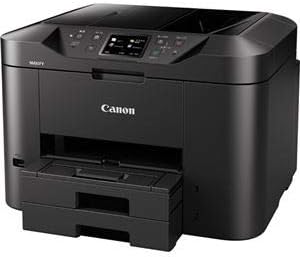
画像1: 右前方 view Canon MAXIFY MB2730 プリンターの。
2. セットアップ
2.1 開梱
- プリンターをパッケージから慎重に取り出します。
- プリンターの外部および内部から、保護テープと梱包材をすべて取り外してください。具体的な場所については、クイックスタートガイドを参照してください。
- プリンターを安定した平らな面に置いてください。
2.2電源接続
- 電源コードをプリンターの電源入力に接続します。
- 電源コードのもう一方の端を接地されたコンセントに差し込みます。
- 電源ボタンを押して、プリンターの電源をオンにします。
2.3 インクカートリッジの取り付け
The MAXIFY MB2730 uses independent ink tanks for each of its four colors (Cyan, Magenta, Yellow, Black).
- インクカートリッジカバーを開けます。
- Unpack each ink tank and remove the protective orange cap.
- Insert each ink tank into its corresponding slot until it clicks into place.
- インクカートリッジカバーを閉じます。プリンターがインクの充填プロセスを開始します。
2.4 用紙のセット
The printer supports various paper sizes including A4, A6/Postcard, and Letter, and media types such as plain paper.
- Pull out the paper cassette or open the rear paper tray.
- 用紙の幅に合わせて用紙ガイドを調整します。
- Load the paper stack with the print side facing down (for cassette) or up (for rear tray).
- Push the paper cassette back into the printer or close the rear tray.
2.5 ソフトウェアのインストールと接続
The MAXIFY MB2730 offers both Wi-Fi and USB connectivity.
- For Wi-Fi Setup: Follow the on-screen instructions on the printer's control panel to connect to your wireless network. Alternatively, use the setup CD or download the latest drivers and software from the Canon webサイト。
- For USB Setup: Connect the printer to your computer using a USB cable (sold separately). Install the drivers and software from the provided CD or Canon's webサイト。
3. プリンターの操作
3.1 基本的な印刷
The MAXIFY MB2730 is designed for speedy output of business documents, supporting both color and monochrome printing at high speeds. It also features automatic duplex printing.
- プリンターの電源がオンになっており、デバイスに接続されていることを確認します。
- 印刷したい文書をコンピューターで開きます。
- アプリケーションのメニューから「印刷」を選択します。
- Choose 'Canon MAXIFY MB2730' as your printer.
- Adjust print settings (e.g., paper size, color/monochrome, duplex printing) as needed.
- 「印刷」をクリックします。

Image 2: The Canon MAXIFY MB2730 actively printing documents.
3.2 コピー
The printer features an Automatic Document Feeder (ADF) that can hold up to 50 sheets, enabling speedy copying of multiple documents.
- Place the document(s) face up in the ADF or face down on the flatbed scanner glass.
- プリンターのコントロールパネルで、「コピー」を選択します。
- Adjust settings such as number of copies, color/monochrome, and paper type.
- 「開始」ボタンを押してコピーを開始します。
3.3スキャン
The integrated flatbed and ADF scanner allows for versatile document scanning.
- Place the document(s) in the ADF or on the flatbed.
- プリンターのコントロールパネルで、「スキャン」を選択します。
- Choose your desired scan destination (e.g., computer, USB drive, cloud service) and settings (e.g., resolution, file タイプ)。
- 「開始」ボタンを押してスキャンを開始します。
3.4 ファックス
The MAXIFY MB2730 includes a plain paper fax function compatible with the Super G3 standard, supporting high-speed transmission to reduce communication time and costs.
- Load the document(s) into the ADF or place on the flatbed.
- プリンターのコントロールパネルで、「FAX」を選択します。
- 受信者のファックス番号を入力します。
- 必要なファックス設定を調整します。
- 「開始」ボタンを押してファックスを送信します。
4. メンテナンス
4.1 インクカートリッジの交換
When an ink tank is low or empty, a message will appear on the printer's display. Replace empty ink tanks promptly to maintain print quality.
- プリンターの電源がオンになっていることを確認してください。
- インクカートリッジカバーを開けます。
- Press the tab on the empty ink tank and lift it out.
- Unpack a new ink tank, remove the protective cap, and insert it into the correct slot until it clicks.
- インクカートリッジカバーを閉じます。
4.2 クリーニング
- プリントヘッドのクリーニング: If print quality declines (e.g., streaks, missing colors), perform a print head cleaning from the printer's maintenance menu.
- ローラークリーニング: If paper feeding issues occur, clean the paper feed rollers using the utility in the maintenance menu.
- 外装清掃: プリンタの外側を柔らかくて乾いた布で拭いてください。amp 布で拭いてください。研磨剤や溶剤は使用しないでください。
5。 トラブルシューティング
This section addresses common issues you might encounter with your MAXIFY MB2730.
- プリンターが応答しません:
- Check power connection and ensure the printer is on.
- USB または Wi-Fi 接続を確認します。
- プリンターとコンピューターの両方を再起動します。
- 印刷品質が悪い:
- Check ink levels and replace any empty tanks.
- Perform print head cleaning and nozzle check from the maintenance menu.
- メディアの種類に応じて適切な用紙設定を使用していることを確認してください。
- 紙詰まり:
- Turn off the printer and carefully remove any jammed paper from the paper trays, output tray, or inside the printer.
- 用紙が正しくセットされており、過剰にセットされていないことを確認します。
- エラーメッセージ:
- Note the error code or message displayed on the LCD screen.
- Refer to the full electronic manual on the Canon support webエラー コードに関連する具体的な解決策については、サイトを参照してください。
6. 仕様
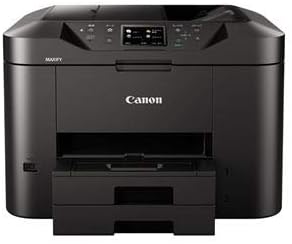
画像3:正面 view of the Canon MAXIFY MB2730 printer, showcasing そのデザイン。
| 特徴 | 詳細 |
|---|---|
| モデル名 | MB2730 |
| 印刷技術 | インクジェット |
| 印刷方法 | Nozzle (Black & Color) |
| Total Nozzle Count | 4352 nozzles (C/M/Y x 1024 each, BK x 1280) |
| 印刷解像度 | 600dpi×1200dpi |
| インクの種類 | 顔料インク |
| Number of Ink Colors | 4色 |
| インクカートリッジの種類 | Independent Ink Tank |
| 最大印刷サイズ | A4 |
| 印刷メディア | Plain paper, various specialty papers |
| サポートされているシートサイズ | A4, A6/Postcard, Letter |
| 接続性 | Wi-Fi、USB |
| 特徴 | Network compatible, Automatic duplex printing |
| スキャナタイプ | Integrated Flatbed and ADF Scanner |
| ADF容量 | 最大50枚 |
| Fax Compatibility | Super G3 standard |
7. 保証とサポート
保証の詳細については、製品に付属の保証書を参照するか、キヤノンの公式ウェブサイトをご覧ください。 website. Technical support, driver downloads, and additional manuals can be found on the Canon support portal.
- キヤノン公式サポート: https://global.canon/en/support/
- 製品登録: 製品をオンラインで登録して、アップデートとサポートを受けてください。