1. מידע בטיחות
Please read all instructions carefully before using this monitor. Keep this manual for future reference.
- אין לחשוף את הצג לגשם או לחות כדי למנוע שריפה או התחשמלות.
- אל תפתח את הצג גasinז. אין חלקים בפנים הניתנים לתיקון על ידי המשתמש. יש לפנות לכל טיפול וטיפול באנשי מקצוע מוסמכים.
- הנח את הצג על משטח יציב ושטוח כדי למנוע ממנו ליפול.
- ודא אוורור נאות סביב הצג. אין לחסום פתחי אוורור.
- השתמשו רק במתאם החשמל המצורף לצג.
- נתק את תקע החשמל מהשקע אם לא תשתמש בצג למשך תקופה ממושכת.
2. תכולת החבילה
ודא שכל הפריטים נמצאים בחבילה שלך:
- CRUA 34-inch Ultrawide Gaming Monitor
- מעמד למוניטור (בסיס וצוואר)
- מתאם חשמל וכבל
- כבל HDMI
- כבל DisplayPort (DP)
- מדריך למשתמש
- ברגים להרכבת המעמד
3. התקנה
3.1 הרכבת המעמד
- הוציאו בזהירות את הצג מאריזתו, והניחו אותו על משטח רך.
- Attach the stand neck to the monitor's rear panel using the provided screws.
- Connect the stand base to the stand neck and secure it with the designated screw.
- הנח את הצג המורכב על שולחן יציב.
מעמד הצג מאפשר כוונון זוויתי כדי למצוא את הגובה האופטימלי שלך viewזווית ing.
3.2 התקנה על הקיר (אופציונלי)
This monitor supports VESA wall mounting (75x75mm). To wall mount:
- הסר את המעמד מהצג אם הוא כבר מחובר.
- Attach a compatible VESA 75x75mm wall mount bracket (not included) to the monitor's rear panel using appropriate screws.
- פעל לפי ההוראות המצורפות למתקן הקיר שלך להתקנה בטוחה.

תמונה: אחורי view of the monitor highlighting the 75x75mm wall mount area and various input ports.
3.3 התחברות למכשיר
חבר את המחשב או קונסולת המשחקים שלך לצג באמצעות אחת מהיציאות הזמינות:
- יציאת DisplayPort (DP 1.4): For optimal performance, especially for high refresh rates and FreeSync.
- חיבור HDMI (HDMI 1.4 x2): Compatible with most devices.
Connect the power adapter to the monitor's DC input and then plug it into a power outlet.
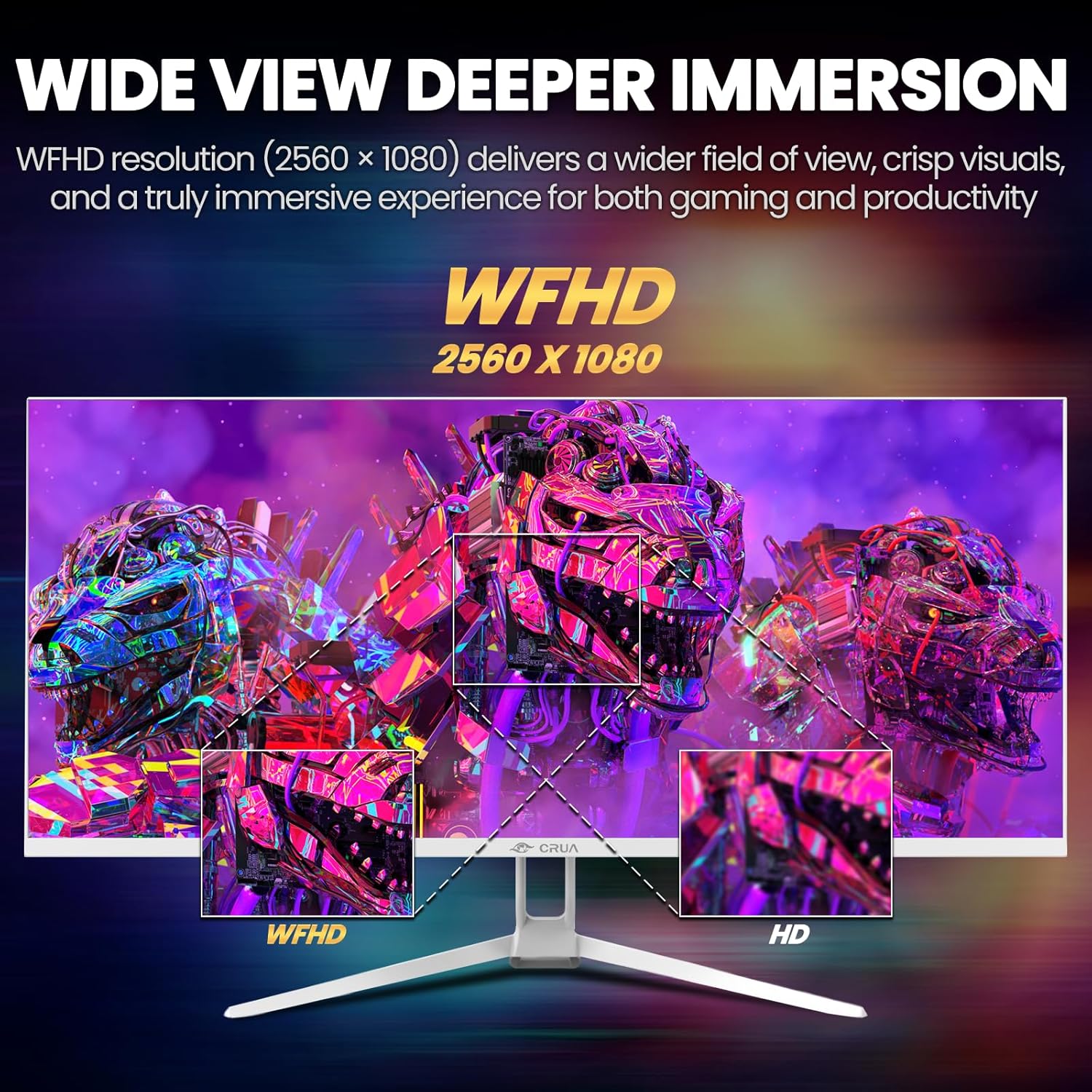
Image: A detailed diagram illustrating the monitor's connectivity options, including two HDMI 1.4 ports, one DisplayPort 1.4, an audio output, a USB charging port, and the DC power input.
4. הוראות הפעלה
4.1 הפעלה/כיבוי
Press the power button, typically located on the bottom or rear of the monitor, to turn it on or off. The power indicator light will illuminate when the monitor is on.
4.2 תפריט תצוגה על המסך (OSD).
The OSD menu allows you to adjust various monitor settings. Access it by pressing the OSD menu button (often a joystick-like button or a set of dedicated buttons) on the monitor.
- ניווט: Use the OSD buttons or joystick to navigate through the menu options.
- בְּחִירָה: לחץ על לחצן הבחירה כדי להיכנס לתפריט משנה או לאשר הגדרה.
- יְצִיאָה: השתמש בלחצן היציאה כדי לחזור או לסגור את תפריט המסך.
4.3 הגדרות תמונה
התאמת פרמטרים חזותיים לשיפור הביצועים viewing:
- בְּהִירוּת: שולט על הבהירות הכוללת של המסך.
- לְהַשְׁווֹת: מתאים את ההבדל בין אזורים בהירים לכהים.
- טמפרטורת צבע: Selects preset color modes (e.g., Warm, Cool, User).
- מסנן אור כחול: Reduces blue light emission to minimize eye strain during prolonged use.
- יחס גובה-רוחב: Set to 21:9 for ultrawide content or other options as needed.

Image: The CRUA ultrawide monitor showcasing its 21:9 aspect ratio, demonstrating how it provides more horizontal screen space compared to a standard 16:9 display.
4.4 הגדרות שמע
The monitor includes built-in speakers. Adjust volume through the OSD menu or your connected device. An external audio output port is also available for headphones or external speakers.
4.5 AMD FreeSync
To enable AMD FreeSync for tear-free gaming, ensure your graphics card supports FreeSync and that it is enabled in your graphics card's control panel. Then, activate FreeSync within the monitor's OSD menu.

Image: A visual comparison demonstrating the effect of AMD FreeSync, showing a torn image when FreeSync is off and a smooth image when FreeSync is on, highlighting the 120Hz refresh rate.
5. תחזוקה
5.1 ניקוי המסך
- כבה את הצג ונתק את כבל החשמל.
- השתמש קלות במטלית רכה נטולת מוך דampנשטף במים או בחומר ניקוי מיוחד למסכים.
- Wipe the screen gently. Do not press hard or use abrasive cleaners.
5.2 טיפול כללי
- הרחק את הצג מאור שמש ישיר, מקורות חום ואבק רב.
- הימנעו מהנחת חפצים כבדים על הצג או על הכבלים שלו.
- Do not spray cleaning liquids directly onto the monitor.
6. פתרון תקלות
אם נתקלת בבעיות עם הצג שלך, עיין בבעיות הנפוצות ובפתרונות הבאים:
| בְּעָיָה | פתרון אפשרי |
|---|---|
| אין תמונה על המסך | Ensure power cable is securely connected and the monitor is turned on. Check video cable (HDMI/DP) connections to both monitor and computer. Select the correct input source via the OSD menu. |
| התמונה מרצדת או לא יציבה | Check video cable connections. Ensure your graphics card drivers are up to date. If using FreeSync, try disabling it temporarily to see if the issue persists. Adjust refresh rate in your computer's display settings. |
| אין צליל מרמקולים מובנים | Increase volume via the OSD menu and your computer's sound settings. Ensure the correct audio output device is selected on your computer. Check if the audio cable (if used) is properly connected. |
| צבעים נראים שגויים | Reset picture settings to factory defaults via the OSD menu. Adjust color temperature and individual RGB values if available. |
אם הבעיה נמשכת לאחר ניסיון פתרונות אלה, אנא פנו לתמיכת הלקוחות של CRUA.
7. מפרטים
Key technical specifications for the CRUA 34-inch Ultrawide Gaming Monitor (Model CR340AU):
| תכונה | מִפרָט |
|---|---|
| גודל מסך | 34 אינץ' |
| סוג פאנל | IPS |
| הַחְלָטָה | 2560 x 1080 (WFHD) |
| יחס גובה-רוחב | 21:9 |
| קצב רענון | 120 הרץ |
| זמן תגובה | (Not specified in provided data, typical for IPS is 1-5ms GTG) |
| בְּהִירוּת | 350 תקליטורים/מ"ר |
| סולם צבעים | 120% sRGB |
| עומק צבע | 8-bit (16.7 Million Colors) |
| Viewזוויות | 178° (אופקי/אנכי) |
| סנכרון אדפטיבי | AMD FreeSync |
| קישוריות | 2x HDMI 1.4, 1x DisplayPort 1.4, Audio Out, USB Charging, DC Power Input |
| רמקולים מובנים | כֵּן |
| מתקן קיר | VESA 75x75 מ"מ |
| מידות המוצר | 9.4 x 24.13 x 17.47 אינץ' |
| משקל פריט | 14.92 פאונד |
8. אחריות ותמיכה
CRUA provides high-quality computer monitors and customer service. For any questions or support needs regarding your CRUA 34-inch Ultrawide Gaming Monitor, please contact CRUA customer support.
Refer to your purchase documentation or the official CRUA webבאתר לקבלת תנאי אחריות ספציפיים ופרטי יצירת קשר.