
1. הקדמה
This manual provides essential information for setting up, operating, and maintaining your Thunderobot Storm 17 5060 Gaming Laptop. Please read this guide thoroughly to ensure proper usage and to maximize your product's performance and longevity. Keep this manual for future reference.
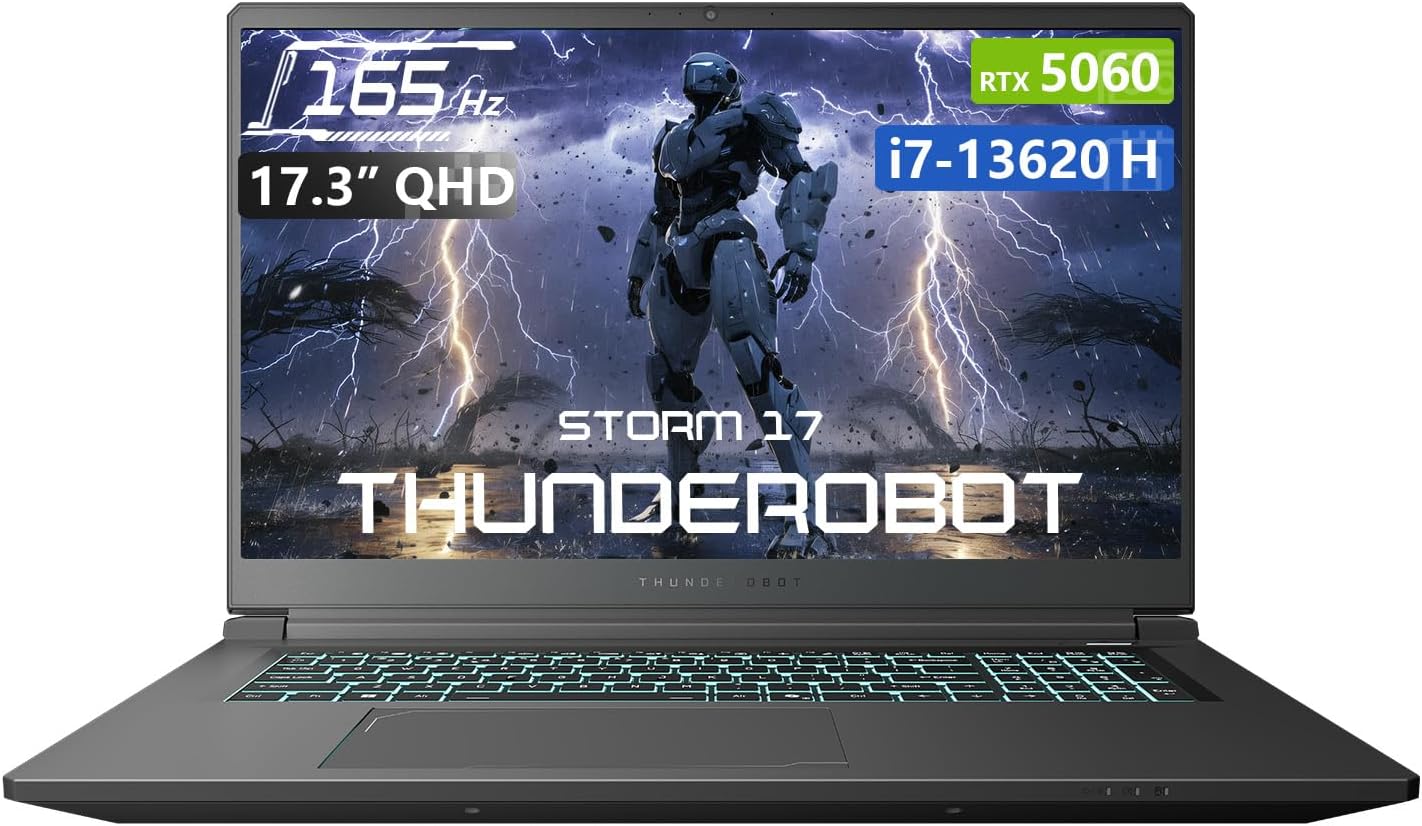
איור 1.1: חזית view of the Thunderobot Storm 17 5060 Gaming Laptop.
2. המוצר נגמרview
The Thunderobot Storm 17 5060 is a high-performance gaming laptop designed for immersive experiences. It features advanced components and a robust cooling system.
2.1 תכונות עיקריות
- לְהַצִיג: 17.3-inch QHD (2560x1440) display with a 165Hz refresh rate, 100% sRGB color accuracy, and 1000:1 contrast ratio for crisp visuals.
- מעבד: Intel Core i7-13620H processor, featuring 10 cores and 16 threads, with a base frequency of 1.80GHz and a max turbo frequency of up to 4.9GHz.
- גרָפִיקָה: NVIDIA GeForce RTX 5060 dedicated graphics card for high-fidelity gaming and creative tasks.
- זֵכֶר: 16GB DDR5 RAM, providing fast multitasking capabilities.
- אִחסוּן: 1TB PCIe M.2 SSD for rapid boot times and ampמקום אחסון.
- מערכת קירור: Advanced thermal design with ultra-thin 0.2mm copper fins (245pcs) and dual 12V turbofans (60mm, 164 LCP blades, 19.8CFM) for efficient heat dissipation. Features four omnidirectional outlets and a dual-zone air duct.
- קישוריות: Multiple ports including 3x USB 3.0 Type-A, 1x USB Type-C, 1x HDMI, 1x RJ-45 Ethernet, and 1x Audio Port. Supports Wi-Fi 6 and Bluetooth.
- מִקלֶדֶת: RGB Backlit Keyboard with a full-size numeric keypad.
- סוֹלְלָה: 53Wh battery with support for 100W PD fast charging.
2.2 Visual Components

איור 2.1: ביצועים לאורךview highlighting the RTX 5060 graphics and Intel Core i7-13620H processor capabilities.

איור 2.2: מפורט view of the 17.3-inch QHD 165Hz display specifications.
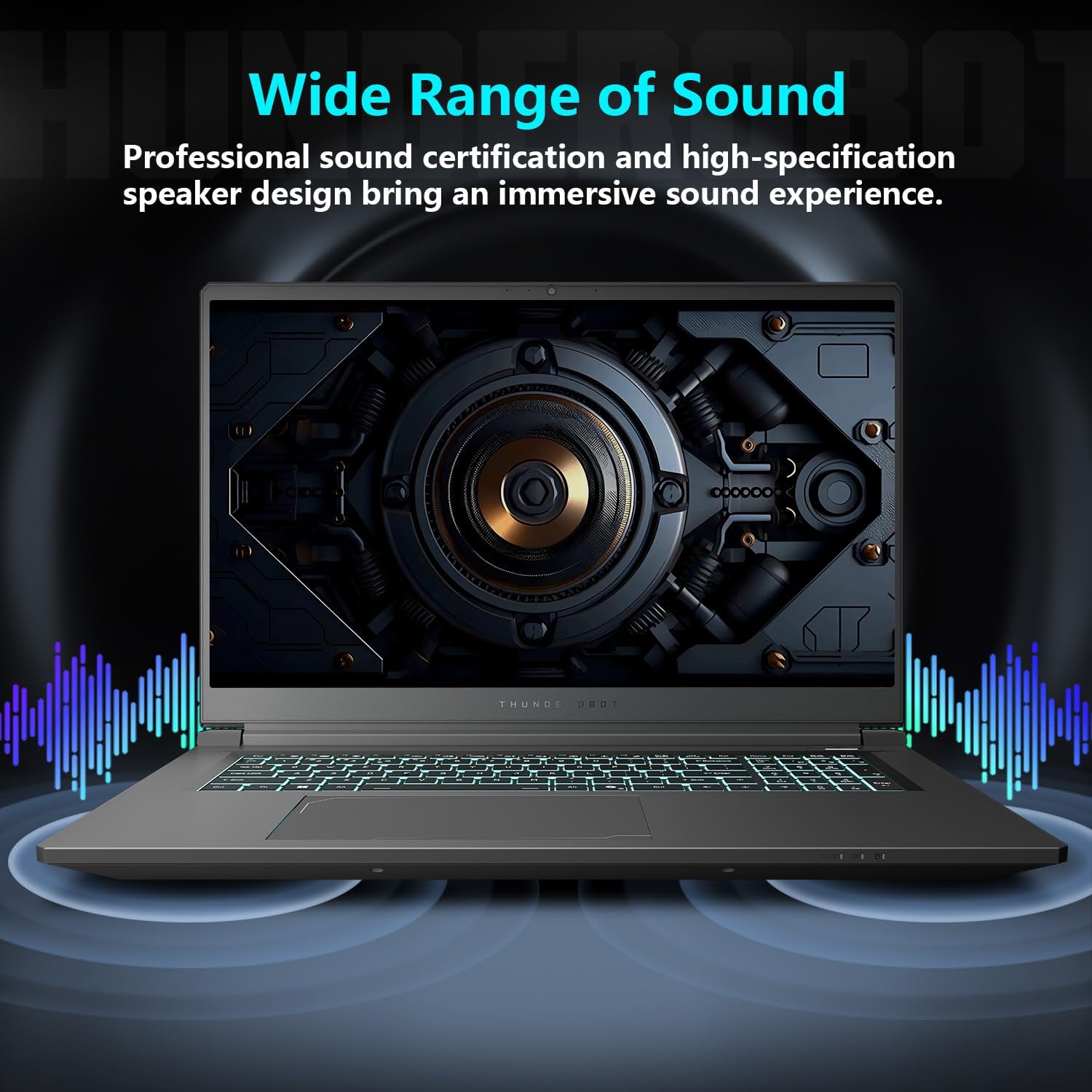
Figure 2.3: Diagram illustrating the various ports and slots on the Thunderobot Storm 17 laptop.

Figure 2.4: Illustration of the Direct-Flow Cooling Technology with pure copper heat pipes, high-speed fans, and four air outlets.
סרטון 2.1: נגמרview of the THUNDEROBOT Series Display, showcasing visual features and design.
Video 2.2: THUNDEROBOT Gaming Gear showcase, featuring various peripherals and laptops in a gaming setup.
Video 2.3: THUNDEROBOT Storm 17 product highlights, demonstrating key features and design elements.
3. התקנה
3.1 פתיחת הקופסה ובדיקה ראשונית
Carefully remove the laptop and its accessories from the packaging. Verify that all components listed in the "What's in the Box" section are present and undamaged. The box should contain:
- THUNDEROBOT Storm 17 Laptop
- מתאם חשמל וכבל
- מדריך למשתמש (מסמך זה)
אם פריטים כלשהם חסרים או ניזוקים, פנו מיד לתמיכת הלקוחות.
3.2 חיבור ספק הכוח
- חבר את כבל החשמל למתאם החשמל.
- חבר את מתאם החשמל לשקע חשמל מוארק.
- Connect the DC-in plug from the adapter to the DC-in port on the laptop. The DC-in port is typically located on the side or rear of the laptop.
It is recommended to fully charge the laptop before its first use.
3.3 הפעלה ראשונית והגדרה של Windows
- פתח את מכסה המחשב הנייד.
- Press the power button, usually located on the keyboard deck.
- פעל לפי ההוראות שעל המסך כדי להשלים את הגדרת Windows 11 Home. זה כולל בחירת האזור והשפה שלך, חיבור לרשת Wi-Fi ויצירת חשבון משתמש.
4. הוראות הפעלה
4.1 ניהול חשמל
- הפעלה: לחץ על לחצן ההפעלה.
- מצב שינה: Close the lid or press the power button briefly. You can also select "Sleep" from the Windows Start menu.
- כיבוי: בחר "כיבוי" מתפריט התחל של Windows.
- הפעל מחדש: בחר "הפעל מחדש" מתפריט התחל של Windows.
4.2 מקלדת ומשטח מגע
The laptop features an RGB backlit keyboard and a precision touchpad.
- בקרת תאורה אחורית: השתמש ב- Fn + מקש רווח combination to cycle through different backlight modes or turn it off.
- לוח מקשים נומרי: The full-size numeric keypad is integrated for convenient data entry.
- לוח מגע: תומך במחוות מגע מרובות (multi-touch) לניווט. עיין בהגדרות Windows להתאמה אישית.

Figure 4.1: The RGB backlit keyboard of the Storm 17 laptop.
4.3 חיבורים חיצוניים
חבר התקנים חיצוניים באמצעות היציאות הזמינות:
- יציאות USB מסוג A: For connecting USB devices like mice, keyboards, and external drives.
- יציאת USB Type-C: לחיבור התקני USB-C תואמים.
- יציאת HDMI: חיבור למסך חיצוני או טלוויזיה לתצוגה ממושכת.
- יציאת Ethernet RJ-45: לחיבורי רשת קווית.
- יציאת שמע: לחיבור אוזניות או רמקולים חיצוניים.
4.4 קישוריות אלחוטית
- Wi-Fi 6: Connect to wireless networks for internet access. Manage Wi-Fi settings through Windows.
- בלוטות': Pair with Bluetooth-enabled devices such as headphones, speakers, or game controllers. Manage Bluetooth settings through Windows.
4.5 Control Center Software
The Thunderobot Control Center software allows you to customize various laptop settings for optimal performance and user experience. This includes:
- System Performance Modes: Switch between performance, entertainment, and low-noise modes based on your usage. Note: System mode switching requires the device to be connected to a power source.
- LED Keyboard Customization: התאם אפקטים וצבעי תאורה של RGB.
- FlexiCharger: Manage battery charging settings to extend battery lifespan.
- Flexikey: Customize key and mouse functions.

Figure 4.2: Interface of the Thunderobot Control Center software.
5. תחזוקה
5.1 ניקוי המחשב הנייד
- השתמש במטלית רכה נטולת מוך דampened with water or a specialized screen cleaner to clean the display.
- For the keyboard and chassis, use a soft cloth. A can of compressed air can help remove dust from between keys and vents.
- הימנעו משימוש בכימיקלים חזקים, ממסים או חומרים שוחקים.
5.2 טיפול בסוללה
- הימנעו מפריקת הסוללה לחלוטין לעתים קרובות.
- If storing the laptop for an extended period, charge the battery to about 50-60% and store it in a cool, dry place.
- Utilize the FlexiCharger feature in the Control Center to optimize battery health.
5.3 Software and Driver Updates
עדכן באופן קבוע את מערכת ההפעלה ומנהלי ההתקנים שלך כדי להבטיח ביצועים ואבטחה מיטביים.
- עדכוני Windows: עבור אל הגדרות > עדכון Windows כדי לבדוק ולהתקין עדכונים.
- עדכוני דרייבר: Visit the official Thunderobot support website for the latest drivers for your Storm 17 model. NVIDIA graphics drivers can also be updated via the GeForce Experience application.
5.4 ניהול תרמי
כדי לשמור על ביצועי קירור אופטימליים:
- Ensure the laptop's vents are unobstructed. Avoid placing the laptop on soft surfaces like beds or carpets during heavy use.
- יש לנקות מעת לעת אבק מפתחי האוורור באמצעות אוויר דחוס.
- Use the "One-click forced cooling" feature in the Control Center during intensive tasks if needed.
6. פתרון תקלות
This section addresses common issues you might encounter with your Thunderobot Storm 17 laptop.
6.1 אין חשמל או שהמחשב הנייד לא נדלק
- ודא שמתאם החשמל מחובר היטב הן למחשב הנייד והן לשקע חשמלי תקין.
- ודא ששקע החשמל תקין על ידי חיבור מכשיר אחר.
- אם הסוללה התרוקנה לחלוטין, אפשר למחשב הנייד להיטען במשך 30 דקות לפחות לפני שתנסה להפעיל אותו.
6.2 בעיות תצוגה
- אין תמונה על המסך: חבר צג חיצוני ליציאת ה-HDMI כדי לבדוק אם הבעיה היא בצג הפנימי של המחשב הנייד.
- תמונה מהבהבת או מעוותת: עדכן את מנהלי ההתקן של הכרטיס המסך. בדוק את חיבורי כבלי הצג אם אתה משתמש בצג חיצוני.
- רזולוציה או קצב רענון שגויים: Adjust display settings in Windows (הגדרות > מערכת > תצוגה).
6.3 בעיות ביצועים
- ביצועים איטיים: Close unnecessary applications. Check for background processes consuming high CPU/RAM in Task Manager. Ensure the laptop is in a high-performance mode via the Control Center (when plugged in).
- התחממות יתר: Ensure vents are clear. Use the forced cooling feature. Consider using a laptop cooling pad.
- Game stuttering: Update graphics drivers. Lower in-game graphics settings. Ensure the laptop is using the dedicated RTX 5060 GPU for games.
6.4 Connectivity Issues (Wi-Fi, Bluetooth, USB)
- Wi-Fi לא מתחבר: הפעל מחדש את הנתב והמודם. בדוק את הגדרות ה-Wi-Fi ב-Windows. ודא ש-Wi-Fi מופעל.
- מכשיר בלוטות' לא מתחבר: Ensure the Bluetooth device is in pairing mode. Check Bluetooth settings in Windows. Restart the laptop.
- התקן USB לא מזוהה: Try a different USB port. Ensure the device drivers are installed.
For persistent issues, refer to the Thunderobot support webאתר או צור קשר עם שירות הלקוחות.
7. מפרטים
The following table outlines the key technical specifications for the Thunderobot Storm 17 5060 Gaming Laptop:
| תכונה | פְּרָט |
|---|---|
| שם הדגם | סערה 17 |
| גודל מסך | 17.3 אינץ' |
| רזולוציית מסך | 2560 x 1600 פיקסלים (QHD) |
| רזולוציית מסך מקסימלית | 2560x1440 |
| מעבד | אינטל Core i7-13620H (עד 4.9 גיגה-הרץ) |
| אַיִל | זיכרון DDR5 בנפח 16 ג'יגה-בייט (4800 מגה-הרץ) |
| כונן קשיח | כונן SSD בנפח 1 טרה-בייט (4 יחידות PCIE) |
| מעבד גרפי | GeForce RTX 5060 (Dedicated) |
| מַעֲרֶכֶת הַפעָלָה | Windows 11 Home |
| סוג אלחוטי | 802.11ax (Wi-Fi 6) |
| יציאות USB 3.0 | 4 (3x Type-A, 1x Type-C) |
| משקל פריט | 11 פאונד |
| מידות המוצר | 15.59 x 10.86 x 1.05 אינץ' |
| צֶבַע | אָפוֹר |
| תכונה מיוחדת | במקלדת הנומרית |
8. אחריות ותמיכה
8.1 אחריות למוצר
כל מחשב נייד של Thunderobot כולל אחריות ל-12 חודשים from the date of purchase. This warranty covers manufacturing defects and provides expert support, thorough diagnostics, and genuine parts for necessary repairs. Additionally, a אחריות ל-90 יום is provided on all warranty replacement parts, ensuring hassle-free repairs. Your complete satisfaction is our commitment.
8.2 תמיכת לקוחות
For technical assistance, warranty claims, or general inquiries, please visit the official Thunderobot support webאתר או צור קשר עם מחלקת שירות הלקוחות שלהם. שמור את קבלת הרכישה ואת מספר הסידורי של המוצר בהישג ידך בעת פנייה לתמיכה.
ניתן למצוא מידע נוסף ומשאבי תמיכה ב Thunderobot Store on Amazon.

איור 8.1: מעלview of Thunderobot's warranty and service commitment.