1. הקדמה
The TP-Link Archer TBE400E is a high-performance WiFi 7 BE6500 PCIe card designed to upgrade your desktop PC's wireless capabilities. It provides ultra-high-speed internet, reduced latency, and robust performance, even in congested network environments. Featuring Tri-Band Wi-Fi 7 technology and Bluetooth 5.4, this card ensures reliable and secure connections for both network and peripheral devices. It supports advanced features like Multi-Link Operation (MLO), OFDMA, MU-MIMO, and WPA3 encryption for enhanced efficiency and security. This manual provides detailed instructions for installation, operation, and maintenance of your Archer TBE400E.
2. תכולת החבילה
ודא שכל הפריטים נמצאים בחבילה שלך:
- כרטיס WiFi PCIe Archer TBE400E
- Two (2) High-Performance Antennas
- Low-Profile תושבת (למחשבים קטנים)
- כבל כותרת Bluetooth
- Quick Installation Guide / Resource CD (contains drivers)

Image: Contents of the Archer TBE400E package.
3. מפרטים
| מותג | TP-Link |
| מספר דגם | Archer TBE400E |
| ממשק חומרה | PCI Express (PCIe) |
| פרוטוקול קישור נתונים | Wi-Fi 7 (802.11be), Bluetooth 5.4 |
| קצב העברת נתונים | Up to 6500 Mbps (Tri-Band: 6 GHz, 5 GHz, 2.4 GHz) |
| מכשירים תואמים | מחשב שולחני |
| מערכת הפעלה תואמת | Windows 11 (64 סיביות) בלבד |
| מידות המוצר | אורך 4.8 אינץ', רוחב 3.09 אינץ', גובה 0.85 אינץ' |
| בִּטָחוֹן | WPA3 |
| אנטנות | 2x אנטנות בעלות ביצועים גבוהים |
4. התקנה והתקנה
Before beginning installation, ensure your computer is powered off and unplugged from the wall outlet. It is recommended to touch a grounded metal object to discharge any static electricity.
4.1. התקנת מנהל התקן (התקנה מוקדמת)
It is highly recommended to download the latest drivers for the Archer TBE400E from the official TP-Link website before installing the hardware. This ensures you have the most up-to-date software for optimal performance and compatibility. The included resource CD may contain older drivers.
- בקרו באתר התמיכה הרשמי של TP-Link webאֲתַר.
- חפש "Archer TBE400E" and navigate to the support/download section.
- Download the latest Wi-Fi and Bluetooth drivers for Windows 11 (64-bit).
- Save the drivers to an accessible location on your computer, such as a USB drive.
4.2. התקנת חומרה
- כבה את המחשב: כבה את המחשב לחלוטין ונתק את כבל החשמל.
- מארז מחשב פתוח: הסר את הפאנל הצדדי של מארז המחשב שלך.
- אתר חריץ PCIe זמין: Find an empty PCI Express x1 slot or larger (x4, x8, x16) on your motherboard.
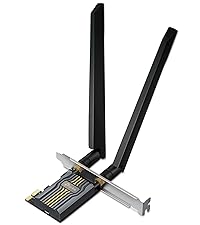
Image: Archer TBE400E PCIe card.
- התקן את כרטיס ה-PCIe: Gently insert the Archer TBE400E into the chosen PCIe slot until it is firmly seated. Secure the card with a screw if your case requires it.

Image: Archer TBE400E installed in a desktop PC.
- Connect Bluetooth Header Cable: Connect one end of the provided Bluetooth header cable to the 4-pin Bluetooth header on the Archer TBE400E card. Connect the other end to an available F_USB header on your motherboard. This connection is essential for Bluetooth functionality.

Image: Bluetooth header cable connection.
- צרף אנטנות: Screw the two high-performance antennas onto the antenna connectors on the back of the Archer TBE400E card. Adjust their orientation for optimal signal reception.

Image: Archer TBE400E with antennas attached.
- Close PC Case & Power On: Replace the side panel of your PC case, plug in the power cable, and power on your computer.
4.3. Software Driver Installation
After your PC boots up, Windows 11 may automatically detect the new hardware. However, it is crucial to install the drivers you downloaded earlier for full functionality and performance.
- Navigate to the location where you saved the downloaded drivers.
- Run the Wi-Fi driver installer first, following the on-screen prompts.
- After the Wi-Fi driver installation is complete, run the Bluetooth driver installer.
- Restart your computer when prompted to ensure all changes take effect.
Note: The Archer TBE400E is compatible only with Windows 11 (64-bit). It is not compatible with Windows 10 or earlier versions.

Image: Windows 11 compatibility notice.
5. תפעול
5.1. התחברות לרשת Wi-Fi
- After driver installation and PC restart, click the Wi-Fi icon in the Windows 11 taskbar.
- בחר את רשת ה-Wi-Fi הרצויה מרשימת הרשתות הזמינות.
- הזן את מפתח אבטחת הרשת (סיסמה) אם תתבקש, ולאחר מכן לחץ על "התחבר".
- כעת המחשב שלך אמור להיות מחובר לרשת ה-Wi-Fi.
The Archer TBE400E supports Tri-Band Wi-Fi (2.4 GHz, 5 GHz, and 6 GHz). For optimal performance, connect to the 5 GHz or 6 GHz band if your router supports it and your device is within range. Wi-Fi 7 features like Multi-Link Operation (MLO) will automatically optimize connections when paired with a compatible Wi-Fi 7 router.
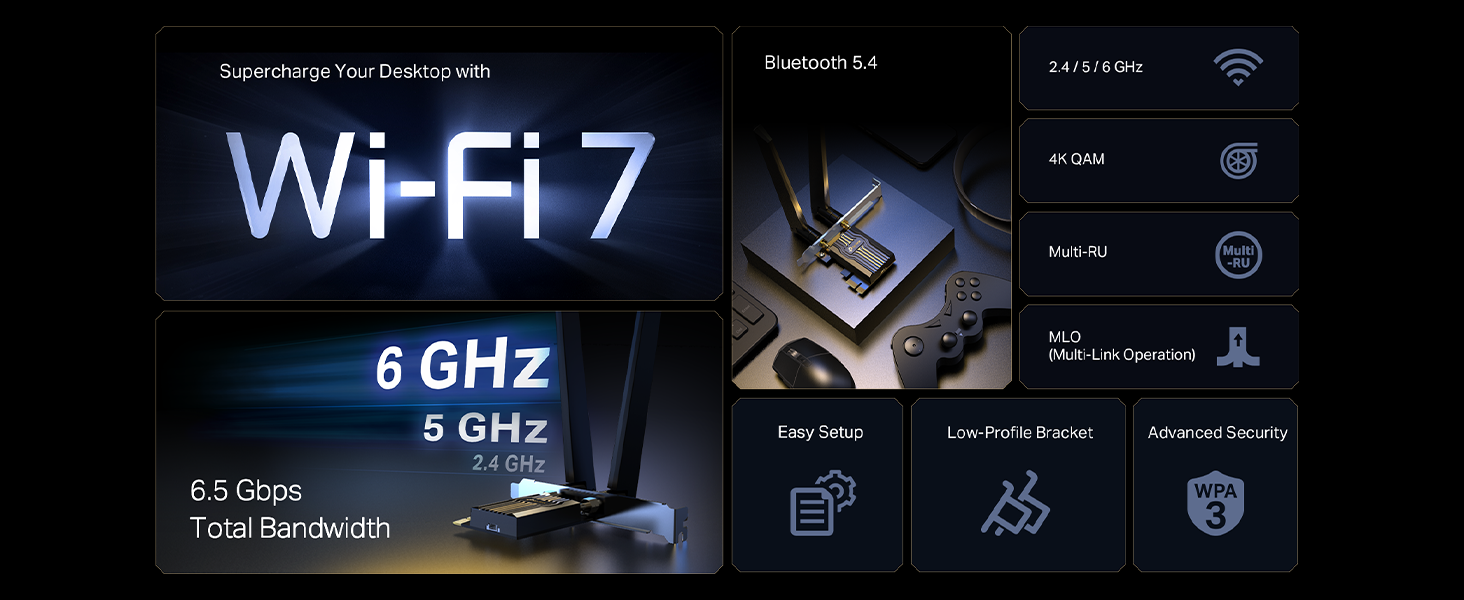
Image: Multi-Link Operation (MLO) for enhanced Wi-Fi performance.
The card also utilizes OFDMA and MU-MIMO technologies to improve network efficiency, allowing more devices to connect simultaneously without significant performance degradation.
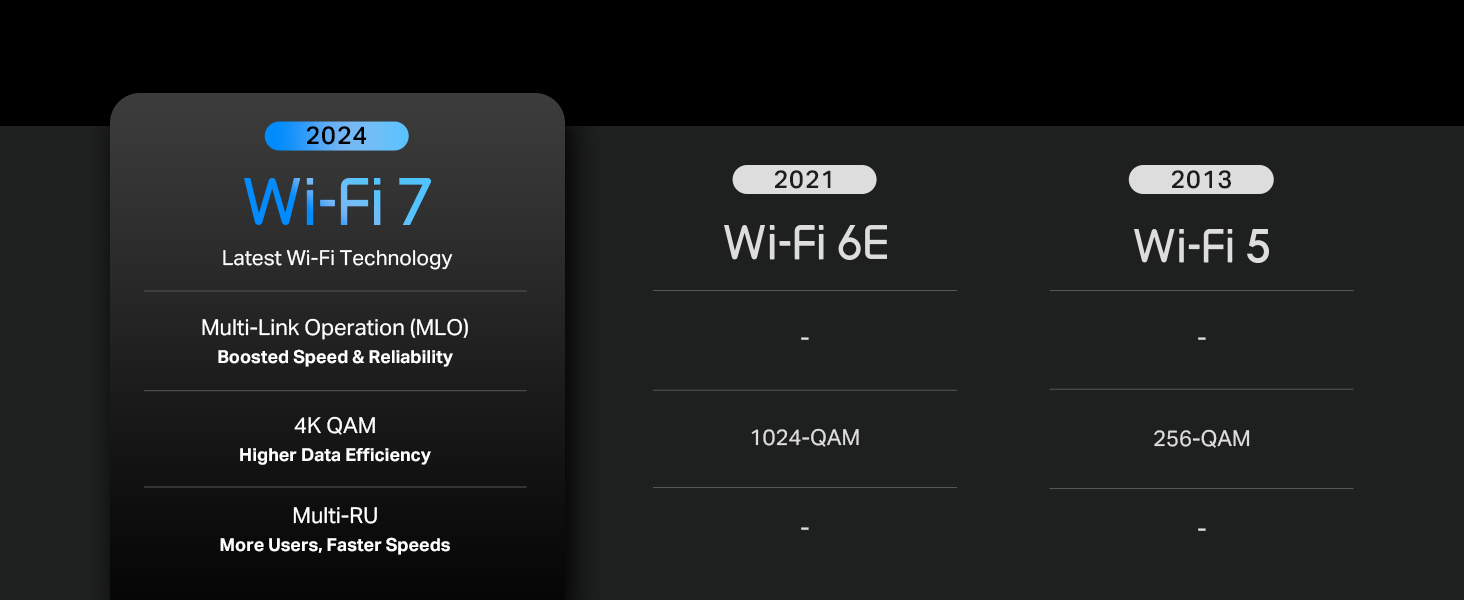
Image: Enhanced connectivity with MU-MIMO.
5.2. צימוד התקני בלוטות'
- ודא שמכשיר ה-Bluetooth שלך נמצא במצב צימוד.
- On your Windows 11 PC, go to הגדרות > בלוטות' ומכשירים.
- Turn on Bluetooth if it's off.
- נְקִישָׁה "Add device" ובחר בלוטות'.
- בחר את המכשיר שלך מהרשימה ופעל לפי כל ההנחיות שעל המסך כדי להשלים את הצימוד.
Bluetooth 5.4 provides improved reliability and security for connecting peripherals such as game controllers, headphones, keyboards, and mice.

Image: Bluetooth 5.4 for enhanced connectivity.
6. תחזוקה
- עדכוני דרייבר: בדקו באופן קבוע את התמיכה של TP-Link website for updated Wi-Fi and Bluetooth drivers. Keeping your drivers current ensures optimal performance, security, and compatibility.
- מיקום אנטנה: Periodically check the orientation of your antennas. Adjust them to achieve the best signal strength, especially if you experience connectivity issues or move your PC.
- ניקיון פיזי: Ensure the PCIe card and its antennas remain free from dust buildup. If necessary, gently clean the exterior with a soft, dry cloth. Avoid using liquids or abrasive cleaners.
- עדכוני מערכת: Keep your Windows 11 operating system updated to ensure compatibility and security with the Archer TBE400E.
7. פתרון תקלות
7.1. בעיות קישוריות Wi-Fi
- לא זוהו רשתות Wi-Fi:
- Ensure the card is properly seated in the PCIe slot.
- Verify that the antennas are securely attached.
- Check Device Manager in Windows 11 to confirm the Wi-Fi adapter is recognized and enabled, and that drivers are installed correctly (no yellow exclamation marks).
- הפעל מחדש את המחשב ואת נתב ה-Wi-Fi שלך.
- מהירויות Wi-Fi איטיות:
- Ensure you are connected to the 5 GHz or 6 GHz band if available, as these offer higher speeds.
- Check for obstructions between your PC and the Wi-Fi router.
- Update your Wi-Fi drivers to the latest version from the TP-Link webאֲתַר.
- Confirm your router supports Wi-Fi 7 (802.11be) for optimal performance.
- Adjust antenna orientation for better signal reception.
- ניתוקים תכופים:
- עדכון מנהלי התקנים של Wi-Fi.
- ודא שהקושחה של הנתב שלך מעודכנת.
- Try changing the Wi-Fi channel on your router to avoid interference.
- Check the physical connection of the PCIe card and antennas.
7.2. Bluetooth Issues
- Bluetooth Not Working/Devices Not Found:
- Verify that the Bluetooth header cable is correctly connected to both the Archer TBE400E card and an F_USB header on your motherboard. This is a common cause for Bluetooth issues.
- Ensure Bluetooth is enabled in Windows 11 Settings.
- Check Device Manager to confirm the Bluetooth adapter is recognized and enabled, and that drivers are installed correctly.
- Update your Bluetooth drivers to the latest version from the TP-Link webאֲתַר.
- נסה להפעיל מחדש את המחשב.
- Poor Bluetooth Range/Connection:
- Ensure there are no major obstructions between your PC and the Bluetooth device.
- Keep the Bluetooth device close to your PC during use.
- ודא שהאנטנות מחוברות ומכוונות כראוי.
7.3. סוגיות כלליות
- Not Compatible with Windows 10: This card is designed exclusively for Windows 11 (64-bit). It will not function correctly on Windows 10 or older operating systems.
8. אחריות ותמיכה
אַחֲרָיוּת: The TP-Link Archer TBE400E comes with a 2-Year Manufacturer Warranty. Please retain your proof of purchase for warranty claims.
תמיכה טכנית: For further assistance, driver downloads, or troubleshooting not covered in this manual, please visit the official TP-Link support webאֲתַר:
You can also find contact information for TP-Link customer service on their webאֲתַר.