
AceGamer PS-P-White
AceGamer RGB Charging Dock for PlayStation Portal - User Manual
Model: PS-P-White
1. הקדמה
תודה על הרכישהasing the AceGamer RGB Charging Dock for PlayStation Portal. This portable charging station is designed to provide a stable and efficient charging solution for your PlayStation Portal console, featuring customizable RGB lighting and essential protection features. Please read this manual carefully before use to ensure proper operation and maintenance.
2. תכולת החבילה
- AceGamer RGB Charging Dock (1 unit)
- כבל טעינה מסוג C (יחידה אחת)
- מדריך למשתמש (מסמך זה)
3. תכונות מוצר
- Dedicated Charging: Specifically designed for the PlayStation Portal console.
- תאורת RGB: Features 7 distinct lighting modes for personalized aesthetics.
- טעינה מהירה: Efficient power delivery for fast charging.
- הגנות בטיחות: זרם יתר מובנה, נפח יתרtagה, ותחת כרךtage הגנה.
- עיצוב ארגונומי: 30-degree comfortable viewing angle for the PlayStation Portal.
- בסיס יציב: Equipped with anti-slip mats for secure placement.
- קישוריות: USB Type-C input for power.
4. הוראות התקנה
- חבר חשמל: Insert the provided Type-C charging cable into the charging dock's input port and connect the other end to a suitable USB power adapter (not included).

Figure 4.1: Connecting the Type-C power cable to the charging dock.
- Place PlayStation Portal: Carefully align your PlayStation Portal console with the charging connector on the dock and gently place it into position. Ensure a secure connection for charging. The dock is designed to hold the Portal at a 30-degree angle for optimal viewing.

Figure 4.2: PlayStation Portal placed on the charging dock at a 30-degree angle.
- Anti-slip Stability: The base of the charging dock is equipped with anti-slip mats to prevent accidental movement. Ensure the dock is placed on a flat, stable surface.
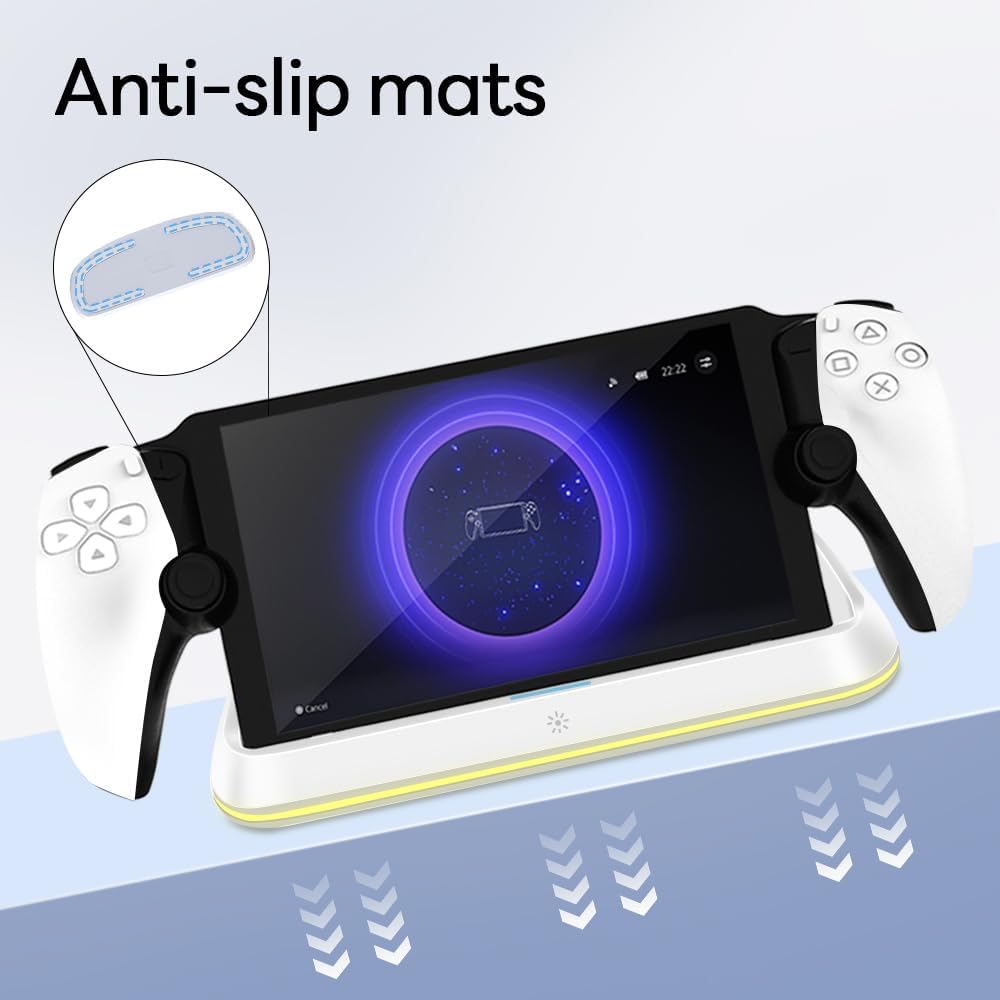
Figure 4.3: Anti-slip mats on the charging dock for enhanced stability.
- מדריך חזותי: For a visual demonstration of the setup process, please refer to the video below.
Video 4.1: Demonstration of connecting the power supply and placing the PlayStation Portal onto the charging dock.
5. הוראות הפעלה
- Charging the PlayStation Portal: Once the PlayStation Portal is correctly seated on the dock and the dock is powered, charging will begin automatically. A full charge typically takes approximately 3.5 hours. The dock includes protection against over-current, over-voltagה, ותחת כרךtage to safeguard your device.

Figure 5.1: Charging indicators and safety protection features.
- בקרת תאורת RGB: The charging dock features a touch-sensitive button to control the RGB lighting. Press the button to cycle through 7 different lighting modes or to turn the lights off.

Figure 5.2: RGB lighting modes and touch control button.
6. תחזוקה
- Keep the charging dock clean and free from dust. Use a soft, dry cloth for cleaning.
- הימנע מחשיפת המכשיר לטמפרטורות קיצוניות, לחות או לאור שמש ישיר.
- Do not use abrasive cleaners or solvents, as these may damage the surface.
- Ensure the charging port and connector are free of debris before placing the PlayStation Portal.
7. פתרון תקלות
- מכשיר לא נטען:
- Ensure the Type-C cable is securely connected to both the dock and the power adapter.
- ודא שמתאם החשמל פועל כראוי ומחובר לשקע חשמל פעיל.
- Check if the PlayStation Portal is properly seated on the charging connector.
- נסה להשתמש בכבל Type-C או במתאם חשמל אחר.
- נורות RGB לא עובדות:
- ודא שתחנת הטעינה דולקת.
- Press the touch light button to cycle through modes or turn the lights on.
- Unstable placement:
- Ensure the dock is placed on a flat, level surface.
- Check if the anti-slip mats are clean and intact.
8. מפרטים
| מותג | AceGamer |
| מספר דגם | PS-P-White |
| מכשירים תואמים | פורטל פלייסטיישן |
| קלט כרךtage | 5 וולט |
| מהtage | 7 וואט |
| סוג מחבר | USB Type-C (for power input) |
| תכונות מיוחדות | RGB Lighting, Fast Charging, Over-current Protection, Over-voltage Protection, Under-voltage הגנה |
| מידות | 22.5 על 8.9 על 8.4 ס"מ בערך |
| מִשׁקָל | בערך 290 גרם |
9. אחריות ותמיכה
AceGamer products are designed and manufactured to the highest quality standards. For warranty information or technical support, please contact the retailer where you purchased the product or visit the official AceGamer website for customer service contact details. Please retain your proof of purchase for warranty claims.