
BlueFinger B0CP3JKJS2
מדריך למשתמש של מקלדת ועכבר אלחוטיים של BlueFinger
Model: B0CP3JKJS2
מָבוֹא
This manual provides detailed instructions for the setup, operation, maintenance, and troubleshooting of your BlueFinger Wireless Gaming Keyboard and Mouse Combo. Please read this manual thoroughly before using the product to ensure optimal performance and longevity.
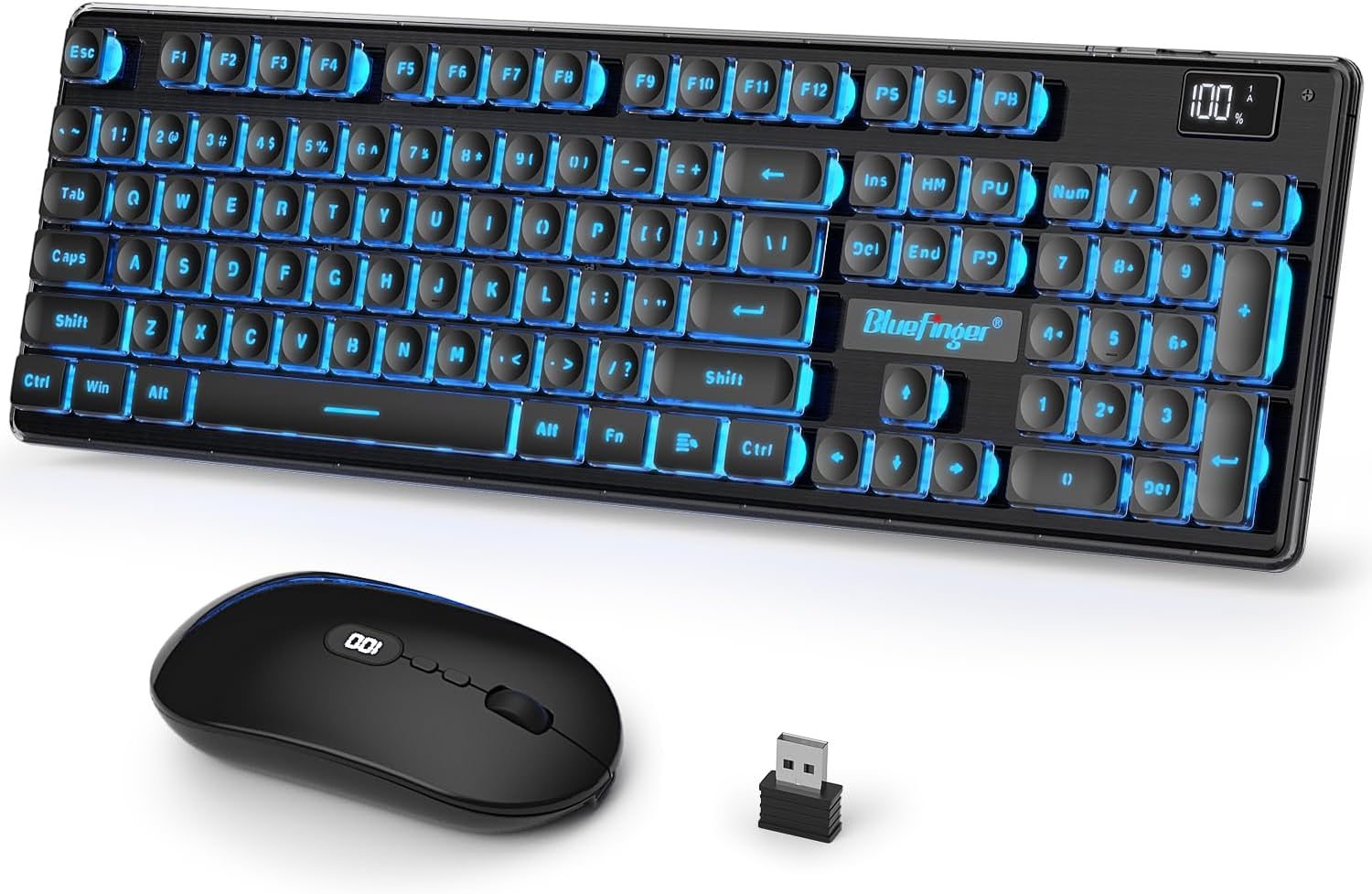
Image: The BlueFinger wireless gaming keyboard and mouse combo, featuring a black keyboard with blue backlighting, a black ergonomic mouse, and a USB receiver.
תוכן החבילה
- BlueFinger Wireless Keyboard
- BlueFinger Wireless Mouse
- USB 2.4GHz Receiver (located underneath the mouse)
- כבל טעינה מסוג C (1.5 מטר)
- מדריך למשתמש (מסמך זה)
מדריך התקנה
1. טעינה ראשונית
Before first use, it is recommended to fully charge both the keyboard and the mouse. Use the provided Type-C charging cable to connect the devices to a USB power source (e.g., computer USB port, USB wall adapter).
- Keyboard Battery: 1500mAh
- Mouse Battery: 500mAh
- זמן טעינה: כשעתיים לטעינה מלאה.
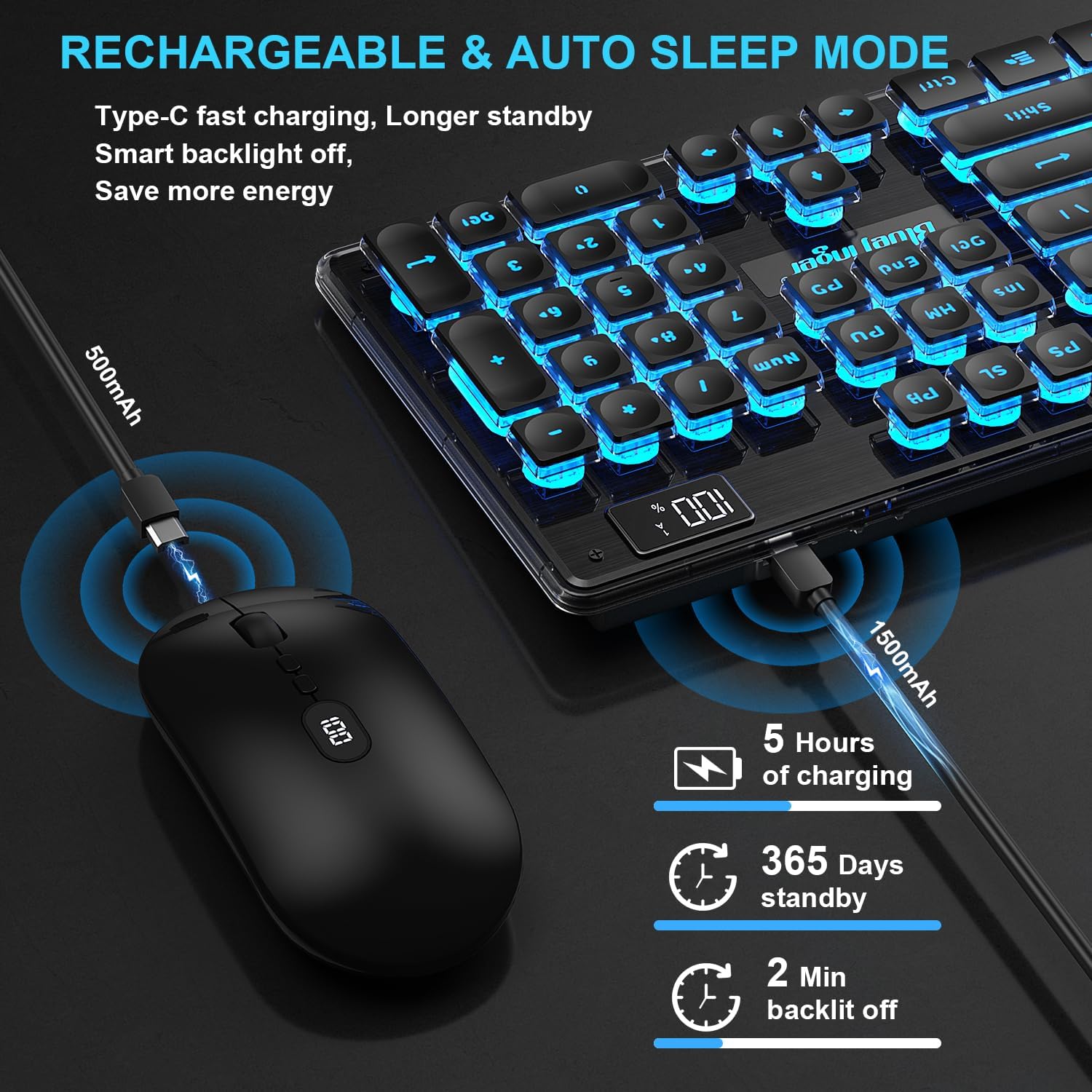
Image: Illustration showing the Type-C charging cables connected to the keyboard and mouse, indicating their respective battery capacities and charging process.
2. חיבור המכשירים
The keyboard and mouse share a single 2.4GHz USB receiver for wireless connection.
- Locate the USB receiver: The receiver is stored in a compartment underneath the wireless mouse. Gently remove it.
- Insert the receiver: Plug the USB receiver into an available USB port on your computer (PC, Laptop, Desktop) or compatible device (e.g., TV, Xbox, PS4, PS5).
- Power On: Ensure both the keyboard and mouse are powered on. They should automatically connect to the receiver.

Image: A visual representation of the USB receiver plugged into a laptop, with the keyboard and mouse wirelessly connected, demonstrating the 2.4GHz connection and 33ft wireless range.
The devices are plug-and-play and do not require additional driver installation for most operating systems (Windows 10/8/7/XP/VISTA, Mac OS X).
הוראות הפעלה
תכונות מקלדת
- סוללה Percentagתצוגה אלקטרונית: The keyboard features a digital display showing the current battery level, allowing you to monitor charge status.
- תאורה אחורית: The keyboard has rainbow backlighting. The luminous design of letters, logo, and gaps enhances visibility in low-light conditions.
- מקשי מולטימדיה: Access various functions using the Fn key in combination with F1-F12 keys.
- Fn+F1: Media
- Fn+F2: עוצמת הקול-
- Fn+F3: עוצמת הקול+
- Fn+F4: השתקה
- Fn+F5: עצור
- Fn+F6: הרצועה הקודמת
- Fn+F7: הפעל/השהה
- Fn+F8: הרצועה הבאה
- Fn+F9: אימייל
- Fn+F10: בית
- Fn+F11: Lock Key
- Fn+F12: מחשבון
- מתג תאורה אחורית: Use the dedicated backlight switch (often Fn + a specific key, refer to keyboard markings) to turn the backlight on/off or adjust modes.
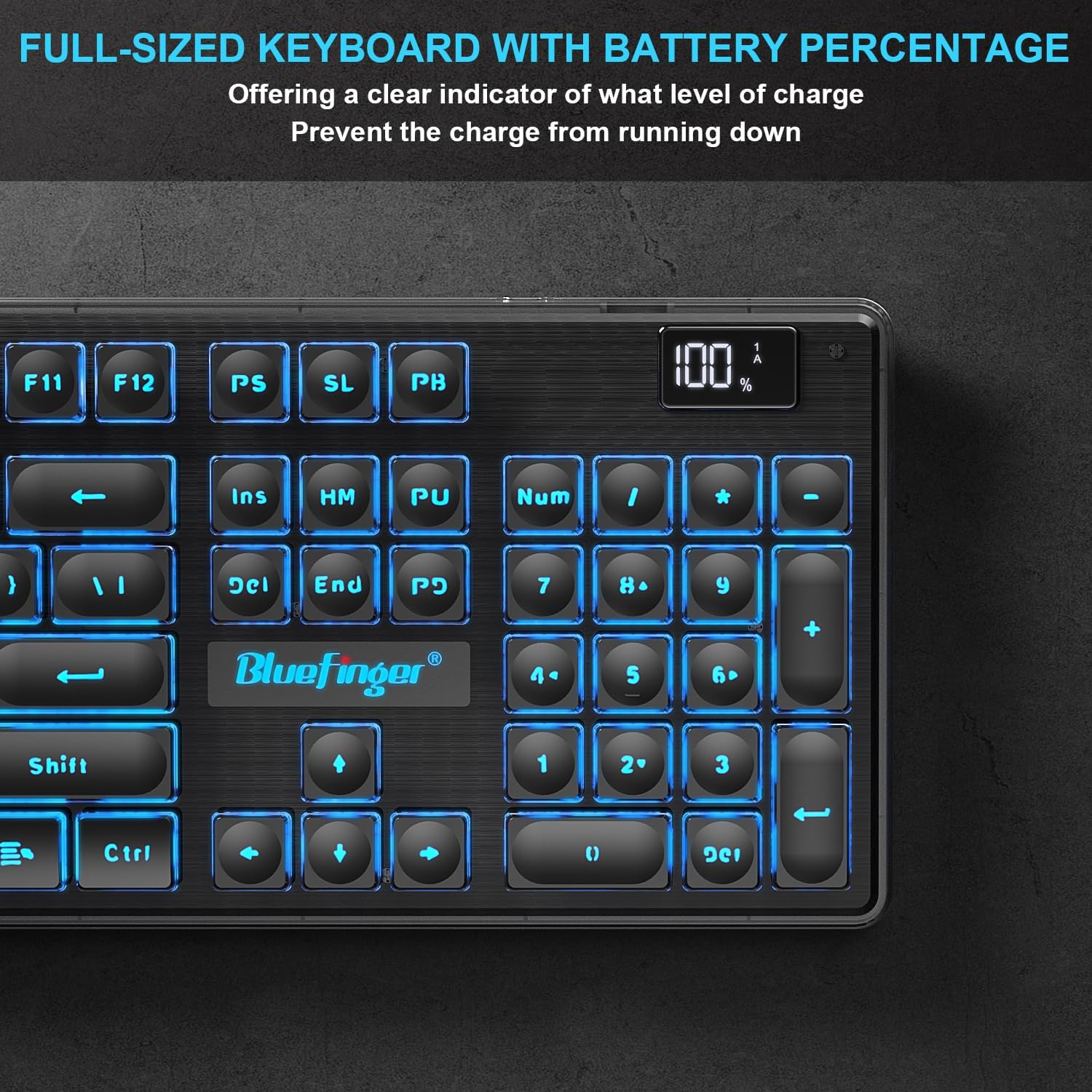
Image: Close-up of the BlueFinger keyboard's upper right corner, highlighting the digital battery percentage display and the full-sized layout with numeric keypad.

Image: Diagram of the BlueFinger keyboard highlighting the multimedia function keys (F1-F12 with Fn combinations) and the backlight switch, indicating time-saving and high-efficiency features.
תכונות עכבר
- הגדרות DPI: The mouse offers 3 adjustable DPI settings (800/1200/1600) for varying cursor speed and responsiveness. Press the DPI button (usually located behind the scroll wheel) to cycle through settings.
- קליק שקט: Designed for quiet operation, reducing click noise by 95%.
- סוללה Percentagמחוון e: The mouse also features a battery percentage indicator to show its current charge level.
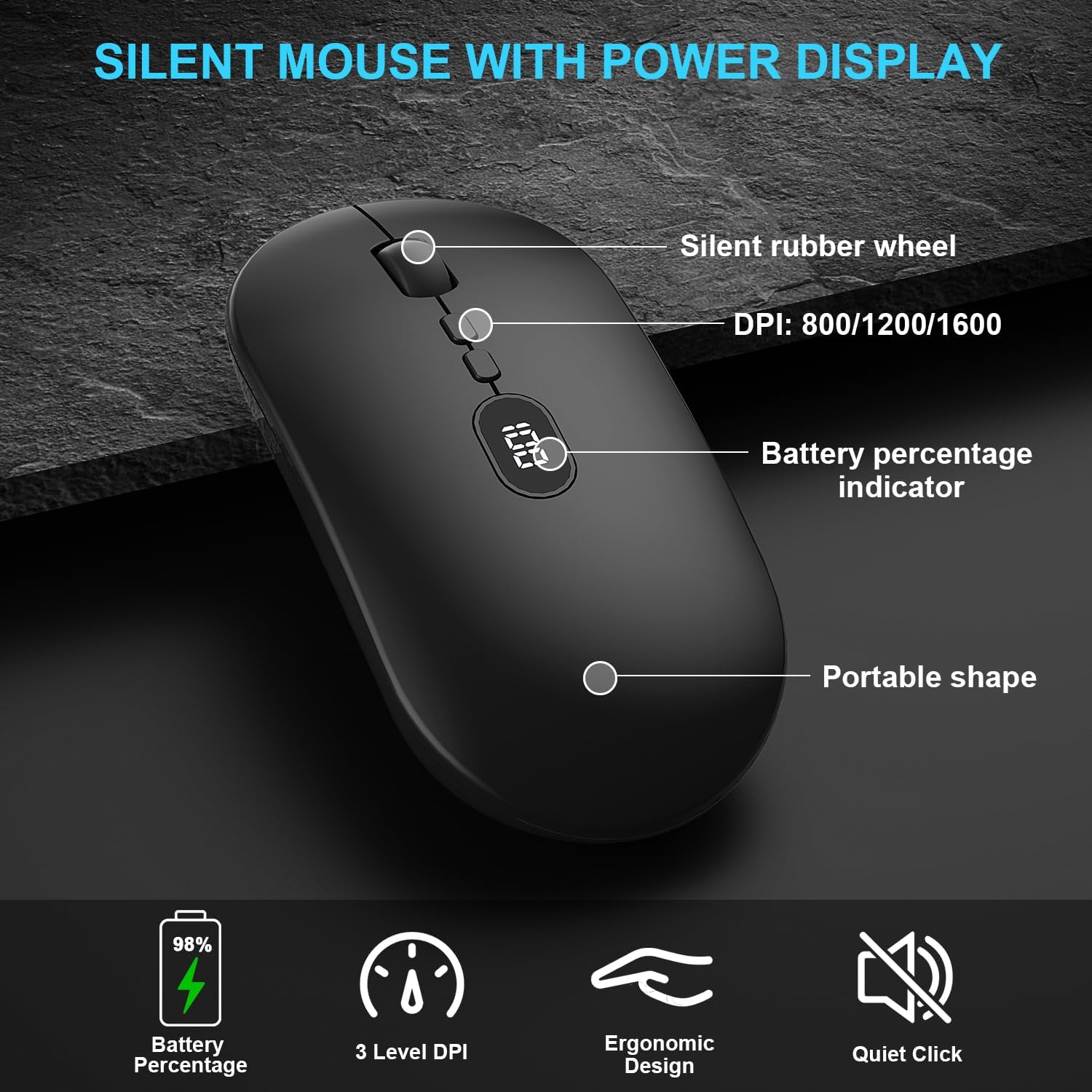
Image: Diagram of the BlueFinger mouse, pointing out its silent rubber wheel, DPI settings (800/1200/1600), battery percentage indicator, and portable shape.

Image: Close-up of the BlueFinger mouse illustrating the DPI switch and battery display, emphasizing its ultra-quiet operation and adjustable DPI levels.
Power Management and Maintenance
מצב חיסכון חכם בחשמל
To conserve battery life, the keyboard and mouse are equipped with smart power-saving features:
- תאורה אחורית של המקלדת: The backlight will automatically turn off after 2 minutes of inactivity.
- מצב שינה: Both the keyboard and mouse will automatically enter sleep mode after a period of inactivity (keyboard after 30 minutes, mouse after 15 minutes).
- תתעורר: To reactivate the devices from sleep mode, simply click any key on the keyboard or move the mouse.

Image: Visual representation of the smart sleep mode for the BlueFinger keyboard and mouse, indicating the inactivity times before entering sleep and backlight turning off.
טעינה וחיי סוללה
Regular charging ensures uninterrupted use. The battery percentage display on both devices helps in managing charging schedules.
- Keyboard: Up to 500 hours of non-stop use without backlight; 50 hours with backlight.
- Mouse: Long standby time.
- Recharge using the provided 1.5M Type-C charging cable.

Image: Depiction of the Type-C charging ports on the keyboard and mouse, emphasizing their rechargeable nature and long standby time.
ניקוי
כדי לשמור על המראה והפונקציונליות של המכשירים שלך:
- השתמשו במטלית רכה ויבשה כדי לנגב את המשטחים.
- עבור לכלוך עיקש, מעט דחוףampen את המטלית עם מים או תמיסת ניקוי עדינה.
- הימנע משימוש בכימיקלים קשים או חומרים שוחקים.
- Do not immerse the devices in water.
פתרון בעיות
| בְּעָיָה | סיבה אפשרית | פִּתָרוֹן |
|---|---|---|
| מכשירים שלא מגיבים | Low battery; Receiver not properly connected; Devices not paired. | Charge keyboard and mouse. Ensure USB receiver is firmly plugged into a working USB port. Re-insert receiver. |
| השהיה או חיבור לסירוגין | Interference from other wireless devices; Distance from receiver; Obstructions. | Move devices closer to the receiver (within 10M/33ft). Remove large metal objects between devices and receiver. Avoid using near other 2.4GHz devices. |
| תאורה אחורית לא עובדת | תאורת רקע כבויה; סוללה חלשה. | Press the backlight switch key (Fn + specific key) to turn it on. Charge the keyboard. |
| סמן העכבר לא יציב או לא זז | חיישן אופטי מלוכלך; משטח לא מתאים; סוללה חלשה. | Clean the optical sensor on the mouse. Use on a clean, non-reflective surface or mouse pad. Charge the mouse. |
מפרטים
| תכונה | פְּרָט |
|---|---|
| מותג | Bluefinger |
| דֶגֶם | B0CP3JKJS2 |
| קישוריות | אלחוטי 2.4GHz (מקלט USB) |
| טווח אלחוטי | עד 10 מטר (33 רגל) |
| סוללת מקלדת | סוללת ליתיום-יון 1500mAh (נטענת) |
| סוללת עכבר | סוללת ליתיום-יון 500mAh (נטענת) |
| תאורה אחורית של מקלדת | Rainbow Backlit (Single Color support) |
| הגדרות DPI של עכבר | 800 / 1200 / 1600 DPI |
| תְאִימוּת | Windows 10/8/7/XP/VISTA, Mac OS X, PC, Laptop, Desktop, Xbox, PS4, PS5 |
| תכונות מיוחדות | סוללה Percentage Display (Keyboard & Mouse), Smart Power Saving, Ergonomic Design, Silent Click Mouse |
| מידות מקלדת | Approx. 45 cm (17.7 in) length, 13.5 cm (5.3 in) width, 2.5 cm (1 in) height |
| מידות עכבר | Approx. 11.3 cm (4.5 in) length, 5.2 cm (2 in) width, 2.5 cm (1 in) height |
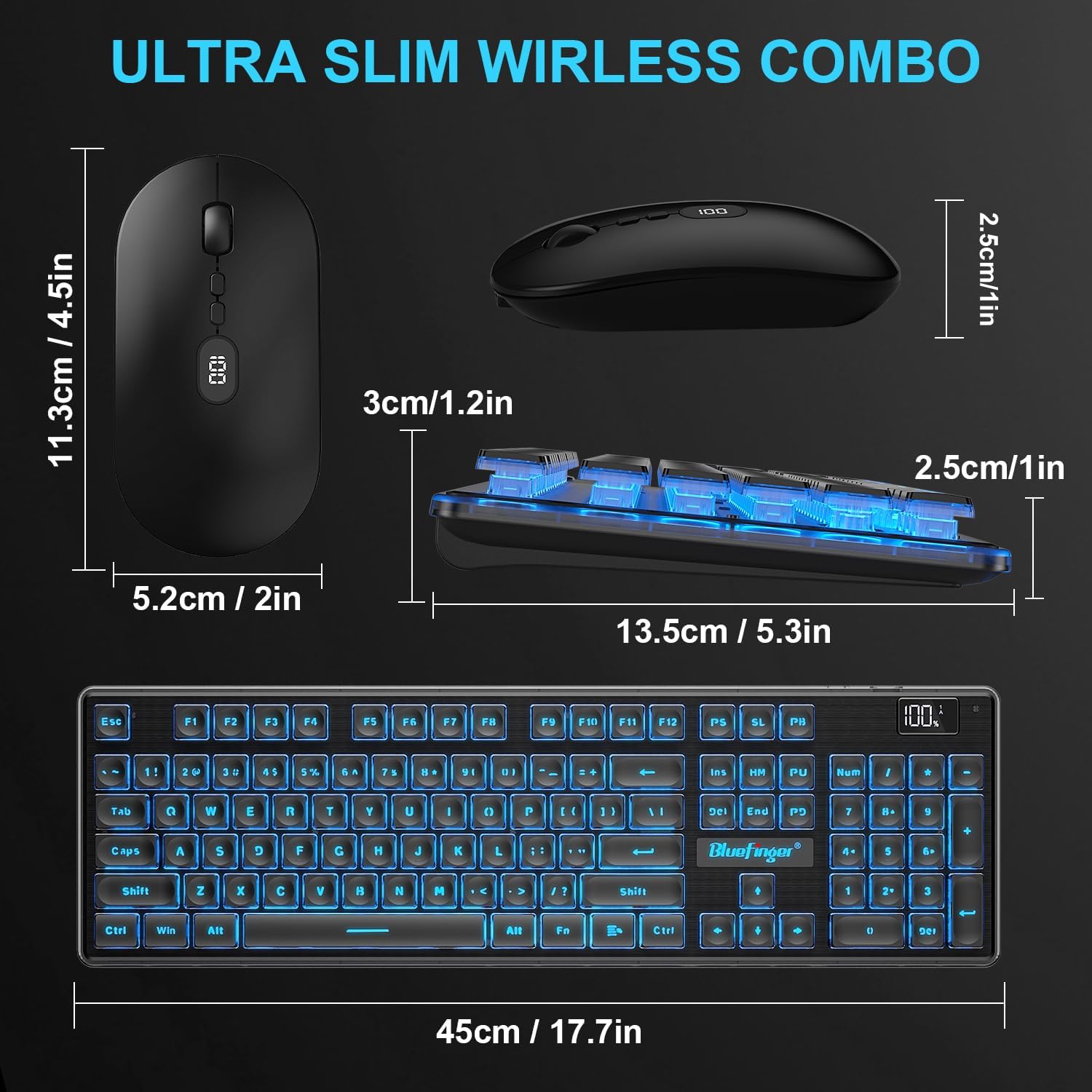
Image: Diagram showing the precise dimensions of the BlueFinger ultra-slim wireless keyboard and mouse combo.
אחריות ותמיכה
For warranty information and technical support, please refer to the seller's return policy or contact BlueFinger customer service directly through the platform where the product was purchased. Keep your purchase receipt as proof of purchase.
- מוֹכֵר: BlueFinger (as per buybox_winner.fulfillment.third_party_seller.name)
- מדיניות החזרות: Typically 30 days for refund/replacement (check current policy at time of purchase).