
1. הקדמה
The PikDik Mini Portable Photo Printer PD-Q2 is a compact thermal printer designed for on-the-go printing. It connects via Bluetooth to compatible Android and iOS devices, allowing users to print photos, labels, lists, and more without the need for ink cartridges. This manual provides essential information for setting up, operating, maintaining, and troubleshooting your PD-Q2 printer.
2. מידע בטיחות
- אין לחשוף את המדפסת למים או ללחות מוגזמת.
- Avoid extreme temperatures. Operate and store the printer within recommended environmental conditions.
- השתמשו רק בכבל הטעינה המצורף ובמקורות הכוח המומלצים.
- הרחק מהישג ידם של ילדים.
- אל תנסה לפרק או לתקן את המדפסת בעצמך. צור קשר עם תמיכת הלקוחות לקבלת סיוע.
3. תכולת החבילה
אנא בדקו את החבילה עבור הפריטים הבאים:
- PikDik Mini Portable Photo Printer PD-Q2
- כבל טעינה מסוג USB מסוג C
- Roll of Thermal Photo Paper
- מדריך למשתמש
4. המוצר נגמרview
The PD-Q2 printer features a compact design with a single power/function button and a paper output slot. It utilizes thermal printing technology, eliminating the need for ink. The device is powered by a built-in rechargeable lithium battery.
5. מדריך התקנה
5.1 טעינת המדפסת
Before first use, fully charge the printer. Connect the provided USB Type-C cable to the printer's charging port and a compatible USB power adapter. The LED indicator will show charging status.
5.2 טעינת נייר תרמי
- פתח את מכסה תא הנייר של המדפסת.
- Insert a new roll of thermal paper, ensuring the printing side faces the print head.
- Pull a small length of paper out of the slot and close the cover securely.
5.3 התקנת אפליקציה וחיבור Bluetooth
The PikDik PD-Q2 printer requires the "Meta Print" application for operation. Follow these steps to connect your device:
- הפעל את המדפסת: לחץ והחזק את לחצן ההפעלה עד שנורית החיווי נדלקת.
- Download and Install the "Meta Print" APP: חפש "Meta Print" on your smartphone's app store (Google Play for Android or App Store for iOS) and install it.
- אפשר Bluetooth: On your phone or tablet, go to your device's settings and ensure Bluetooth is turned on.
- Connect in the APP: Open the "Meta Print" app. The app will guide you to link the printer via Bluetooth. Select the PD-Q2 from the list of available devices.
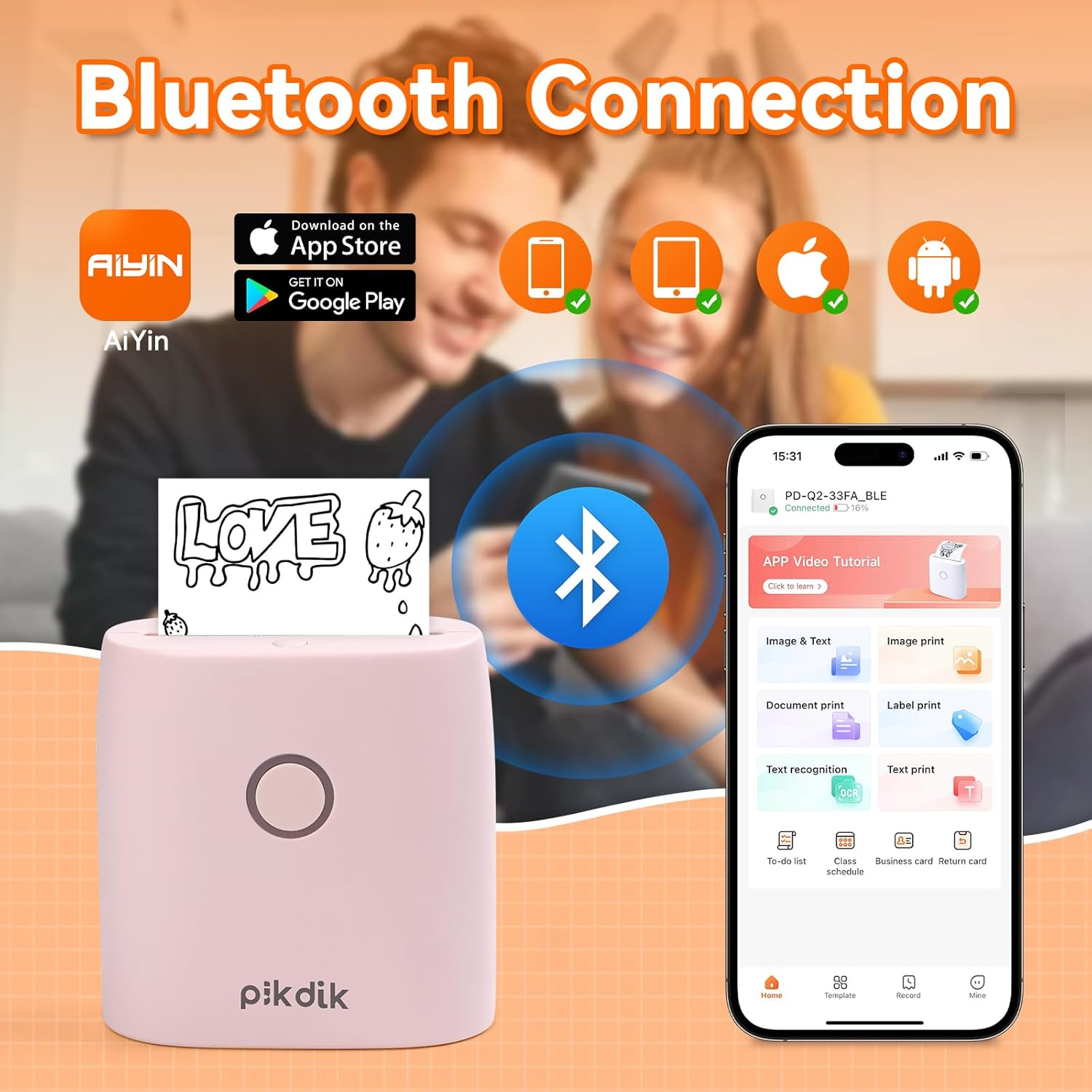
Image: The printer connects to your smartphone via Bluetooth using the Meta Print app, available on both Android and iOS.
6. הוראות הפעלה
6.1 Printing Content
Once connected to the "Meta Print" app, you can select various content types for printing:
- Image & Text: Print photos, graphics, or combine them with text.
- הדפסת מסמך: Print documents or notes.
- Label Print: Create and print custom labels.
- זיהוי טקסט: Convert images of text into editable text for printing.
- תבניות: Utilize pre-designed templates for to-do lists, business cards, emojis, and more.
After selecting and editing your content within the app, tap the print button to initiate printing. The printer will output the thermal paper with your printed content.

Image: The printer is suitable for various applications such as journaling, scrapbooking, printing shopping lists, and notes.
6.2 Print Quality and Limitations
The PD-Q2 printer offers a 300 DPI resolution for clear and detailed black and white prints. As a thermal printer, it does not support color printing.
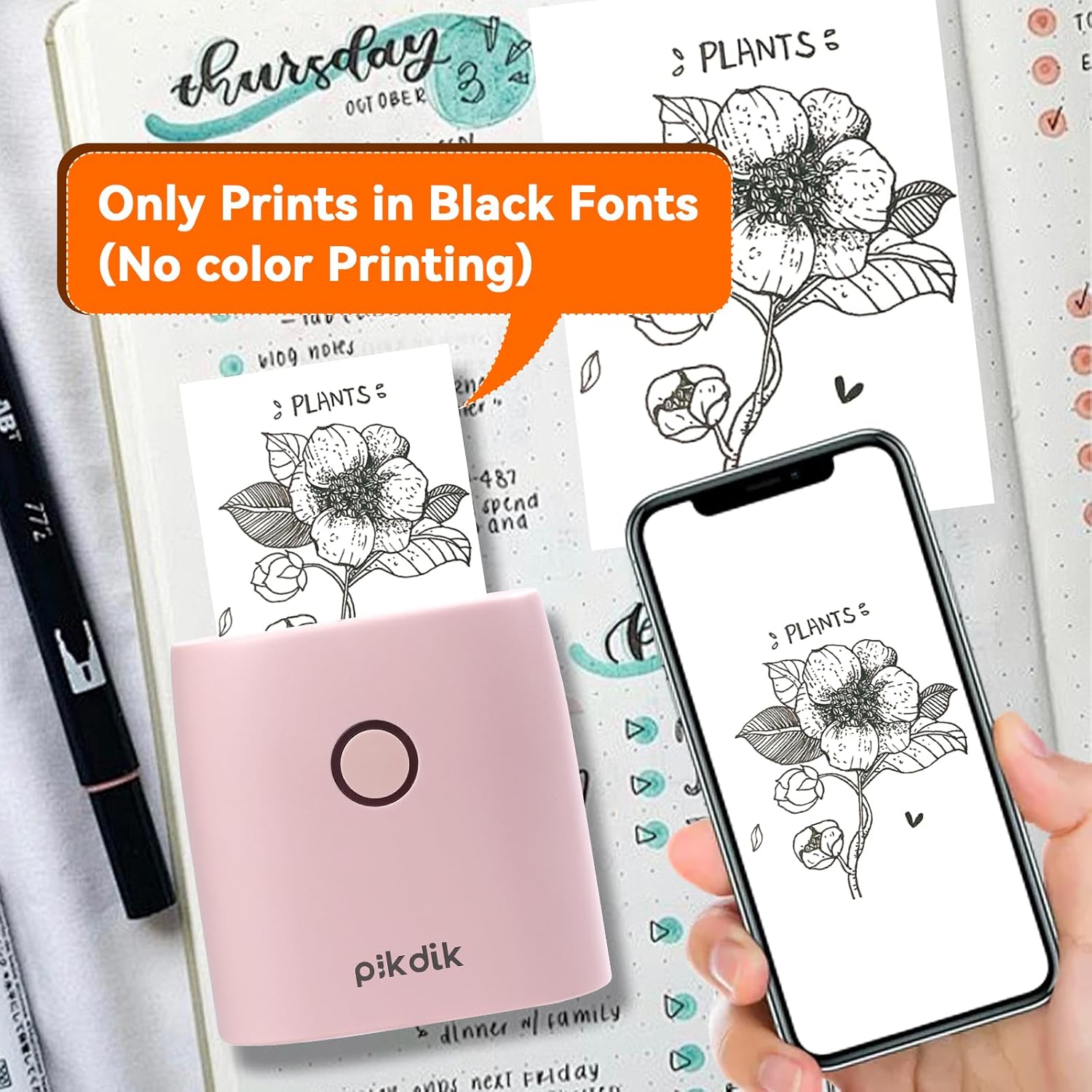
Image: The printer produces prints exclusively in black and white, as shown with a plant illustration.

Image: The 300 DPI resolution of the Q2 printer provides enhanced clarity and detail in prints compared to lower resolution alternatives.
7. תחזוקה
7.1 ניקוי המדפסת
כדי לשמור על איכות הדפסה אופטימלית, יש לנקות את ראש ההדפסה מעת לעת. השתמשו במטלית רכה ונטולת סיבים ונגעו קלות.ampened with isopropyl alcohol. Gently wipe the print head surface. Ensure the printer is turned off and completely dry before use.
7.2 החלפת נייר תרמי
When the paper roll is depleted, replace it by following the steps in Section 5.2. Use only thermal paper compatible with the PD-Q2 printer to ensure proper function and print quality.
8. פתרון תקלות
| בְּעָיָה | סיבה אפשרית | פִּתָרוֹן |
|---|---|---|
| המדפסת לא נדלקת | סוללה חלשה; כפתור ההפעלה לא נלחץ נכון | טען את המדפסת; לחץ והחזק את לחצן ההפעלה למשך מספר שניות. |
| לא ניתן להתחבר באמצעות Bluetooth | Bluetooth off on phone; Printer not in pairing mode; App issue | Ensure phone Bluetooth is on; Restart printer and app; Re-pair device in app. |
| Poor print quality (faint, pixelated) | Low battery; Print head dirty; Incorrect paper type; Image resolution too low | Charge printer; Clean print head (Section 7.1); Use correct thermal paper; Use higher resolution images. |
| חסימת נייר | Paper not loaded correctly; Foreign object in paper path | Open cover, remove jammed paper, reload correctly; Check for obstructions. |
| המדפסת לא מגיבה | שגיאת מערכת | Perform a soft reset by turning the printer off and on again. If issue persists, contact support. |
9. מפרטים
| תכונה | פְּרָט |
|---|---|
| דֶגֶם | Q2 |
| מידות (D x B x H) | 4.1 x 8.4 x 8.4 ס"מ (1.6 x 3.3 x 3.3 אינץ ') |
| מִשׁקָל | 0.57 פאונד (כ-258.55 גרם) |
| טכנולוגיית הדפסה | תֶרמִי |
| רזולוציית הדפסה | 300 DPI (מונוכרום) |
| קישוריות | בלוטות' |
| מכשירים תואמים | טלפונים חכמים, טאבלטים (אנדרואיד, iOS) |
| גודל מדיה מקסימלי | 2 אינץ' |
| מקור כוח | Built-in Lithium Polymer Battery (Rechargeable via USB Type-C) |
| שם האפליקציה | Meta Print |
10. אחריות ותמיכה
For warranty information and technical support, please refer to the warranty card included with your product or contact PikDik customer service directly. Keep your purchase receipt as proof of purchase.