
MARVUE M22
MARVUE Pad M22 Android 11 Tablet User Manual
Model: M22 | Brand: MARVUE
מָבוֹא
Thank you for choosing the MARVUE Pad M22 Android 11 Tablet. This manual provides essential information for setting up, operating, and maintaining your device. The MARVUE Pad M22 features a 10-inch HD IPS display, an 8-core CPU, 4GB RAM, 64GB internal storage (expandable up to 256GB), dual-band Wi-Fi, dual cameras, and a 6000mAh battery, offering a versatile and powerful user experience.
תוכן החבילה
אנא סמן את התיבה עבור הפריטים הבאים:
- MARVUE Pad M22 10-inch Tablet x 1
- כבל טעינה מסוג USB מסוג C x 1
- מתאם מתח x 1
- מדריך למשתמש x 1

Image: The MARVUE Pad M22 tablet and its included accessories: USB Type-C cable, power adapter, and user manual, laid out on a surface.
פריסת מכשיר
Familiarize yourself with the physical components of your MARVUE Pad M22 tablet.

תמונה: מפורט view of the MARVUE Pad M22 tablet, highlighting the front camera, rear camera with flash, volume buttons, power button, Type-C port, speaker, and Micro SD card slot.
- מצלמה קדמית: מצלמת 5MP לשיחות וידאו וסלפי.
- מצלמה אחורית: 13MP camera with flash for high-resolution photos and videos.
- לחצני עוצמת הקול: כוונן את עוצמת הקול של המכשיר.
- לחצן הפעלה: לחץ לחיצה ממושכת כדי להפעיל/לכבות או להפעיל מחדש. לחץ לחיצה קצרה כדי להפעיל/לכבות את המסך.
- סוג C נמל: לטעינה והעברת נתונים.
- רמקולים: Dual speakers for enhanced audio output.
- חריץ לכרטיס מיקרו SD: הכנס כרטיס Micro SD להרחבת אחסון.
הגדרה
1. טעינת הטאבלט
Before first use, fully charge your tablet. Connect the provided USB Type-C cable to the tablet's Type-C port and the power adapter, then plug the adapter into a wall outlet. The battery indicator on the screen will show charging status.
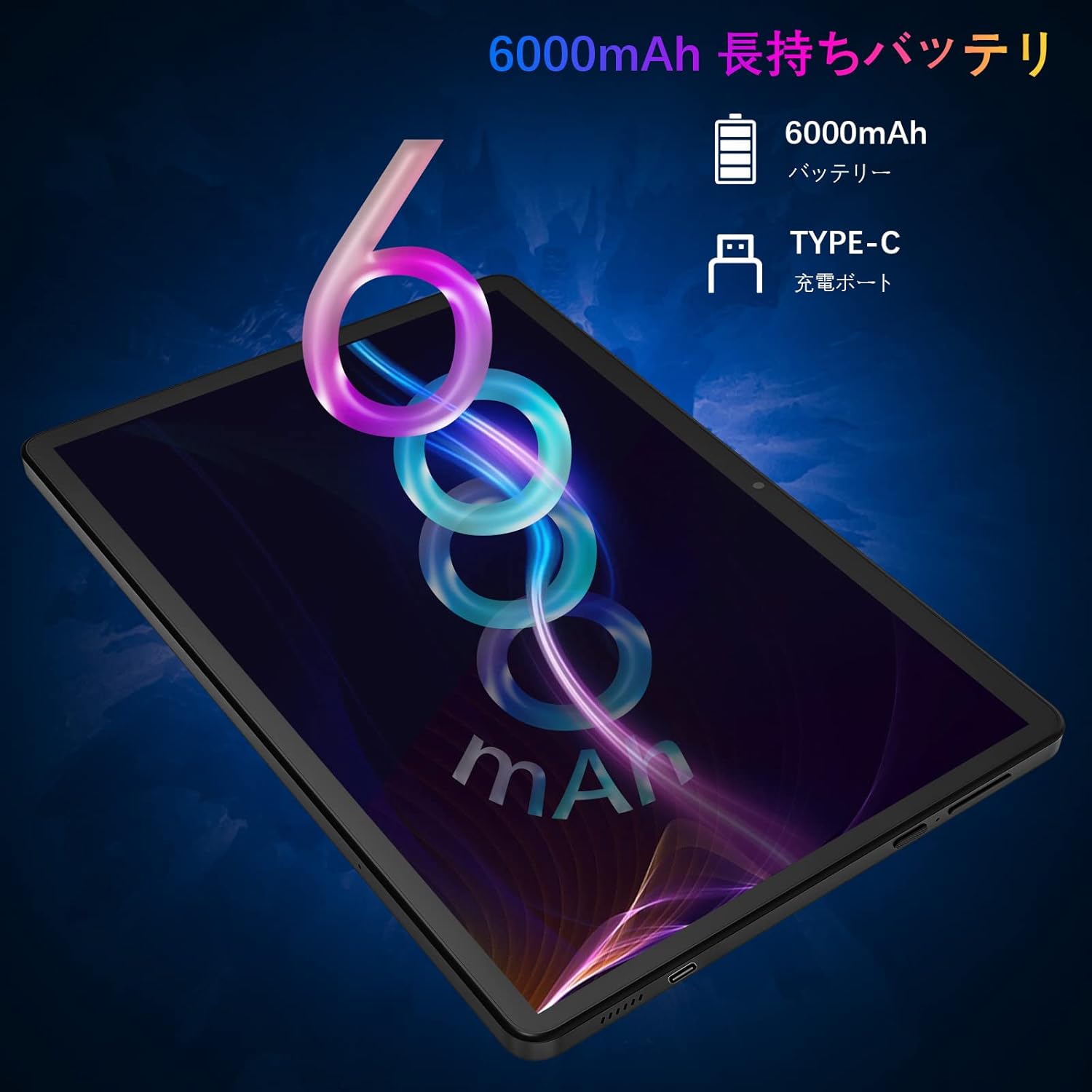
Image: A visual representation of the tablet being charged via its Type-C port, highlighting the 6000mAh battery capacity.
2. הפעלה / כיבוי
- כדי להפעיל: Press and hold the Power button until the MARVUE logo appears.
- כדי לכבות: לחץ והחזק את לחצן ההפעלה, ולאחר מכן בחר "כיבוי" מהאפשרויות שעל המסך.
- לאתחל: לחץ והחזק את לחצן ההפעלה, ולאחר מכן בחר "הפעלה מחדש" מהאפשרויות.
3. הגדרה ראשונית
לאחר ההפעלה הראשונה, פעל לפי ההנחיות שעל המסך כדי להשלים את ההגדרה הראשונית:
- בחר את השפה המועדפת עליך.
- התחבר לרשת Wi-Fi.
- היכנס באמצעות חשבון גוגל שלך או צור חשבון חדש.
- הגדר נעילת מסך ותכונות אבטחה אחרות.
4. הכנסת כרטיס Micro SD
To expand storage, insert a Micro SD card (up to 256GB, sold separately) into the designated slot. Ensure the tablet is powered off before inserting or removing the card.
הוראות הפעלה
1. ניווט בסיסי
The MARVUE Pad M22 uses a responsive G+G multi-touch screen.
- בֶּרֶז: בחר פריט או פתח אפליקציה.
- הקש והחזק: גישה לתפריטי הקשר או הזזת סמלים.
- לִגנוֹב: גלילה בין דפים או רשימות.
- קַמצוּץ: הגדלה או הקטנה של תמונות ו web דפים.

Image: The 10-inch HD IPS display of the MARVUE Pad M22, showcasing its 16:10 aspect ratio and smooth G+G touch screen for an immersive viewניסיון.
2. התחברות ל-Wi-Fi
The tablet supports 2.4GHz and 5GHz dual-band Wi-Fi for stable and fast internet connectivity.
- עבור אל הגדרות > רשת ואינטרנט > Wi-Fi.
- הפעל Wi-Fi.
- בחר את הרשת הרצויה מהרשימה והזן את הסיסמה אם תתבקש.

Image: The MARVUE Pad M22 tablet displaying a video conference, illustrating its dual 2.4G+5G Wi-Fi capability for stable online communication.
3. שימוש במצלמות
Capture moments with the 5MP front camera and 13MP rear camera.
- פתח את מַצלֵמָה אפליקציה.
- הקש על לחצן הצמצם כדי לצלם תמונה.
- עבור בין המצלמה הקדמית לאחורית באמצעות סמל מתג המצלמה.
4. ניווט GPS
The tablet includes GPS functionality. Google Maps is pre-installed for convenient navigation. Ensure you are connected to Wi-Fi or have downloaded offline maps for use without internet.

Image: The MARVUE Pad M22 tablet mounted in a car, displaying a map for GPS navigation, and a separate image showing the tablet wirelessly connected to a TV for screen mirroring.
5. הקרנה אלחוטית (שיקוף מסך)
Mirror your tablet's screen to a larger display, such as a TV, for an enhanced viewניסיון.
- Ensure your TV or display supports wireless projection (Miracast, Chromecast, etc.).
- בטאבלט שלך, עבור אל הגדרות > מכשירים מחוברים > העדפות חיבור > יָצוּק.
- Select your display device from the list to connect.
6. Connecting External Accessories
The tablet supports connecting wireless keyboards and mice via Bluetooth for increased productivity.
- Enable Bluetooth on your tablet via הגדרות > מכשירים מחוברים > בלוטות'.
- Put your accessory into pairing mode.
- בחר את האביזר מרשימת המכשירים הזמינים בטאבלט שלך להתאמה.
תַחזוּקָה
1. ניקוי הטאבלט
- השתמש במטלית רכה ונטולת סיבים כדי לנקות את המסך והגוף.
- אין להשתמש בחומרי ניקוי שוחקים, אלכוהול או ממסים.
- הימנעו מכניסת לחות לפתחים.
2. טיפול בסוללה
- הימנעו מטמפרטורות קיצוניות, אשר עלולות לפגוע בחיי הסוללה.
- להשגת אורך חיים אופטימלי של הסוללה, יש להימנע מפריקה מלאה של הסוללה לעתים קרובות.
- השתמש רק במטען המצורף או במטען תואם מאושר.
3. עדכוני תוכנה
בדוק באופן קבוע אם קיימים עדכוני תוכנה והתקן אותם כדי להבטיח ביצועים ואבטחה אופטימליים. עבור אל הגדרות > מַעֲרֶכֶת > עדכון מערכת.
פתרון בעיות
| בְּעָיָה | פִּתָרוֹן |
|---|---|
| הטאבלט לא נדלק. | Ensure the battery is charged. Connect the charger and try again. If it still doesn't turn on, press and hold the Power button for 10-15 seconds. |
| לא ניתן להתחבר ל-Wi-Fi. | Check if Wi-Fi is enabled in Settings. Ensure the Wi-Fi password is correct. Restart your router and the tablet. Try connecting to a different Wi-Fi network. |
| המסך לא מגיב. | Restart the tablet by holding the Power button. If the issue persists, perform a factory reset (data will be lost). |
| אפליקציות קורסות או פועלות לאט. | Close unnecessary background apps. Clear app cache (Settings > Apps > [App Name] > Storage > Clear cache). Ensure sufficient storage space. Restart the tablet. |
| הסוללה מתרוקנת במהירות. | הפחת את בהירות המסך. סגור אפליקציות שאינן בשימוש. כבה Wi-Fi, Bluetooth ו-GPS כאשר אינן בשימוש. בדוק את צריכת הסוללה בהגדרות כדי לזהות אפליקציות זוללות חשמל. |
מפרטים
| תכונה | פְּרָט |
|---|---|
| מותג | MARVUE |
| שם הדגם | M22 |
| מַעֲרֶכֶת הַפעָלָה | אנדרואיד 11 |
| גודל מסך | 10 אינץ' |
| סוג תצוגה | HD IPS |
| יצרן מעבד | MediaTek (8-core, up to 2.0GHz) |
| אַיִל | 4 ג'יגה-בייט |
| אחסון פנימי | 64 ג'יגה-בייט |
| אחסון ניתן להרחבה | עד 256 GB (MicroSD) |
| רזולוציית מצלמה אחורית | 13 מגה פיקסל |
| רזולוציית מצלמה קדמית | 5 מגה פיקסל |
| קיבולת סוללה | 6000 מיליאמפר/שעה (ליתיום פולימר) |
| קישוריות אלחוטית | Wi-Fi (2.4G/5G, 802.11a/b/g/n), Bluetooth |
| נמלים | Type-C, MicroSD |
| תכונות מיוחדות | GPS, Dual Speakers, Metal Body, GMS Certified |
| מידות (LxWxH) | 29.2 x 20.1 x 0.9 ס"מ |
| מִשׁקָל | 0.43 ק"ג |
אחריות ותמיכה
The MARVUE Pad M22 tablet comes with a אחריות ל-12 חודשים from the date of purchase. This warranty covers manufacturing defects and ensures that our company will provide satisfactory support for any issues encountered within this period.
For technical support, warranty claims, or any questions regarding your device, please contact MARVUE customer service through the retailer where you purchased the product or visit the official MARVUE website for contact information. Please have your purchase receipt and product model number (M22) ready when contacting support.
Ask a question about this manual
Ask about setup, troubleshooting, compatibility, parts, safety, or missing instructions. Manuals+ will review the question and use this page’s manual context to help answer it.