
מָבוֹא
This manual provides essential information for setting up, operating, maintaining, and troubleshooting your HP 2022 14-inch HD Laptop. Please read this guide thoroughly to ensure proper use and to maximize the performance and longevity of your device.
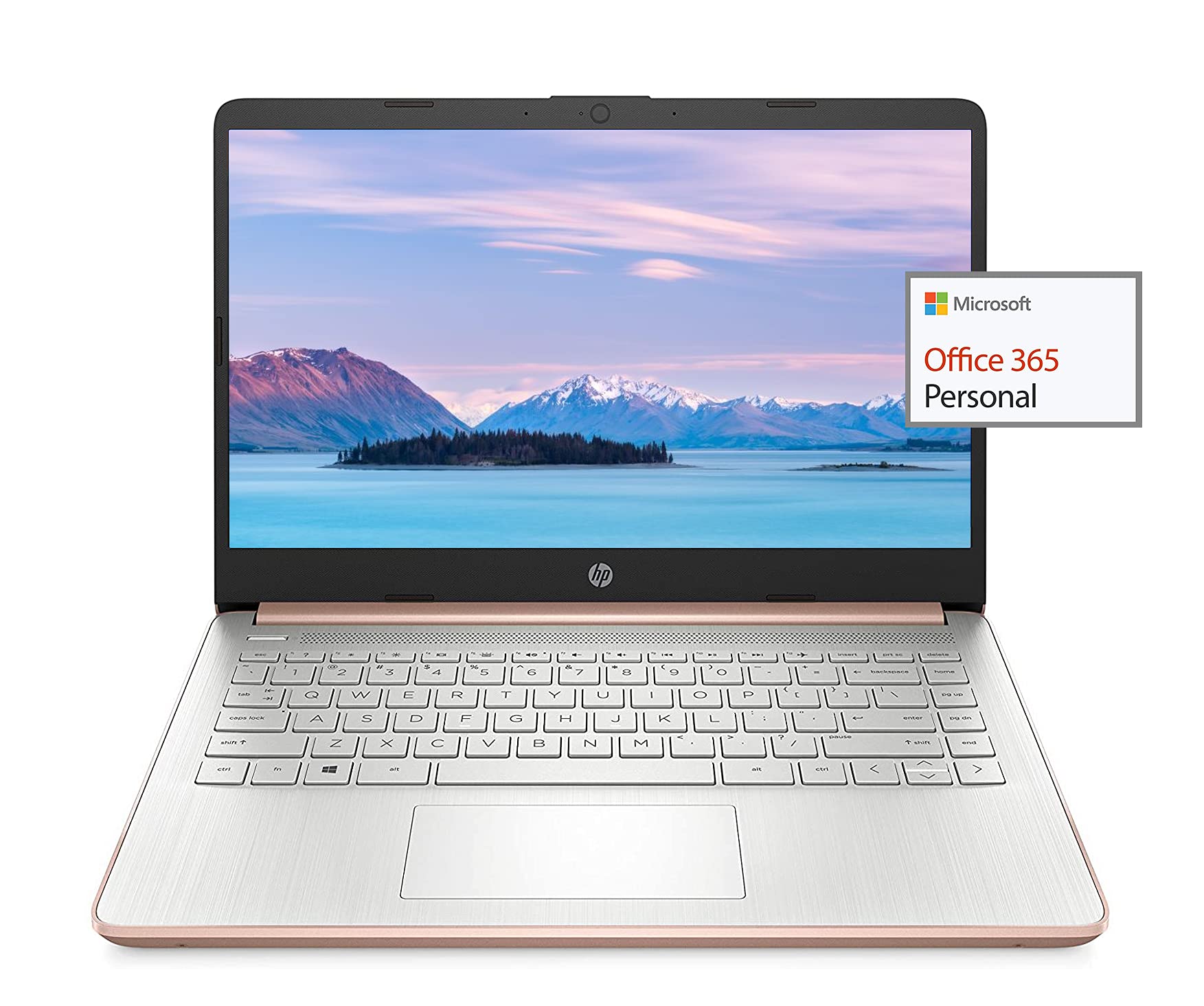
Image: The HP 14-inch HD Laptop, showcasinהעיצוב החלקלק שלו.
הגדרה
1. הפעלה ראשונית
Connect the power adapter to the laptop and a power outlet. Open the laptop lid. The laptop should power on automatically or by pressing the power button, typically located on the keyboard deck.
2. הגדרת מערכת הפעלה
Follow the on-screen prompts to complete the Windows 10 setup. This includes selecting your region, connecting to a Wi-Fi network, and creating a user account.
3. Activating Microsoft Office 365
Your laptop includes a 1-year subscription to Microsoft Office 365. To activate:
- Launch any Office application (e.g., Word, Excel).
- Sign in with your Microsoft account. If you do not have one, create a new account.
- Click "Activate Office" and follow the subsequent prompts.
- Complete steps 1, 2, and 3 as instructed.
- Click "Refresh" once Office is ready.
- Open a document and accept the license agreement to finalize activation.

Image: The HP laptop displaying Microsoft Office 365 applications.
4. Switching Out of Windows 10 S Mode
Windows 10 in S mode is designed for security and performance, exclusively running apps from the Microsoft Store. If you need to install apps from outside the Microsoft Store, you can switch out of S mode. This is a one-way switch and cannot be undone.
- עבור אל הגדרות > עדכון ואבטחה > הַפעָלָה.
- במקטע "מעבר ל-Windows 10 Home" או "מעבר ל-Windows 10 Pro", בחר לך לחנות.
- על יציאה ממצב S (or similar) page that appears in the Microsoft Store, click the לְקַבֵּל לַחְצָן.
- After confirming, you will be able to install apps from outside the Microsoft Store.
5. חיבור ציוד היקפי
המחשב הנייד שלך כולל מגוון יציאות לחיבור התקנים חיצוניים:
- USB Type-A & Type-C: For connecting USB devices like external drives, mice, and keyboards.
- HDMI: לחיבור לצגים חיצוניים או מקרנים.
- שקע משולב לאוזניות/מיקרופון: עבור קלט/פלט שמע.
- קורא כרטיסי מדיה: להכנסת כרטיסי SD.

תמונה: צד view of the HP laptop, highlighting the SuperSpeed USB Type-A, USB Type-C, HDMI 1.4b, and headphone/microphone combo ports.

תמונה: צד שני view of the HP laptop, showing the media card reader slot.
הוראות הפעלה
1. ניהול צריכת חשמל
- הפעלה: לחץ על לחצן ההפעלה.
- מצב שינה: סגור את המכסה או לחץ לחיצה קצרה על כפתור ההפעלה.
- כיבוי: עבור אל התחל > הפעלה > כיבוי.
- הפעל מחדש: עבור אל התחל > הפעלה > הפעלה מחדש.
2. שימוש בתצוגה
The laptop features a 14-inch HD (1366 x 768) display with a micro-edge bezel design and WLED-backlit BrightView technology. Adjust brightness using the function keys (F2/F3) or through Windows display settings.

Image: The HP laptop display showcasing its micro-edge bezel and HD resolution.
3. מקלדת ומשטח מגע
The standard keyboard provides comfortable typing. The integrated touchpad supports multi-touch gestures for navigation. Refer to Windows settings for customizing touchpad sensitivity and gestures.
4. Webמצלמת וידאו ואודיו
The HP True Vision 720p HD camera with integrated dual array digital microphones is suitable for video calls. The laptop features HP custom-tuned dual speakers for clear audio output.

Image: The HP laptop showing the webcam in use and highlighting the dual speaker setup.
5. קישוריות אלחוטית
- Wi-Fi 5 (1x1): Connect to wireless networks for internet access. Manage Wi-Fi connections via the network icon in the taskbar.
- Bluetooth 5.0: Pair with Bluetooth-enabled devices such as headphones, speakers, or mice. Access Bluetooth settings via Windows Settings > Devices > Bluetooth & other devices.
תַחזוּקָה
1. טיפול בסוללה
The laptop's battery provides up to 10.5 hours of video playback and up to 9 hours of wireless streaming. To prolong battery life:
- הימנע מטמפרטורות קיצוניות.
- אין לפרוק את הסוללה לחלוטין לעתים קרובות.
- Utilize HP Fast Charge for quick recharging.
- Adjust power settings in Windows to optimize battery usage.
2. ניהול אחסון
Your laptop is equipped with 256GB SSD and 64GB eMMC storage. Regularly manage your files to ensure sufficient free space. Use Disk Cleanup and Storage Sense features in Windows to remove unnecessary files.
3. ניקוי המחשב הנייד
- השתמש במטלית רכה נטולת מוך מעט דampנשטפו במים או בחומר ניקוי למסך.
- עבור המקלדת והמארז, השתמשו במטלית רכה. הימנעו מכימיקלים חזקים.
- ודא שהמחשב הנייד כבוי ומנותק מהחשמל לפני הניקוי.
4. עדכוני תוכנה
Keep your operating system and drivers updated. Windows Update automatically handles system updates. Check the HP support webאתר לעדכוני מנהלי התקנים ספציפיים לדגם שלך.
פתרון בעיות
בעיות ופתרונות נפוצים:
- מחשב נייד לא נדלק: ודא שמתאם החשמל מחובר היטב ושהסוללה טעונה מספיק. נסה שקע חשמל אחר.
- בעיות תצוגה: Check display cable connections if using an external monitor. Adjust brightness settings.
- אין קול: Verify volume levels, check audio output device settings in Windows, and ensure headphones are properly connected.
- בעיות קישוריות Wi-Fi: הפעל מחדש את הנתב והמחשב הנייד. בדוק את הגדרות ה-Wi-Fi וודא שמצב טיסה כבוי.
- ביצועים איטיים: סגור יישומים מיותרים. בדוק אם קיימים תהליכים ברקע. ודא שיש מספיק מקום אחסון פנוי.
לפתרון בעיות מפורט יותר או לבעיות נמשכות, עיין בתמיכה של HP webאתר או צור קשר עם שירות הלקוחות של HP.
מפרטים
| תכונה | מִפרָט |
|---|---|
| מותג | HP |
| שם הדגם | HP 2022 |
| גודל מסך | 14 אינץ' |
| מעבד | AMD 3020e (2 Cores, 4 Threads, 1.2GHz Base, 2.6GHz Max Boost) |
| אַיִל | 8 GB DDR4 |
| אִחסוּן | 256GB SSD + 64GB eMMC (Total 320 GB) |
| גרָפִיקָה | גרפיקה משולבת של AMD Radeon |
| מַעֲרֶכֶת הַפעָלָה | Windows 10 Home in S mode (upgradeable) |
| קישוריות | Wi-Fi 5 (1x1), Bluetooth 5.0 |
| נמלים | USB Type-A, USB Type-C, HDMI 1.4b, Headphone/Microphone Combo, Media Card Reader |
| Webפִּקָה | מצלמת HP True Vision 720p HD |
| חיי סוללה (המתנה) | עד 10.5 שעות (הפעלת וידאו) |
| מִשׁקָל | 3.24 פאונד |
| מידות (אורך x רוחב x גובה) | אורך 8.86 ס"מ, רוחב 12.76 ס"מ, עומק 0.71 ס"מ |

תמונה: מעלview of the HP 14 laptop's key features including AMD 3020e processor, battery life, Windows 10 S mode, HP Fast Charge, and Wi-Fi 5 & Bluetooth 5.0.
אחריות ותמיכה
Your HP laptop comes with a standard manufacturer's warranty. Please refer to the warranty documentation included with your purchase for specific terms and conditions. For technical support, driver downloads, and service information, visit the official HP support website or contact HP customer service directly.
להגנה נוספת, שקלו לרכושasing extended protection plans from your retailer.