
מָבוֹא
This manual provides detailed instructions for setting up, operating, maintaining, and troubleshooting your HP 230 Wireless Keyboard and Mouse Combo. Please read this manual thoroughly before using the product to ensure optimal performance and longevity.
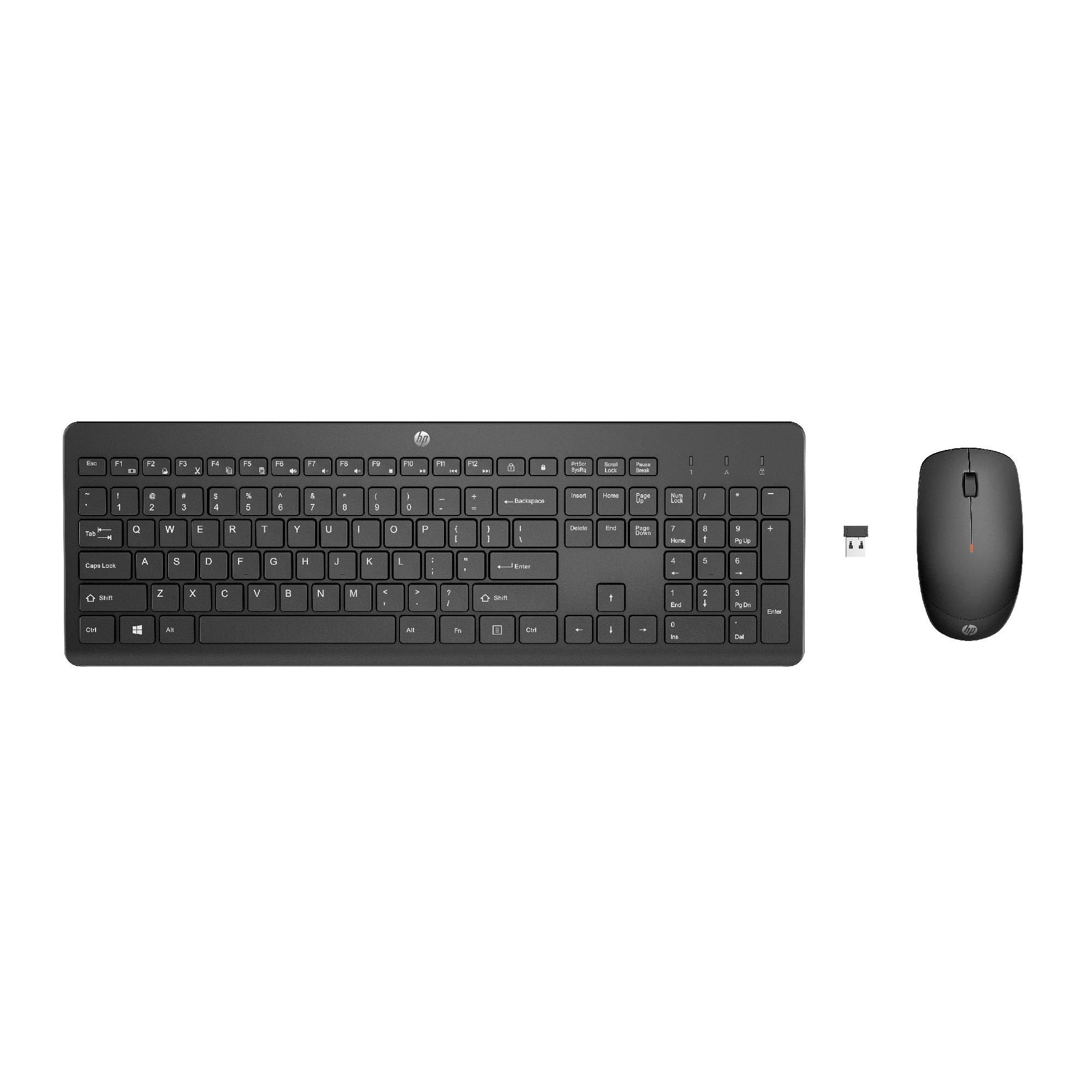
Image: The HP 230 Wireless Keyboard and Mouse Combo, showing both devices in black.
תוכן החבילה
ודא שכל הפריטים נמצאים בחבילה:
- מקלדת אלחוטית HP 230
- עכבר אלחוטי HP 230
- USB-A Wireless Dongle (2.4 GHz)
- 2 AAA Batteries (for keyboard)
- 1 AA Battery (for mouse)
- Product Information and Warranty Card
הוראות התקנה
1. התקן סוללות
- עבור המקלדת: Locate the battery compartment on the underside of the keyboard. Insert two AAA batteries, ensuring correct polarity (+/-).
- עבור העכבר: אתר את תא הסוללות בתחתית העכבר. הכנס סוללת AA אחת, תוך הקפדה על קוטביות נכונה (+/-).
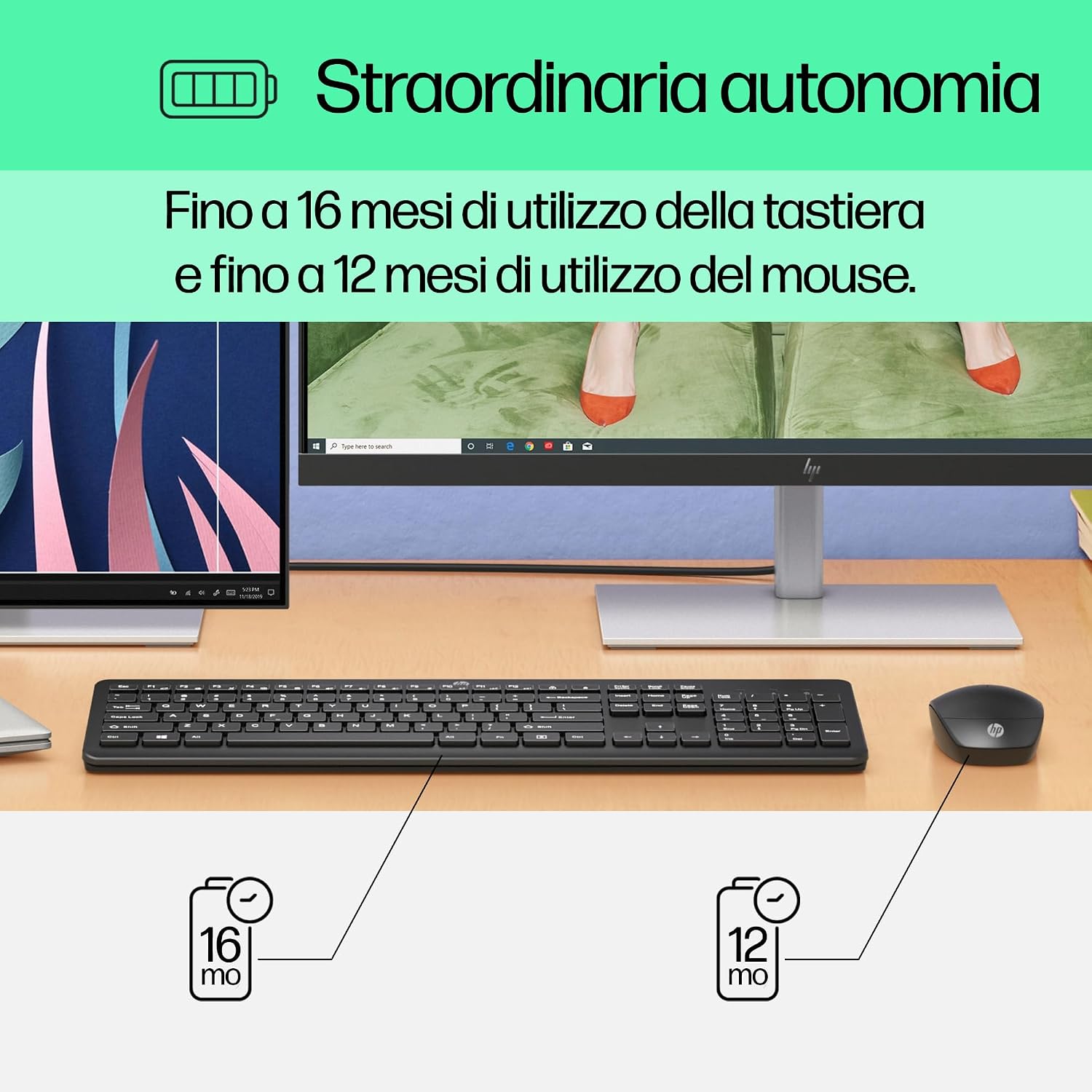
Image: Diagram illustrating battery life for the keyboard (16 months with 2 AAA) and mouse (12 months with 1 AA).
2. Connect the USB-A Wireless Dongle
- Locate the USB-A wireless dongle, typically stored in the mouse's battery compartment or included separately in the packaging.
- Insert the USB-A dongle into an available USB Type-A port on your computer (desktop, laptop, tablet, or All-in-One PC).
- Your computer should automatically detect and install the necessary drivers. This is a Plug and Play device, requiring no manual driver installation.

Image: The HP 230 wireless keyboard and mouse positioned next to a laptop, illustrating wireless connectivity.
The keyboard and mouse are pre-paired with the dongle and should be ready for use immediately after connection.
מִבצָע
פונקציות מקלדת
The HP 230 Wireless Keyboard features a full-size layout with a numeric keypad and silent chicklet keys for comfortable and quiet typing.
- הקלדה שקטה: The keyboard is designed for reduced noise during typing, making it suitable for quiet environments.
- Fn Key Shortcuts: נצל את Fn key in combination with the F1-F12 function keys for quick access to various functions such as volume control, home page, bookmarks, and email.
- לוח מקשים נומרי: מקלדת מספרית ייעודית כלולה להזנת נתונים יעילה.

תמונה: מפורט view of the HP 230 keyboard layout, highlighting function keys and silent chicklet keys, with dimensions.

Image: A close-up of the HP 230 keyboard showing the Fn keys and their associated shortcut icons, emphasizing productivity.
פונקציות עכבר
The HP 230 Wireless Mouse is designed for precise navigation and comfortable use.
- מעקב מדויק: The mouse features a 1600 DPI optical sensor for accurate and smooth cursor movement.
- גלגל גלילה: Use the scroll wheel for easy vertical navigation through documents and web דפים.
- Left and Right Buttons: Standard left and right-click functionality for interaction with your computer.
- עיצוב דו-דמי: Suitable for both left-handed and right-handed users.

תמונה: מלמעלה למטה view of the HP 230 mouse, showing its ergonomic design, scroll wheel, and 1600 DPI specification, with dimensions.

Image: Graphic illustrating the precise movement of the HP 230 mouse with up to 1600 DPI tracking.
תַחזוּקָה
Proper maintenance ensures the longevity and performance of your HP 230 combo.
- ניקוי:
- השתמש במטלית רכה נטולת מוך מעט דampened with water or a mild cleaning solution to clean the surfaces of the keyboard and mouse.
- הימנעו משימוש בכימיקלים חזקים, חומרים שוחקים או ממסים.
- עבור המקלדת, השתמש באוויר דחוס כדי להסיר אבק ופסולת בין המקשים.
- החלפת סוללה:
- החלף סוללות כאשר הביצועים יורדים או כאשר מחוון סוללה חלשה (אם קיים) נדלק.
- Always use new, high-quality batteries of the specified type (AAA for keyboard, AA for mouse).
- יש להשליך סוללות ישנות בהתאם לתקנות המקומיות.
- אִחסוּן: כאשר המכשיר אינו בשימוש למשך תקופות ממושכות, יש להוציא את הסוללות כדי למנוע דליפה. יש לאחסן את המכשירים במקום קריר ויבש.
פתרון בעיות
אם נתקלת בבעיות עם מקלדת ועכבר אלחוטיים מדגם HP 230, נסה את הפתרונות הבאים:
| בְּעָיָה | פִּתָרוֹן |
|---|---|
| מקלדת או עכבר לא מגיבים |
|
| חיבור מאוחר או לסירוגין |
|
| סמן העכבר לא יציב או לא זז בצורה חלקה |
|
מפרטים
| תכונה | פְּרָט |
|---|---|
| מותג | HP |
| מספר דגם | HP 230 |
| צֶבַע | שָׁחוֹר |
| טכנולוגיית קישוריות | 2.4 GHz Radiofrequency (Wireless USB-A Dongle) |
| פריסת מקלדת | QWERTY |
| Number of Keys (Keyboard) | 104 |
| תכונת מקלדת מיוחדת | Silent Typing, Fn-key shortcuts |
| DPI של עכבר | 1600 DPI |
| עיצוב עכבר | אמבידקסטרואי |
| מערכות הפעלה תואמות | Windows 10, Windows 11 (also Windows 7, Windows 8) |
| Minimum OS Requirement | Windows 10 |
| סוג סוללת המקלדת | 2 x סוללות AAA |
| סוג סוללת עכבר | 1 x סוללת AA |
| Estimated Keyboard Battery Life | עד 16 חודשים |
| Estimated Mouse Battery Life | עד 12 חודשים |
| שימוש מומלץ | Computer typing and navigation |
מידע על אחריות
מקלדת ועכבר אלחוטיים משולבים מדגם HP 230 מגיעים עם 2 שנות אחריות למוצר from the date of purchase. Please retain your proof of purchase for warranty claims. For detailed terms and conditions, refer to the warranty card included in your package or visit the official HP support webאֲתַר.
EU spare parts availability: 1 year.
תְמִיכָה
For further assistance, technical support, or to access updated drivers and documentation, please visit the official HP support webאֲתַר:
You may also find helpful information and FAQs on the product's Amazon page or by contacting HP customer service directly.