
1. הקדמה
The ASUS RT-AX82U is a high-performance dual-band Gigabit Ethernet wireless router designed to deliver exceptional speed and stability, especially for gaming and demanding network environments. Featuring the latest WiFi 6 (802.11ax) technology, it offers enhanced efficiency, faster speeds, and extended range for multiple connected devices. This manual provides comprehensive instructions for setting up, operating, maintaining, and troubleshooting your RT-AX82U router.
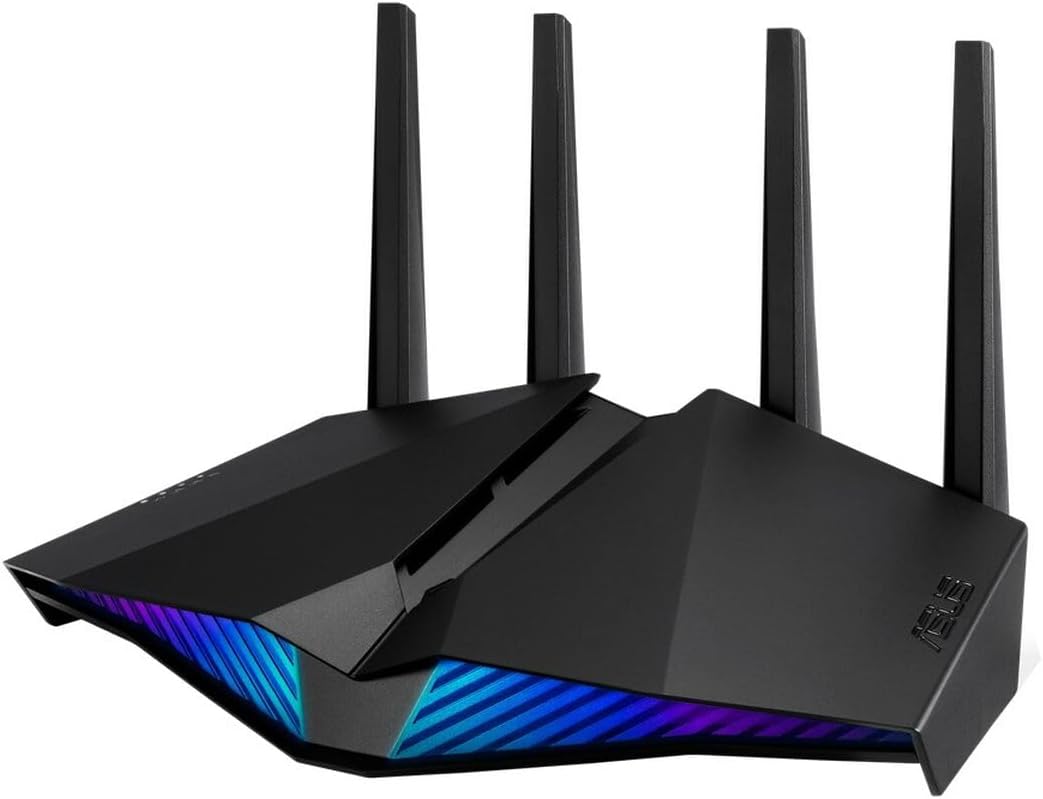
Image: The ASUS RT-AX82U Wireless Router, showcasing its sleek design and customizable RGB lighting on the front panel.
2. מה בקופסה
Upon unboxing your ASUS RT-AX82U router, please ensure all the following items are present:
- נתב ASUS RT-AX82U WiFi 6
- מתאם מתח
- כבל Ethernet
- מדריך התחלה מהירה / תיעוד
3. מדריך התקנה
Follow these steps to set up your ASUS RT-AX82U router for the first time.
3.1 חיבור פיזי
- מיקום: Place the router in a central location to maximize Wi-Fi coverage. Ensure it is away from obstructions and other electronic devices that may cause interference. The antennas are fixed and do not require adjustment.
- חיבור למודם: Connect one end of the provided Ethernet cable to the WAN port (usually blue) on the back of your RT-AX82U router. Connect the other end to your modem's Ethernet port.
- הפעלה: Connect the power adapter to the DC-IN port on the router and plug it into a power outlet. Press the power switch to turn on the router. Wait for the indicator lights to stabilize, which may take a few minutes.
- חבר את המכשיר שלך:
- חיבור קווי: Connect your computer to one of the LAN ports (yellow) on the router using an Ethernet cable.
- חיבור אלחוטי: On your Wi-Fi enabled device (laptop, smartphone), search for the default Wi-Fi network name (SSID) printed on the label on the bottom of your router. Connect to this network using the default password provided on the same label.

תמונה: אחורי view of the ASUS RT-AX82U router, illustrating the various ports including Power (DC-IN), USB 3.2 Gen 1, LAN ports (x3), a dedicated Gaming Port, WAN port, Reset Button, and WPS Button.
3.2 תצורה ראשונית
- גִישָׁה Web מִמְשָׁק: פתח א web browser on your connected device. The router should automatically redirect you to the ASUS setup wizard. If not, type router.asus.com or 192.168.1.1 בסרגל הכתובות ולחץ על Enter.
- פעל לפי אשף ההתקנה: The setup wizard will guide you through the initial configuration steps, including setting up your internet connection type (e.g., DHCP, PPPoE), creating a new Wi-Fi network name (SSID) and password, and setting an administrator password for the router's interface. It is highly recommended to change the default Wi-Fi and administrator passwords for security.
- Record Information: After the setup is complete, make sure to write down your new Wi-Fi network name (SSID) and password, as well as your router's administrator username and password, and the router's IP address if it changed from the default. This information is crucial for future access and troubleshooting.
4. הפעלת הנתב שלך
The ASUS RT-AX82U offers a range of features to optimize your network experience.
4.1 Wi-Fi 6 (802.11ax) Technology
The RT-AX82U leverages Wi-Fi 6 technology to provide superior performance. Key benefits include:
- OFDMA: Improves efficiency in high-density environments by allowing multiple devices to share a single channel.
- MU-MIMO: מאפשר לנתב לתקשר עם מספר מכשירים בו זמנית, באופן משמעותיasinקיבולת רשת g.
- 160MHz Channels: Doubles bandwidth for compatible devices, leading to significantly faster speeds.
- זמן התעוררות יעד (TWT): מפחית את צריכת החשמל עבור מכשירים מחוברים, ומאריך את חיי הסוללה.

Image: An infographic detailing the advantages of New-Gen WiFi 6 (802.11ax), including improved performance for multiple devices, increased speed, extended battery life, and enhanced range.
4.2 תכונות משחקים
The RT-AX82U is optimized for gaming with features designed to minimize latency and prioritize gaming traffic.
- יציאת גיימינג ייעודית: Connect your gaming PC or console to the dedicated "Gaming Port" (yellow LAN port) on the router's back panel for automatic prioritization of gaming traffic.
- Gear Accelerator: דרך של הנתב web interface, you can manually prioritize specific devices or applications to ensure they receive maximum bandwidth.
- מצב משחק נייד: Activate Mobile Game Mode via the ASUS Router app on your smartphone to minimize latency and ping while gaming on mobile devices.

Image: A smartphone displaying the "Mobile Game Mode" interface, indicating optimized network performance for gaming with low ping and good diagnostic status. A racing game is visible in the background.

Image: A collage illustrating various gaming setups, including a person using a game controller, another playing on a smartphone, and a third using a gaming keyboard and mouse, highlighting the router's support for diverse gaming devices.
4.3 AiProtection Pro
AiProtection Pro, powered by Trend Micro, provides commercial-grade network security and comprehensive parental controls to protect your home network and connected devices.
- אבטחת רשת: Blocks malicious sites, detects and quarantines infected devices, and prevents personal data leakage.
- Advanced Parental Control: Allows you to manage internet access times, filter content, and block specific applications for individual family members or devices.

Image: A person interacting with a tablet, which displays icons representing network security (a shield with a lock) and parental controls (a family icon), illustrating the features of AiProtection Pro.
5. תחזוקה
Proper maintenance ensures the longevity and optimal performance of your ASUS RT-AX82U router.
- עדכוני קושחה: בדוק באופן קבוע אם קיימים עדכוני קושחה והתקן אותם דרך מערכת ההפעלה של הנתב. web ממשק. עדכוני קושחה כוללים לעתים קרובות שיפורי ביצועים, תיקוני אבטחה ותכונות חדשות.
- ניקוי: Gently wipe the router's exterior with a soft, dry cloth. Do not use liquid cleaners or abrasive materials. Ensure ventilation holes are clear of dust and debris to prevent overheating.
- מיקום: Maintain good airflow around the router. Avoid placing it in enclosed spaces or near heat sources.
- אתחול מחדש: Periodically rebooting your router (unplugging the power for 10-15 seconds and plugging it back in) can help resolve minor network issues and refresh its performance.
6. פתרון תקלות
This section addresses common issues you might encounter with your RT-AX82U router.
6.1 אין חיבור לאינטרנט
- בדוק כבלים: Ensure all Ethernet cables (especially the one from the modem to the router's WAN port) are securely connected.
- מצב מודם: ודא שהמודם שלך פועל כראוי ויש לו חיבור אינטרנט פעיל. נסה להפעיל מחדש את המודם.
- אתחול הנתב: Power cycle your router by unplugging it for 10-15 seconds, then plugging it back in.
- הגדרות ספק שירותי האינטרנט: Confirm your Internet Service Provider (ISP) settings are correctly configured in the router's web interface (e.g., connection type like DHCP, PPPoE).
6.2 Slow Wi-Fi Speeds or Frequent Disconnections
- הַפרָעָה: הרחק את הנתב ממכשירים אלקטרוניים אחרים (טלפונים אלחוטיים, מיקרוגלים) שעלולים לגרום להפרעות.
- אופטימיזציה של ערוצים: בנתב web interface, try changing the Wi-Fi channel for both 2.4 GHz and 5 GHz bands to a less congested one.
- קושחה: ודא שהקושחה של הנתב שלך מעודכנת.
- תאימות מכשיר: Verify that your devices support Wi-Fi 6 (802.11ax) to fully utilize the router's capabilities.
- חוזק אות: Check the signal strength on your devices. If it's low, consider repositioning the router or using a Wi-Fi extender.
6.3 לא ניתן לגשת לנתב Web מִמְשָׁק
- כתובת IP: ודא שאתה משתמש בכתובת ה-IP הנכונה (למשל, router.asus.com or 192.168.1.1).
- חיבור קווי: נסה לחבר את המחשב ישירות לראוטר באמצעות כבל Ethernet.
- מטמון דפדפן: נקה את המטמון והעוגיות של הדפדפן שלך, או נסה גרסה אחרת web דפדפן.
- איפוס למפעל: As a last resort, perform a factory reset. Locate the small reset button (often recessed) on the back of the router. With the router powered on, use a paperclip to press and hold the button for about 5-10 seconds until the power LED blinks. This will revert all settings to factory defaults, requiring you to reconfigure the router.
7. מפרטים
| תכונה | פְּרָט |
|---|---|
| מותג | ASUS |
| שם הדגם | RT-AX82U |
| סִדרָה | RT-AX82U |
| סוג אלחוטי | 802.11ax (Wi-Fi 6) |
| מחלקה להקת תדרים | דו-פס (2.4 גיגה-הרץ / 5 גיגה-הרץ) |
| טכנולוגיית קישוריות | Ethernet, USB |
| מַעֲרֶכֶת הַפעָלָה | ASUS Proprietary Operating System |
| משקל פריט | 1.63 פאונד (740 גרם) |
| מידות המוצר (LxWxH) | 10.85 x 6.5 x 7.26 אינץ' |
| תכונה מיוחדת | WPS |
| מכשירים תואמים | מחשב אישי |
| שימושים מומלצים | משחקים |
| רכיבים כלולים | WiFi 6 router, RGB lighting effects |
8. אחריות ותמיכה
ASUS provides a limited warranty for the RT-AX82U router. The specific terms and duration of the warranty may vary by region and retailer. Please refer to the warranty card included with your product or visit the official ASUS support webבאתר לקבלת מידע אחריות מפורט.
For technical assistance, troubleshooting, or to access the latest drivers and firmware, please visit the official ASUS support webאֲתַר:
ייתכן שתמצאו גם משאבים מועילים ופורומים קהילתיים באתר ASUS webאֲתַר.