
ASRock B550 PHANTOM GAMING 4
מדריך למשתמש של לוח אם ASRock B550 Phantom Gaming 4
Model: B550 PHANTOM GAMING 4 | Brand: ASRock
מָבוֹא
The ASRock B550 Phantom Gaming 4 motherboard is engineered for gamers, offering a robust platform for AMD AM4 Socket Ryzen™ processors. It integrates essential features and capabilities to enhance your gaming and computing experience. This manual provides detailed guidance for setting up, operating, and maintaining your motherboard.

Image: The ASRock B550 Phantom Gaming 4 motherboard alongside its retail packaging, highlighting the product's design and branding.
תכונות מפתח
- Supports DDR4 4733+ (OC) memory speeds.
- Features an 8 Power Phase Design with Digi Power for stable power delivery.
- Equipped with 1 PCIe 4.0 x16, 1 PCIe 3.0 x16, 2 PCIe 3.0 x1 slots, and 1 M.2 Key E for WiFi.
- Operating System compatibility: Microsoft Windows 10 64-Bit and Windows 11 64-Bit.
מדריך התקנה
1. התקנת רכיבים
Before installing the motherboard into your PC case, it is recommended to install the CPU, CPU cooler (if applicable), and RAM modules.

תמונה: מפורט view of the motherboard's layout, indicating key components such as the CPU socket, memory slots, and various PCIe slots.
התקנת מעבד
- פתח את זרוע החזקת שקע המעבד.
- יישר בזהירות את המעבד עם השקע, וודא שהמשולש הזהוב על המעבד תואם למשולש שעל השקע.
- הכנס בעדינות את המעבד לתוך השקע. אל תלחץ עליו בכוח.
- סגור את זרוע האחיזה כדי לאבטח את המעבד.
התקנת זיכרון RAM

Image: A user installing RAM modules into the dual-channel DDR4 memory slots on the ASRock B550 Phantom Gaming 4 motherboard.
- Open the clips on both ends of the memory slots.
- Align the notch on the RAM module with the notch in the memory slot.
- לחץ בחוזקה על שני קצוות מודול ה-RAM עד שהקליפסים יתייצבו במקומם.
התקנת M.2 SSD
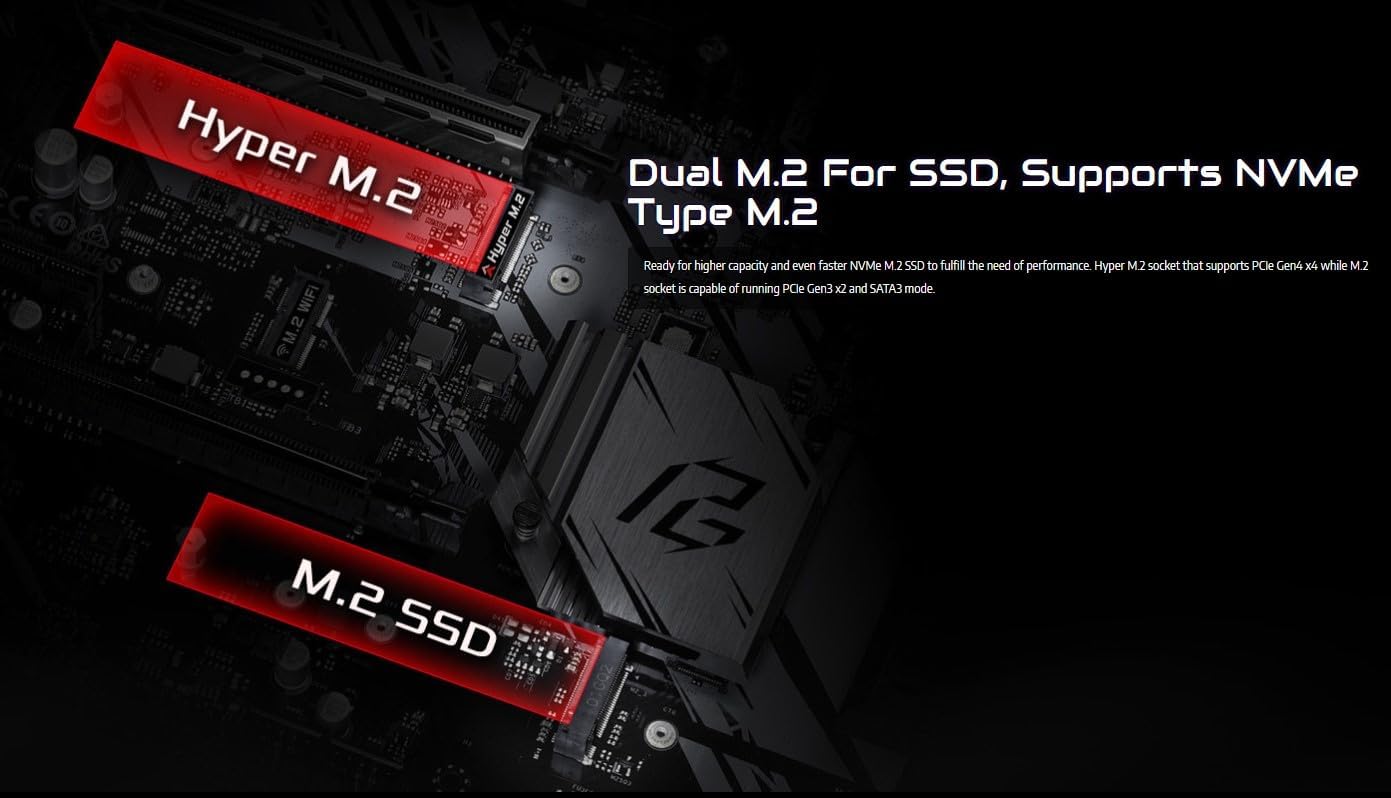
Image: The motherboard features two M.2 slots: one Hyper M.2 for PCIe 4.0 NVMe SSDs and another M.2 slot for PCIe 3.0 SSDs.
- אתר את חריצי ה-M.2 בלוח האם.
- הכנס את כונן ה-SSD מסוג M.2 לחריץ בזווית.
- דחפו בעדינות את ה-SSD כלפי מטה ואבטחו אותו בעזרת הבורג המצורף.
2. חיבור ציוד היקפי וחשמל
After installing the core components, connect the necessary cables and peripherals.

Image: The motherboard includes both 4-pin RGB LED headers and 3-pin Addressable RGB LED headers for customizable lighting.
- חבר את מחבר החשמל ATX בן 24 הפינים ואת מחבר החשמל של המעבד בן 8 הפינים מספק הכוח ללוח האם.
- Connect SATA data cables to your storage drives (HDDs/SSDs) and the motherboard's SATA connectors. The motherboard offers six SATA 6Gb/s connectors.
- Connect front panel headers (USB 2.0, USB 3.2, audio, power/reset buttons, LED indicators) to their respective pins on the motherboard.
- Install your graphics card into the primary PCIe 4.0 x16 slot.
- Connect case fans to the available fan headers. The motherboard provides four case fan headers.
3. חיבורי לוח קלט/פלט אחורי
Image: The rear I/O panel features various connectivity options including PS/2, USB 3.2 Gen 1, HDMI, and RJ-45 Gigabit LAN ports, along with analog audio jacks.
- Connect your monitor to the HDMI port (if using an APU with integrated graphics).
- Connect USB devices (keyboard, mouse, external drives) to the USB 3.2 Gen 1 ports.
- Connect your Ethernet cable to the RJ-45 Gigabit LAN port for network access.
- Connect audio devices (speakers, headphones) to the analog audio ports.
הפעלת לוח האם שלך
הגדרת BIOS/UEFI
The BIOS (Basic Input/Output System) or UEFI (Unified Extensible Firmware Interface) is the first software that runs when you power on your computer. It initializes hardware components and loads the operating system. To enter the BIOS/UEFI setup, press the לִמְחוֹק or F2 key during system startup.
התקנת מערכת הפעלה
Once the hardware is assembled, you can proceed with installing your preferred operating system (e.g., Microsoft Windows 10 64-bit or Windows 11 64-bit) from a bootable USB drive or DVD.
תַחזוּקָה
- שמור על מנהלי התקנים מעודכנים: Regularly download and install the latest drivers for your motherboard, graphics card, and other components from the ASRock official webאתר כדי להבטיח ביצועים ויציבות אופטימליים.
- עדכוני BIOS: Periodically check for BIOS updates on the ASRock website. BIOS updates can improve compatibility, stability, and add support for new hardware. Follow the instructions carefully when updating the BIOS.
- הסרת אבק: Clean dust from inside your PC case and motherboard components regularly using compressed air. Dust buildup can lead to overheating and reduced performance.
- ניהול כבלים: Ensure cables are neatly managed to improve airflow within the case, which helps in maintaining lower temperatures.
פתרון בעיות
- אין תצוגה: Ensure your monitor is connected to the correct output on your graphics card or motherboard (if using integrated graphics). Check that the graphics card is properly seated in its PCIe slot and that all power cables are connected.
- System Not Booting (DRAM/CPU Red Lights): If your motherboard displays diagnostic LEDs for DRAM or CPU, it indicates an issue with these components. Re-seat your RAM modules and CPU. Ensure your CPU is compatible with the motherboard and that the BIOS is updated to support your CPU model (especially for newer Ryzen 5000 series processors).
- ציוד היקפי שלא זוהה: Try connecting the peripheral to a different USB port. Ensure the latest drivers for the peripheral are installed. Check front panel header connections if the issue is with front USB ports.
- התחממות יתר: Verify that all case fans and CPU cooler fans are spinning correctly. Ensure proper airflow within the case and clean any dust buildup. Check CPU cooler mounting pressure and thermal paste application.
מפרטים
| תכונה | פְּרָט |
|---|---|
| מותג | ASRock |
| שם הדגם | B550 PHANTOM GAMING 4 |
| שקע מעבד | שקע AM4 |
| מעבדים תואמים | AMD Ryzen™ 3000, 3000 G-Series, 4000 G-Series, 5000, and 5000 G-Series Desktop Processors |
| סוג ערכת שבבים | AMD B550 |
| טכנולוגיית זיכרון RAM | DDR4 |
| מהירות שעון זיכרון | עד 4733+ מגה-הרץ (OC) |
| חריצי PCIe | 1 x PCIe 4.0 x16, 1 x PCIe 3.0 x16, 2 x PCIe 3.0 x1 |
| M.2 חריצים | 1 x Hyper M.2 (PCIe 4.0), 1 x M.2 (PCIe 3.0) |
| יציאות SATA | 6 x SATA3 6.0 Gb/s |
| יציאות USB (קלט/פלט אחורי) | 6 x USB 3.2 Gen 1 |
| LAN | Gigabit LAN |
| RGB Headers | 1 x 4-pin RGB LED, 1 x 3-pin Addressable RGB LED |
| מַעֲרֶכֶת הַפעָלָה | מיקרוסופט ווינדוס 10 64 סיביות / 11 64 סיביות |
| מידות (LxWxH) | 10.5 x 2.5 x 13.5 אינץ' |
| משקל פריט | 2.64 פאונד |
מה יש בקופסה

Image: The complete set of items included with the ASRock B550 Phantom Gaming 4 motherboard, such as the manual, support CD, SATA cables, and I/O shield.
The ASRock B550 Phantom Gaming 4 Motherboard package typically includes:
- מדריך התקנה מהירה
- תקליטור תמיכה
- מגן קלט / פלט
- 2 כבלי נתונים SATA
- 3 x Screws for M.2 Socket
אחריות ותמיכה
For detailed warranty information and technical support, please refer to the official ASRock website or the full user manual provided in PDF format. You can access the PDF user manual כָּאן.
Ask a question about this manual
Ask about setup, troubleshooting, compatibility, parts, safety, or missing instructions. Manuals+ will review the question and use this page’s manual context to help answer it.