
1. מבוא ומעלהview
This manual provides detailed instructions for the installation, operation, maintenance, and troubleshooting of the ASRock 760GM-HDV Rev: 1.01 Desktop Motherboard. This motherboard is designed for AMD AM3/AM3+ processors and supports DDR3 memory, offering a reliable foundation for personal computer systems.
Key features include an AMD 760G/SB710 chipset, support for up to 32GB DDR3 RAM, and integrated graphics with HDMI, VGA, and DVI outputs. It also provides USB and SATA 3GB/s connectivity.
2. התקנה והתקנה
Before beginning installation, ensure your workspace is clean, well-lit, and static-free. Always handle the motherboard by its edges and use an anti-static wrist strap to prevent electrostatic discharge (ESD) damage.
2.1 פריסת לוח האם
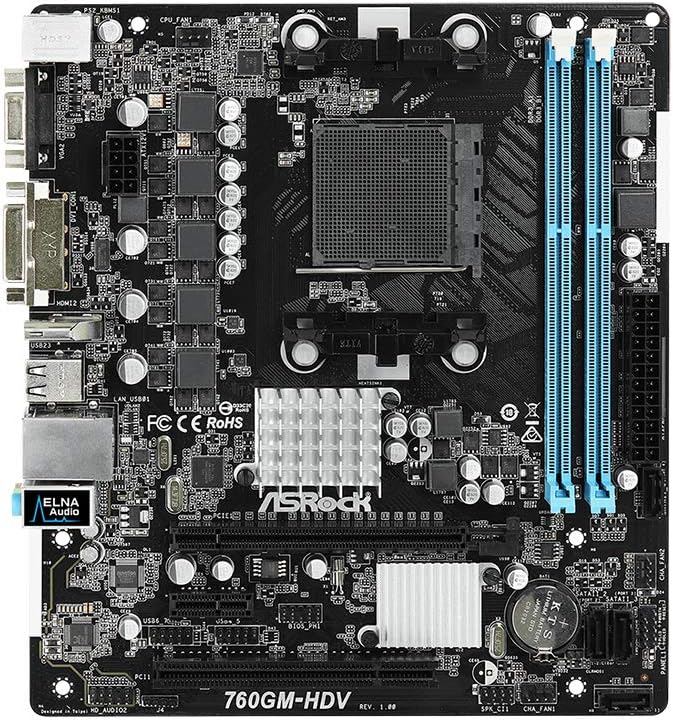
איור 1: רֹאשׁ view of the ASRock 760GM-HDV motherboard, showing the CPU socket, RAM slots, PCIe slots, and various connectors.
2.2 שלבי התקנת רכיבים
- הכינו את התיק: Install the I/O shield into the rear opening of your computer case. Ensure standoffs are correctly aligned and installed for the Micro ATX form factor.
- התקן את המעבד: Open the CPU socket lever. Carefully align your AMD AM3/AM3+ processor with the socket, ensuring the golden triangle on the CPU matches the triangle on the socket. Gently place the CPU into the socket without force. Close the lever to secure the CPU.
- התקנת מקרר המעבד: Apply thermal paste to the CPU (if not pre-applied on the cooler). Mount the CPU cooler according to its manufacturer's instructions, ensuring it is securely fastened and the fan cable is connected to the CPU_FAN header on the motherboard.
- התקנת זיכרון RAM: Open the clips on both ends of the DDR3 DIMM slots. Align the memory module's notch with the slot's key. Press down firmly on both ends of the module until the clips snap into place. This motherboard supports dual-channel DDR3 memory.
- התקנת לוח האם: הנח בזהירות את לוח האם במארז, תוך יישור חורי הברגים עם הבריחים. אבטח את לוח האם באמצעות ברגים.
- חבר ספק כוח: חבר את מחבר החשמל ATX בעל 24 פינים ואת מחבר החשמל ATX בעל 4 פינים של 12V מספק הכוח שלך ליציאות המתאימות בלוח האם.
- חיבור התקני אחסון: Connect SATA data cables from your hard drives or SSDs to the SATA 3GB/s ports on the motherboard. Connect power cables from the power supply to your storage devices.
- חיבור כבלי הפאנל הקדמי: Connect the power button, reset button, HDD LED, power LED, and front USB/audio headers from your case to the corresponding pins on the motherboard. Refer to the motherboard's silkscreen labels for correct orientation.
- התקנת כרטיסי הרחבה: If using a dedicated graphics card or other PCIe expansion cards, insert them into the appropriate PCIe slots and secure them with the case's retention mechanism.
3. הוראות הפעלה
3.1 Initial Power-On and BIOS Access
- After all components are installed and connected, connect your monitor, keyboard, and mouse to the appropriate ports.
- הפעל את המערכת. במהלך תהליך האתחול, לחץ שוב ושוב על הלחצן DEL or F2 מקש כדי להיכנס לכלי התקנת BIOS/UEFI.
- In the BIOS, you can configure boot order, system time, and various hardware settings. Save changes before exiting.
3.2 חיבור ציוד היקפי
The ASRock 760GM-HDV motherboard offers a range of rear I/O ports for connecting external devices:

איור 2: Rear I/O panel of the ASRock 760GM-HDV motherboard, showing PS/2, VGA, DVI, HDMI, USB, LAN, and audio ports.
- יציאות PS/2: For connecting legacy PS/2 keyboards and mice.
- VGA, DVI, HDMI Ports: For connecting displays. Use one port at a time for integrated graphics output.
- יציאות USB: For connecting USB devices such as keyboards, mice, external drives, and printers.
- יציאת LAN: לחיבור לרשת קווית באמצעות כבל Ethernet.
- שקעי אודיו: לחיבור רמקולים, אוזניות ומיקרופונים.
3.3 התקנת דרייבר
After installing your operating system, install the necessary drivers for the motherboard's chipset, integrated graphics, audio, and LAN. These drivers are typically provided on a support CD or can be downloaded from the ASRock official webאתר עבור הדגם הספציפי שלך.
4. תחזוקה
- ניקוי אבק: Regularly clean dust from inside your computer case, especially around the CPU cooler, chipset heatsink, and fan vents. Use compressed air and ensure the system is powered off and unplugged.
- עדכוני BIOS: בדוק את ה-ASRock מעת לעת webאתר לעדכוני BIOS. עדכוני BIOS יכולים לשפר את יציבות המערכת, תאימותה וביצועיה. יש לפעול בקפידה אחר הוראות העדכון כדי למנוע נזק למערכת.
- בדיקות רכיבים: Ensure all cables are securely connected and no components are loose. Check for any signs of physical damage or overheating.
5. פתרון תקלות
- אין חשמל/אין הפעלה/כיבוי:
- Verify all power cables (24-pin ATX, 4-pin 12V) are securely connected.
- ודא שהמעבד וה-RAM ממוקמים כהלכה.
- נסה לאתחל רק עם רכיבים חיוניים (מעבד, דיסק און קי אחד, כרטיס מסך אם אין כרטיס מסך משולב).
- Clear CMOS by removing the CMOS battery for a few minutes or using the clear CMOS jumper.
- אין תצוגה:
- Ensure the monitor is connected to the correct video output (motherboard's integrated graphics or a dedicated graphics card).
- בדוק את אספקת החשמל של הצג ואת בחירת הקלט.
- If using a dedicated graphics card, ensure it is properly seated and has power.
- מערכת הפעלה לא עולה:
- Check boot order in BIOS to ensure the correct drive is selected.
- Verify SATA data and power connections to the boot drive.
- Run a diagnostic check on the storage drive.
6. מפרטים
| תכונה | מִפרָט |
|---|---|
| יַצרָן | ASRock |
| מספר דגם | 760GM-HDV |
| סוג ערכת שבבים | AMD 760G / SB710 |
| שקע מעבד | AM3 / AM3+ |
| מעבדים תואמים | AMD Athlon, AMD Sempron (AM3/AM3+ series) |
| טכנולוגיית זיכרון RAM | DDR3 |
| גודל מקסימלי של זיכרון RAM | 32 ג'יגה-בייט |
| מהירות שעון זיכרון | עד 3400 מגה-הרץ (OC) |
| גרפיקה משולבת | AMD Radeon HD 3000 (on 760G chipset) |
| יציאות פלט וידאו | VGA, DVI, HDMI |
| יציאות SATA | SATA 3GB/s |
| יציאות USB | USB 2.0 (rear and internal headers) |
| LAN | Gigabit LAN |
| גורם צורה | מיקרו ATX |
| מחבר חשמל ראשי | 24-pin ATX |
| מחבר מתח למעבד | 4-pin ATX 12V |
7. אחריות ותמיכה
For detailed warranty information, please refer to the warranty card included with your product or visit the official ASRock website. ASRock provides technical support for its products. For assistance, please visit the ASRock support page or contact their customer service department.
הרשמי של ASRock Webאֲתַר: www.asrock.com