
פודופו US-3243
User Manual: podofo Android Car Stereo
Model: US-3243 | For Toyota Camry 2006-2011
1. הקדמה
This manual provides detailed instructions for the installation, operation, and maintenance of your new podofo Android Car Stereo. Designed specifically for Toyota Camry models from 2006 to 2011, this 9-inch HD touch screen unit offers advanced features including GPS navigation, Bluetooth connectivity, Wi-Fi, Mirror Link, and support for a rear view camera. Please read this manual thoroughly before installation and use to ensure optimal performance and safety.
2. מידע בטיחות
- ודא שההצתה של הרכב כבויה והמצבר מנותק לפני תחילת ההתקנה כדי למנוע קצר חשמלי.
- מומלץ להתקין באופן מקצועי לבטיחות וביצועים מיטביים.
- אל תפעיל את המכשיר באופן שמסיח את דעתך מהנהיגה. תן תמיד עדיפות לבטיחות בדרכים.
- הימנעו מחשיפת היחידה לטמפרטורות קיצוניות, לאור שמש ישיר למשך תקופות ממושכות או לחות מוגזמת.
- השתמשו רק בכבלים ובאביזרים החשמליים שצוינו כדי למנוע נזק או שריפה.
3. תכולת החבילה
ודא שכל הפריטים המפורטים להלן כלולים בחבילה שלך:
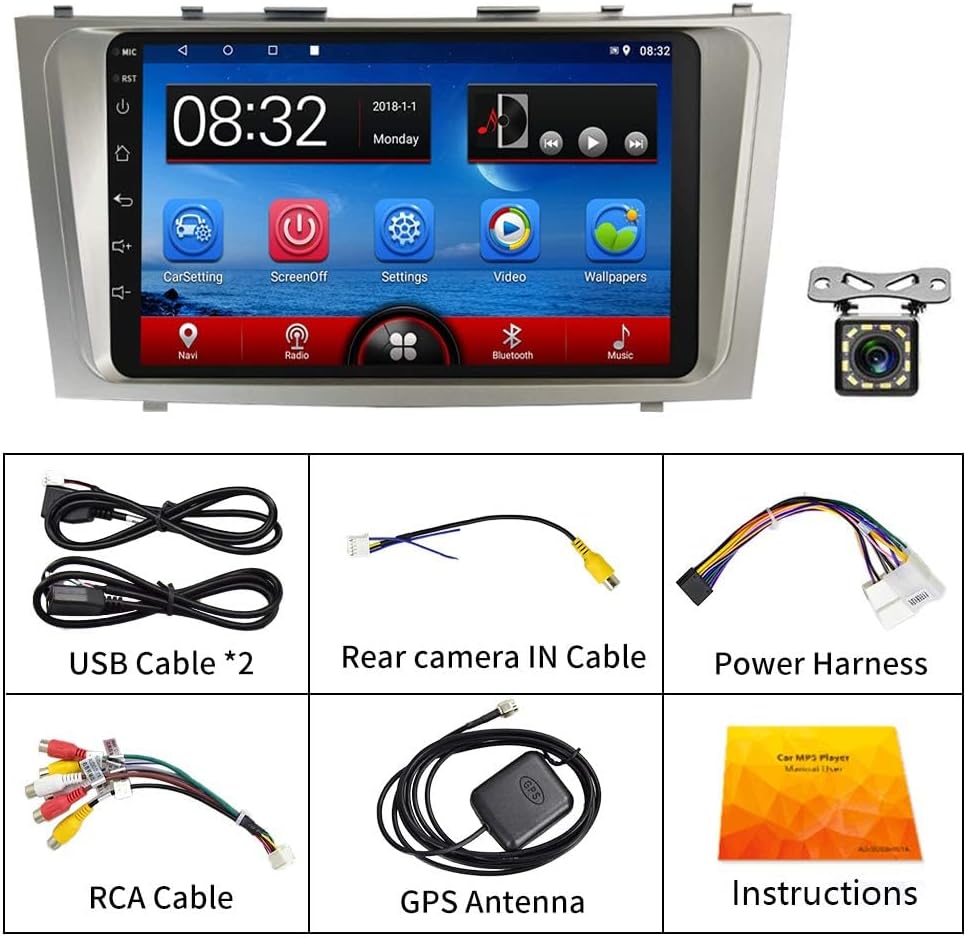
יחידה ראשית: 9-inch Android Car Stereo (Model US-3243)
- כבל חשמל: For connecting the stereo to the vehicle's power system.
- כבל RCA: עבור חיבורי קלט/פלט אודיו/וידאו.
- כבל קלט למצלמה אחורית: Dedicated cable for the backup camera.
- כבלי USB (x2): For connecting USB devices and mirror link.
- אנטנת GPS: עבור פונקציונליות ניווט.
- מצלמת גיבוי: Included for rear view סִיוּעַ.
- מִיקרוֹפוֹן: לשיחות ללא ידיים.
- Installation Tools/Parts: Brackets and screws for mounting.
- מדריך למשתמש: מדריך ההוראות הזה.
4. המוצר נגמרview
The podofo Android Car Stereo is designed to seamlessly integrate into your Toyota Camry, providing a modern infotainment experience. It features a responsive 9-inch HD touchscreen and runs on the Android operating system, offering a wide range of functionalities.
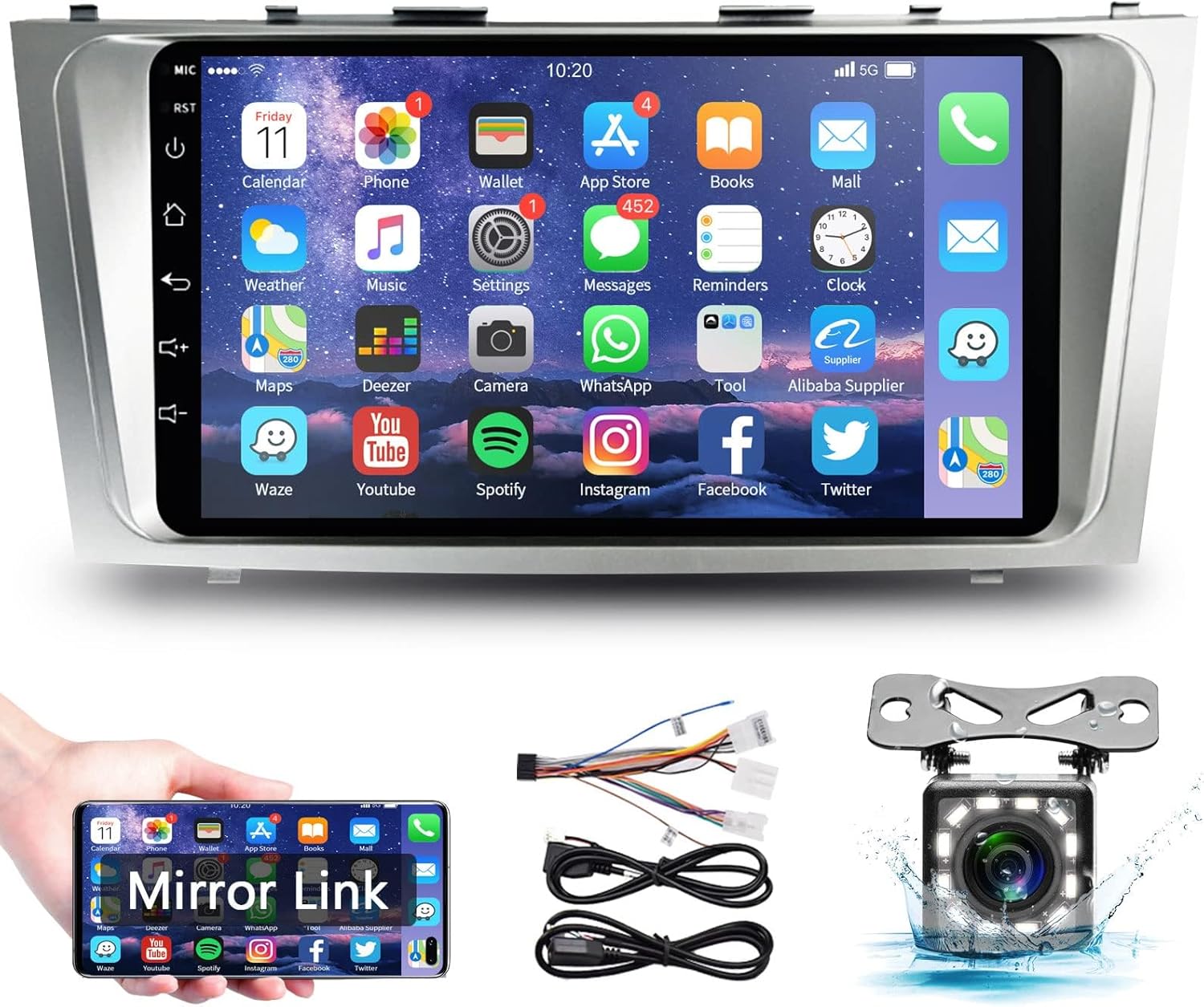
Figure 4.1: podofo Android Car Stereo and Included Accessories.
תמונה זו מציגה את היחידה הראשית של מערכת הסטריאו של הרכב, המוצגתasing its large touchscreen interface with various application icons. Below the main unit, a hand holds a smartphone demonstrating the Mirror Link feature, indicating screen mirroring capabilities. To the right, essential wiring harnesses are shown, highlighting the plug-and-play design. A detailed view of the included backup camera is also presented, emphasizing its wide-angle and night vision features.
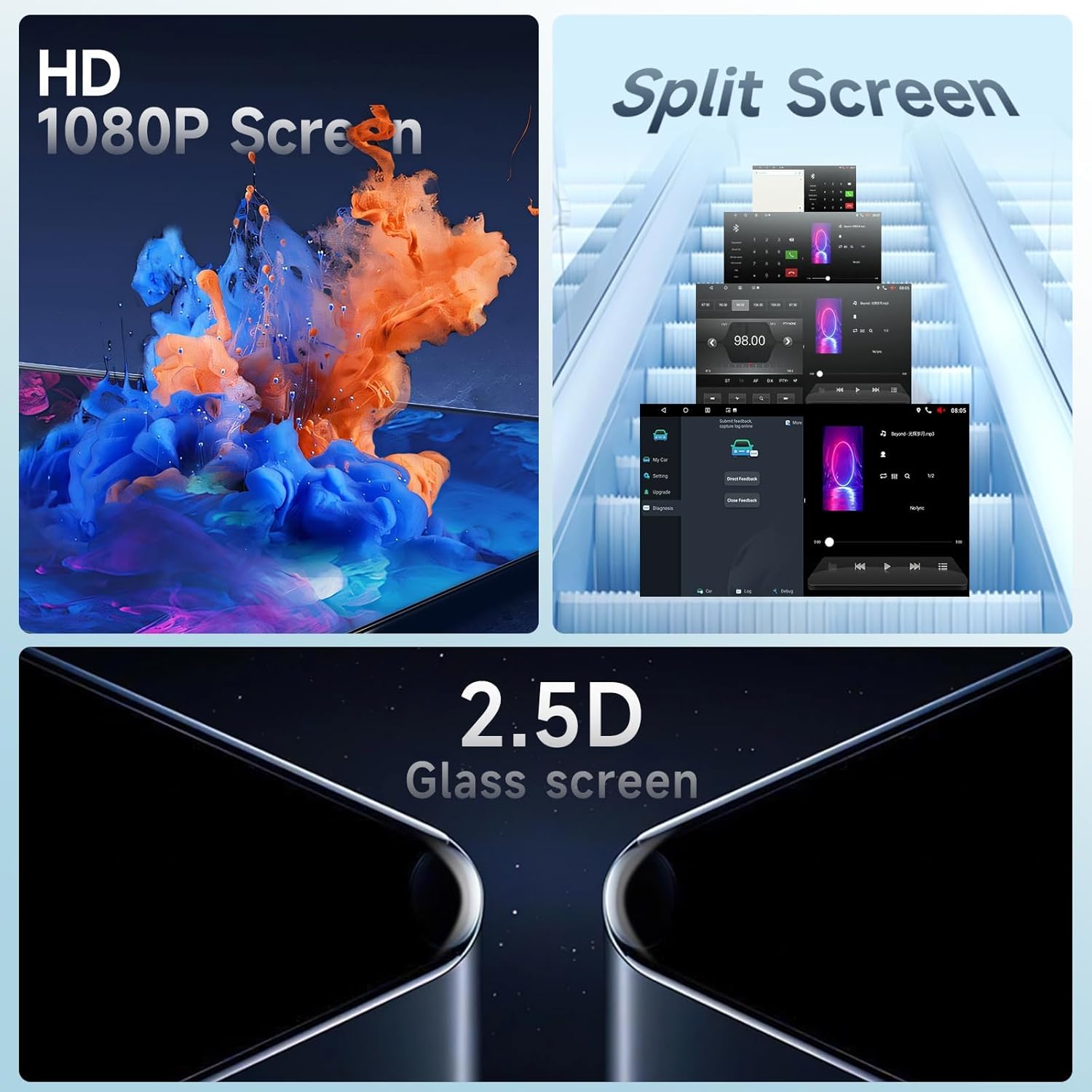
Figure 4.2: High-Definition Display and Split Screen Feature.
This visual highlights the high-definition capabilities of the 9-inch screen, capable of displaying 1080P content with vivid colors. It also illustrates the convenient split-screen function, allowing users to run two applications simultaneously, such as navigation and music. The image further emphasizes the premium 2.5D curved glass screen, providing a sleek aesthetic and smooth touch experience.
5. התקנה והתקנה
The podofo car stereo is designed for a plug-and-play installation in Toyota Camry models from 2006 to 2011. However, specific wiring considerations apply based on your vehicle's original audio system.
5.1 תאימות רכב
This head unit is specifically designed for Toyota Camry 2006-2011. No additional frame is needed, and a dedicated wiring harness is included for a straightforward installation.

איור 5.1: לפני ואחרי ההתקנה.
This image provides a clear visual comparison of the vehicle's dashboard before and after the installation of the podofo Android Car Stereo. The "Before" image shows the original factory radio, while the "After Installation" image displays the new 9-inch touchscreen unit seamlessly integrated into the dashboard, highlighting the perfect fit and aesthetic upgrade.
5.2 JBL Sound System / Navigation Compatibility
חָשׁוּב: If your Toyota Camry is equipped with a JBL sound system or a large-screen navigation function, you may require an additional wiring harness. The standard harness included is for non-JBL systems. Please check the back panel of your original radio for 20-pin connectors as shown in the figures below.

Figure 5.2: JBL System and Navigation Compatibility Check.
This image illustrates the importance of checking your vehicle's original audio system. It shows a comparison of the dashboard before and after installation. Crucially, it highlights examples of original radios with JBL branding or built-in navigation, indicating that these configurations require a specific additional wiring harness for proper functionality with the new stereo. Users should verify their car's system to ensure compatibility.

Figure 5.3: Identifying 20-Pin Connectors for JBL/Navigation Systems.
This image provides a visual guide for identifying the specific 20-pin connectors on the back panel of your original car stereo. If your vehicle has a JBL sound system or a large-screen navigation unit, its back panel will feature these connectors, signaling the requirement for a specialized wiring harness to ensure proper integration with the podofo Android Car Stereo.

Figure 5.4: Various Wiring Harness Configurations.
This composite image displays several different back panel configurations of car stereo units, each with distinct wiring setups. It serves as a comprehensive reference for users to compare with their vehicle's existing wiring, ensuring they select or confirm the correct wiring harness for a successful and compatible installation of the podofo Android Car Stereo.
5.3 חיווט מצלמת רוורס
The included backup camera requires specific wiring for proper operation. Follow the diagram below:

Figure 5.5: Backup Camera Wiring Diagram.
This diagram provides a clear visual guide for connecting the backup camera. It shows the camera's power wires (red for +12V, black for GND) connecting to the vehicle's reversing light. The yellow RCA video cable connects from the camera to the stereo's "Rear Camera IN" port. A crucial "Reverse, Back or Trigger" wire from the stereo needs to be connected to the vehicle's reverse light positive for automatic camera activation when shifting into reverse.
6. הוראות הפעלה
Your podofo Android Car Stereo offers a variety of functions to enhance your driving experience. Navigate through the features using the intuitive touch screen interface.
6.1 תפעול מסך מגע
The 9-inch capacitive touch screen allows for smooth interaction with the system. Tap icons to open applications, swipe to navigate menus, and use pinch-to-zoom gestures where applicable (e.g., in navigation apps).
6.2 Mirror Link (Phone Connectivity)
Mirror Link allows you to display your smartphone's screen directly on the car stereo. This feature supports both Android and iOS devices.
- טלפון של אנדרואיד: Connect via USB cable for interaction control (two-way control).
- iOS Phone: Connect via Wi-Fi for mirroring (one-way display, cannot be controlled from the stereo screen).
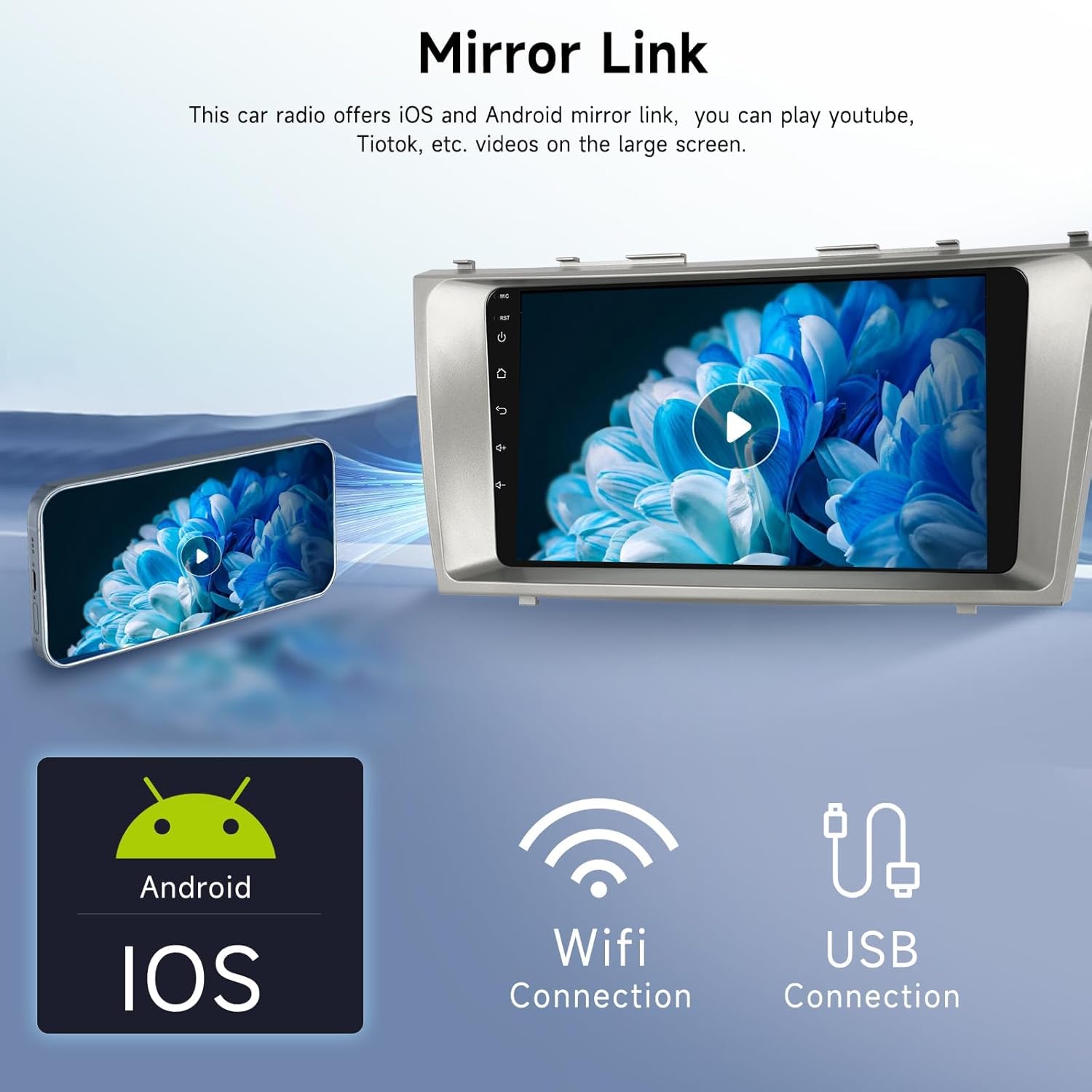
Figure 6.1: Mirror Link Functionality.
This image visually demonstrates the Mirror Link feature, where a smartphone's display is mirrored onto the larger screen of the car stereo. It highlights compatibility with both Android and iOS devices and indicates the connection methods: Wi-Fi for iOS and USB for Android, allowing users to enjoy content like YouTube or TikTok on the car's display.

Figure 6.2: Mirror Link for iOS and Android.
This graphic further details the Mirror Link capability, showing how both iOS and Android smartphones can connect to the car stereo. It explicitly states that both wireless and wired options are available, providing flexibility for users to project their phone's screen onto the car's display for various applications.
6.3 ניווט GPS
The unit comes with a built-in navigation module and free North American maps. It supports both online and offline navigation.
- ניווט מקוון: Requires Wi-Fi connection to download real-time traffic data and map updates.
- ניווט לא מקוון: Pre-loaded maps allow navigation without an internet connection.

Figure 6.3: Android 13 Interface with GPS and Wi-Fi.
This image showcases the car stereo's interface running on Android 13, featuring the Google Play Store for app downloads. It distinctly highlights the Wi-Fi connection capability, allowing access to online content and apps, and the GPS Navigation feature, indicating built-in mapping functionalities for seamless travel guidance.

Figure 6.4: Online/Offline Navigation.
This visual emphasizes the versatility of the navigation system, supporting both online and offline modes. It displays popular navigation app icons like Google Maps and Waze, suggesting compatibility with various mapping services. The distinction between online (requiring internet for real-time data) and offline (using pre-downloaded maps) ensures reliable navigation even without network access.
6.4 קישוריות בלוטות'
The built-in Bluetooth module supports hands-free calling and Bluetooth music streaming.
- שיחות ללא ידיים: Pair your phone to make and receive calls directly from the stereo.
- מוסיקת Bluetooth: Stream audio from your phone or other Bluetooth-enabled devices.

Figure 6.5: Bluetooth, SWC, and FM/RDS Radio.
This image combines three key operational features: the Steering Wheel Control (SWC) interface for convenient access to functions, the Bluetooth calling screen showing a dial pad and call management, and the FM/RDS radio interface for tuning into stations. It visually confirms the integrated capabilities for communication and entertainment.

Figure 6.6: Bluetooth Call & Music.
This graphic clearly illustrates the dual functionality of the Bluetooth feature: hands-free calling, depicted by a phone receiving a call and the stereo displaying a dial pad, and Bluetooth music streaming, shown with album art and playback controls on the stereo screen. This highlights the convenience of wireless audio and communication.
רדיו 6.5 FM/RDS
Tune into your favorite radio stations with the built-in FM/RDS tuner. RDS (Radio Data System) provides additional information like station name and song title where available.

איור 6.7: ממשק רדיו FM/RDS.
This graphic illustrates the FM/RDS radio functionality, showing a visual representation of radio waves and common broadcast content like road conditions, news, and music. The car stereo's display shows the radio tuner interface with frequency selection, preset options, and RDS information, providing a comprehensive radio listening experience.
6.6 בקרת הגה (SWC)
The unit supports steering wheel control, allowing you to manage audio and calls without taking your hands off the wheel. Configuration may be required in the system settings.

Figure 6.8: Steering Wheel Control Setup.
This image demonstrates the Steering Wheel Control (SWC) feature, showing a close-up of a car's steering wheel with its integrated control buttons. The car stereo's screen displays an interface for mapping these physical buttons to various functions of the head unit, allowing for convenient and safe operation of audio and calls without diverting attention from the road.
6.7 פונקציונליות מצלמת הנסיעה לאחור
When properly installed, the included backup camera automatically displays the rear view on the screen when the vehicle is shifted into reverse, aiding in safe parking and maneuvering.
איור 6.9: מצלמת רוורס View.
This image displays the car stereo's screen showing the live feed from the backup camera, complete with parking guidelines for assistance. It highlights the wide-angle view, HD night vision, and IP waterproof rating of the camera, ensuring clear visibility and durability in various conditions for safer reversing.
6.8 קישוריות Wi-Fi
Connect to Wi-Fi hotspots to access online features, download apps from the Google Play Store, stream videos, and use online navigation.

Figure 6.10: Wi-Fi Internet Access.
This image illustrates the Wi-Fi internet capability of the car stereo. The screen displays various online applications such as YouTube, Instagram, and TikTok, indicating that users can connect to a Wi-Fi hotspot to download apps, stream content, and enjoy a full online entertainment experience directly from the unit.

Figure 6.11: Built-in Wi-Fi for Online Entertainment.
This graphic highlights the built-in Wi-Fi feature, showing a smartphone connecting to a Wi-Fi network, symbolizing the stereo's ability to access the internet. Various app icons like Spotify, YouTube, and Instagram are displayed, emphasizing the wide range of online entertainment and utility applications that can be utilized with Wi-Fi connectivity.
6.9 כוונון EQ
Enhance your audio experience with the built-in Digital Signal Processor (DSP) and multi-band EQ audio equalizer. Adjust sound frequencies to your preference for optimal sound quality.

Figure 6.12: Audio Equalizer Interface.
This image displays the car stereo's audio equalizer interface, allowing users to fine-tune sound frequencies for a personalized listening experience. It visually represents the ability to upgrade and enhance your audio adventure, ensuring superb sound quality through precise adjustments.

Figure 6.13: Detailed EQ Adjustment.
This graphic provides a detailed view of the EQ Adjustment feature, showing a car's interior with arrows indicating optimized sound distribution. The car stereo's screen displays a comprehensive multi-band audio equalizer, allowing users to precisely adjust music effects and soundstage settings for a truly immersive and wonderful listening experience.
7. תחזוקה
To ensure the longevity and optimal performance of your podofo Android Car Stereo, follow these maintenance guidelines:
- ניקוי: השתמשו במטלית רכה ויבשה לניקוי המסך והחלק החיצוני. עבור כתמים עקשניים, נגבו קלותampשטפו את המטלית במים או בחומר ניקוי המתאים למסכים. הימנעו מחומרים שוחקים או כימיקלים חזקים.
- עדכוני תוכנה: בדוק מעת לעת אם קיימים עדכוני תוכנה דרך הגדרות המערכת או דרך אישור היצרן. webאתר כדי להבטיח שיש לכם את התכונות ותיקוני הבאגים העדכניים ביותר.
- טיפול סביבתי: Protect the unit from direct sunlight and extreme temperatures when the vehicle is parked for extended periods.
- בדיקות חיבור: בדוק מדי פעם את כל חיבורי הכבלים כדי לוודא שהם מאובטחים וללא נזק.
8. פתרון תקלות
אם נתקלתם בבעיות עם מערכת הסטריאו של הרכב, עיינו בבעיות הנפוצות ובפתרונות הבאות:
| בְּעָיָה | סיבה אפשרית | פִּתָרוֹן |
|---|---|---|
| היחידה לא נדלקת. | חיבור חשמל רופף, נתיך שרוף, בעיה במצבר של הרכב. | Check power cables and fuses. Ensure vehicle battery is charged. Consult a professional if issues persist. |
| אין פלט קול. | Volume too low, mute enabled, speaker wiring issue, incorrect audio source. | Increase volume, check mute setting, verify speaker connections, select correct audio source. |
| מסך מגע לא מגיב או איטי. | קפיאת מערכת, תקלת תוכנה זמנית. | Perform a system reset (locate the small reset button, often requires a pin). Ensure screen is clean. |
| Bluetooth connection issues (lag, disconnects). | הפרעות, קושחה מיושנת, תאימות טלפון. | Ensure no other devices are interfering. Try re-pairing the device. Check for system updates. If persistent, consider wired connection for media. |
| ה-GPS לא קולט אות או לא מדויק. | GPS antenna not properly installed/positioned, environmental interference. | ודא שאנטנת ה-GPS פנויה view of the sky (e.g., mounted on dashboard). Check antenna connection. |
| מצלמת רוורס לא מציגה. | חיווט שגוי, תקלה במצלמה, הדק רוורס לא מחובר. | Verify all camera wiring connections (power, video, trigger). Test camera functionality. |
| בקרות גלגל ההגה לא עובדות. | חיווט שגוי, לא מוגדר בהגדרות. | Check SWC wiring. Access system settings to configure/map steering wheel buttons. |
| Requires active internet for maps. | Maps not downloaded for offline use, using online-only map application. | Download offline maps within the navigation application. Use a navigation app that supports offline maps. |
9. מפרטים
| תכונה | פְּרָט |
|---|---|
| מספר דגם | US-3243 |
| מַעֲרֶכֶת הַפעָלָה | דְמוּי אָדָם |
| אַיִל | 1 ג'יגה-בייט |
| גודל מסך | 9 אינץ' |
| הַחְלָטָה | 1024 x 600 |
| מידות המוצר | 5.91 x 1.57 x 3.94 אינץ' |
| משקל פריט | 1 אונקיות |
| טכנולוגיות קישוריות | בלוטות', USB, Wi-Fi |
| קלט ממשק אנושי | מסך מגע |
| סוג מפה | צפון אמריקה |
| רכיבים כלולים | מצלמת גיבוי |
| מצב פלט שמע | סטריאו |
| סוג הרכבה | הר לוח לוח |

Figure 9.1: Product Dimensions and Included Components.
This image provides key physical specifications of the car stereo, including its overall dimensions (width, height, and bottom width), which are crucial for installation planning. It also reiterates the list of components included in the product package, such as the power cable, RCA cable, rear camera input cable, user manual, parts, GPS antenna, installation tool, USB cables, microphone, and camera, ensuring users can verify their contents.
10. אחריות ותמיכה
פודופו מחויבת לספק מוצרים באיכות גבוהה ושירות לקוחות מעולה.
- אַחֲרָיוּת: Your product comes with a אחריות לשנה.
- תמיכה טכנית: podofo offers 24/7 expert customer support. For any concerns regarding installation, operation, or troubleshooting, please reach out directly via Amazon.
- יצירת קשר עם התמיכה: To contact support, navigate to the product page on Amazon, find the "Sold by Podofo US" section, and click "Ask a question."

איור 10.1: מידע על אחריות ותמיכה.
This image visually confirms key aspects of podofo's customer commitment: availability in over 100 countries, a 2-year warranty period, and the provision of 24/7 expert customer support. This information assures users of the product's reliability and accessible assistance.

Figure 10.2: podofo Brand Focus.
This image features the podofo logo alongside the text "Specializing in Car Electronics," reinforcing the brand's expertise and dedication to the automotive electronics sector. It serves to build confidence in the product's quality and the manufacturer's focus.
Ask a question about this manual
Ask about setup, troubleshooting, compatibility, parts, safety, or missing instructions. Manuals+ will review the question and use this page’s manual context to help answer it.