
1. הקדמה
This manual provides comprehensive instructions for the Huawei P Smart Plus 2019 smartphone. It covers essential information regarding product features, setup, operation, maintenance, and troubleshooting to ensure optimal use of your device. Please read this manual thoroughly before using your smartphone.
2. המוצר נגמרview
Familiarize yourself with the physical components of your Huawei P Smart Plus 2019 smartphone.
איור 2.1: אֲחוֹרִי view of the Huawei P Smart Plus 2019 smartphone, showing the triple camera module, fingerprint sensor, and HUAWEI branding.
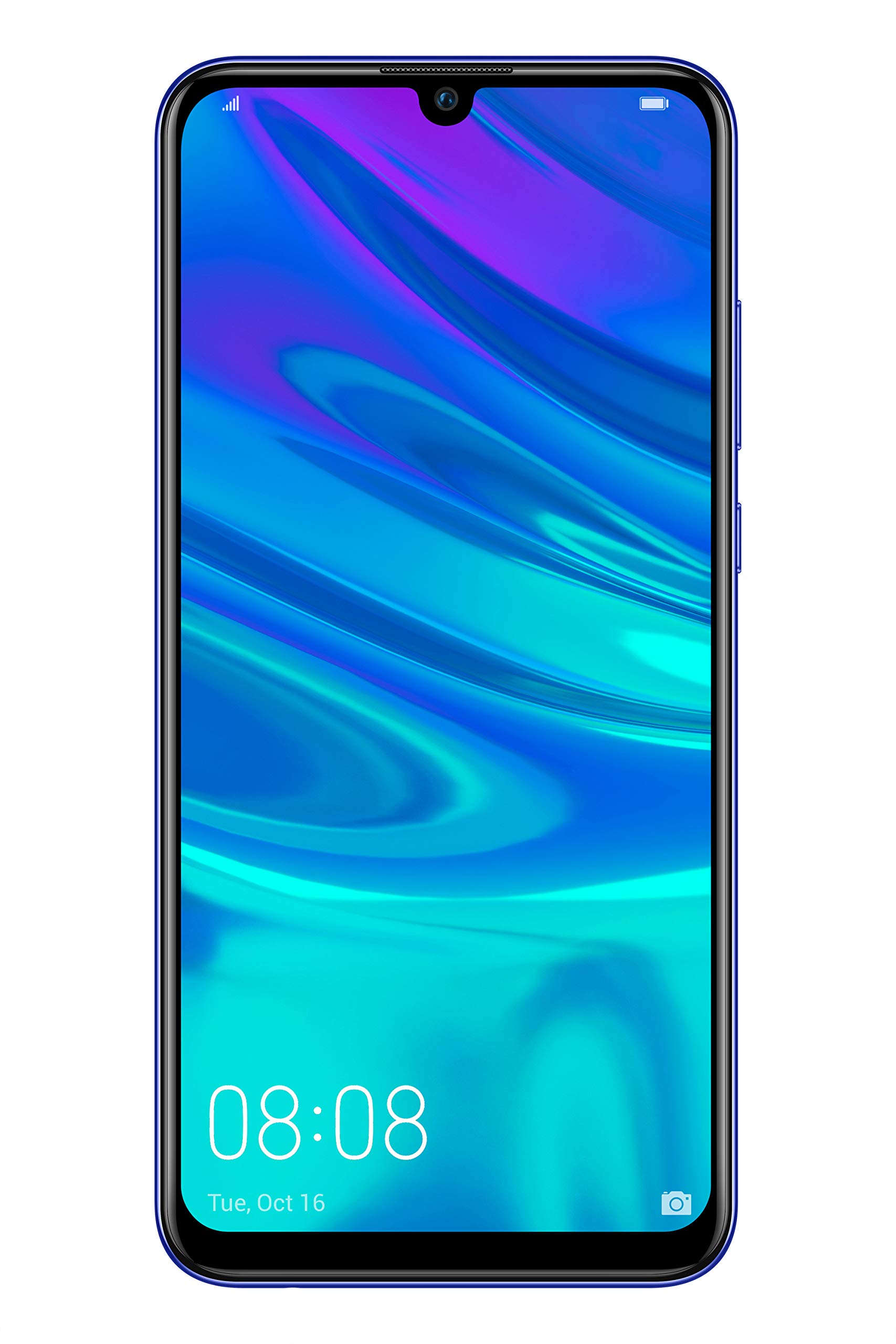
איור 2.2: חֲזִית view of the Huawei P Smart Plus 2019 smartphone, displaying the 6.21-inch screen with a small notch for the front camera.

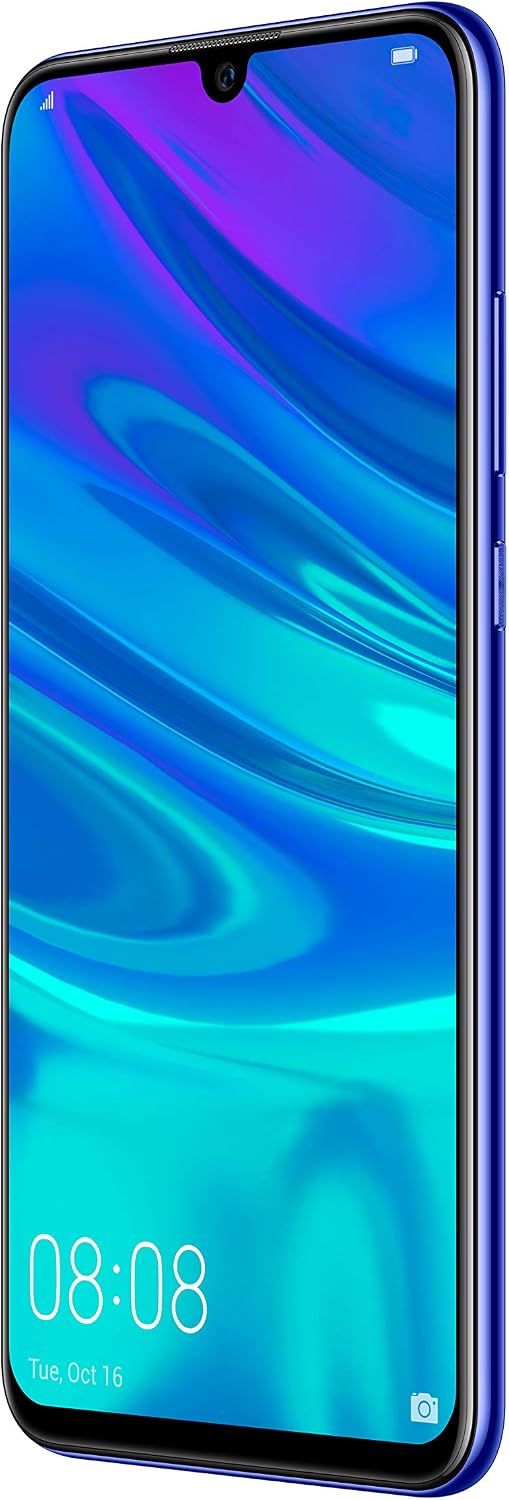
איור 2.3: צַד view of the Huawei P Smart Plus 2019 smartphone, highlighting the power and volume buttons.
מרכיבי מפתח:
- לְהַצִיג: 6.21-inch FHD+ LCD screen.
- מצלמה קדמית: ממוקם בחריץ הצג.
- מצלמות אחוריות: Triple camera module on the back.
- חיישן טביעות אצבע: Circular sensor on the rear panel.
- לחצן הפעלה: בצד ימין של המכשיר.
- לחצני עוצמת הקול: Above the power button on the right side.
- חריץ לכרטיס SIM/MicroSD: Typically on the left side or top edge.
- יציאת טעינה: USB Type-C, usually at the bottom.
- רמקול/מיקרופון: ממוקם בתחתית.
3. התקנה
3.1 הכנסת כרטיסי SIM ו-MicroSD
- אתר את מגש כרטיס ה-SIM בצד המכשיר.
- הכנס את כלי חילוץ ה-SIM לחור הקטן שליד המגש כדי לפתוח אותו.
- Place your Nano-SIM card(s) and/or microSD card into the tray, ensuring correct orientation as indicated on the tray. This device supports Dual SIM functionality and expandable storage up to 512GB.
- דחפו בזהירות את המגש בחזרה לתוך החריץ עד שהוא יהיה שטוח עם המכשיר.
3.2 הפעלה ראשונית וטעינה
- To power on, press and hold the Power button until the HUAWEI logo appears.
- פעל לפי ההנחיות שעל המסך כדי להשלים את ההגדרה הראשונית, כולל בחירת שפה, חיבור Wi-Fi והגדרת חשבון Google.
- Before first use, it is recommended to fully charge the device. Connect the provided USB Type-C cable to the phone's charging port and the other end to a power adapter.
4. הוראות הפעלה
4.1 פונקציות בסיסיות
- Power On/Off/Restart: Press and hold the Power button. Select the desired option from the menu.
- נעילת מסך/ביטול נעילה: Press the Power button to lock/unlock the screen. Use Face Recognition or the Fingerprint Sensor for secure unlocking.
- שיחות והודעות: Use the Phone and Messaging applications for communication.
- קישוריות רשת: Access Wi-Fi settings from the Quick Settings panel or Settings app. Enable mobile data for internet access via your SIM card.
4.2 שימוש במצלמה
The Huawei P Smart Plus 2019 features a versatile camera system.
- מצלמה אחורית: The triple camera setup includes a 24MP main sensor, a 16MP ultra-wide sensor, and a 2MP bokeh sensor. Open the Camera app and select modes like Automatic, Portrait, or Sport.
- מצלמה קדמית: An 8MP front camera is available for selfies and video calls. Switch to the front camera within the Camera app.
- תכונות AI: The camera utilizes AI to optimize scene recognition and enhance photo quality.
4.3 אחסון וזיכרון
Your device comes with 64GB of internal storage, which can be expanded up to 512GB using a microSD card. It has 3GB of RAM for smooth multitasking.
4.4 ניהול סוללה
The device is equipped with a 3400 mAh Lithium-Polymer battery. To optimize battery life, manage background apps, adjust screen brightness, and utilize power-saving modes available in the Settings app.
מערכת ההפעלה 4.5
The smartphone runs on Android 9 (Pie) with Huawei's EMUI 9 interface, offering a range of features and customization options.
5. תחזוקה
5.1 ניקוי המכשיר שלך
Use a soft, lint-free cloth to gently wipe the screen and body of your phone. Avoid using harsh chemicals or abrasive materials, which can damage the device's finish or screen coating.
5.2 עדכוני תוכנה
Regularly check for and install software updates to ensure your device has the latest features, security patches, and performance improvements. You can usually find this option in Settings > System > Software update.
5.3 טיפול בסוללה
To prolong battery lifespan, avoid extreme temperatures. Do not leave the phone fully charged or fully discharged for extended periods. Use only approved chargers and cables.
5.4 גיבוי נתונים
גבה באופן קבוע את הנתונים החשובים שלך (תמונות, אנשי קשר, מסמכים) לשירות ענן או למחשב כדי למנוע אובדן נתונים.
6. פתרון תקלות
This section addresses common issues you might encounter with your Huawei P Smart Plus 2019.
6.1 המכשיר לא נדלק
- ודא שהסוללה טעונה. חבר את המטען והמתן מספר דקות לפני שתנסה להפעיל.
- לחץ והחזק את לחצן ההפעלה למשך 10-15 שניות לפחות כדי לאלץ הפעלה מחדש.
6.2 חיי סוללה גרועים
- סגור יישומים שאינם בשימוש הפועלים ברקע.
- הפחת את בהירות המסך והגדר זמן קצוב קצר יותר של המסך.
- השבת את ה-Wi-Fi, בלוטות' ו-GPS כאשר אינם בשימוש.
- בדוק את צריכת הסוללה בהגדרות כדי לזהות אפליקציות זוללות חשמל.
6.3 Network Issues (No Signal/Wi-Fi Disconnection)
- הפעל מחדש את המכשיר שלך.
- Ensure your SIM card is correctly inserted and your mobile data plan is active.
- For Wi-Fi, try restarting your router. Forget the network on your phone and reconnect.
6.4 אפליקציות קורסות או קופאות
- סגור את האפליקציה בכוח ופתח אותה מחדש.
- נקה את המטמון והנתונים של האפליקציה בהגדרות > אפליקציות.
- ודא שהאפליקציה מעודכנת לגרסה העדכנית ביותר שלה.
- אם הבעיה נמשכת, שקול להסיר את ההתקנה ולהתקין מחדש של האפליקציה.
6.5 איפוס להגדרות יצרן (מוצא אחרון)
If other troubleshooting steps fail, a factory reset may resolve persistent issues. אַזהָרָה: This will erase all data on your device. Back up your data before proceeding. Go to Settings > System > Reset > Factory data reset.
7. מפרטים
| תכונה | פְּרָט |
|---|---|
| מספר דגם | POT-LX1T, 51093RVX |
| לְהַצִיג | 6.21 inches, LCD, FHD+ (2340 x 1080 pixels), 415 PPI |
| מעבד | Kirin 710 Octa-core (4 x 2.2 GHz, 4 x 1.7 GHz) |
| אַיִל | 3 ג'יגה-בייט |
| אחסון פנימי | 64 ג'יגה-בייט |
| אחסון ניתן להרחבה | MicroSD עד 512 GB |
| מצלמה אחורית | Triple: 24 MP (main) + 16 MP (ultra-wide) + 2 MP (bokeh) |
| מצלמה קדמית | 8 מגה פיקסל |
| סוֹלְלָה | ליתיום-פולימר 3400 mAh |
| מַעֲרֶכֶת הַפעָלָה | Android 9 (Pie) with EMUI 9 |
| סוג כרטיס SIM | ננו-סים (תמיכה ב-SIM כפול) |
| קישוריות | LTE, GSM, Wi-Fi, Bluetooth, USB Type-C |
| אבטחה ביומטרית | Fingerprint Sensor, Face Recognition |
| מידות | 8 x 155 x 73 מ"מ |
| מִשׁקָל | 160 גרם |
| חיי סוללה ממוצעים | 25 שעות |
8. מידע בטיחות
אנא הקפידו על הנחיות הבטיחות הבאות כדי למנוע פגיעה או נזק למכשיר שלכם:
- אין לחשוף את המכשיר לטמפרטורות קיצוניות, לאור שמש ישיר או לחות.
- השתמשו רק במטענים ובאביזרים שאושרו.
- הימנעו מהפלת המכשיר או מחשיפתו לפגיעות חזקות.
- אל תנסה לפרק או לתקן את המכשיר בעצמך. פנה לאנשי שירות מורשים.
- הרחק את המכשיר ממכשירים רפואיים כדי למנוע הפרעות.
- יש להשליך את המכשיר והסוללה שלו בצורה אחראית בהתאם לתקנות המקומיות.
9. אחריות ותמיכה
Your Huawei P Smart Plus 2019 smartphone is covered by a limited warranty. For detailed warranty terms and conditions, please refer to the warranty card included in the product packaging or visit the official HUAWEI webאֲתַר.
For technical support, service, or further assistance, please contact HUAWEI customer service or visit an authorized service center. Contact information can typically be found on the official HUAWEI support webאֲתַר.


