
1. הקדמה
The AmScope MU900-CK is a 9.1-megapixel USB 2.0 digital camera designed for microscopes. It enables users to capture still images, stream live video, and record video. The camera is compatible with Windows XP/Vista/7/8/10 and Mac OS X 10.6 & Up operating systems. The included software provides advanced features such as image stitching, Extended Depth of Focus (EDF), video recording, and measurement functions for Windows users. Mac users can capture still images, record video, and control color and exposure. The package includes two mounting adapters, a reduction lens, and a calibration kit for precise measurements.
2. תכולת החבילה
ודא שכל הפריטים המפורטים להלן נמצאים בחבילה שלך:
- AmScope MU900-CK 9.1MP USB Digital Camera
- כבל USB 2.0
- תקליטור התקנת תוכנה
- 23mm Mounting Adapter
- 30mm Mounting Adapter
- 30.5mm Mounting Adapter (often integrated or provided as an additional ring)
- עדשת הפחתה
- Calibration Kit (calibration slide)

תמונה 2.1: Contents of the AmScope MU900-CK package, including the camera, USB cable, software disk, mounting adapters, and calibration slide.
3. התקנה
3.1. התקנת תוכנה
Before connecting the camera, install the provided software from the CD or download the latest version from the AmScope website. Follow the on-screen instructions for your operating system (Windows or Mac).
- משתמשי Windows: The software for Windows XP/Vista/7/8/10 offers comprehensive features including image editing, processing, stitching, EDF, and measurement functions.
- משתמשי Mac: The software for Mac OS X 10.6 & Up allows for still image capture, video recording, and basic control over color and exposure.
3.2. הרכבת המצלמה
- Select the appropriate mounting adapter (23mm, 30mm, 30.5mm, or C-mount) that matches your microscope's eyepiece tube or trinocular port.
- Insert the reduction lens into the camera body if required for your microscope type to achieve a wider field of view.
- Attach the selected adapter to the camera.
- Carefully insert the assembled camera into the microscope's eyepiece tube or trinocular port. Ensure a secure fit.

תמונה 3.1: The AmScope MU900-CK camera installed on a stereo microscope, displaying live feed on a laptop.

תמונה 3.2: The AmScope MU900-CK camera installed on a compound microscope, displaying live feed on a laptop.
3.3. חיבור למחשב
Connect the USB cable from the camera to an available USB 2.0 port on your computer. The operating system should detect the camera after software installation.
4. הוראות הפעלה
4.1. Launching the Software
After successful installation, launch the AmScope camera software from your desktop shortcut or applications folder.
4.2. לחיות View and Image Capture
Upon launching, the software will display a live feed from the microscope camera. Adjust the microscope's focus and illumination for a clear image.
- לכידת תמונות סטילס: Locate the "Capture" or "Snapshot" button within the software interface to take a still image. Images are typically saved in a designated folder.
- הקלטת וידאו: Use the "Record" function to capture live video. Video files are also saved to a specified location.
- הגדרות רזולוציה: מִרֹאשׁview and capture resolutions can be set independently. This allows for viewing a high-speed, low-resolution live video while capturing higher-resolution images or video.
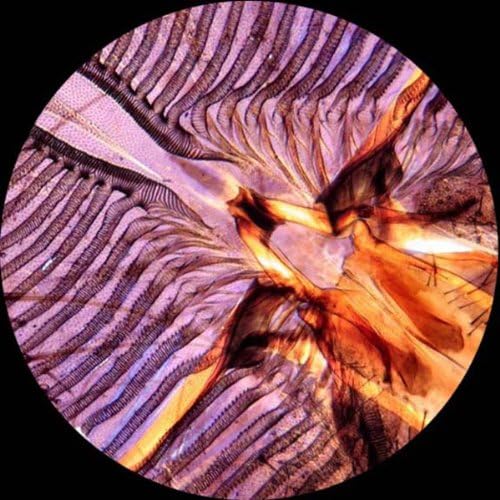
תמונה 4.1: Example of a detailed microscopic image captured using the camera.
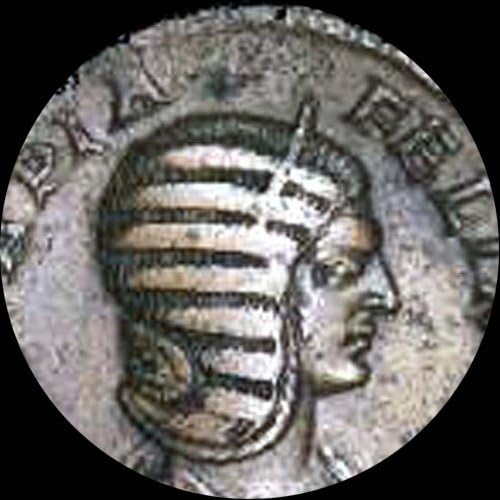
תמונה 4.2: Example of a microscopic image of an ancient coin captured using the camera.
4.3. Advanced Features (Windows Software)
The Windows software includes advanced functionalities:
- תְפִירָה: Combine multiple images to create a wider field of view.
- EDF (Extended Depth of Focus): Merge images taken at different focal planes to create a single image with greater depth of field.
- פונקציות מדידה: Perform precise measurements on captured images.
- הערות: Add notes, shapes, and watermarks to images.
5. כיול
The included calibration kit is essential for accurate measurements. Refer to the software's help documentation for detailed instructions on how to perform calibration. This process typically involves capturing an image of the calibration slide and using the software to define known distances, ensuring precise measurements for future observations.

תמונה 5.1: The calibration slide, showing a scale for precise measurement setup.
6. פתרון תקלות
- המצלמה לא זוהתה:
- ודא שכבל ה-USB מחובר היטב הן למצלמה והן למחשב.
- Verify that the camera drivers and software are correctly installed.
- נסה לחבר ליציאת USB אחרת.
- הפעל מחדש את המחשב.
- No Live Image:
- Check if the camera is properly mounted on the microscope.
- Ensure the microscope's light source is active and adjusted.
- Confirm that the correct camera device is selected within the software.
- איכות תמונה ירודה:
- Adjust the microscope's focus and illumination.
- נקו את עדשת המצלמה ואת אופטיקת המיקרוסקופ.
- בדוק את הגדרות התוכנה עבור חשיפה, איזון לבן ורזולוציה.
7. מפרטים
| תכונה | פְּרָט |
|---|---|
| דֶגֶם | MU900-CK |
| חיישן רזולוציה | 9.1 מגה פיקסל |
| מִמְשָׁק | USB 2.0 |
| תְאִימוּת | Windows XP/Vista/7/8/10, Mac OS X 10.6 & Up, Linux |
| Mounting Sizes | 23mm, 30mm, 30.5mm, C-mount |
| Software Features (Windows) | Stitching, EDF, Video Recording, Measurement, Annotations |
| Software Features (Mac) | Still Image Capture, Video Recording, Color/Exposure Control |
| מידות | 6.69 x 5.91 x 2.36 אינץ' |
| מִשׁקָל | 1.13 פאונד |
| מקור כוח | חשמלי עם כבל (דרך USB) |
8. אחריות ותמיכה
For warranty information or technical support, please refer to the documentation included with your product or visit the official AmScope website. Contact their customer service for assistance with product operation, troubleshooting, or parts replacement.
AmScope Official Webאֲתַר: www.amscope.com