
1. Introduzione
This manual provides essential instructions for the proper setup, operation, and maintenance of your GEOID CC700 Pro Cycling Computer and BM05 Mount. Please read this manual thoroughly before using the product to ensure optimal performance and safety.
2. Prodotto finitoview
The GEOID CC700 Pro is an advanced cycling computer designed to enhance your riding experience with comprehensive navigation and data tracking capabilities. It features a 2.8-inch touchscreen display and supports both ANT+ and Bluetooth protocols for wide compatibility with various sensors. The BM05 is a high-strength handlebar mount designed specifically for the CC700 Pro.
Caratteristiche principali:
- Schermo touchscreen da 2.8 pollici
- GPS Navigation with Turn Prompts
- Dual Perspective Map Navigation (North-Up, Head-Up)
- Zoom In/Out Functionality for Maps
- Instant Rerouting
- Universal Compatibility with ANT+ and Bluetooth Sensors (Speed, Cadence, Heart Rate, Power Meter, Smart Trainer, Electronic Shifting, Radar, Bike Light, Camera)
- Mobile Phone Message Notifications
3. Impostazione
3.1 BM05 Mount Installation
The BM05 mount provides a secure and stable platform for your CC700 Pro cycling computer on your handlebars.
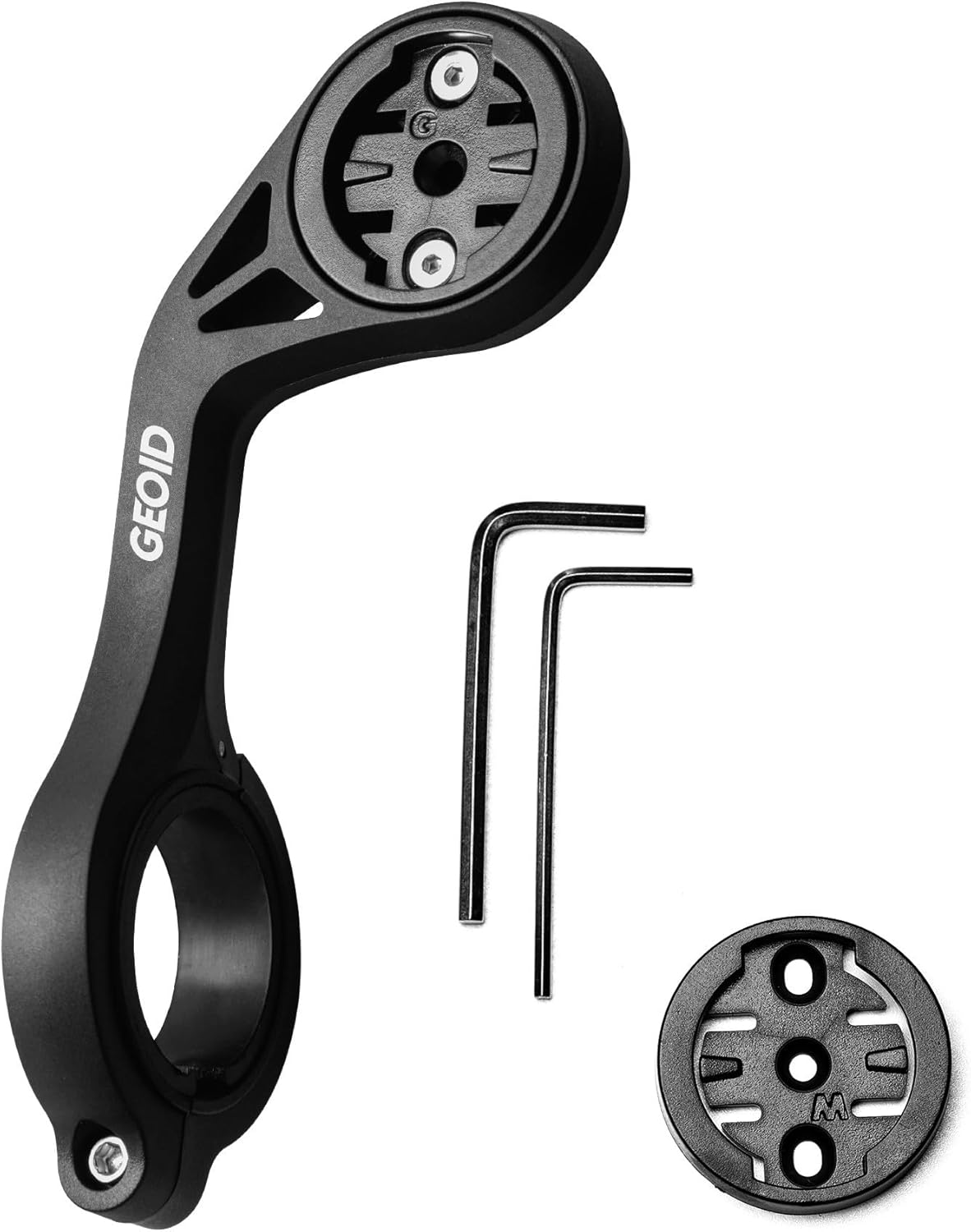
Image: Components of the GEOID BM05 mount, including the main arm, two hex wrenches for installation, and a circular adapter for the cycling computer.
- Identify a suitable position on your bicycle's handlebars for the mount.
- Attach the BM05 mount to the handlebars using the provided screws and hex wrenches. Ensure it is securely fastened and does not obstruct your view o il controllo della bicicletta.
- Once the mount is installed, align the CC700 Pro cycling computer with the mount's interface and twist it clockwise until it locks into place.
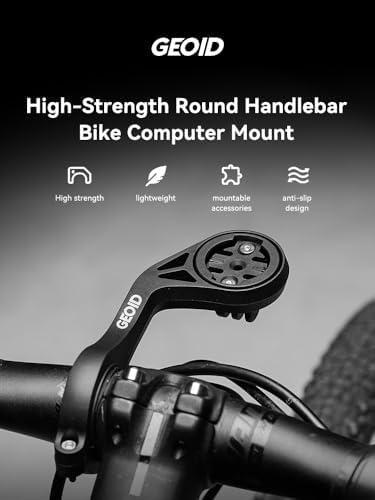
Image: The BM05 mount securely installed on a bicycle handlebar, with the GEOID cycling computer attached and ready for use.
3.2 Accensione iniziale e ricarica
- To power on the CC700 Pro, press and hold the power button located on the side of the device.
- Before first use, fully charge the device using a standard USB-C cable and a compatible power adapter.
3.3 App Connection and Sensor Pairing
The CC700 Pro requires connection to a designated mobile application for full functionality, including route planning and advanced settings.
- Download the official GEOID companion app from your smartphone's app store.
- Follow the in-app instructions to pair your CC700 Pro with your smartphone via Bluetooth.
- Within the app or on the device, navigate to the sensor pairing menu. The CC700 Pro supports both ANT+ and Bluetooth sensors. Follow the on-screen prompts to search for and connect your speed, cadence, heart rate, power meter, or other compatible sensors.
4. Istruzioni per l'uso
4.1 Navigation and Map Display
The CC700 Pro offers detailed map navigation with clear prompts.
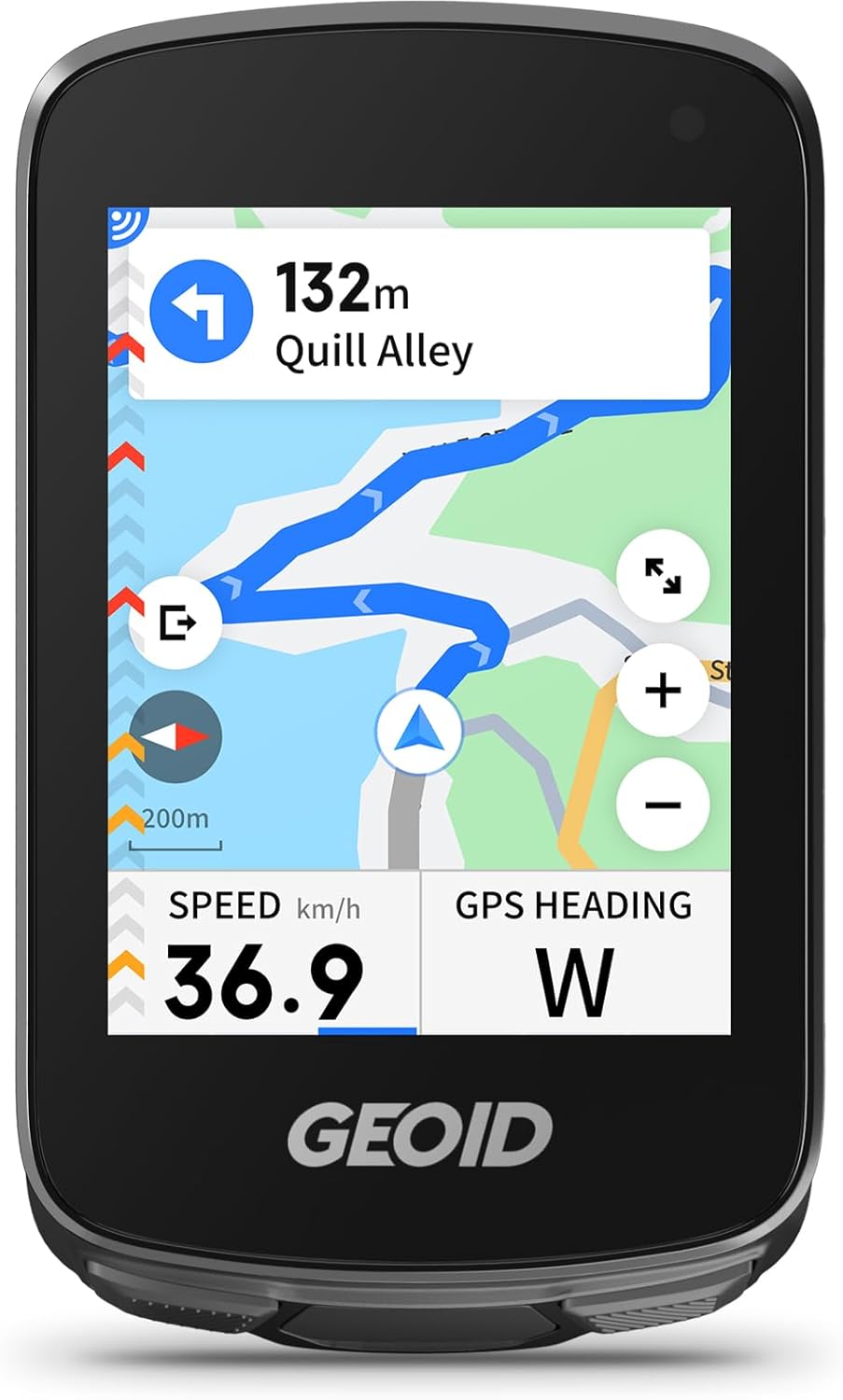
Image: The GEOID CC700 Pro display showing an active navigation map with a highlighted route, current speed, and GPS heading.
- Dual Perspective Map Navigation: Switch between 'North-Up' and 'Head-Up' views for preferred orientation.
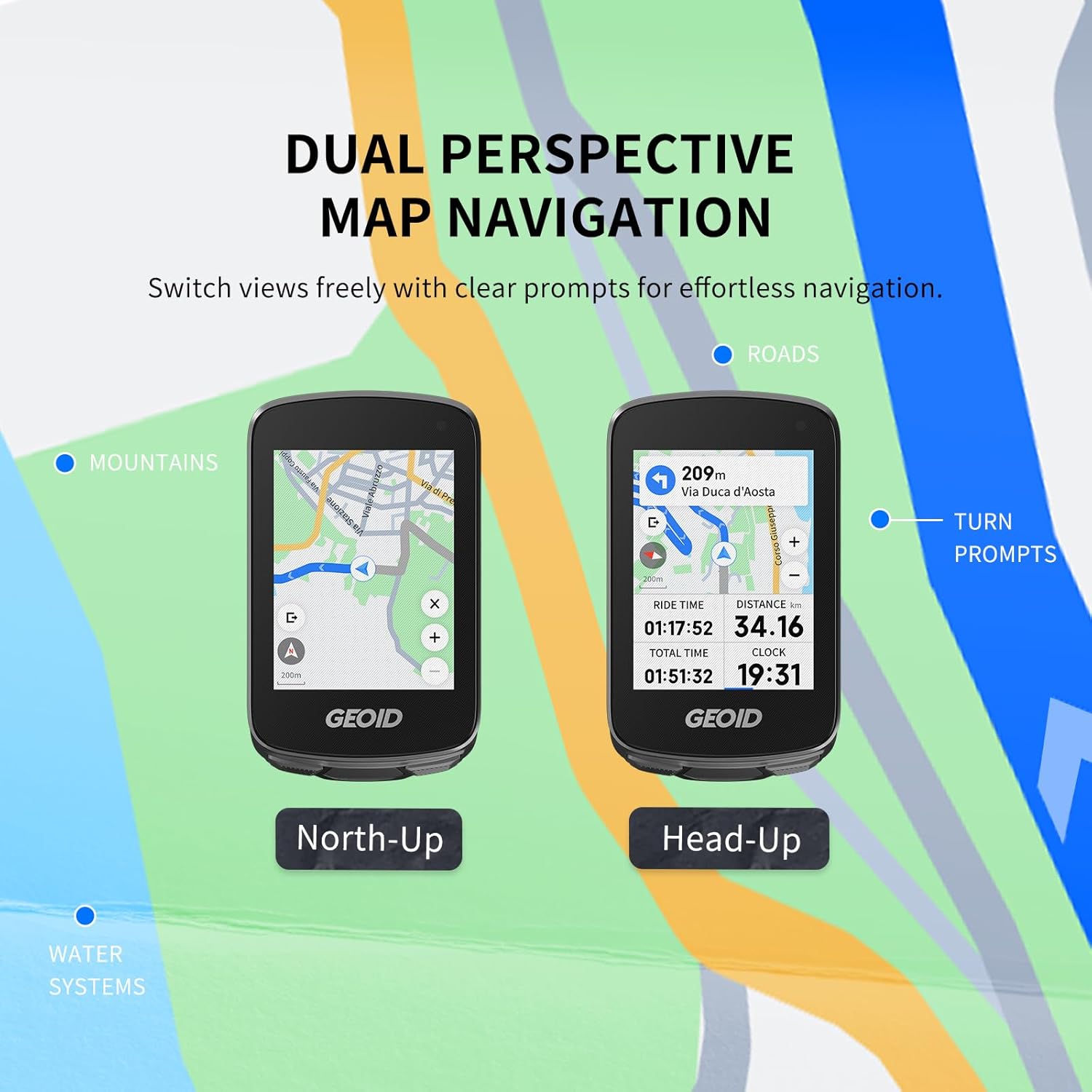
Image: Comparison of 'North-Up' and 'Head-Up' map navigation modes on the GEOID CC700 Pro, showing different orientations of the map relative to the rider.
- Funzione zoom: Use touch gestures to zoom in or out on the map to view details or the overall route.

Image: The GEOID CC700 Pro demonstrating map zoom functionality, showing a wider 200m view and a more detailed 50m view.
- Instant Rerouting: If you deviate from your planned route, the device will automatically recalculate and provide new directions. This feature requires an active app connection.

Image: The GEOID CC700 Pro actively rerouting, displaying a 'Replanning...' message and updating the map to guide the rider back on track.
4.2 Visualizzazione dei dati
The CC700 Pro displays various ride metrics. Customize data fields through the device settings or the companion app.
- Commonly displayed data includes Speed, Distance, Time, GPS Heading, Cadence, Heart Rate, and Power (when connected to compatible sensors).
4.3 Mobile Phone Notifications
When connected to your smartphone via the companion app, the CC700 Pro can display notifications.
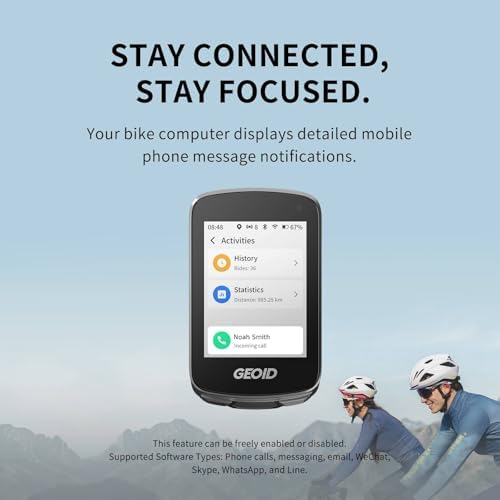
Image: The GEOID CC700 Pro displaying an incoming call notification from 'Noah Smith', demonstrating its message notification feature.
- Supported notification types include phone calls, messages, email, and various messaging apps.
- This feature can be enabled or disabled in the device settings or the companion app.
5. Manutenzione
- Pulizia: Pulire il dispositivo con un panno morbido, damp stoffa. Evitare l'uso di prodotti chimici aggressivi o materiali abrasivi.
- Magazzinaggio: Conservare il dispositivo in un luogo fresco e asciutto, lontano dalla luce solare diretta quando non viene utilizzato.
- Cura della batteria: For optimal battery life, avoid fully discharging the battery frequently. Charge the device regularly, especially if storing it for extended periods.
- Ispezione del supporto: Periodically check the BM05 mount for any signs of wear or loosening. Ensure all screws are tight before each ride.
6. Risoluzione Dei Problemi
- Il dispositivo non si accende: Ensure the device is fully charged. If the issue persists, try performing a soft reset (refer to the app or GEOID support for specific instructions).
- Perdita del segnale GPS: Assicurati di essere in un'area aperta con una chiara view of the sky. Avoid areas with tall buildings or dense foliage.
- Sensore non connesso: Check that the sensor's battery is not depleted. Ensure the sensor is awake and within range of the CC700 Pro. Re-pair the sensor if necessary.
- Problemi di connettività dell'app: Ensure Bluetooth is enabled on your smartphone and the GEOID app is running in the background. Try restarting both the device and your smartphone.
- Dati inesatti: Calibrate sensors if applicable (e.g., power meters). Ensure the device firmware is up to date via the companion app.
7. Specifiche
| Marca | GEOIDE |
| Numero di modello | CC700 Pro |
| Dimensioni dello schermo | 2.8 pollici |
| Input dell'interfaccia umana | Schermo tattile |
| Connettività | ANT +, Bluetooth |
8. Garanzia e supporto
Per informazioni sulla garanzia, supporto tecnico o richieste di assistenza, fare riferimento al GEOID ufficiale website or contact GEOID customer service directly. Keep your purchase receipt as proof of purchase for warranty claims.
GEOID Official Websito: Visit the GEOID Store on Amazon