
1. Introduzione
This manual provides essential information for setting up, operating, and maintaining your HP OmniDesk Slim Desktop PC, Model S03-0006. This desktop PC is designed for daily tasks, offering an Intel Core i3-14100 processor, ample memory, and various connectivity options for productivity and entertainment.
2. Contenuto della confezione
Verificare che tutti gli articoli siano presenti nel pacco:
- HP S03-000 OmniDesk Slim Desktop PC
- Alimentazione elettrica
- USB Black Wired Keyboard (if included with specific bundle)
- USB Wired Mouse (if included with specific bundle)
Nota: gli accessori aggiuntivi potrebbero essere venduti separatamente.
3. Prodotto finitoview
The HP OmniDesk Slim Desktop PC features a compact design with essential components for efficient computing.

Figura 3.1: HP OmniDesk Slim Desktop PC showcasing il suo sottile profile, Intel Core i3-14100 processor, 8GB DDR5 RAM, 256GB SSD, Intel UHD Graphics 710, Wi-Fi 6, Bluetooth 5.4, Windows 11, and dual display support.
3.1. Porte e connettori
Familiarize yourself with the various ports on your desktop PC for connecting peripherals and displays.
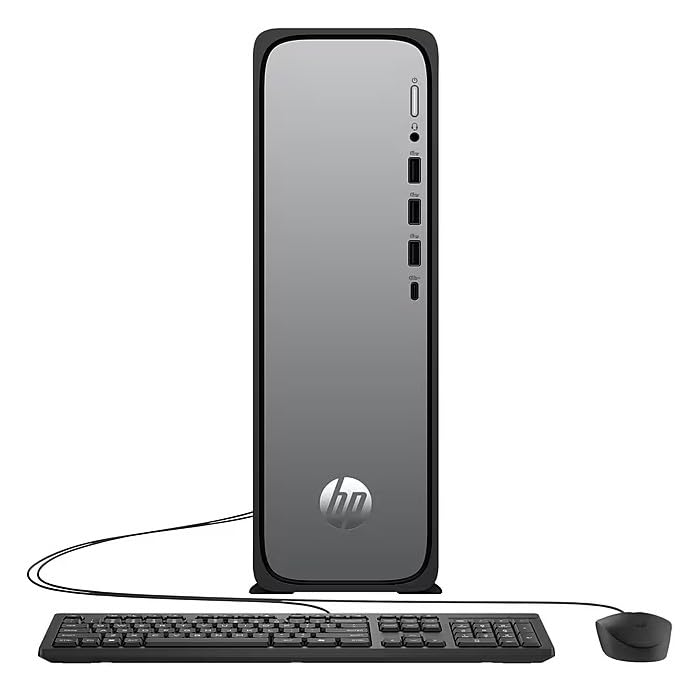
Figura 3.2: Front and rear port layout of the HP OmniDesk Slim Desktop PC. Front ports include a headphone/microphone combo jack, USB Type-A 5Gbps ports, and a USB Type-C 10Gbps port. Additional ports (typically rear) include 4 USB 2.0 Type-A, 1 RJ-45 (Ethernet), 1 HDMI Out, and 1 DisplayPort 1.4.
- Porte anteriori:
- Combinazione cuffia/microfono
- USB Type-A 5Gbps signaling rate (3 ports)
- USB Type-C 10Gbps signaling rate (1 port)
- Porte posteriori:
- USB 2.0 Type-A (4 ports)
- RJ-45 (Ethernet)
- HDMI 1.4b (1 port)
- DisplayPort 1.4a (1 port)
4. Guida all'installazione
Follow these steps to set up your HP OmniDesk Slim Desktop PC:
- Connetti il monitor: Connect your monitor to the PC using an HDMI or DisplayPort cable. Ensure the cable is securely plugged into both the PC and the monitor.
- Connetti le periferiche: Plug in your USB keyboard and mouse into the available USB ports on the PC.
- Connetti alimentazione: Connect the power supply cable to the PC's power input, then plug the other end into a wall outlet or surge protector.
- Accensione: Press the power button on the front of the PC. The system will boot up, and you will see the Windows 11 setup screen.
- Configurazione iniziale di Windows: Seguire le istruzioni visualizzate sullo schermo per completare la configurazione di Windows 11, inclusa la lingua, la regione, la connessione di rete e la creazione dell'account utente.
5. Istruzioni per l'uso
5.1. Funzionamento di base
- Accensione/spegnimento: Press the power button to turn on the PC. To shut down, click the Start button, then Power > Shut down.
- Ricomincia: Fare clic sul pulsante Start, quindi su Arresta > Riavvia.
- Modalità risparmio: Fare clic sul pulsante Start, quindi su Alimentazione > Sospensione.
5.2. Connessione a una rete
Your PC supports both wired (Ethernet) and wireless (Wi-Fi) network connections.
- Connessione cablata: Connect an Ethernet cable from your router or modem to the RJ-45 port on the back of the PC.
- Connessione wireless (Wi-Fi 6):
- Fare clic sull'icona Wi-Fi nella barra delle applicazioni.
- Seleziona la rete Wi-Fi desiderata dall'elenco.
- Se richiesto, immettere la chiave di sicurezza di rete (password), quindi fare clic su Collegare.
5.3. Supporto doppio display
To extend your desktop to a second monitor:
- Connect the second monitor to an available video output port (HDMI or DisplayPort) on your PC.
- Fare clic con il tasto destro del mouse sul desktop e selezionare Impostazioni di visualizzazione.
- Under "Multiple displays," select how you want the displays to behave (e.g., Extend these displays, Duplicate these displays).
6. Manutenzione
- Aggiornamenti software: Regularly check for and install Windows updates to ensure system stability and security. Go to Impostazioni > Windows Update.
- Aggiornamenti driver: Keep your device drivers updated. HP Support Assistant (MyHP) can help manage these updates.
- Pulizia: Use a soft, dry cloth to clean the exterior of the PC. Avoid liquid cleaners directly on components. Ensure ventilation openings are clear of dust.
- Dati di backup: Eseguire regolarmente il backup è importante filesu un'unità esterna o su un archivio cloud per evitare la perdita di dati.
7. Risoluzione Dei Problemi
| Problema | Possibile soluzione |
|---|---|
| Il PC non si accende. |
|
| Nessuna visualizzazione sul monitor. |
|
| Nessuna connessione Internet. |
|
| Periferiche (tastiera/mouse) non funzionanti. |
|
8. Specifiche
| Nome del modello | HP OmniDesk Desktop HP S03-000 PC |
| Numero di modello | OmniDesk Slim S03-0006 |
| Processore | Intel Core i3-14100 (3.5 GHz, 6 MB Cache) |
| Grafica | Grafica Intel UHD 710 (integrata) |
| Memoria RAM | 8 GB DDR5 (4800 MT/s), Max 64 GB |
| Magazzinaggio | SSD da 256 GB (unità a stato solido) |
| Sistema operativo | Windows 11 Casa |
| Connettività | Realtek Wi-Fi 6 (2x2), Bluetooth 5.4, Gigabit Ethernet (RJ-45) |
| Porti |
|
| Dimensioni (A x L x P) | 11.61 x 3.94 x 11.97 pollici |
| Peso | 8.38 libbre |
| Certificazioni | ENERGY STAR certified, EPEAT Gold with Climate+ |
9. Garanzia e supporto
9.1. Informazioni sulla garanzia
This HP OmniDesk Slim Desktop PC comes with a Garanzia limitata di 90 giorniPer i termini e le condizioni specifici, fare riferimento alla documentazione di garanzia inclusa nel prodotto.
9.2. Supporto tecnico
Per assistenza tecnica, download di driver o ulteriori informazioni, visitare il sito ufficiale del supporto HP website. You can also utilize the pre-installed MyHP application for device customization, optimization, and access to helpful messages and settings.
Always provide your product model number (S03-0006) and serial number when contacting support.