
ESX VMX1000DAB
ESX Vision VMX1000DAB User Manual
Universal 1-DIN Multi-Angle Media Moniceiver with 10 Inch Touchscreen
Introduzione
Thank you for choosing the ESX Vision VMX1000DAB Multi-Angle Media Moniceiver. This device is a universal 1-DIN car multimedia system featuring a 10-inch touchscreen display. It offers advanced connectivity options including wireless Apple CarPlay and Android Auto, DAB+ digital radio, Bluetooth hands-free calling and audio streaming, and a versatile media player. This manual provides essential information for the proper installation, operation, and maintenance of your VMX1000DAB unit.
Cosa c'è nella scatola
Carefully unpack your ESX Vision VMX1000DAB and ensure all items are present:
- VMX1000DAB Moniceiver Unit
- Ricevitore GPS
- DAB+ Window Adhesive Antenna
- Microfono esterno
- Mounting Hardware and Cables (ISO harness, USB cables, RCA cables)
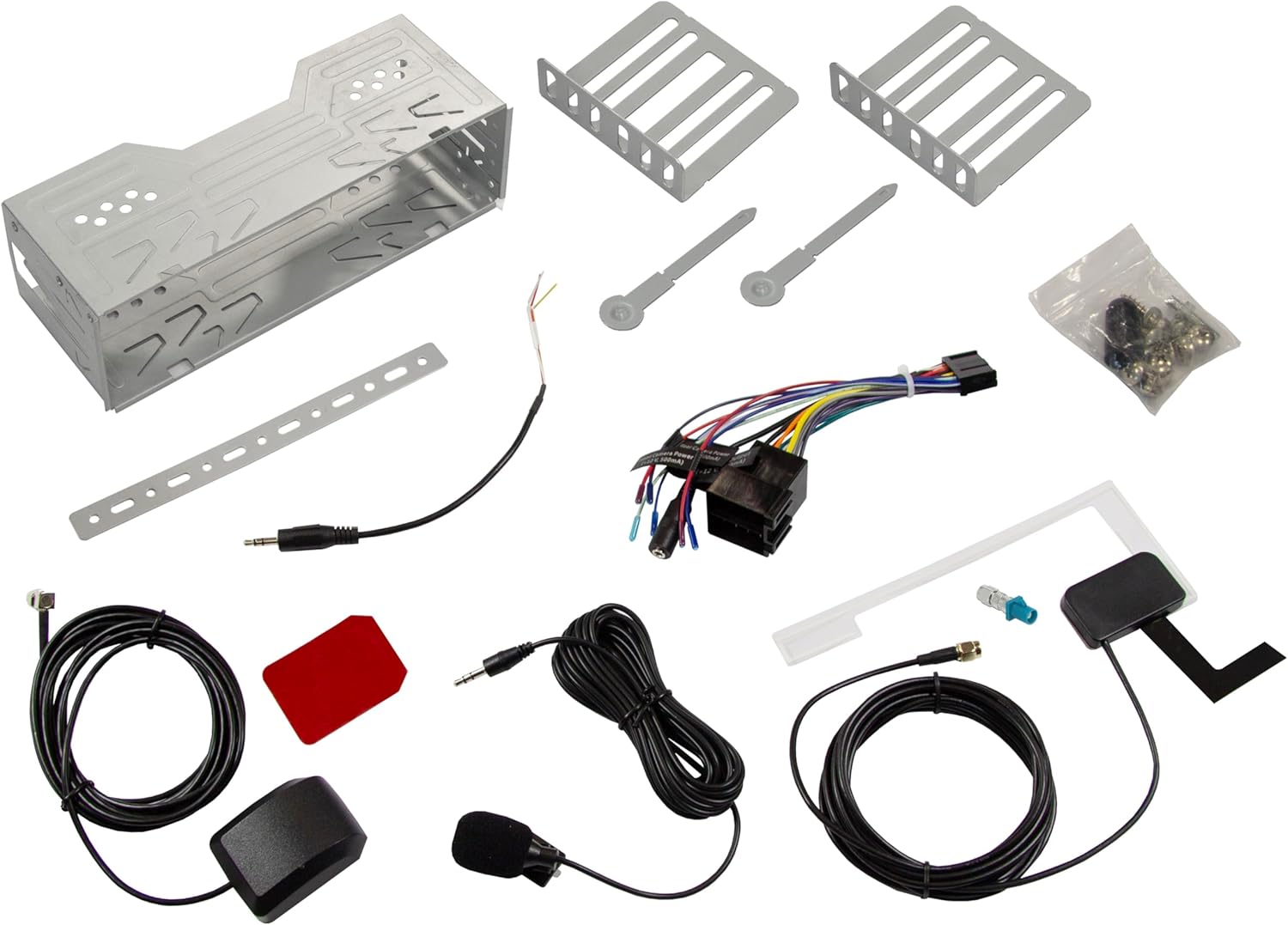
Image: All components included in the ESX Vision VMX1000DAB package.
Configurazione e installazione
The VMX1000DAB is designed for universal 1-DIN installation. Professional installation is recommended to ensure correct wiring and functionality.
1. Montaggio dell'unità
- Install the 1-DIN chassis into your vehicle's dashboard opening using the provided mounting cage and brackets.
- The 10-inch monitor is multi-angle adjustable and removable for anti-theft protection. To attach, slide the monitor onto the front of the main unit until it clicks securely into place. To remove, press the release button (if applicable) and slide it off.

Image: The VMX1000DAB unit with its detachable monitor.
2. Collegamenti elettrici
Connect the wiring harness, antennas, and external devices to the rear of the moniceiver. Refer to the wiring diagram provided with your unit for specific connections.
- Cablaggio di alimentazione/altoparlanti: Connect the main ISO harness to your vehicle's wiring.
- Porte USB-A: Two USB-A ports are available. One for media playback and charging (1.5A), and another specifically for Apple CarPlay/Android Auto and charging (1.5A).
- Pre-out RCA: Six 4V RCA preamplifier outputs (FL/FR/RL/RR/SUB1/SUB2) for connecting external amplificatori.
- RCA AUX Inputs: Stereo audio (L/R) and video input for external sources.
- Ingressi telecamera: Dedicated RCA inputs for front and rear cameras.
- Antenna GPS: Connect the GPS receiver for optimized navigation.
- Antenna DAB+: Connect the included DAB+ window adhesive antenna for digital radio reception.
- Microfono esterno: Plug in the external microphone for clear hands-free calls.
- Controllo del volante: Connect to your vehicle's analog steering wheel controls (learnable function).

Image: Rear connections of the VMX1000DAB unit.
Istruzioni per l'uso
The VMX1000DAB features a user-friendly interface controlled via its 10-inch touchscreen, a large volume knob, and four function keys.
1. Controlli di base
- Accensione/spegnimento: Press and hold the power button (usually integrated with the volume knob).
- Volume: Rotate the large knob to adjust the volume.
- Tasti funzione: Use the dedicated function keys for quick access to common features.
- Schermo tattile: Navigate menus and control functions by touching the display icons.

Image: VMX1000DAB Home Screen with various application icons.
2. Apple CarPlay e Android Auto
The VMX1000DAB supports both wireless and wired (via USB) Apple CarPlay and Android Auto. This allows you to mirror and control compatible smartphone apps directly from the 10-inch touchscreen.
- Connessione wireless: Enable Bluetooth and Wi-Fi on your smartphone and pair it with the VMX1000DAB. Follow the on-screen prompts to initiate CarPlay or Android Auto.
- Connessione cablata: Connect your smartphone to the dedicated USB-A port using a certified USB cable.
- Caratteristiche: Access navigation apps (e.g., Google Maps with Live Trading), music streaming services (e.g., Spotify), phone calls, messages, and other compatible applications.
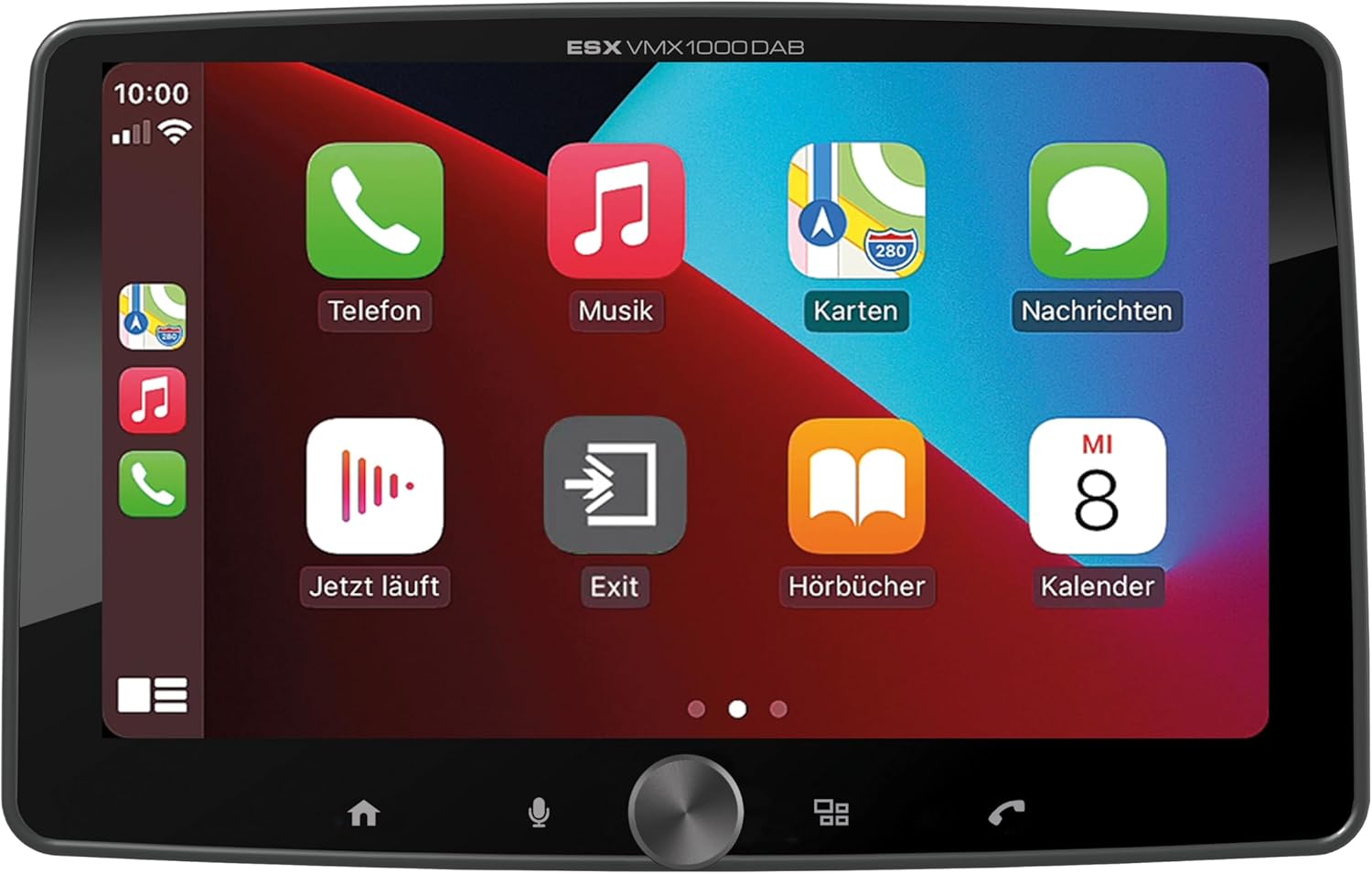
Image: Apple CarPlay interface on the VMX1000DAB.
3. Funzioni radio
- Radio digitale DAB+: Select the DAB+ source to enjoy high-quality digital radio. Ensure the DAB+ antenna is properly installed.
- Radio FM/AM: Tune into FM or AM stations. The RDS (Radio Data System) function provides station information and traffic announcements where available.
- Stazioni preimpostate: Salva le tue stazioni preferite per un accesso rapido.
4. Connettività Bluetooth
- Abbinamento: Go to the Bluetooth menu on the moniceiver and your smartphone. Cercare and select the VMX1000DAB to pair.
- Chiamate in vivavoce: Make and receive calls directly through the moniceiver using the external microphone and your car's speakers.
- Streaming audio: Play music from your smartphone via Bluetooth audio streaming (A2DP).
5. Media Player
The integrated media player supports various audio, video, and photo formats from USB storage devices.
- Formati compatibili: AVI, FLV, MOV, MKV, WMV (video); WMA, MP3, FLAC (audio); JPEG, PNG, BMP (photo).
- Riproduzione USB: Insert a USB drive into the media USB-A port. The unit will automatically detect and allow you to browse and play media files.
6. Ingressi della telecamera
Connect front and rear cameras to the dedicated RCA inputs for enhanced safety and parking assistance. The unit will automatically switch to the rear camera view when reverse gear is engaged (if properly wired).
7. Impostazioni audio
The VMX1000DAB features a 4 x 80 Watt max integrated amplifier. Access the equalizer (EQ) and sound settings to customize your audio experience. Future software updates (available from ESX homepage) will include advanced audio features such as variable high-pass/low-pass filters, time alignment for front, rear, and subwoofer, and dual HD camera input support.
Manutenzione
To ensure the longevity and optimal performance of your ESX Vision VMX1000DAB, follow these maintenance guidelines:
- Pulizia dello schermo: Utilizzare un panno morbido e privo di lanugine per pulire delicatamente il touchscreen. Per le macchie ostinate, strofinare leggermenteampPulisci il panno con acqua o un detergente per schermi. Evita materiali abrasivi o sostanze chimiche aggressive.
- Pulizia dell'unità: Wipe the main unit and buttons with a dry, soft cloth. Do not allow liquids to enter the unit.
- Connessioni: Controllare periodicamente tutti i collegamenti dei cavi per assicurarsi che siano saldi e privi di corrosione.
- Aggiornamenti software: Check the official ESX homepage for available software updates to benefit from new features and improvements.
Risoluzione dei problemi
If you encounter issues with your VMX1000DAB, refer to the following common troubleshooting steps:
- Nessun potere: Check the power connections and the vehicle's fuse box. Ensure the unit is properly seated in its harness.
- Nessun suono: Verificare i collegamenti degli altoparlanti. Controllare i livelli del volume e assicurarsi che la funzione mute non sia attiva. Verificare che sia selezionata la sorgente audio corretta.
- Problemi di connessione Bluetooth: Ensure Bluetooth is enabled on both the moniceiver and your smartphone. Delete previous pairings and attempt to re-pair. Try restarting both devices.
- CarPlay/Android Auto non si connette: For wired connections, try a different USB cable or port. For wireless, ensure Wi-Fi is also enabled on your phone. Check for any software updates for your phone or the moniceiver.
- Scarsa ricezione radio: Check the antenna connection. For DAB+, ensure the adhesive antenna is correctly positioned and not obstructed.
- Touchscreen non reattivo: Prova a riavviare l'unità. Se il problema persiste, potrebbe essere necessario un ripristino delle impostazioni di fabbrica (per questa opzione, consulta le impostazioni sullo schermo).
- Monitor Detachment: Ensure the monitor is fully inserted and clicked into place. If it detaches easily, inspect the locking mechanism for any damage.
Se questi passaggi non risolvono il problema, contattare l'assistenza clienti o un tecnico qualificato.
Specifiche
| Caratteristica | Dettaglio |
|---|---|
| Marca | ESX |
| Numero di modello | VMX1000DAB |
| Tecnologia di connettività | AUX, Bluetooth, USB, Wi-Fi |
| Metodo di controllo | Touch, Mechanical Knob |
| Caratteristiche speciali | Apple CarPlay/Android Auto (Wireless & USB), Removable Monitor with CLICK System |
| Dispositivi compatibili | Smartphone |
| Modalità di uscita audio | Stereo |
| Codifica video | AVI, FLV, MOV, MKV, WMV |
| Formati audio | WMA, MP3, FLAC |
| Formati immagine | Formato JPEG, PNG, BMP |
| Potenza in uscita (RMS) | 80 Watts (per channel, max) |
| Watt totaletage | 320 Watt (massimo) |
| Numero di canali | 4 |
| PreampUscite lifier | RCA 4V (FL/FR/RL/RR/SUB1/SUB2) |
| Ingresso USB | USB Type A (with 1.5A charging) |
| Contenuto della confezione | Moniceiver, GPS receiver, DAB+ window adhesive antenna |
Garanzia e supporto
Informazioni sulla garanzia: Please refer to your purchase documentation, retailer, or the official ESX websito per i termini e le condizioni di garanzia dettagliati applicabili alla tua regione.
Assistenza clienti: For technical assistance, troubleshooting beyond this manual, or inquiries regarding service, please contact your authorized ESX dealer or visit the official ESX homepage for support resources and contact information.
Aggiornamenti software: New functions and software updates are periodically released and made available free of charge via the ESX homepage. It is recommended to check for updates to ensure your device has the latest features and performance enhancements.
Ask a question about this manual
Ask about setup, troubleshooting, compatibility, parts, safety, or missing instructions. Manuals+ will review the question and use this page’s manual context to help answer it.