
Introduzione
This manual provides detailed instructions for the Philips SPK7858 Wireless Optical Mouse. Designed for ergonomic comfort and versatile performance, this mouse features multi-connection options, adjustable DPI settings, and a rechargeable battery, making it suitable for everyday use, office tasks, and gaming. Please read this manual thoroughly to ensure proper setup and operation.
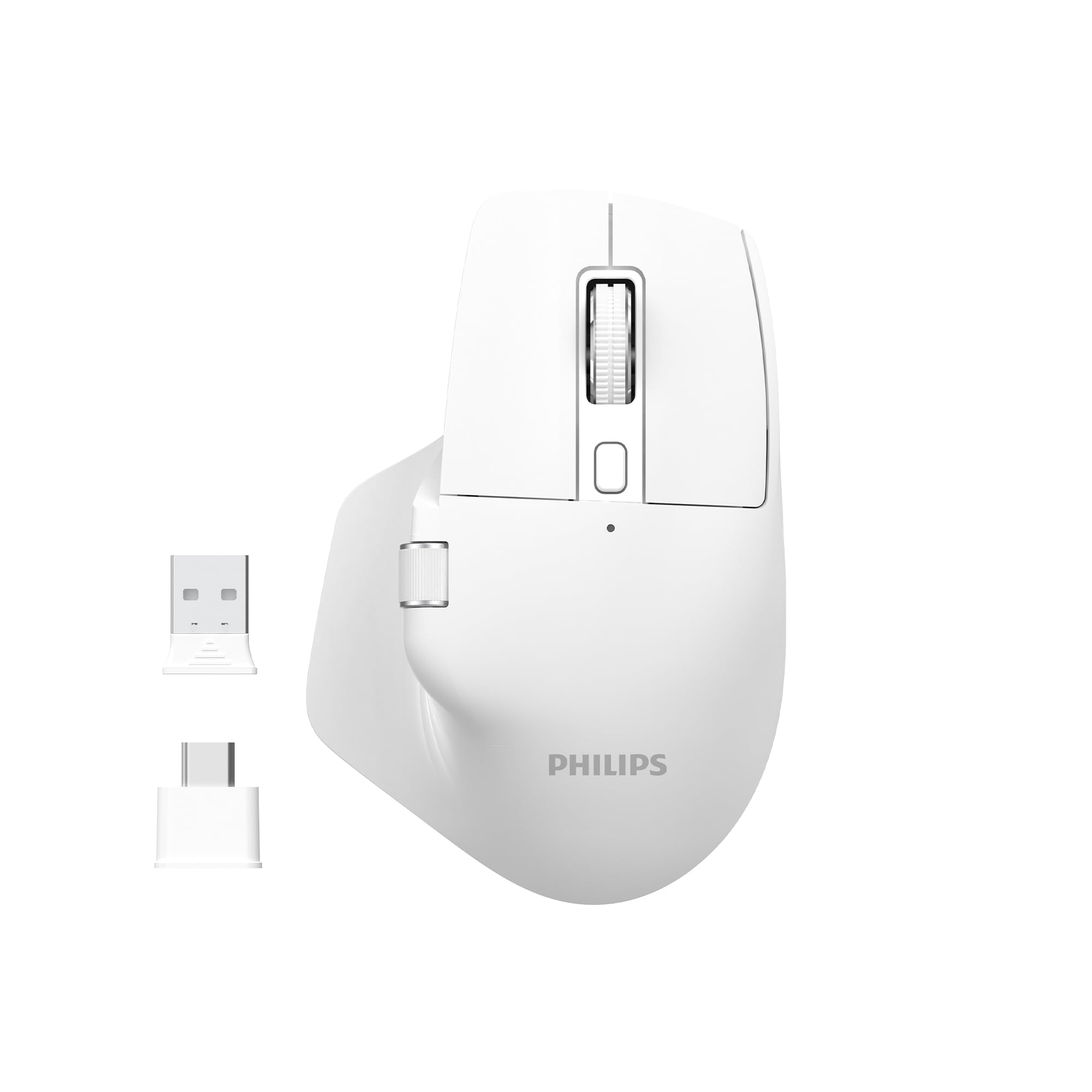
Image: The Philips SPK7858 Wireless Optical Mouse in white, shown with its USB receiver and Type-C adapter.
Impostare
1. Contenuto della confezione
Prima di iniziare, assicurati che tutti gli articoli siano presenti nel pacco:
- Philips SPK7858 Wireless Optical Mouse
- Ricevitore USB
- Adattatore USB di tipo C.
- Cavo di ricarica (tipo C)
- Manuale dell'utente (questo documento)
2. Ricarica del mouse
The mouse comes with a built-in rechargeable battery. For first-time use, it is recommended to fully charge the mouse.
- Individuare la porta di ricarica Type-C sulla parte anteriore del mouse.
- Connect the provided charging cable to the mouse and a USB power source (e.g., computer USB port, USB wall adapter).
- La spia di carica si illuminerà. Una volta completata la carica, la spia potrebbe cambiare colore o spegnersi.

Immagine: Lato view of the Philips SPK7858 mouse, highlighting the Type-C charging port.
3. Collegamento del mouse
Il mouse si connette in modalità wireless tramite un ricevitore USB da 2.4 GHz.
- Remove the USB receiver from its storage compartment on the underside of the mouse.
- Plug the USB receiver directly into an available USB-A port on your computer. If your computer only has Type-C ports, use the provided Type-C adapter.
- Accendi il mouse utilizzando l'interruttore di alimentazione situato sul lato inferiore.
- Il computer dovrebbe rilevare e installare automaticamente i driver necessari. Il mouse è pronto per l'uso.

Image: Underside of the Philips SPK7858 mouse, illustrating the USB dongle storage area and the optical sensor.
Utilizzo del mouse
Funzioni dei pulsanti
The Philips SPK7858 mouse features 7 programmable buttons for enhanced control and efficiency.
- Pulsante sinistro del mouse: Funzione standard di clic primario.
- Pulsante destro del mouse: Funzione di clic secondario standard.
- Rotella di scorrimento: Scrolls vertically. Can also be pressed for middle-click functionality.
- Pulsante di regolazione DPI: Scorre le impostazioni di sensibilità DPI.
- Pulsante Avanti: Naviga in avanti in web browser o file esploratori.
- Pulsante indietro: Naviga indietro in web browser o file esploratori.
- Rotella di scorrimento laterale: Fornisce funzionalità di scorrimento orizzontale.

Immagine: Frontale view of the Philips SPK7858 mouse, detailing the main scroll wheel, DPI button, and side buttons.
Regolazione DPI
Adjust the mouse sensitivity (DPI) to match your preference or task requirements. The SPK7858 offers 5 adjustable DPI levels.
- Press the DPI adjustment button (located behind the main scroll wheel) to cycle through the available DPI settings.
- Each press will switch to the next DPI level: 800, 1600, 2400, 3200, and 4000 DPI.
- Select the DPI setting that provides the most comfortable and precise cursor movement for your current activity.

Image: A visual representation of the five adjustable DPI levels (800, 1600, 2400, 3200, 4000) available on the Philips SPK7858 mouse.
Compatibilità universale
The Philips SPK7858 mouse is designed for broad compatibility across various operating systems, ensuring seamless integration with your devices.

Image: Icons representing universal compatibility with Windows, Apple (macOS), Chrome OS, Linux, and Android operating systems.
Manutenzione
Pulizia
To maintain optimal performance and appearance, clean your mouse regularly.
- Per pulire la superficie del mouse, utilizzare un panno morbido, asciutto e privo di lanugine.
- Per sporco ostinato, leggermente dampPulisci il panno con acqua o una soluzione detergente delicata. Evita prodotti chimici aggressivi.
- Non lasciare che liquidi entrino nel corpo del mouse.
- Per garantire un tracciamento accurato, pulire periodicamente il sensore ottico nella parte inferiore con un batuffolo di cotone.
Cura della batteria
The mouse features a rechargeable battery designed for long service life.
- Caricare il mouse quando l'indicatore della batteria indica un livello di carica basso.
- Evitare di scaricare completamente la batteria frequentemente per prolungarne la durata.
- Se si conserva il mouse per un periodo prolungato, caricarlo al 50% circa prima di riporlo e ricaricarlo ogni pochi mesi.
Risoluzione dei problemi
Il mouse non risponde
- Controlla la potenza: Assicurarsi che il mouse sia acceso e che la batteria sia sufficientemente carica. Ricaricare se necessario.
- Verifica connessione: Verifica che il ricevitore USB sia collegato saldamente a una porta USB funzionante del computer. Prova una porta USB diversa.
- Riparazione: Turn off the mouse, unplug the receiver, then plug the receiver back in and turn on the mouse.
- Interferenza: Move the mouse closer to the receiver or away from other wireless devices that might cause interference.
Inaccurate Tracking or Cursor Jumps
- Sensore pulito: Pulisci il sensore ottico sul lato inferiore del mouse.
- Superficie: Ensure you are using the mouse on a suitable surface. Highly reflective, transparent, or uneven surfaces may affect tracking performance. A mouse pad is recommended.
- Impostazione DPI: Se il cursore è troppo sensibile, impostare un valore DPI più basso.
Pulsanti non funzionanti
- Controllare la batteria: A volte la batteria scarica può influire sulla reattività dei pulsanti.
- Conflitto software: If using custom button assignments, check your operating system's mouse settings or any third-party software for conflicts.
Specifiche
| Caratteristica | Dettaglio |
|---|---|
| Marca | Philips |
| Nome del modello | SPK7858 |
| Tecnologia di connettività | Senza fili (ricevitore USB) |
| Tecnologia di rilevamento del movimento | Ottico |
| Livelli DPI | 800, 1600, 2400, 3200, 4000 |
| Numero di pulsanti | 7 |
| Caratteristica speciale | Ergonomic Design, Rechargeable Battery |
| Colore | Bianco |
| Peso dell'articolo | ca. 99 g (batteria inclusa) |
| Batterie | 1 batteria non standard (inclusa, ricaricabile) |
| Contenuto della confezione | Topo |

Image: Diagram illustrating the dimensions of the Philips SPK7858 mouse: Height 12.3cm, Width 8.27cm, Depth 4.48cm, and approximate weight of 99g (including battery).
Informazioni sulla garanzia
Philips products are manufactured to the highest standards and undergo rigorous quality checks. For detailed warranty information, including terms, conditions, and duration, please refer to the warranty card included with your product or visit the official Philips websito. Conserva la ricevuta d'acquisto come prova d'acquisto.
Assistenza clienti
If you encounter any issues or have questions not covered in this manual, please contact Philips customer support. You can find contact details, FAQs, and additional resources on the official Philips support websito.
Supporto online: Visita www.philips.com/support