
1. Introduzione
This manual provides detailed instructions for the installation, operation, and maintenance of your GNCC GT1Pro-W-1P Outdoor Security Camera. This product is designed to enhance your home security with features such as 2K resolution, motion detection, color night vision, and two-way audio. Please read this manual thoroughly before use to ensure proper functionality and safety.
2. Contenuto della confezione
Verify that all items are present in your package. If any items are missing or damaged, please contact customer support.
- GNCC GT1Pro-W-1P Outdoor Security Camera (2 units)
- Manuale di istruzioni
- Viti di montaggio e tasselli
- Adattatori di alimentazione (2 unità)
- Mounting Stands (2 units)
3. Configurazione e installazione
3.1 Installazione fisica
The GNCC GT1Pro-W-1P camera is designed for wall mounting. Choose a location that provides the desired viewing angle and is within reach of a power outlet. Ensure the camera is positioned to cover the area you wish to monitor.
- Segnare i punti di foratura: Use the included mounting stand as a template to mark the screw holes on the wall.
- Fori di perforazione: Drill pilot holes at the marked positions. Insert the wall plugs if mounting on masonry.
- Fissare il supporto: Attach the mounting stand to the wall using the provided screws.
- Collega la fotocamera: Securely attach the camera to the mounting stand. Adjust the camera angle as needed.
- Connetti alimentazione: Connect the power adapter to the camera and plug it into a suitable outdoor-rated power outlet.

Image: The GNCC GT1Pro-W-1P camera mounted on a wall, highlighting its IP65 waterproof rating, suitable for outdoor use.
3.2 Download dell'app e creazione dell'account
The GNCC camera operates with the Osaio app. Download the app to your smartphone to manage your camera settings and view feed dal vivo.
- Scarica l'app Osaio: Cercare "Osaio" in your smartphone's app store (Apple App Store or Google Play Store) and download the application.
- Creare un account: Open the Osaio app and follow the on-screen instructions to create a new user account.
3.3 Connessione al Wi-Fi
Ensure your Wi-Fi network is 2.4 GHz, as the camera is compatible only with this frequency band. If your router uses both 2.4 GHz and 5 GHz, ensure the 2.4 GHz band is enabled and accessible.
- Accensione della fotocamera: Plug in the camera. Wait for the indicator light to flash, indicating it's ready for pairing.
- Aggiungi dispositivo nell'app: Open the Osaio app, tap the "+" icon to add a new device. Select your camera model from the list.
- Segui le istruzioni nell'app: The app will guide you through connecting the camera to your 2.4 GHz Wi-Fi network. This typically involves scanning a QR code generated by the app with the camera lens.
- Conferma: Una volta effettuata la connessione, la spia luminosa della telecamera cambierà e l'app confermerà l'avvenuta associazione.
4. Funzionamento
4.1 Vivere View and 2K Resolution
Access the live video feed from your camera through the Osaio app. The camera provides 2K Ultra HD resolution, offering clear and detailed images of your monitored area.

Immagine: Example of 2K HDR video quality, showcasing the camera's ability to capture clear details.
4.2 Audio bidirezionale
The camera features built-in two-way audio, allowing you to communicate with individuals near the camera through the Osaio app. This is useful for speaking to visitors or deterring unwanted guests.
- Attiva microfono: Nella vita reale view interface of the Osaio app, tap the microphone icon to speak.
- Ascoltare: The camera's speaker will transmit your voice, and you can hear responses through your phone's speaker.

Image: Illustration of the camera's two-way audio feature, enabling communication with people near the camera.
4.3 Rilevamento del movimento e avvisi
The camera is equipped with advanced motion detection. When motion is detected, the camera can record footage and send instant notifications to your smartphone via the Osaio app.
- Abilita rilevamento movimento: Navigate to the camera settings in the Osaio app to enable motion detection.
- Regola la sensibilità: Regola la sensibilità del rilevamento del movimento per ridurre al minimo i falsi allarmi.
- Ricevi notifiche: Ensure app notifications are enabled on your smartphone to receive alerts.
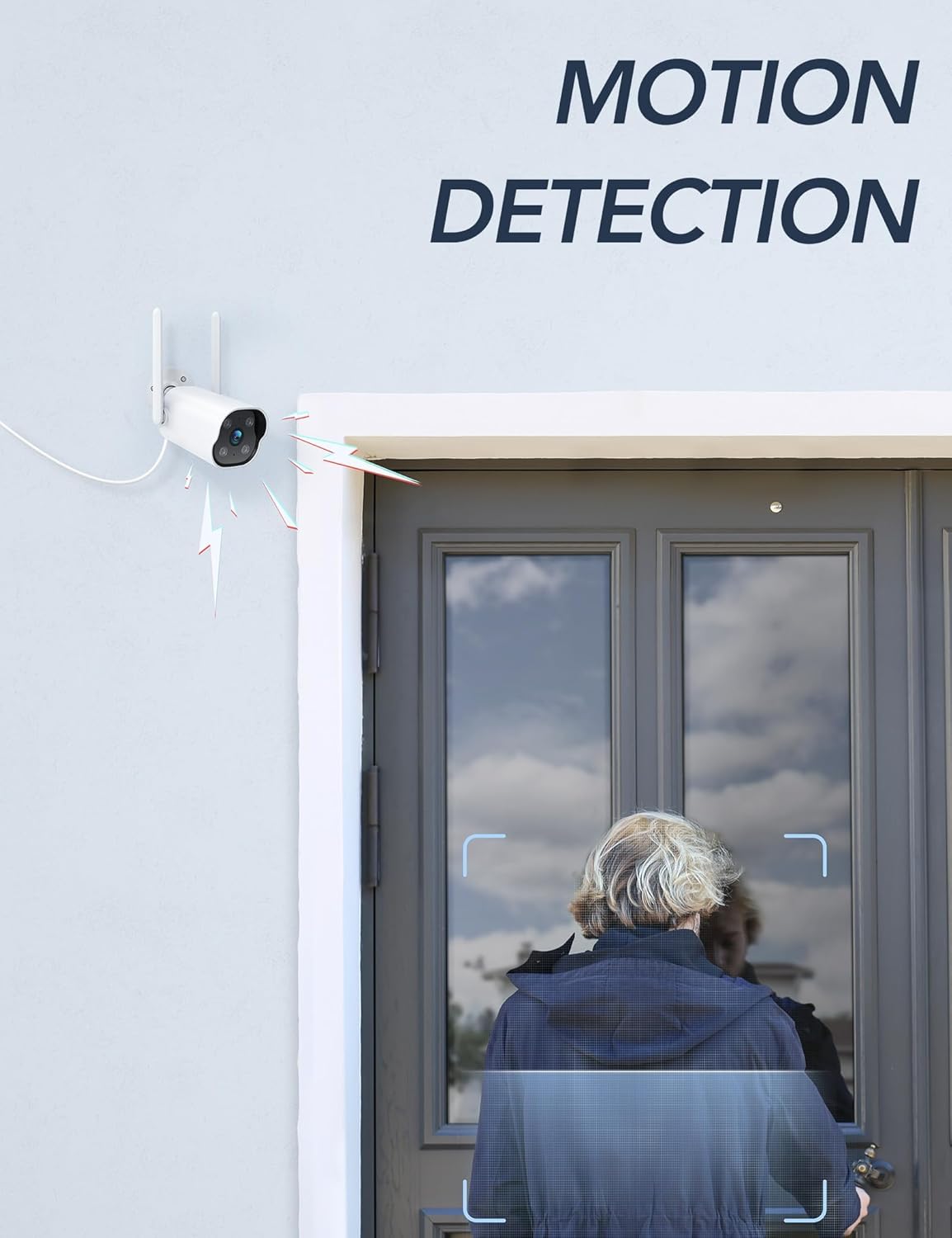
Image: The camera's motion detection feature, showing it identifying a person at a doorway.

Immagine: Example of push notifications received on a smartphone when motion or sound is detected by the camera.
4.4 Visione notturna
The camera provides enhanced night vision, allowing clear visibility up to 50 feet (15 meters) in low-light conditions. It supports color night vision for improved detail.
Registrazione 4.5 24 ore su 24, 7 giorni su 7
The camera supports continuous 24/7 recording, ensuring constant surveillance of your property. Recorded footage can be accessed via the Osaio app.

Image: The Osaio app interface displaying a timeline of continuous 24/7 video recording, with thumbnails of captured events.
5. Opzioni di archiviazione video
Your GNCC camera offers flexible options for storing recorded video footage.
- Archiviazione locale (scheda SD): The camera supports local storage via a Micro SD card (not included). Insert an SD card (up to 128 GB) into the designated slot on the camera for continuous recording or event-triggered footage.
- Archiviazione cloud: Optional cloud storage services are available through the Osaio app. This provides off-site backup of your recordings. A free trial period may be offered.

Image: Visual representation of the camera's dual storage options: cloud storage and local SD card storage (up to 128GB).
6. Manutenzione
- Pulizia: Pulisci periodicamente l'obiettivo della fotocamera con un panno morbido e asciutto per garantire una qualità dell'immagine nitida. Non utilizzare prodotti chimici aggressivi.
- Aggiornamenti del firmware: Check the Osaio app regularly for available firmware updates. Keeping your camera's firmware updated ensures optimal performance and security.
- Collegamento elettrico: Ensure the power connection remains secure and free from damage.
7. Risoluzione Dei Problemi
| Problema | Soluzione |
|---|---|
| La fotocamera non riesce a connettersi al Wi-Fi. | Ensure your Wi-Fi network is 2.4 GHz. The camera does not support 5 GHz Wi-Fi. Check Wi-Fi password and signal strength. Restart your router and camera. |
| Nessuna notifica ricevuta. | Verify that motion detection is enabled in the Osaio app. Check your smartphone's notification settings to ensure the Osaio app has permission to send alerts. |
| Qualità dell'immagine scadente. | Pulisci l'obiettivo della fotocamera. Assicurati che non ci siano ostruzioni nel campo visivo della fotocamera. viewControlla la velocità della tua connessione Internet. |
| L'audio bidirezionale non funziona. | Ensure your smartphone's microphone and speaker are enabled and not muted. Check the volume settings in the Osaio app. |
| La scheda SD non registra. | Ensure the SD card is correctly inserted and formatted within the Osaio app. Check if the SD card has sufficient free space. The camera supports up to 128 GB. |
8. Specifiche
| Caratteristica | Dettaglio |
|---|---|
| Numero di modello | GT1Pro-W-1P |
| Risoluzione video | 2K Ultra HD |
| Connettività | 2.4 GHz Wi-Fi, Wired (Power) |
| Caratteristiche speciali | 2-Way Audio, Motion Sensor, Night Vision (Color), Weather Proof (IP65) |
| Opzioni di archiviazione | Scheda Micro SD (fino a 128 GB, non inclusa), archiviazione cloud (opzionale) |
| Uso interno/esterno | All'aperto |
| Fonte di alimentazione | Elettrico con cavo |
| Dispositivi compatibili | Smartphone (via Osaio App) |
| Dimensioni (L x P x A) | Dimensioni: 11 x 7.6 x 5 cm |
| Peso | 608 grammi |
| Componenti inclusi | Instruction Manual, Mounting Screws, Power Adapter, Stand |
9. Garanzia e supporto
For warranty information or technical support, please refer to the warranty card included with your product or visit the official GNCC website. You can also contact GNCC customer service through the Osaio app or their websito per assistenza con richieste di informazioni sui prodotti, risoluzione dei problemi o richieste di assistenza.
Supporto online: www.gncc.com/support