
Introduzione
This manual provides detailed instructions for the installation, operation, and maintenance of your Gawfolk GF490D 49-inch Ultra-Wide Curved Gaming Monitor. Please read this manual thoroughly before using the product to ensure proper setup and optimal performance. Keep this manual for future reference.
Informazioni sulla sicurezza
Always follow these basic safety precautions when using your monitor:
- Non posizionare il monitor su un carrello, un supporto o un tavolo instabile.
- Non ostruire le aperture di ventilazione.
- Do not use near water or sources of heat.
- Utilizzare esclusivamente il cavo di alimentazione e l'adattatore forniti dal produttore.
- Affidare tutti gli interventi di assistenza a personale qualificato.
- Scollegare il monitor durante i temporali o quando non viene utilizzato per lunghi periodi.
Contenuto della confezione
Verificare che tutti i componenti siano presenti nella confezione:
- Gawfolk GF490D Monitor
- Monitor Stand Components (Base, Neck)
- Adattatore di alimentazione e cavo
- Cavo HDMI
- Cavo DisplayPort
- Manuale d'uso
Impostare
1. Assemblaggio del supporto
- Estrarre con cautela il monitor dalla confezione, proteggendolo su una superficie morbida.
- Fissare il collo del supporto al pannello del monitor.
- Fissare la base del supporto al collo utilizzando le viti fornite.

Figura 1: Illustration of monitor ergonomic adjustments, including height adjustment (0-160mm), wall bracket compatibility (75x75mm), and tilt adjustment (-5° to 15°).
2. Connessione ai dispositivi
The monitor is equipped with multiple input ports for various devices:
- Power Connector (DC): Connect the power adapter to this port and then to a power outlet.
- Porte HDMI 2.1 (x2): Connect to devices such as PCs, game consoles (PS5/Xbox Series X), or laptops using an HDMI cable.
- Porte DisplayPort 1.4 (x2): Connect to PCs or other compatible devices using a DisplayPort cable for high-resolution and high-refresh-rate signals.
- Interfaccia di uscita audio: Collegare altoparlanti esterni o cuffie.

Figura 2: Posteriore view of the monitor showing the available input ports: DC power connector, two DisplayPort 1.4 interfaces, two HDMI 2.1 interfaces, and an audio output interface.
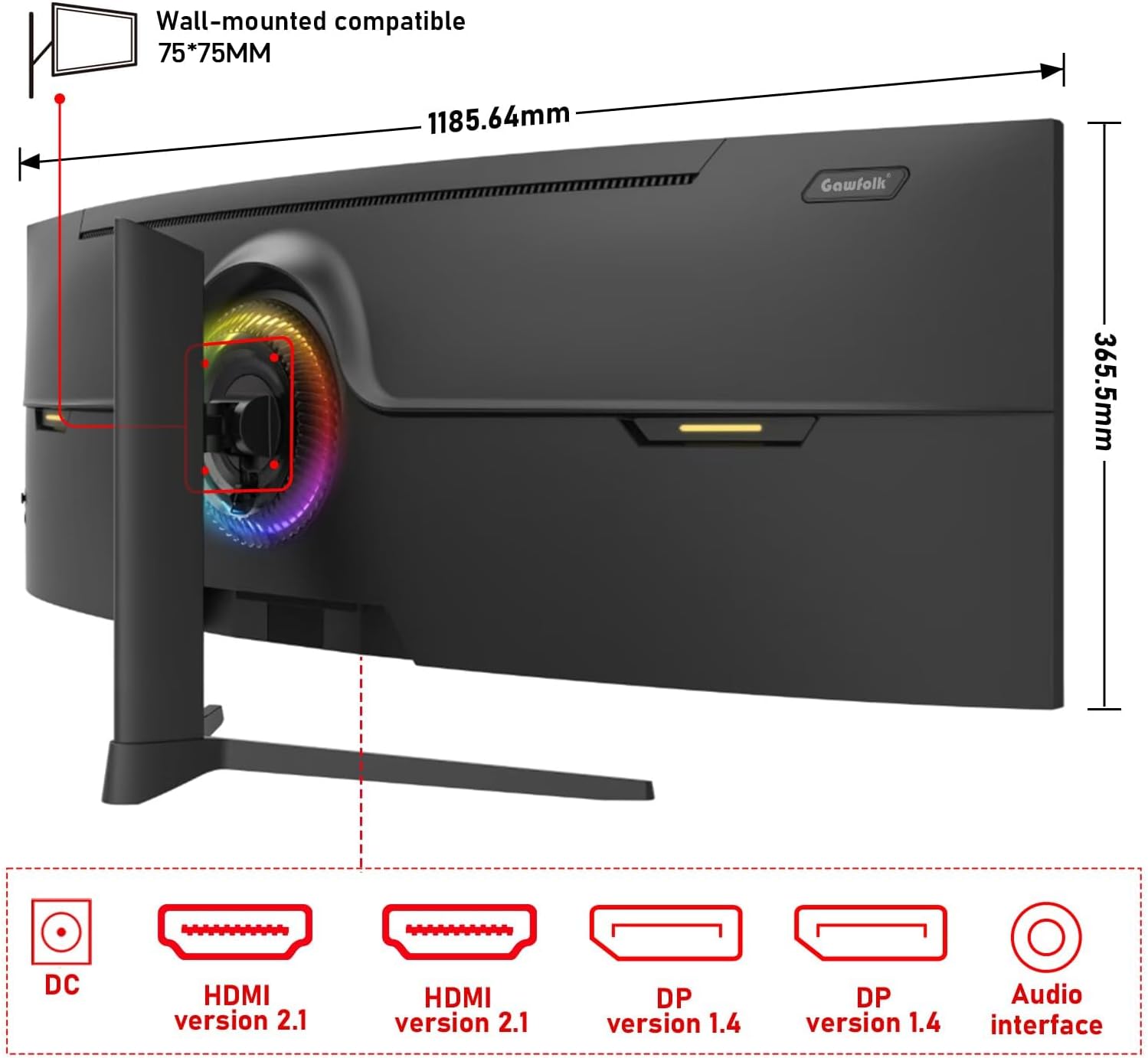
Figura 3: Posteriore view of the monitor illustrating its approximate dimensions (1185.64mm width, 365.5mm height without stand) and indicating 75x75mm VESA wall-mount compatibility.
3. Montaggio a parete (opzionale)
The monitor supports a 75x75mm VESA wall mount. Ensure the wall mount can support the monitor's weight (7.9 kg) and follow the wall mount manufacturer's instructions for installation.
Istruzioni per l'uso
1. Accensione/Spegnimento
- Collegare l'adattatore di alimentazione al monitor e a una presa di corrente.
- Press the power button (location typically on the rear or bottom-right of the monitor) to turn the monitor on or off.
2. Regolazione delle impostazioni di visualizzazione
The monitor features an On-Screen Display (OSD) menu for adjusting various settings. Use the joystick or buttons (refer to the physical monitor for exact controls) to navigate the OSD menu.
- Sorgente di input: Selezionare tra HDMI 1, HDMI 2, DP 1 o DP 2.
- Luminosità/Contrasto: Regola la luminanza dell'immagine.
- Impostazioni colore: Modify color temperature, gamma, and color gamut (120% sRGB).
- Frequenza di aggiornamento: Il monitor supporta fino a 240 Hz. Per prestazioni ottimali, assicurati che il dispositivo e il cavo collegati supportino questa frequenza di aggiornamento.
- Sincronizzazione adattiva (FreeSync): Enable this feature in the OSD and your graphics card settings to synchronize the monitor's refresh rate with your GPU's frame rate, reducing screen tearing and stuttering.
- Modalità luce blu bassa: Activate to reduce eye strain during prolonged use.

Figura 4: The 49-inch 32:9 ultra-wide display with DQHD (5120x1440) resolution, offering an expansive field of view compared to traditional 16:9 QHD (2560x1440) monitors.

Figura 5: Visual comparison demonstrating the smoothness of a 240Hz refresh rate versus lower refresh rates (100Hz and 60Hz), highlighting reduced motion blur and stuttering.

Figura 6: Illustration of Adaptive Sync (FreeSync) technology, showing how it eliminates screen tearing and input lag for a smoother gaming experience compared to when it is disabled.

Figura 7: The 1500R curvature of the screen, designed to provide an immersive viewing experience by conforming to the human eye's natural field of vision.

Figura 8: Display characteristics including 120% sRGB color gamut, 8-bit color depth (16.7 million colors), 3000:1 contrast ratio, and 330 cd/m² brightness, ensuring rich and accurate color reproduction.

Figura 9: A visual comparison demonstrating the difference between a 1000:1 contrast ratio and the monitor's 3000:1 contrast ratio, showing enhanced detail in dark and bright areas.
3. Adattamenti fisici
Il supporto del monitor consente regolazioni ergonomiche:
- Regolazione dell'altezza: Regola l'altezza dello schermo fino a 160 mm.
- Girevole: Rotate the monitor left or right by 15 degrees.
- Inclinazione: Adjust the screen tilt from -5 degrees to 20 degrees.
4. Illuminazione ambientale RGB
The monitor features customizable RGB ambient lighting on its rear. This can be configured through the OSD menu to match your preferences or gaming setup.
Manutenzione
Pulizia del monitor
- Scollegare sempre il monitor prima di pulirlo.
- Utilizzare leggermente un panno morbido e privo di lanugine dampcon acqua o con un detergente per schermi delicato e non abrasivo.
- Non spruzzare il detergente direttamente sullo schermo.
- Avoid using benzene, thinner, or any volatile solvents, as they may damage the monitor's surface.
Risoluzione dei problemi
| Problema | Possibile causa | Soluzione |
|---|---|---|
| Nessuna immagine sullo schermo | Cavo di alimentazione scollegato, cavo video scollegato, sorgente di ingresso selezionata non corretta. | Check power and video cable connections. Select the correct input source via the OSD menu. Ensure the computer is powered on. |
| L'immagine è sfocata o distorta | Incorrect resolution or refresh rate settings, faulty video cable. | Set the display resolution to 5120x1440 and refresh rate to 240Hz (or compatible with your GPU). Try a different video cable. |
| Schermo che si strappa o si blocca | Adaptive Sync (FreeSync) is not enabled or not supported by GPU/game. | Enable FreeSync in the monitor's OSD menu and your graphics card control panel. Ensure your GPU supports FreeSync. |
| Pixel morti | Difetto di fabbricazione. | Refer to warranty policy. A small number of dead pixels may be considered within acceptable manufacturing tolerances. |
| Nessun audio | Audio cable disconnected, incorrect audio output selected on PC, monitor volume too low. | Check audio cable connection. Ensure the correct audio output device is selected in your computer's sound settings. Adjust monitor volume. |
Specifiche
| Caratteristica | Dettaglio |
|---|---|
| Numero di modello | GF490D |
| Dimensioni dello schermo | 49 pollici |
| Risoluzione | DQHD (5120x1440 Pixels) |
| Proporzioni | 32:9 |
| Curvatura | 1500R |
| Frequenza di aggiornamento | Frequenza 240 Hz |
| Tempo di risposta | 1 millisecondo |
| Tipo di pannello | VA (LCD Display Technology) |
| Luminosità | 350 candele (cd/m²) |
| Rapporto di contrasto | 3000:1 |
| Gamma di colori | 120% sRGB |
| Viewangolo di ing | 178 gradi |
| Sincronizzazione adattiva | Sincronizzazione gratuita |
| Ingressi video | 2x HDMI 2.1, 2x DisplayPort 1.4 |
| Uscita audio | 3.5mm Jack audio |
| Tipo di montaggio | Wall Mount (75x75mm VESA compatible) |
| Dimensioni del prodotto (P x L x A) | 5 x 118.5 x 43 cm (con supporto) |
| Peso dell'articolo | 7.9 chilogrammi |
| Caratteristiche aggiuntive | Blue Light Filter, Curved, Frameless, RGB Ambient Lighting |
Garanzia e supporto
The Gawfolk GF490D monitor comes with a Servizio post-vendita di 12 mesi (1 year manufacturer warranty). If you encounter any issues or have questions regarding your monitor, please contact Gawfolk customer support for assistance.
Manufacturer: Shenzhen Qinghong Zhuoyue Technology Co., Ltd.