
1. Introduzione
The Gawfolk 27-inch 4K 160Hz IPS Gaming Monitor (Model GF270J) is designed to provide an exceptional visual experience for gaming, professional work, and multimedia consumption. Featuring a stunning 4K UHD resolution, a high refresh rate, and an IPS panel, this monitor delivers vibrant colors and smooth performance. This manual provides essential information for setting up, operating, and maintaining your monitor.
2. Contenuto della confezione
Si prega di controllare attentamente il contenuto della confezione. Se qualche articolo risulta mancante o danneggiato, contattare l'assistenza clienti.
- Gawfolk 27-inch Monitor
- Monitor Stand (Base and Support)
- Cavo DP
- Power Adapter and Screws
- Manuale d'uso
3. Istruzioni per l'installazione
3.1. Assemblaggio del supporto
- Estrarre con cautela il monitor e i componenti del supporto dalla confezione.
- Attach the stand support to the monitor panel using the provided screws.
- Connect the stand base to the support, securing it with the designated screw.
3.2. Cavi di collegamento
Collegare i cavi necessari al monitor e al computer o ad altri dispositivi.
- Cavo di alimentazione: Collegare l'adattatore di alimentazione alla porta di ingresso CC del monitor, quindi collegare l'adattatore a una presa di corrente.
- DisplayPort (DP) Cable: For optimal performance (up to 4K @ 160Hz), connect the included DP cable from your computer's graphics card to one of the monitor's DP 1.4 ports.
- Cavo HDMI: Alternatively, connect an HDMI cable from your device to one of the monitor's HDMI 2.1 ports (supports up to 4K @ 160Hz).
- Uscita audio: Se lo si desidera, collegare altoparlanti esterni o cuffie alla porta Audio Out.

Questa immagine fornisce una visione chiaraview of the monitor's physical dimensions and its comprehensive set of input/output ports. It shows the location of the DC power input, two HDMI 2.1 ports, two DisplayPort 1.4 ports, and an Audio Out jack, facilitating various connectivity options.
3.3. VESA Wall Mounting
The monitor supports VESA 75mm x 75mm mounting for alternative installation options, such as wall mounts or monitor arms. Ensure the VESA mount is compatible and can support the monitor's weight.

This image demonstrates the monitor's ergonomic flexibility, featuring tilt adjustment from -7° to 17° for optimal viewing comfort. It also highlights VESA wall-mount compatibility (75x75mm) for space-saving setups and includes a built-in cable organizer for a tidy workspace.
4. Istruzioni per l'uso
4.1. Accensione/spegnimento
Press the power button, usually located on the back or bottom of the monitor, to turn the monitor on or off.
4.2. Selezione della sorgente di ingresso
Use the monitor's On-Screen Display (OSD) menu or dedicated input button to select the desired input source (e.g., HDMI 1, HDMI 2, DP 1, DP 2).
4.3. Navigazione nel menu OSD
The OSD menu allows you to adjust various display settings. Navigate the menu using the buttons on the monitor. Common settings include brightness, contrast, color temperature, and gaming modes.
4.4. Regolazione dell'inclinazione
The monitor stand allows for tilt adjustment from -7° to 17°. Gently adjust the monitor panel to your preferred viewangolo di ing.
5. Caratteristiche principali
5.1. 4K UHD Resolution
Experience stunning clarity with a 3840 x 2160 pixel resolution on a 27-inch display, offering four times the detail of Full HD.

This image illustrates the difference between Full HD (1920x1080) and 4K Ultra HD (3840x2160) resolutions. The 4K display on the right shows a much sharper and more detailed image of a racing game scene compared to the Full HD display on the left.
5.2. 160Hz Refresh Rate & 1ms Response Time
Enjoy fluid motion and reduced input lag with a high 160Hz refresh rate and a rapid 1ms response time, crucial for fast-paced gaming.

This image shows the monitor displaying a dynamic motorcycle racing game, highlighting its 160Hz refresh rate. This high refresh rate ensures smooth motion and reduced input lag for an immersive gaming experience.
5.3. IPS Panel & Color Performance
The IPS (In-Plane Switching) panel ensures consistent color accuracy and sharp image quality across wide 178° viewing angles. With 85% NTSC color gamut, 1.07 billion colors (8-bit + Hi-FRC), 300 nits brightness, and a 1000:1 contrast ratio, visuals are vibrant and lifelike.
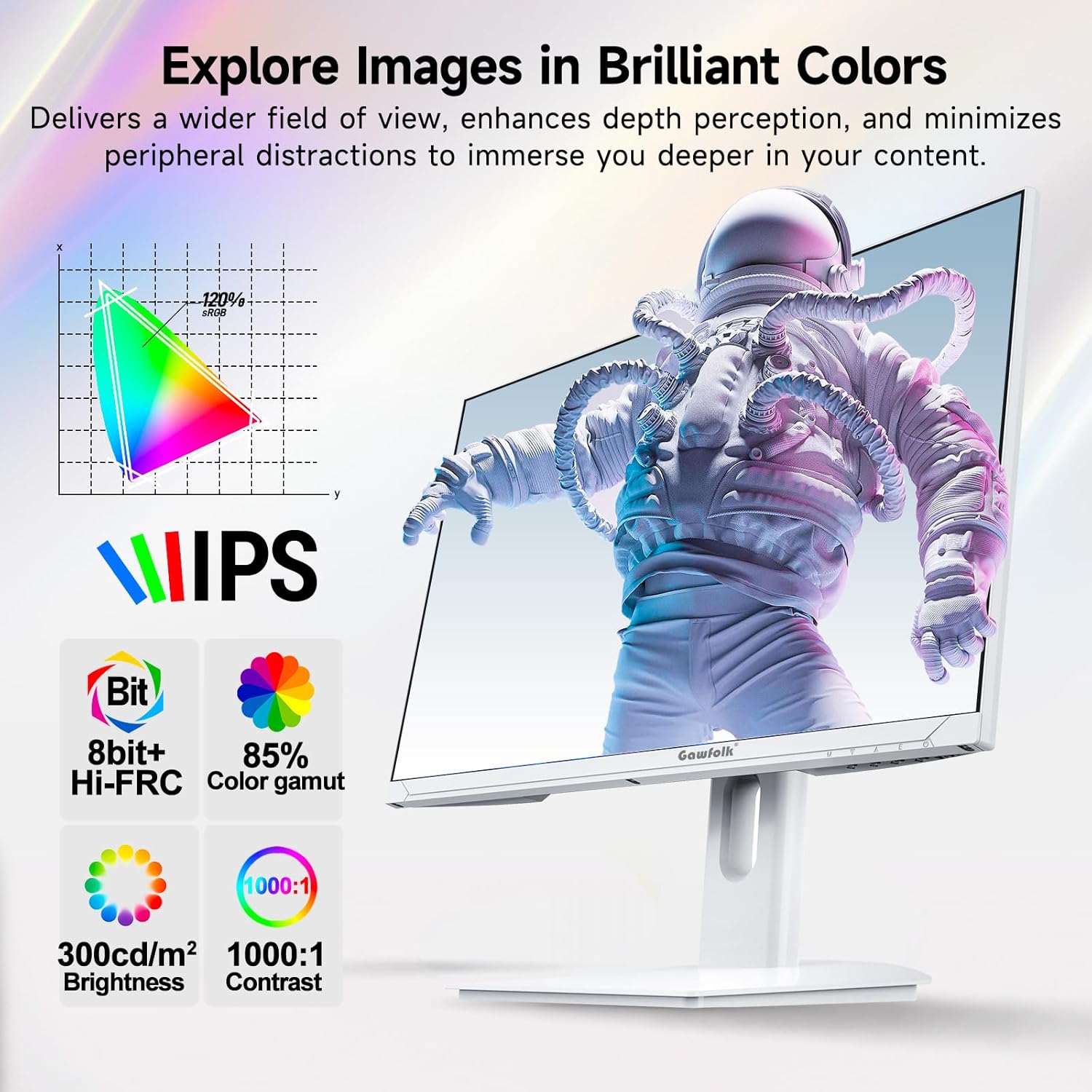
This image showcases the monitor's IPS panel technology, which provides consistent and accurate colors across wide viewing angles. Accompanying icons detail its color capabilities (8-bit + Hi-FRC, 85% NTSC color gamut), brightness (300 cd/m²), and contrast ratio (1000:1), all contributing to vivid and clear visuals.
5.4. Sincronizzazione adattiva (FreeSync)
Supported FreeSync technology helps eliminate screen tearing and stuttering, providing a smoother gaming experience.
5.5. Caratteristiche della cura degli occhi
The monitor incorporates flicker-free technology to reduce eye strain during extended use.
5.6. Miglioramenti del gioco
Integrated customizable reticle overlays assist with precise aiming in games.
6. Manutenzione
6.1. Pulizia dello schermo
Pulire delicatamente lo schermo con un panno morbido e privo di lanugine. Per i segni ostinati, strofinare leggermenteampPulisci il panno con acqua o con un detergente specifico per schermi. Evita di usare prodotti chimici aggressivi, alcol o materiali abrasivi.
6.2. Pulizia del Casing
Utilizzare un panno morbido e asciutto per pulire il monitor.asing. Non spruzzare liquidi detergenti direttamente sul monitor.
7. Risoluzione Dei Problemi
If you encounter issues with your monitor, refer to the following troubleshooting tips:
- Nessun potere: Assicurarsi che l'adattatore di alimentazione sia collegato saldamente sia al monitor sia a una presa di corrente funzionante.
- Nessun segnale: Verify that the display cable (DP or HDMI) is firmly connected to both the monitor and your computer. Select the correct input source via the OSD menu.
- Risoluzione/frequenza di aggiornamento non corretta: Ensure your graphics card drivers are up to date. Check your computer's display settings to set the resolution to 3840x2160 and the refresh rate to 160Hz.
- Optimal Performance Requirements: To achieve 4K @ 160Hz, your PC must be equipped with a dedicated GPU. It is recommended to use a GPU equivalent to or above an NVIDIA GTX 1650. Ensure you are using HDMI 2.1 or DisplayPort 1.4 cables.
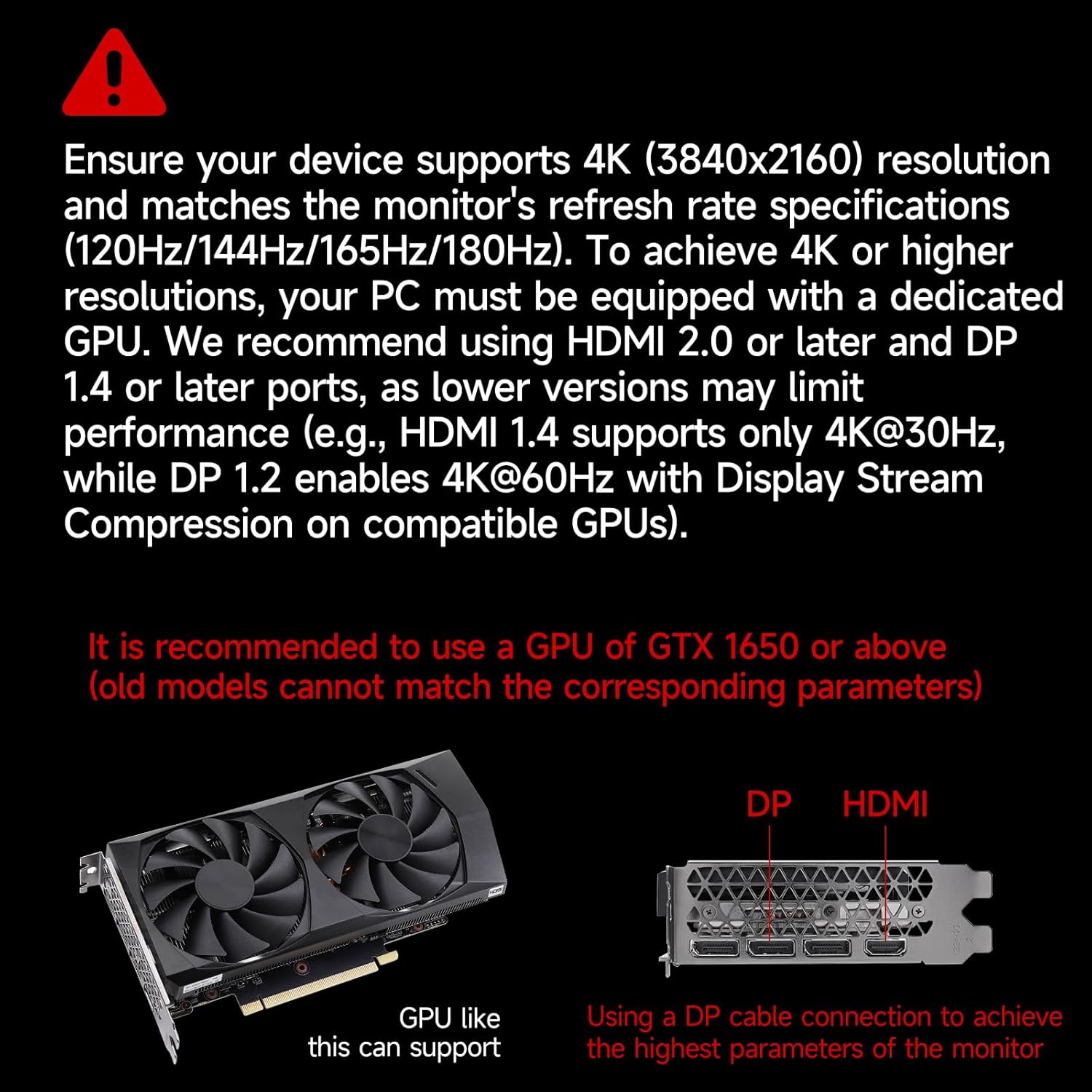
This image provides crucial information regarding system requirements, recommending a graphics processing unit (GPU) equivalent to or better than an NVIDIA GTX 1650 to fully utilize the monitor's 4K resolution and high refresh rate capabilities. It also highlights the importance of using DP or HDMI ports for optimal performance.
8. Specifiche
| Caratteristica | Specificazione |
|---|---|
| Marca | Gente di Gawfolk |
| Numero di modello | GF270J |
| Dimensioni dello schermo | 27 pollici |
| Risoluzione | 3840 x 2160 pixel (4K UHD) |
| Frequenza di aggiornamento | Frequenza 160 Hz |
| Tempo di risposta | 1 millisecondo (MPRT) |
| Tecnologia di visualizzazione | Informazione pubblica |
| Tipo di visualizzazione | GUIDATO |
| Proporzioni | 16:9 |
| Screen Finish | Opaco |
| Luminosità | 300 cd/m² |
| Rapporto di contrasto | 1000:1 |
| Viewangolo di ing | 178 gradi |
| Valore gamma colore | 85% NTSC |
| Tecnologia di connettività | Porta Display, HDMI |
| Connettività Hardware | 2x HDMI 2.1, 2x DisplayPort 1.4, 1x uscita audio |
| Sincronizzazione adattiva | Sincronizzazione gratuita |
| Caratteristiche speciali | Tilt Adjustment, Frameless, Flicker-Free, Eye Care, Adaptive Sync |
| Tipo di montaggio VESA | 75 x 75 mm (Wall Mount) |
| Dispositivi compatibili | Gaming Console, Computer, Laptop |
| Dimensioni dell'articolo (P x L x A) | 20 x 61.4 x 46.3 centimetri |
| Peso dell'articolo | 5.1 chilogrammi |
| Colore | Bianco |
9. Garanzia e supporto
9.1. Informazioni sulla garanzia
Gawfolk provides a 12-month worry-free warranty for this monitor. This warranty covers manufacturing defects and malfunctions under normal use.
9.2. Assistenza clienti
If you encounter any issues such as damage, malfunction, or missing accessories, please contact Gawfolk customer service for assistance. Refer to the contact information provided with your purchase or on the official Gawfolk websito.


