
1. Prodotto finitoview
The Portta HDMI Video Capture Card is designed for capturing and streaming HDMI video signals up to 1080p at 60 frames per second (fps) via USB 3.0. It features 4K HDMI input and loop-out capabilities, a 3.5mm audio output, and a microphone input, making it suitable for various applications including game streaming, live broadcasts, and content creation.
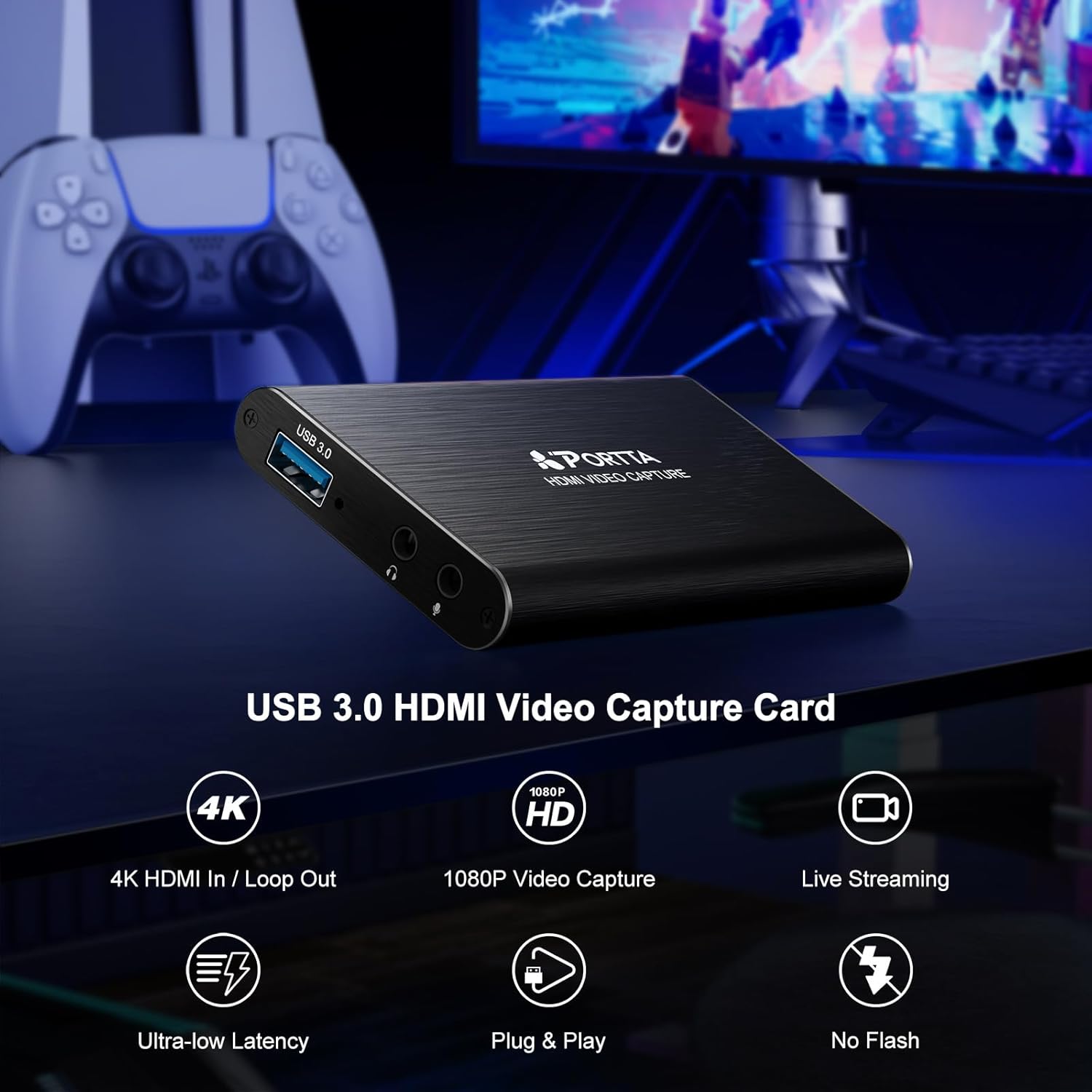
Immagine: Frontale view of the Portta HDMI Video Capture Card, highlighting the USB 3.0 port, 3.5mm audio output, and microphone input.

Immagine: Posteriore view of the Portta HDMI Video Capture Card, illustrating the HDMI input and HDMI loop-out ports, along with an IN/OUT indicator.
2. Contenuto della confezione
Verificare che tutti gli articoli siano presenti nel pacco:
- Portta HDMI Video Capture Card (x1)
- USB-A to USB-A 3.0 Data Cable (x1)
- Cavo HDMI (x1)
- Manuale utente (x1)
3. Requisiti di sistema
To ensure optimal performance, your computer system should meet the following minimum specifications:
- Sistema operativo: Windows 7/8/10/11 or later; macOS 10.8+ (Intel/Apple Silicon; Metal support recommended); Linux (kernel 2.6.38+, e.g., Ubuntu 18.04+; X11/Wayland)
- PROCESSORE: Quad-core Intel Core i5 / Ryzen 5 or higher
- Memoria: 8 GB di RAM o più
- Grafica: DirectX 10.1 or OpenGL 3.3 compatible GPU (DirectX 11 / Metal recommended)
- Magazzinaggio: SSD recommended for high-bitrate recording
The device is plug-and-play and does not require driver installation.
4. Istruzioni per l'installazione
Follow these steps to connect and set up your Portta HDMI Video Capture Card:
- Collegamento dell'ingresso HDMI: Connect your HDMI source device (e.g., game console, camcorder, PC) to the INGRESSO HDMI porta sulla scheda di acquisizione tramite un cavo HDMI.
- Connect HDMI Loop-Out (Optional): Se desideri view your source content on a separate display while capturing, connect an HDMI cable from the USCITA LOOP HDMI port on the capture card to your monitor or TV.
- Connessione al computer: Connect the USB-A to USB-A 3.0 data cable from the USB 3.0 port on the capture card to an available USB 3.0 port on your computer. The device will be automatically recognized.
- Collegare dispositivi audio (facoltativo):
- For microphone input, connect a microphone to the Ingresso microfono Jack da 3.5 mm.
- For audio monitoring, connect headphones (TRS only) or speakers to the Uscita audio da 3.5 mm cricco.
Note: Microphone audio is not routed through the HDMI OUT port.

Image: Connection diagram for the capture card, showing an HDMI source (game console) connected to the input, a TV connected to the loop-out, and a laptop connected via USB 3.0 for capture.
5. Istruzioni per l'uso
The Portta HDMI Video Capture Card is compatible with various UVC/UAC-compliant applications, including OBS Studio. The following instructions focus on using OBS Studio, a popular free and open-source software for video recording and live streaming.
5.1. Using with OBS Studio (Windows/macOS/Linux)
- Download and Install OBS Studio: If you haven't already, download OBS Studio from its official webposto (obsproject.com) e installalo sul tuo computer.
- Launch OBS Studio: Open the OBS Studio application.
- Aggiungi sorgente video:
- In the "Sources" box at the bottom left, click the "+" icona.
- Selezionare "Video Capture Device".
- Scegliere "Create new" and give it a name (e.g., "Portta Capture"). Click "OK".
- In the properties window, select "USB3 Video" (or similar) from the "Device" dropdown menu.
- Configure resolution/FPS if needed (e.g., 1920x1080, 60 FPS). Click "OK".

Image: Step-by-step guide within OBS Studio to add the video capture device as a source.
- Add Audio Source (Optional):
- In the "Sources" box, click the "+" icona.
- Selezionare "Audio Input Capture".
- Scegliere "Create new" and name it (e.g., "Portta Mic"). Click "OK".
- Selezionare "USB3 Digital Audio" (or similar) from the "Device" dropdown. Click "OK".
- Adjust Audio Properties:
- In the "Audio Mixer" section, click the gear icon next to your audio source (e.g., "Portta Mic").
- Selezionare "Advanced Audio Properties".
- For "Audio Monitoring", select "Monitor and Output" if you want to hear the audio through your computer's speakers/headphones while streaming/recording.

Image: Guide on configuring advanced audio properties in OBS Studio for monitoring and output.
- Avvia registrazione/streaming: In the "Controls" section, click "Avvia registrazione" or "Start Streaming" come desiderato.
5.2. macOS OBS Operation Notes
For macOS users, you may need to grant OBS Studio specific permissions:
- Vai a OBS Studio > Settings > Review Autorizzazioni dell'app.
- Garantire "Screen Recording", "Camera", E "Microphone" access are granted. Follow system prompts until "Access Granted" appears for each.

Image: macOS system settings showing how to grant necessary permissions (Screen Recording, Camera, Microphone) to OBS Studio.
6. Manutenzione
To ensure the longevity and optimal performance of your Portta HDMI Video Capture Card, follow these maintenance guidelines:
- Pulizia: Utilizzare un panno morbido e asciutto per pulire l'esterno del dispositivo. Evitare l'uso di detergenti liquidi o solventi, poiché potrebbero danneggiare la finitura o i componenti interni.
- Magazzinaggio: Store the device in a cool, dry place away from direct sunlight, extreme temperatures, and high humidity when not in use.
- Gestione dei cavi: Avoid bending or kinking cables excessively. Proper cable management helps prevent damage to the connectors and wires.
- Ventilazione: Assicurarsi che il dispositivo abbia una ventilazione adeguata durante il funzionamento per evitare il surriscaldamento.
7. Risoluzione Dei Problemi
If you encounter issues with your Portta HDMI Video Capture Card, refer to the following common troubleshooting steps:
- Nessun segnale video:
- Ensure all HDMI cables are securely connected to both the source device, capture card, and display (if using loop-out).
- Verify that the HDMI source device is powered on and outputting a signal.
- Check the resolution settings of your source device. The capture card supports up to 4K@60Hz (YUV 4:2:0) input, but does not support HDR or CEC.
- Prova un cavo HDMI o un dispositivo sorgente diverso per escludere problemi con il cavo o con la sorgente.
- Nessun audio:
- Confirm that the audio source is enabled in your capture software (e.g., OBS Studio).
- Check the volume levels on your computer and within the capture software.
- If using the 3.5mm audio output, ensure headphones/speakers are properly connected and functioning. Note that only TRS headphones are supported.
- Remember that microphone audio connected to the 3.5mm Mic In port is not routed to the HDMI loop-out.
- Poor Capture Quality or Lag:
- Ensure your computer meets the recommended system requirements, especially for CPU, RAM, and graphics.
- Connect the capture card to a USB 3.0 port on your computer for optimal bandwidth. USB 2.0 ports may result in lower performance.
- Chiudere le applicazioni non necessarie in esecuzione in background per liberare risorse di sistema.
- If recording high-bitrate content, use an SSD for storage.
- Verify that your capture software settings (resolution, FPS, bitrate) are appropriate for your system's capabilities.
- Dispositivo non riconosciuto:
- Try connecting the capture card to a different USB 3.0 port on your computer.
- Riavvia il computer.
- Assicurarsi che il cavo USB non sia danneggiato.
8. Specifiche
| Numero di modello | HCC101-1BK |
| Marca | Porta |
| Dispositivi compatibili | Laptop, Camcorder, PS4, PS5, Xbox, Nintendo Switch |
| Tipo di connettore | HDMI, USB 3.0, 3.5mm Audio |
| Risoluzione ingresso HDMI | Up to 4K@60Hz (YUV 4:2:0) |
| HDMI Loop-Out Resolution | Up to 4K@60Hz (YUV 4:2:0) |
| Cattura risoluzione | Up to 1080p@60Hz via USB 3.0 |
| Ingresso audio | 3.5mm Microphone In |
| Uscita audio | 3.5mm Audio Out (TRS Only) |
| Dimensioni (L x P x A) | 4.02 x 2.72 x 0.49 pollici |
| Peso dell'articolo | 68 grammi |
| Supporto HDCP | HDCP 1.4 (input only) |
| Supporto HDR | Non supportato |
| Supporto CEC | Non supportato |

Image: Physical dimensions of the Portta HDMI Video Capture Card.
9. Garanzia e supporto
The Portta HDMI Video Capture Card comes with a hassle-free Garanzia di 2 anno e supporto tecnico a vita.
For any questions or assistance, please contact Portta customer service. Refer to the contact information provided in the included user manual or visit the official Portta websito per le risorse di supporto.


