
1. Introduzione
This manual provides detailed instructions for the installation, configuration, and operation of the D-Link Guardian 700 Pro Multi-Gig Business Router (DBR-700). The DBR-700 is designed to provide enterprise-level networking capabilities for small and medium businesses, offering high-speed connectivity, robust security features, and simplified management.
Key features include a 2.5GbE WAN port, six 2.5GbE LAN ports, a 2.5GbE SFP uplink for flexible fiber connections, Multi-WAN failover, SPI Firewall, VPN support (IPSec, WireGuard, OpenVPN), and centralized management for up to 15 D-Link Guardian Wi-Fi 6 Smart Access Points (DBR-X3000-AP, sold separately).

Image: The D-Link Guardian 700 Pro Multi-Gig Router (DBR-700) designed for small and medium business environments.
2. Contenuto della confezione
Verifica che il pacco contenga i seguenti articoli:
- D-Link Guardian 700 Pro Multi-Gig Business Router (DBR-700)
- Adattatore di alimentazione
- Guida all'installazione rapida (QIG)
Se uno qualsiasi degli articoli risulta mancante o danneggiato, contattare il rivenditore D-Link locale.
3. Hardware finitoview
3.1. Pannello frontale
The front panel of the DBR-700 features status indicators and network ports.

Immagine: Frontale view of the DBR-700 router, showing LED indicators, Console port, LAN ports, WAN port, and LAN/WAN SFP port.
- LED SISTEMA: Indica lo stato del sistema.
- LED SFP: Indicates status of the SFP port.
- Pulsante di reset: Used to reset the device or restore factory defaults.
- Porta della console: For command-line interface access.
- Porte LAN (1-6): Six 2.5GbE LAN ports for connecting local network devices.
- Porta LAN/WAN: A 2.5GbE port configurable as either a LAN or WAN interface.
- Porta WAN: A dedicated 2.5GbE WAN port for internet connectivity.
- LAN/WAN SFP Port: A 2.5GbE/1GbE SFP port for fiber or copper connections, configurable as LAN or WAN.
3.2. Pannello posteriore
The rear panel includes the power input and power switch.

Immagine: Posteriore view of the DBR-700 router, showing the DC 12V/2A power input and On/Off switch.
- CC 12V/2A: Connettore di ingresso alimentazione.
- Interruttore On/Off: Controllo dell'alimentazione per il dispositivo.
4. Installazione
Follow these steps for the initial setup of your DBR-700 router:
- Collegamento elettrico: Connect the provided power adapter to the DC 12V/2A port on the rear panel of the router and plug it into a power outlet. Turn on the router using the On/Off switch.
- Connessione WAN: Connect your internet service provider's modem or main network line to the Rete WAN port on the router using an Ethernet cable. If using fiber, insert the SFP module (sold separately) into the LAN/WAN SFP port and connect the fiber cable.
- Connessione LAN: Connect your local network devices (e.g., computers, switches, access points) to the Rete locale ports (1-6) or the configurable Rete LAN/WAN port using Ethernet cables.
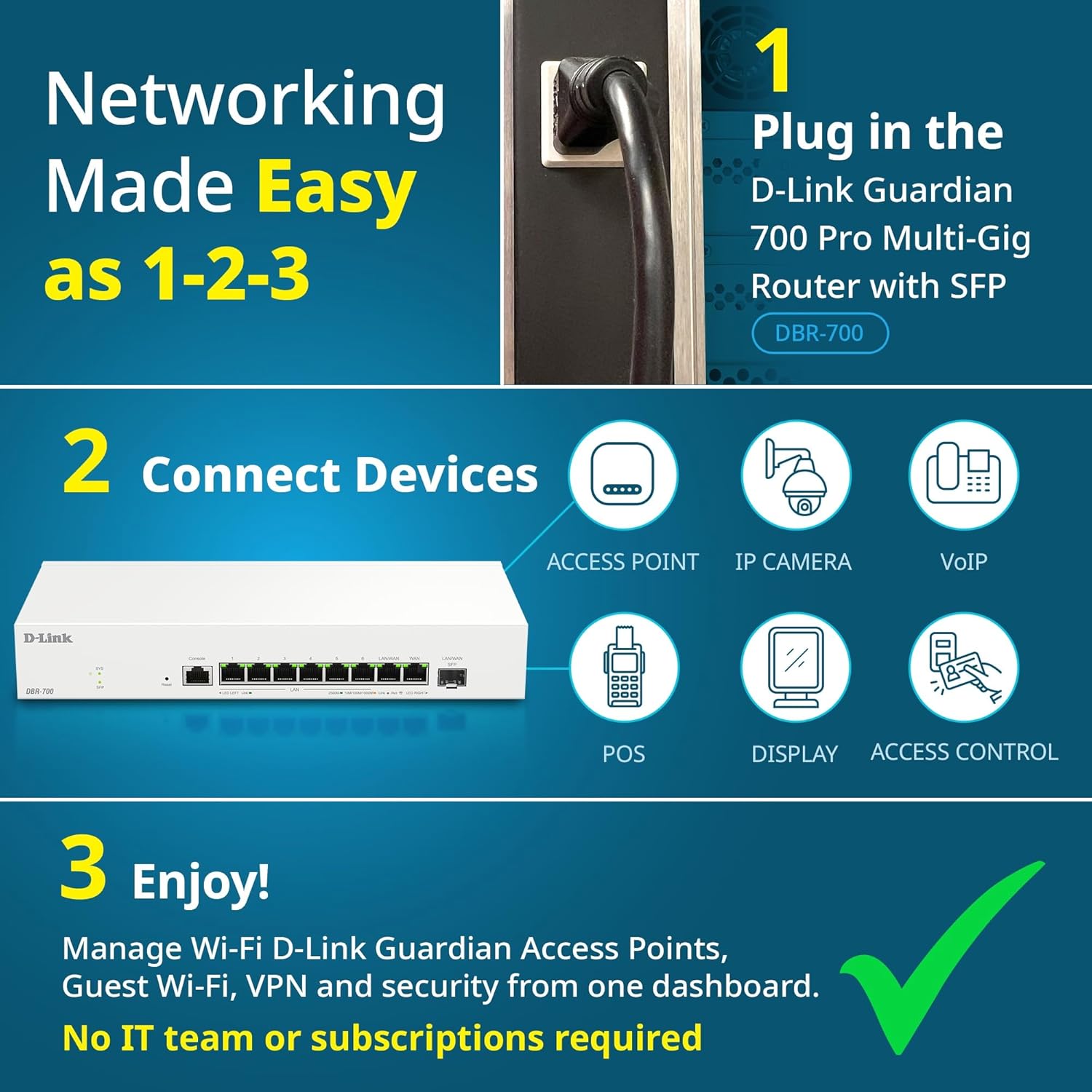
Image: Visual guide for router installation: 1. Plug in the DBR-700 router. 2. Connect devices like access points, IP cameras, VoIP, POS, displays, and access control. 3. Enjoy managed Wi-Fi, Guest Wi-Fi, VPN, and security from one dashboard.
5. Configurazione
5.1. Accedendo al Web Interfaccia
To configure the DBR-700, access its webinterfaccia di gestione basata su:
- Assicurati che il tuo computer sia collegato a una delle porte LAN del router.
- Aprire un web browser (ad esempio, Chrome, Firefox, Edge).
- Enter the router's default IP address (typically
192.168.1.1or similar, refer to the Quick Installation Guide for the exact address) into the address bar and press Enter. - Enter the default username and password when prompted. (Refer to the Quick Installation Guide for default credentials).
5.2. Basic Network Settings
Once logged in, you can configure basic network settings:
- Impostazioni WAN: Configure your internet connection type (e.g., DHCP, Static IP, PPPoE) as provided by your ISP.
- Impostazioni LAN: Adjust the router's internal IP address, subnet mask, and DHCP server settings for your local network.
- Impostazioni di tempo: Set the correct time zone and synchronize the router's clock.
6. Funzionalità avanzate
6.1. Multi-WAN Failover
The DBR-700 supports Multi-WAN with intelligent failover, ensuring business continuity by providing redundant internet connections. If the primary WAN link fails, the router automatically switches to a secondary WAN link.

Image: The DBR-700's ports, illustrating the Primary 2.5GbE WAN, Secondary 2.5GbE LAN/WAN, and SFP Uplink for Multi-WAN failover capabilities.
6.2. Configurazione VPN
The router includes built-in VPN support for IPSec, WireGuard, and OpenVPN, enabling secure remote access for employees and branch office connectivity. It supports up to 100 VPN tunnels.
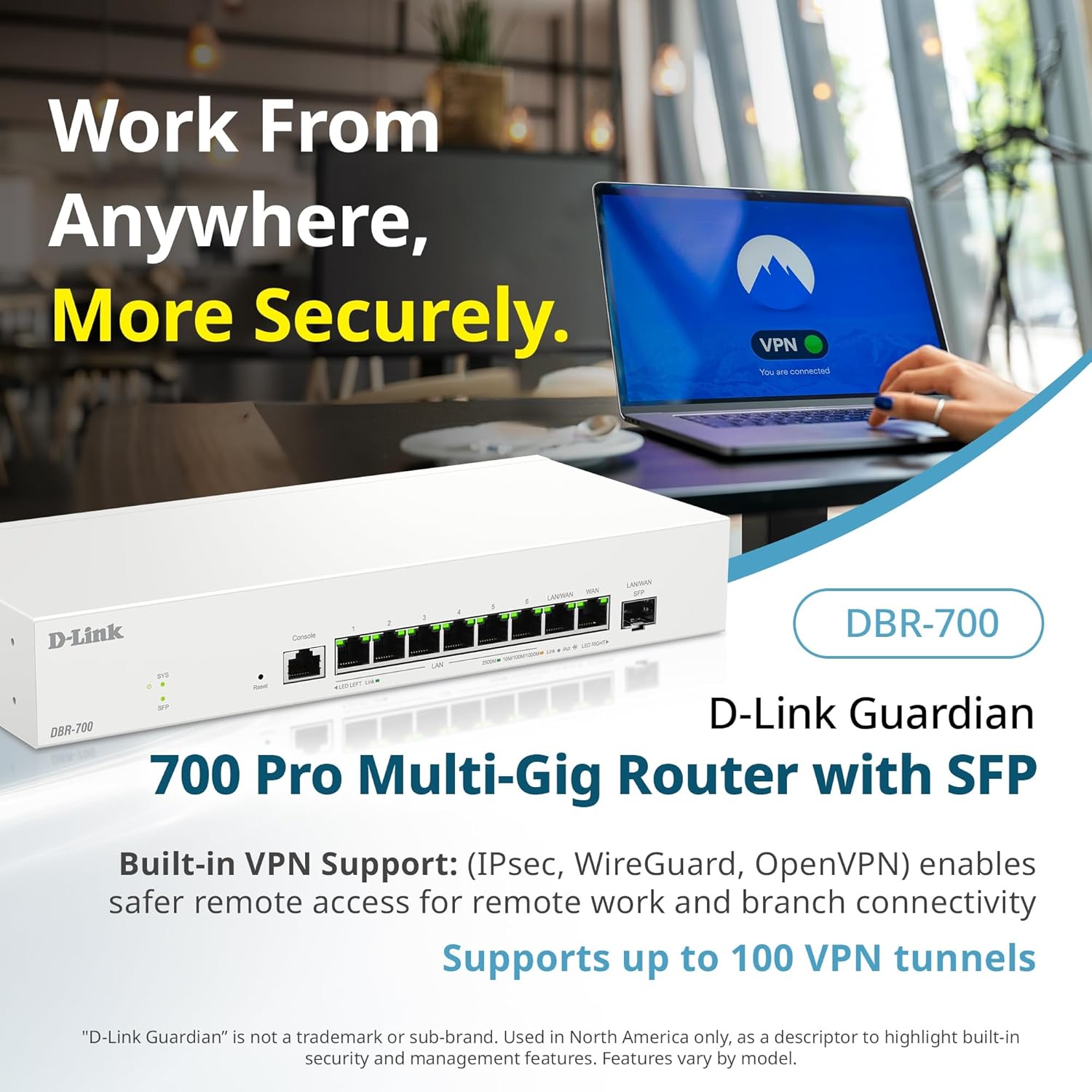
Image: A laptop displaying a 'VPN Connected' status, with the DBR-700 router in the foreground, illustrating secure remote access.
6.3. Centralized Access Point Management
The DBR-700 can discover and manage up to 15 D-Link Guardian Wi-Fi 6 Smart Access Points (DBR-X3000-AP, sold separately) from a single intuitive dashboard. This simplifies Wi-Fi network deployment and management.

Image: A tablet showing the D-Link Wi-Fi management dashboard, demonstrating centralized control over D-Link Guardian Access Points, with the DBR-700 router and a DBR-X3000-AP in the background.
6.4. Guest Wi-Fi Management
Set up and manage guest Wi-Fi networks with a Captive Portal. This allows for branded sign-in pages for guests while keeping business systems separate and secure. Configuration and management are done from the router dashboard.

Image: A smartphone screen showing a customizable guest Wi-Fi login portal, highlighting the DBR-700's ability to manage and customize guest networks.
7. Manutenzione
7.1. Aggiornamenti del firmware
Controllare e installare regolarmente gli aggiornamenti del firmware per garantire prestazioni ottimali, sicurezza e accesso alle nuove funzionalità. Gli aggiornamenti del firmware sono in genere disponibili sul sito di supporto D-Link. websito per il tuo modello specifico.
7.2. Ripristino delle impostazioni di fabbrica
If you encounter persistent issues or wish to clear all configurations, you can perform a factory reset. To do this, locate the Reset button on the front panel. With the router powered on, use a paperclip or similar pointed object to press and hold the Reset button for approximately 5-10 seconds until the SYS LED blinks. Release the button, and the router will restart with factory default settings.
8. Risoluzione Dei Problemi
This section addresses common issues you might encounter with your DBR-700 router.
8.1. Nessuna connessione Internet
- Controllare i cavi: Assicurarsi che tutti i cavi Ethernet siano collegati saldamente alle porte corrette (WAN, LAN).
- Stato del modem: Verify that your internet service provider's modem is working correctly and has an active internet connection.
- Configurazione WAN: Accedi al router web interface and verify that the WAN settings (e.g., IP address, DNS) are correctly configured according to your ISP's requirements.
- Riavvia i dispositivi: Power cycle your modem, then the router, and then your connected devices.
8.2. Impossibile accedere Web Interfaccia
- Indirizzo IP: Ensure your computer is configured to obtain an IP address automatically (DHCP) or has a static IP address within the router's subnet.
- IP del router: Double-check the router's default IP address. It might be printed on a label on the router itself or in the Quick Installation Guide.
- Firewall/Antivirus: Disattiva temporaneamente qualsiasi firewall o software antivirus sul tuo computer che potrebbe bloccare l'accesso.
- Cache del browser: Cancella il tuo web cache e cookie del browser oppure prova un browser diverso.
8.3. Slow Network Speeds
- Qualità del cavo: Ensure you are using high-quality Ethernet cables (Cat5e or Cat6) for multi-gig connections.
- Compatibilità del dispositivo: Verify that connected devices and network adapters support 2.5GbE speeds.
- Velocità ISP: Confirm your internet service plan provides the expected speeds.
- Gestione del traffico: Check router settings for any Quality of Service (QoS) or bandwidth limits that might be affecting performance.
9. Specifiche tecniche
| Caratteristica | Specificazione |
|---|---|
| Marca | D-Link |
| Numero di modello | DBR-700 |
| Porte WAN | 1x 2.5GbE WAN, 1x 2.5GbE/1GbE SFP (configurable as WAN) |
| Porte LAN | 6x 2.5GbE LAN, 1x 2.5GbE (configurable as LAN) |
| Supporto VPN | IPSec, WireGuard, OpenVPN (up to 100 tunnels) |
| Gestione AP | Manages up to 15 D-Link Guardian Wi-Fi 6 Smart Access Points |
| Funzionalità di sicurezza | SPI Firewall, WPA3 encryption, VLANs |
| Dimensioni (LxWxH) | 11.02 x 1.73 x 4.96 pollici |
| Peso dell'articolo | 2 libbre |
| Voltage | 120 Volt (CA) |
| Colore | Bianco |
10. Garanzia e supporto
Per informazioni dettagliate sulla garanzia, supporto tecnico e risorse aggiuntive, visitare il sito ufficiale D-Link website. You can find product registration, FAQs, firmware downloads, and contact information for customer service.
D-Link Ufficiale Websito: www.dlink.com
Please have your product model number (DBR-700) and serial number ready when contacting support.