
1. Introduzione
Thank you for choosing the Tukio Apple MFi Certified Tracker Tags. Questi tags are designed to help you locate your valuable items using the Apple Find My network. This manual provides detailed instructions on how to set up, operate, and maintain your tracker tags per garantire prestazioni ottimali.
Note: These tracker tags are only compatible with iOS devices (iPhone, iPad, Mac) and do not support Android devices.

Immagine: Oltreview of the Tukio Smart Tracker Tag caratteristiche.
2. Cosa c'è nella scatola
Il tuo pacco dovrebbe contenere i seguenti articoli:
- 4 x Tukio Tracker Tags (Model: TX02)
- 4 x Protective Silicone Cases
- 4 portachiavi
- 4 x cordini
- 1 x Manuale utente

Immagine: rappresentazione visiva del contenuto della confezione.
3. Impostazione
3.1 Collegamento del tracker Tag to the Protective Case
To protect your tracker tag and easily attach it to items, use the provided silicone case and lanyard/key ring.
- Identify the front and back sides of the silicone case. The circle on the front side is smaller, and the circle on the back side is larger.
- Align the side buttons of the tracker tag with the corresponding openings on the silicone case.
- Insert the transparent side of the tracker tag (front side) into the silicone case from the back side.
- Insert end 'A' of the lanyard into the hole on the top of the silicone case.
- Hold end 'A' and pass end 'B' through the loop of end 'A'.
- Pull it tight to secure the lanyard.
Video: Instructions on how to attach the tracker tag to its protective silicone case and lanyard.
3.2 Powering On and Pairing with Apple Find My App
Follow these steps to power on your tracker tag and connect it to your iOS device:
- Accensione: Press and hold the button on the tracker tag per 2 secondi finché non si sente un segnale acustico.
- Assicurati che il Bluetooth sia abilitato sul tuo iPhone o iPad.
- Apri il preinstallato "Find My" sul tuo dispositivo iOS.
- Vai a "Items" scheda.
- Tocca il "+" icona e seleziona "Add New Item".
- Scegliere "Altro elemento supportato" (do not select "Add AirTag").
- Your iOS device will search for nearby compatible items. When "Lucid tag" appears, tap "Collegare".
- Segui le istruzioni sullo schermo per assegnare un nome all'elemento e un'emoji.
- Agree to link the device with your Apple ID.
- Rubinetto "Finish" per completare la configurazione.

Image: Step-by-step guide for connecting the tracker tag all'app Dov'è di Apple.
Video: A comprehensive guide on connecting Tukio Lucid Tag Tracciatore Tags with the Apple Find My app on iOS devices.
4. Istruzioni per l'uso
4.1 Individuazione degli oggetti nelle vicinanze
When your item is within Bluetooth range (up to 200 feet or 60 meters in open areas), you can make the tracker tag emit a sound:
- Aprire il "Find My" applicazione.
- Select the item you wish to locate from the "Items" scheda.
- Rubinetto "Riproduci suono". The tracker tag will emit an 80-100dB beep to help you find it.
- Alternatively, you can ask Siri, "Hey Siri, where are my [item name]?"
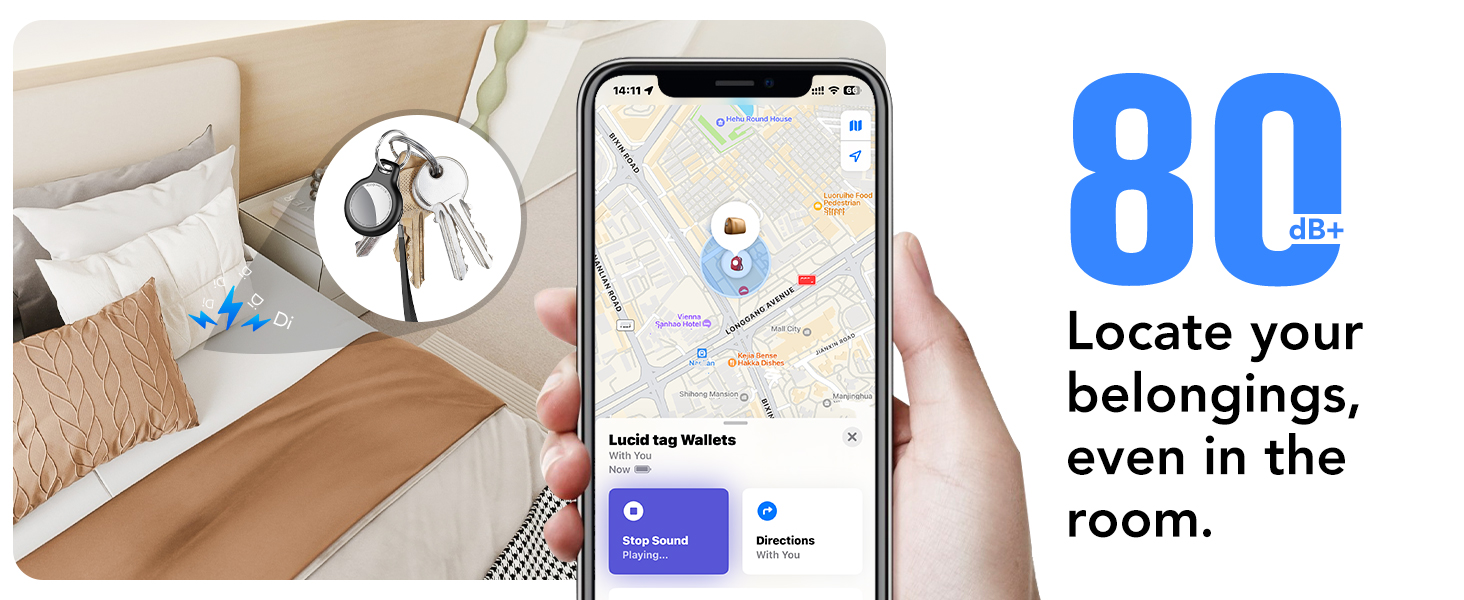
Image: Locating items using the Find My app's sound feature.
4.2 Localizzazione di oggetti lontani (modalità smarrito)
If your item is out of Bluetooth range, the Apple Find My network can help you locate it:
- IL "Find My" app will display the last known location of your item on a map.
- Alla vecchia maniera: If an item is lost, you can enable "Lost Mode" in the Find My app. This allows any Apple device that comes within range of your tracker tag to anonymously relay its location to you. You can also leave a contact message for anyone who finds your item.
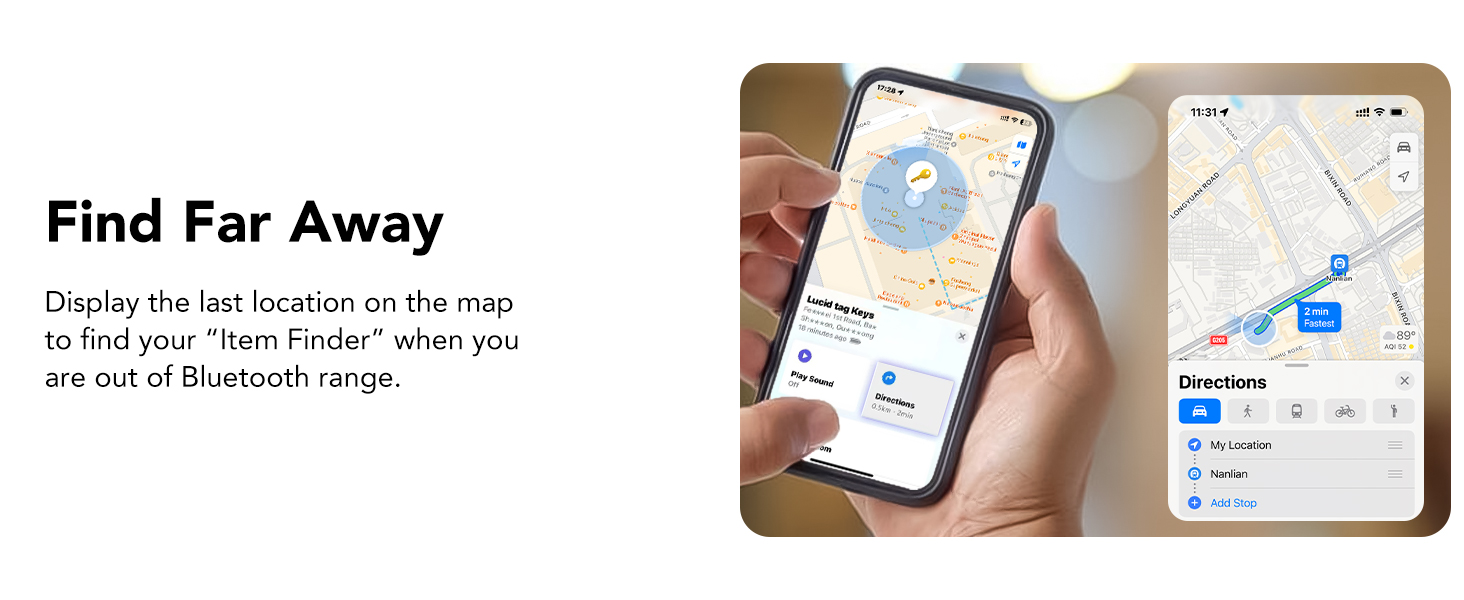
Image: Finding items that are far away using the Find My app.

Image: Activating Lost Mode for your tracker tag.
4.3 Promemoria per oggetti dimenticati
Receive notifications if you accidentally leave your item behind:
- IL "Find My" app can alert you when your tracker tag is no longer detected near your iOS device, showing its last known location.
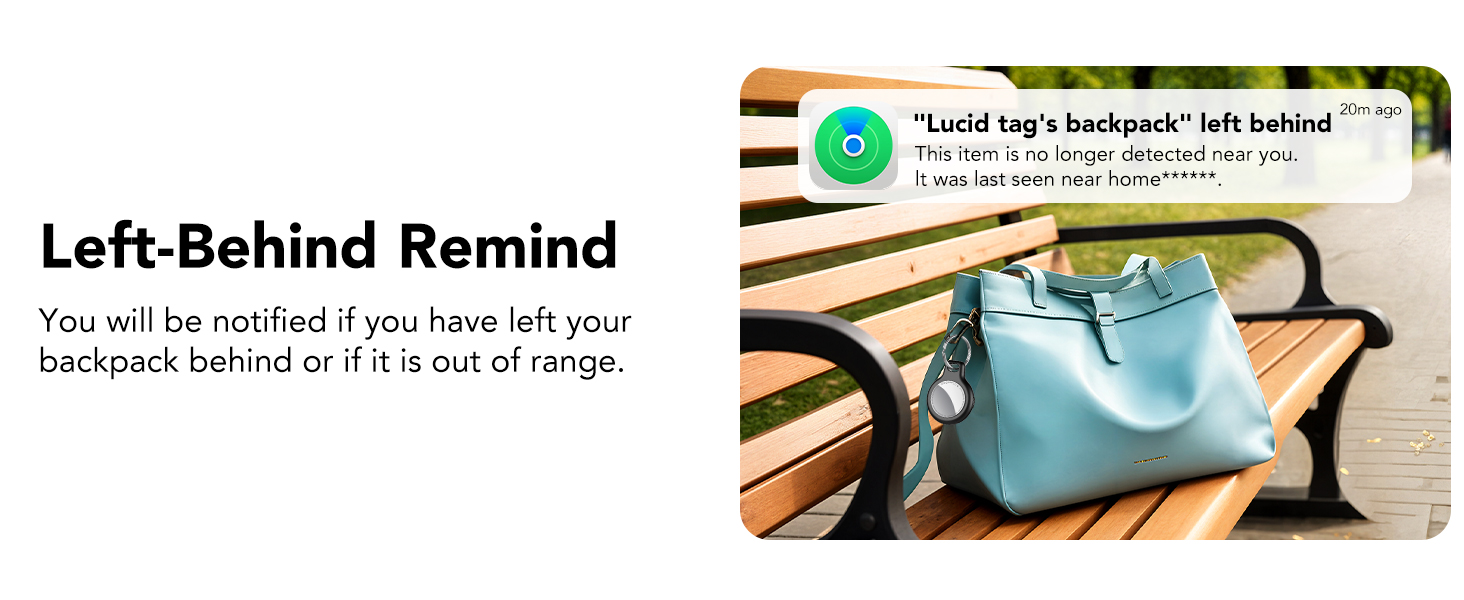
Image: Left-Behind Reminder notification.
4.4 Condivisione di elementi
With iOS 17 or later, you can share your tracker tag's location with family and friends:
- Nel "Find My" app, select the item and choose the option to "Share This Item".
- You can share with up to 5 borrowers, allowing them to see the item's location on a map.
- Nota: Both parties must be using iOS 17, iPadOS 17, macOS 14, or later versions.
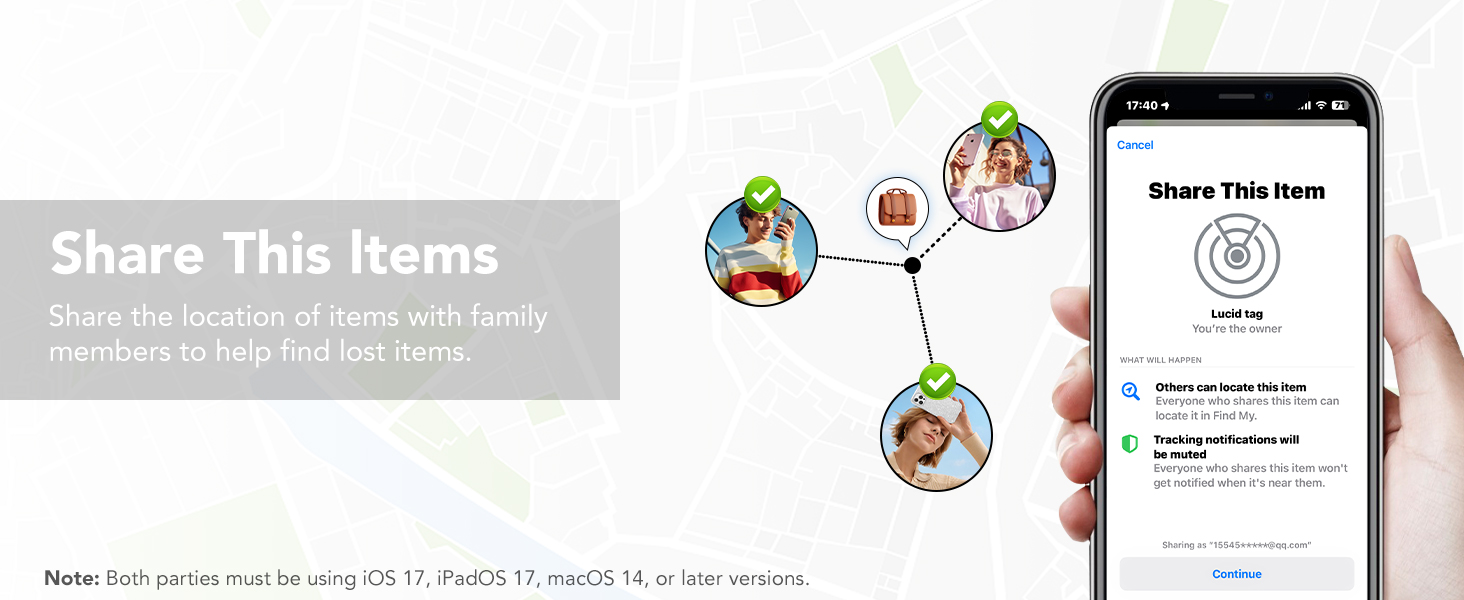
Image: Sharing item locations with others.
5. Sostituzione della batteria
The Tukio Tracker Tag uses a replaceable CR2032 battery, offering up to 1 year of use. The Find My app will notify you when the battery is low.
Steps to Replace the Battery:
- Hold the back cover with both thumbs and turn it counter-clockwise to open the back cover.
- Rimuovere con cautela la vecchia batteria CR2032.
- Insert a new CR2032 battery with the positive (+) side facing up. Ensure the battery logo is facing up and the "+" sign is aligned with the power port.
- Locate the notch on the back cover, align it with the position on the left side of the tracker.
- Press the cover gently and turn it clockwise to secure it.
Video: Detailed instructions on how to replace the battery in your Tukio Lucid Tag.

Immagine: Guida visiva per la sostituzione della batteria.
6. Manutenzione
To ensure the longevity and optimal performance of your Tukio Tracker Tags, si prega di seguire queste linee guida di manutenzione:
- Pulizia: Wipe the tracker tag con un panno morbido e asciutto. Evitare l'uso di prodotti chimici aggressivi o materiali abrasivi.
- Resistenza all'acqua: Il localizzatore tag has an IP67 rating, meaning it can withstand immersion in water up to 3 feet for 30 minutes. However, it is recommended to avoid prolonged exposure to water or extreme conditions. Ensure the battery cover is securely closed after replacement to maintain water resistance.
- Magazzinaggio: Store the tracker tags in un luogo fresco e asciutto quando non viene utilizzato per lunghi periodi.
- Controllo della batteria: Regularly check the battery status in the Find My app and replace it when prompted to avoid unexpected power loss.
7. Risoluzione Dei Problemi
If you encounter any issues with your Tukio Tracker Tag, refer to the following table for common problems and solutions:
| Problema | Possibile causa | Soluzione |
|---|---|---|
| Tracker not connecting to Find My app | Bluetooth is off; Tracker is off; Incorrect pairing method | Ensure Bluetooth is on. Press and hold the tracker button for 2 seconds to power on. In Find My app, select "Other Supported Item". |
| Nessun suono durante il tentativo di localizzazione | Tracker is out of range; Battery is low; Sound is temporarily disabled | Check last known location on map. Replace battery if low. Ensure sound is enabled in Find My app. |
| Left-Behind Reminder not working | Feature not enabled; iOS device not updated | Enable "Notify When Left Behind" in Find My app settings for the item. Update iOS device to iOS 17/iPadOS 17/macOS 14 or above. |
| Cannot remove item from Find My app | Device is still active | In Find My app, select the item, scroll down and tap "Remove Item". Confirm removal. |
| Tracker not powering off | Il pulsante non è stato tenuto premuto abbastanza a lungo | Press and hold the button until you hear 1 beep, followed by 2 consecutive beeps, and then 3 consecutive beeps. |

Image: Detailed functionality and troubleshooting table.
8. Specifiche
- Modello: Modello TX02
- Connettività: Bluetooth 5.3
- Compatibilità: iOS devices only (Apple MFi Certified)
- Tipo di batteria: CR2032 (inclusa, sostituibile)
- Durata della batteria: Fino a 1 anno
- Livello sonoro: 80-100 dB
- Resistenza all'acqua e alla polvere: IP67 (withstands immersion in water up to 3 feet for 30 minutes)
- Dimensioni: 1.22 x 1.22 x 0.35 pollici (30.9 x 30.9 x 8.9 mm)
- Peso: 0.988 once (circa 7 g)
- Intervallo di tracciamento: Up to 55-60 meters (180-196 feet) Bluetooth range; Global tracking via Apple Find My network.

Image: Key specifications and dimensions of the tracker tag.
9. Garanzia e supporto
Tukio provides a 2-year warranty for its products. For any questions, technical support, or warranty claims, please contact our customer service team. Our after-sales team is always available to assist you.
- Assistenza clienti: Disponibile 24 ore su 24.
- Come contattare l'assistenza: Please go to your order page, find the order number of the product, and contact the seller directly.
Per maggiori informazioni, visita il Tukio Store on Amazon.