
F08

Loshall Smart Finder User Manual
Modello: F08 | Marca: Generico
1. Introduction to Your Loshall Smart Finder
The Loshall Smart Finder is a certified key finder and item tracker designed for Android devices. It integrates seamlessly with the 'Find My Device' application on Android phones (Android 9 or higher). This device helps you locate frequently misplaced items such as keys, wallets, bags, luggage, and more.

Image 1.1: The Loshall Smart Finder and its packaging, highlighting its Android compatibility.
Key features include accurate proximity finding, global tracking capabilities, and a loud audible alert to help pinpoint items within range. The device is designed for ease of connection and ensures data security through an encrypted and anonymous network. It also boasts an IP67 rating for water resistance and features a replaceable battery for extended use.

Image 1.2: Various applications of the Loshall Smart Finder, including tracking keys, backpacks, bicycles, and luggage.
2. Configurazione e associazione iniziale
Before using your Loshall Smart Finder, ensure your Android device is running Android 9 or higher. This device is not compatible with iOS devices.
2.1. Compatibilità
The Loshall Smart Finder is designed to work exclusively with Android phones running Android 9 (Pie) or a newer version. It leverages Google's 'Find My Device' application for tracking and management.
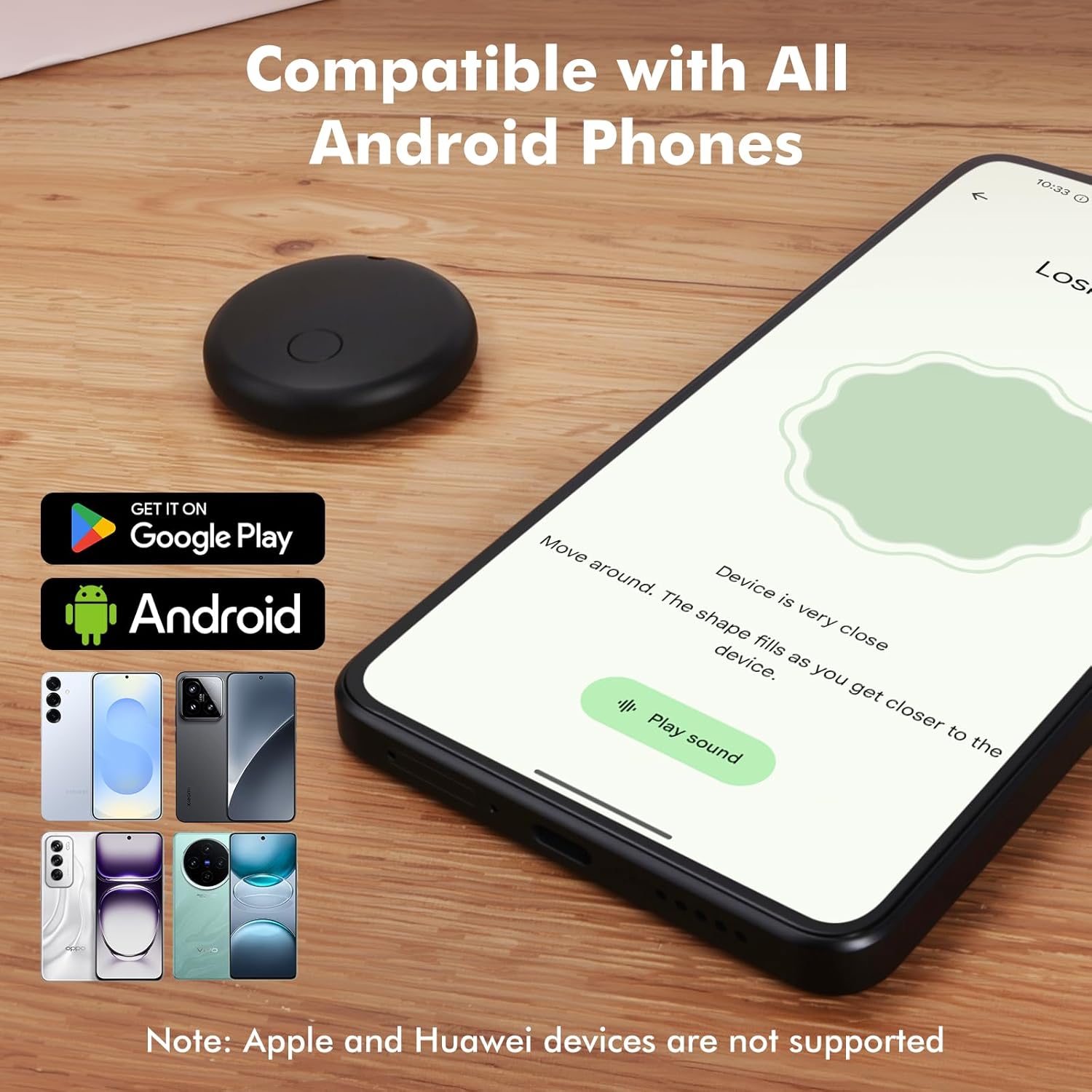
Image 2.1: Visual representation of the Loshall Smart Finder's compatibility with Android devices and the Google Play Store.
2.2. Istruzioni per l'associazione
- Assicurati che il Bluetooth del tuo telefono Android sia abilitato.
- Turn on your Loshall Smart Finder.
- Place the Smart Finder near your Android phone.
- A pairing window should automatically pop up on your phone's screen. Follow the on-screen prompts to complete the pairing process.
- If the pairing window does not appear, open the 'Find My Device' app manually and look for an option to add a new device.
3. Operating Your Loshall Smart Finder
3.1. Accurate Proximity Finding
When your item is nearby, use the 'Find My Device' app to accurately locate it. The app provides a real-time proximity display, showing the distance to your item. A ripple effect visual cue helps guide you closer to the item.
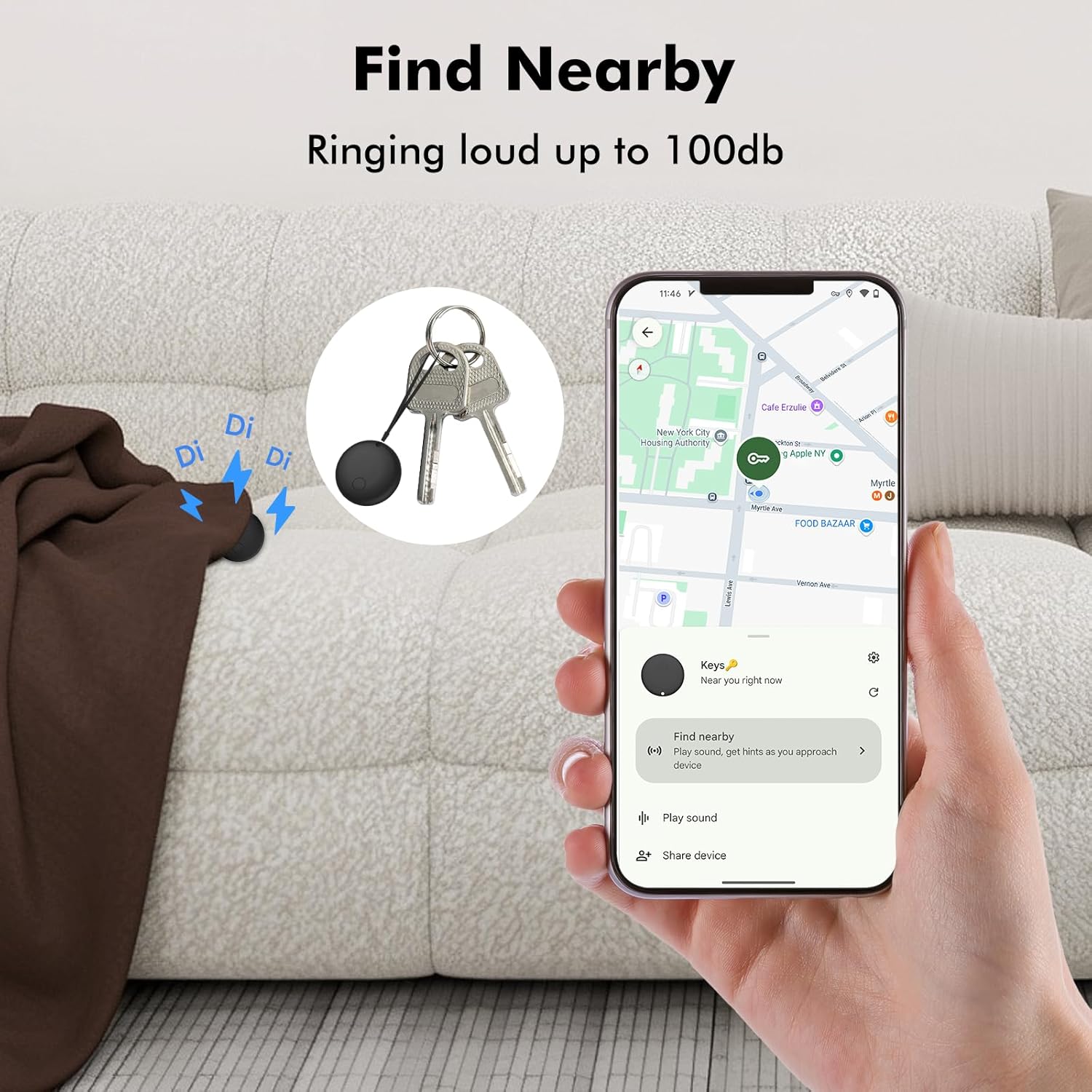
Image 3.1: Using the 'Find Nearby' feature to locate items within close range, with an option to play a loud sound.
3.2. Global Tracking and Map Directions
If your item is out of Bluetooth range (approximately 150 meters or 500 feet), you can view its last known location on a map within the 'Find My Device' app. The app provides precise map directions to help you retrieve your item. Location updates are fast, typically taking 2-3 minutes in crowded areas.

Image 3.2: Locating items from a distance using precise map directions provided by the 'Find My Device' app.

Image 3.3: The Loshall Smart Finder offers worldwide tracking, allowing you to locate your items globally.
3.3. Activating the Sound Alert
Within the 150-meter (500-foot) range, you can activate a loud ringtone on your Smart Finder. This can be done via the 'Find My Device' app or through voice commands, helping you quickly locate your item by sound.
3.4. Sharing Item Locations
The 'Find My Device' app allows you to share the location of your tracked items with trusted contacts, providing peace of mind for shared belongings or family use.
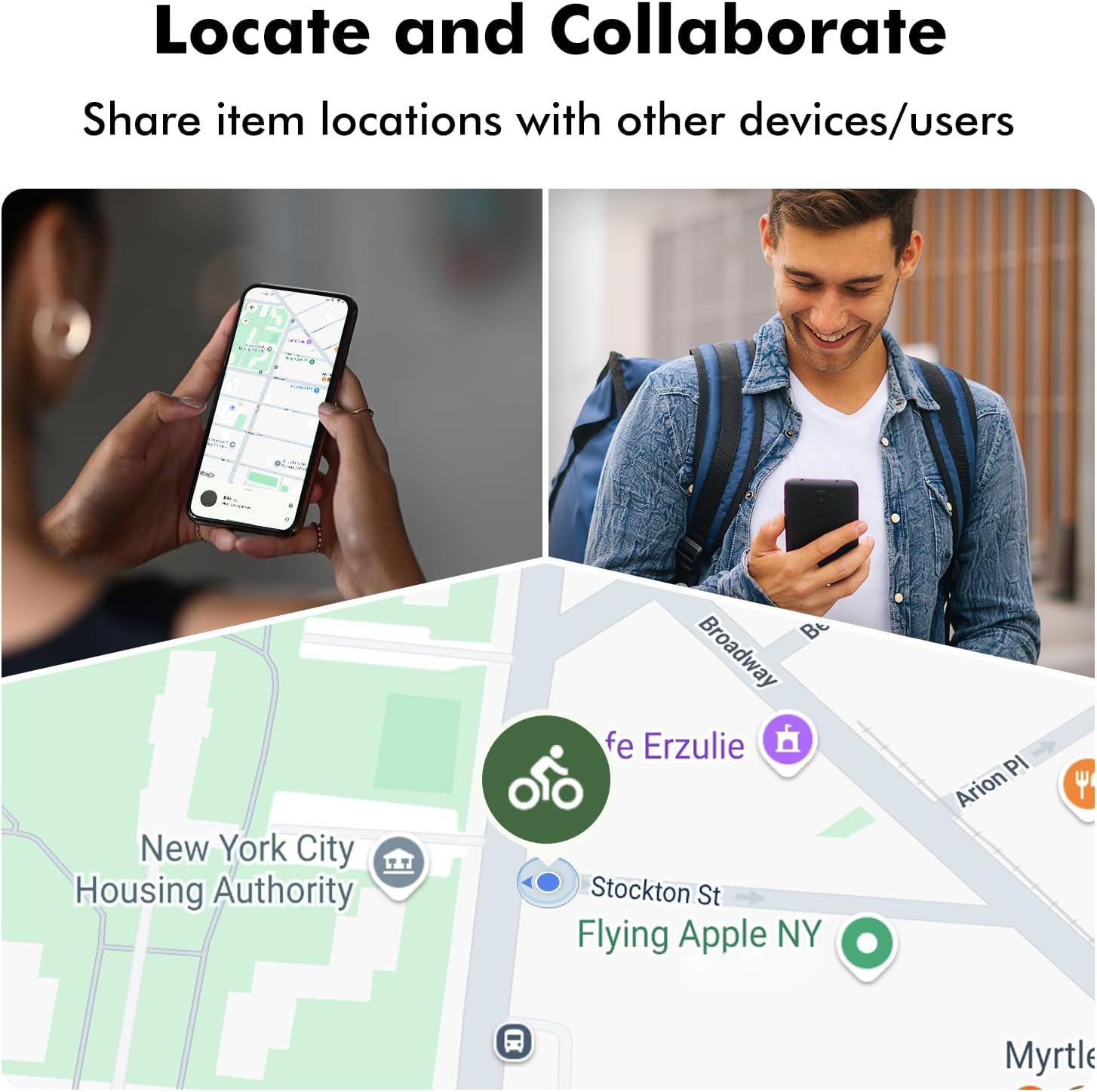
Image 3.4: The ability to share item locations with other users or devices for collaborative tracking.
4. Manutenzione
4.1. Resistenza all'acqua (IP67)
The Loshall Smart Finder has an IP67 rating, meaning it is protected from dust and can withstand immersion in water up to 1 meter for up to 30 minutes. It is safe for use in conditions involving splashing water, rain, or short immersion. However, it is not recommended for prolonged submersion or use during swimming.
4.2. Sostituzione della batteria
The Smart Finder uses a replaceable battery, offering a battery life of approximately 8-12 months, depending on usage frequency and environmental temperature. When the battery is low, the 'Find My Device' app may notify you. To replace the battery:
- Individuare il vano batteria sul dispositivo.
- Se necessario, aprire con cautela il vano utilizzando un piccolo utensile.
- Rimuovere la vecchia batteria.
- Insert a new compatible battery, ensuring correct polarity.
- Chiudere saldamente il vano batteria.
5. Risoluzione Dei Problemi
If you encounter issues with your Loshall Smart Finder, please refer to the following common solutions:
- Dispositivo non connesso: Ensure Bluetooth is enabled on your Android phone. Make sure the Smart Finder is powered on and within range. Try restarting both your phone and the Smart Finder.
- Posizione non aggiornata: Verify that your phone has an active internet connection (Wi-Fi or mobile data). Ensure location services are enabled for the 'Find My Device' app.
- Avviso sonoro non funzionante: Check the volume settings on your phone. Ensure the Smart Finder's battery is not critically low.
- Durata della batteria inferiore al previsto: Battery life can vary based on usage frequency and environmental conditions. Ensure you are using a fresh, compatible battery.
- Problemi di accoppiamento: If the automatic pairing window does not appear, try manually adding the device through the 'Find My Device' app settings. Ensure your Android OS is version 9 or higher.
For persistent issues, consult the 'Find My Device' app's help section or contact customer support.
6. Specifiche
| Caratteristica | Dettaglio |
|---|---|
| Modello | F08 |
| Marca | Generico |
| Sistema compatibile | Android 9 or later (Not for iOS devices) |
| Materiale | addominali |
| Colore | Black/White (options may vary) |
| Resistenza all'acqua | IP67 (Splash, rain, and short immersion resistant) |
| Tipo di batteria | Replaceable Lithium Metal (1 Product Specific battery included) |
| Durata stimata della batteria | 8-12 months (varies with usage) |
| Allineare | Up to 150 meters / 500 feet (line of sight) |
| Dimensioni del pacco | Dimensioni: 9 x 6.4 x 1.5 cm |
| Peso | 26 grammi |
| Produttore | Kasongde |
| ASIN | B0FJLTY5PV |
| Data prima disponibilità | 22 luglio 2025 |
7. Garanzia e supporto
For warranty information or technical support, please refer to the documentation provided with your purchase or contact the manufacturer, Kasongde, directly. You may also find assistance through the 'Find My Device' application's support resources.
Documenti correlati - F08
 |
F08 GPS Tracker Setup Guide Step-by-step instructions for setting up the F08 GPS Tracker with the Apple Find My network. |
 |
Loshall Tag F08: Guida rapida per dispositivi Android con Google Trova il mio Inizia con il tuo Loshall Tag F08. Questa guida fornisce istruzioni semplici e dettagliate per l'impostazione e l'utilizzo del monitoraggio tag con il tuo dispositivo Android e l'app Trova il mio dispositivo di Google. Include supporto multilingue. |
 |
Loshall Tag F08: Guida all'installazione e all'utilizzo di Apple Dov'è Una guida concisa per impostare e utilizzare Loshall Tag Tracker F08 con rete Dov'è di Apple, comprese le operazioni dei pulsanti e le informazioni sulla conformità FCC. |
 |
Enerway Finder Tag F08 User Manual: Setup, Operation, and Safety This user manual provides comprehensive instructions for the Enerway Finder Tag F08, detailing setup, operation with Apple Find My and Google Find Hub, battery replacement, and essential safety guidelines. |
 |
Loshall Anti-lost Device User Manual - Setup, Pairing, and Features Comprehensive user manual for the Loshall Anti-lost Device, detailing setup, pairing with Apple's Find My app, locating your items, notifications, and troubleshooting. Learn how to use your anti-lost tracker effectively. |
 |
Manuale utente del localizzatore di articoli F08 e conformità FCC Manuale utente completo per il localizzatore di oggetti F08 di Shenzhen Zhitong Technology, che illustra le operazioni dei pulsanti, l'integrazione dell'app "Trova il mio" e informazioni essenziali sulla conformità FCC. |
Ask a question about this manual
Ask about setup, troubleshooting, compatibility, parts, safety, or missing instructions. Manuals+ will review the question and use this page’s manual context to help answer it.