
1. Introduzione
Thank you for choosing the Acer AOPEN 16PM1Q 15.6" Full HD Portable Monitor. This monitor is designed to enhance your productivity and entertainment on the go, offering a vibrant display and versatile connectivity in an ultra-slim, lightweight package. This manual provides essential information for setting up, operating, and maintaining your new portable monitor.
2. Contenuto della confezione
Si prega di controllare la confezione per verificare la presenza dei seguenti elementi:
- Acer AOPEN 16PM1Q Portable Monitor
- USB-C to USB-C Cable (for power, video, and data)
- Mini HDMI to HDMI Cable (for video input)
- Manuale dell'utente (questo documento)
3. Caratteristiche del prodotto
- Vivid Full HD Clarity: Enjoy sharp, true-to-life visuals on a 15.6-inch IPS display with 1920 x 1080 resolution. In-Plane Switching (IPS) technology ensures consistent colors and wide 170° viewing angles, ideal for sharing content.
- Ultra-Slim & Lightweight Portability: Designed for mobility, this monitor features an ultra-thin 0.52" profile and weighs only 1.43 lbs, making it easy to carry in laptop bags for a seamless dual-monitor setup anywhere.
- Single-Cable Connectivity: Simplify your workspace with the USB Type-C port (DisplayPort Alt Mode) for video, data, and power delivery via a single cable. A Mini HDMI port is also included for broad compatibility with various devices.
- Adattabile ViewComfort: The integrated tilt-adjustable stand allows you to set the perfect ergonomic angle between 0° and 180°. AOPEN VisionCare technologies, including BlueLightShield and Flickerless, help reduce eye strain during extended use.
- Plug-and-Play Efficiency: No drivers or complex software installations are required. Expand your screen real estate instantly for multitasking, remote work, or gaming with 60Hz refresh rates and a responsive 6ms (GtG) performance.
4. Configurazione e connessioni
4.1 Fisico Oltreview
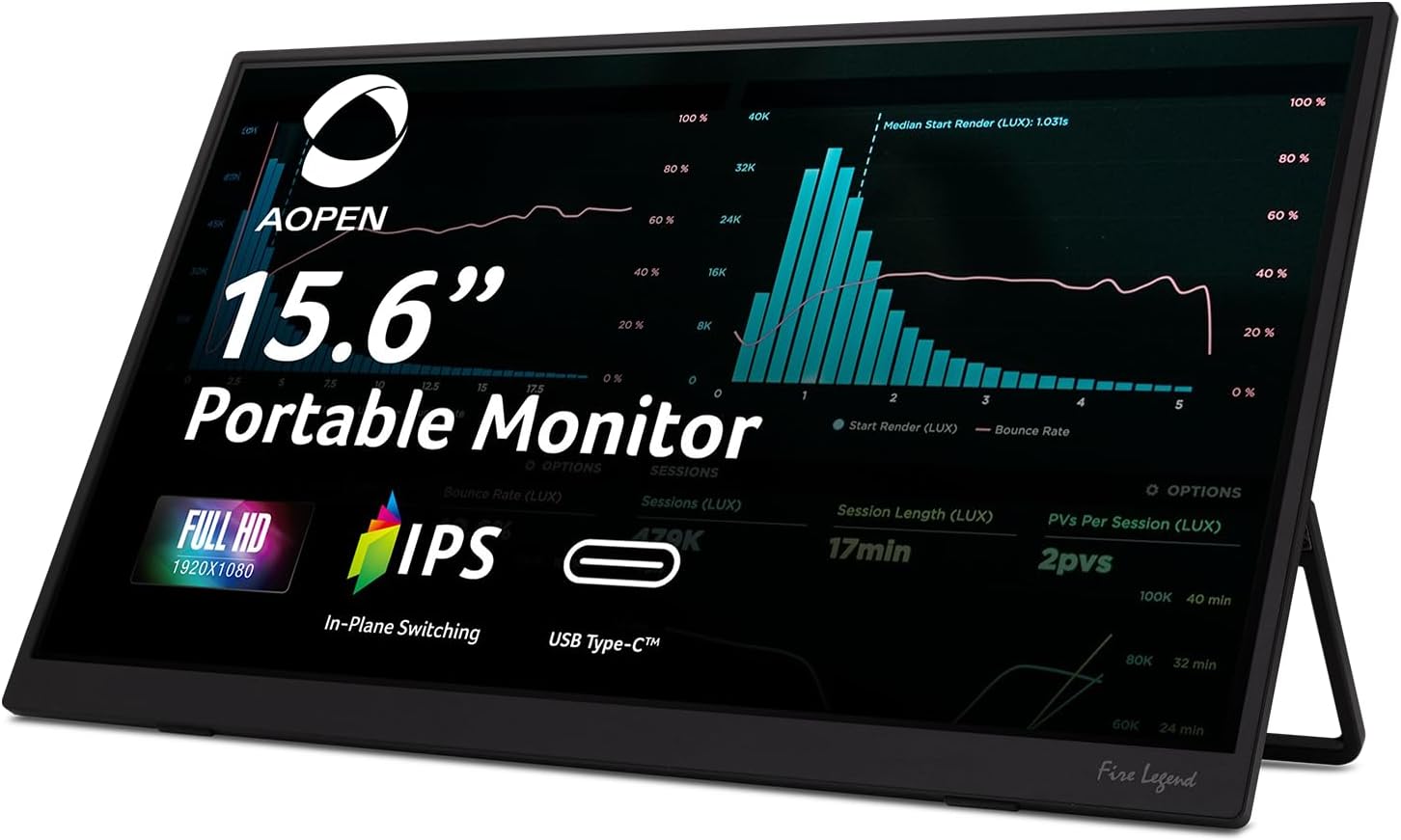
Davanti view of the Acer AOPEN 16PM1Q Portable Monitor.

Posteriore view with the integrated tilt-adjustable stand.
4.2 Disposizione delle porte
The monitor features multiple ports for versatile connectivity:
- Porte USB-C (x2): Located on one side, these ports support DisplayPort Alt Mode for video, data, and power delivery via a single cable. One port can be used for power input, and the other for video/data.
- Porta Mini HDMI (x1): Located on the same side as the USB-C ports, this port is for video input from devices like game consoles or older laptops.
- Jack audio da 3.5 mm (x1): Located on the opposite side, for connecting headphones or external speakers.

USB-C and Mini HDMI ports.

Control buttons and 3.5mm audio jack.
4.3 Collegamento del dispositivo
- Using USB-C (Recommended): Connect one end of the provided USB-C to USB-C cable to a compatible USB-C port on your laptop, smartphone, or other device. Connect the other end to one of the USB-C ports on the monitor. This single cable will provide power, video, and data. The monitor will automatically detect the input.
- Utilizzo di Mini HDMI: Connect one end of the provided Mini HDMI to HDMI cable to the Mini HDMI port on the monitor. Connect the HDMI end to your device. Nota: When using Mini HDMI, the monitor requires external power. Connect a USB-C power adapter (not included) to one of the monitor's USB-C ports for power.
5. Istruzioni per l'uso
5.1 Accensione/spegnimento
Press the Power button located on the side of the monitor to turn it on or off. A green LED indicator will show when the monitor is powered on.
5.2 Menu di visualizzazione su schermo (OSD)
The OSD menu allows you to adjust various display settings. Use the navigation buttons (up/down) and the selection button (often the power button or a dedicated menu button) to navigate and select options.
Opzioni comuni del menu OSD:
- Immagine: Adjust brightness, contrast, sharpness, and other image quality settings.
- Colore: Modifica la temperatura del colore, la gamma e i singoli livelli RGB.
- Audio: Control volume and mute the built-in speakers. The monitor includes two 1-watt speakers, which provide basic audio output. For higher quality audio, connect external headphones or speakers via the 3.5mm audio jack.
- Prestazione: Adjust response time (e.g., 6ms GtG) and other performance-related settings.
- OSD: Customize OSD menu display time and transparency.
- Sistema: General system settings, including input source selection (though the monitor often auto-detects).
- Informazioni: View current display resolution, refresh rate, and other monitor details.
6. Specifiche
| Caratteristica | Specificazione |
|---|---|
| Dimensioni dello schermo | 15.6 pollici |
| Risoluzione | 1920 x 1080 (Full HD) |
| Tipo di pannello | Informazione pubblica |
| Frequenza di aggiornamento | 60 Hz |
| Tempo di risposta | 6 ms (GtG) |
| Proporzioni | 16:9 |
| Luminosità | 250 candele al metro quadrato |
| Connettività | 2x USB-C (DisplayPort Alt Mode, Power Delivery), 1x Mini HDMI |
| Audio | Built-in Speakers (2x 1W), 3.5mm Audio Jack |
| Dimensioni (L x P x A) | 14 x 8.7 x 0.4 pollici |
| Peso dell'articolo | 1.48 libbre |
| Superficie dello schermo | Opaco |
7. Risoluzione Dei Problemi
- Nessuna visualizzazione/schermo nero:
- Ensure the USB-C or Mini HDMI cable is securely connected to both the monitor and your device.
- If using Mini HDMI, confirm that a separate USB-C power source is connected to the monitor.
- Check if your device's display output is enabled or extended to the portable monitor.
- Se disponibile, provare un cavo o una porta diversi.
- Nessun potere:
- Verify the USB-C cable is connected to a power-delivery enabled port on your device or a dedicated USB-C power adapter.
- Assicurarsi che il pulsante di accensione sul monitor sia premuto.
- Scarsa qualità audio / Nessun suono:
- Adjust the volume in the OSD menu and on your connected device.
- Check if the monitor's audio is muted in the OSD settings.
- For better audio, use the 3.5mm audio jack to connect headphones or external speakers.
- Sfarfallio dell'immagine:
- Ensure the display cable is not damaged and is properly connected.
- Check for driver updates for your device's graphics card.
8. Informazioni sulla sicurezza
- Non esporre il monitor alla pioggia o all'umidità.
- Non smontare il monitor. Per qualsiasi intervento di assistenza, rivolgersi a personale qualificato.
- Evitare di posizionare il monitor alla luce diretta del sole o vicino a fonti di calore.
- Use only the cables provided or recommended by the manufacturer.
- Clean the screen with a soft, lint-free cloth. Do not use liquid cleaners or aerosol sprays directly on the screen.
9. Garanzia e supporto
Your Acer AOPEN 16PM1Q Portable Monitor comes with a limited warranty. For detailed warranty information, please refer to the warranty card included in your package or visit the official Acer support websito. Per assistenza tecnica, risoluzione dei problemi o richieste di assistenza, contattare l'assistenza clienti Acer.