
1. Introduzione
The Portta HDMI Video Capture Card (Model HCC101-BK) is designed to capture and stream HDMI video signals up to 1080p at 60Hz via a USB 3.0 connection. It supports 4K HDMI input and loop-out, and includes 3.5mm audio output and microphone input ports. This device is ideal for various applications including gaming, live broadcasts, and content creation, offering ultra-low latency for a smooth experience.
2. Contenuto della confezione
Si prega di verificare che tutti gli articoli elencati di seguito siano inclusi nel pacchetto:
- Portta HDMI Video Capture Card x1
- USB-C Male to USB 3.0 Female Adapter x1
- USB-A to USB-A 3.0 Data Cable x1
- Cavo HDMI x1
- Manuale utente x1
3. Prodotto finitoview
The Portta HDMI Video Capture Card features a compact design with clearly labeled ports for easy connectivity. Below is a diagram illustrating the various components and their functions.

Image 3.1: Portta HDMI Video Capture Card Port Layout
This image displays the capture card with its various ports labeled. On the front, from left to right, are the USB 3.0 port, a power indicator light, a 3.5mm audio output jack, and a 3.5mm microphone input jack. On the rear, from left to right, are the HDMI loop output port, an IN/OUT indicator light, and the HDMI input port.
Descrizioni delle porte:
- Porta USB 3.0: Si collega al computer per il trasferimento dei dati e l'alimentazione.
- Indicatore di alimentazione: Si illumina quando il dispositivo è acceso.
- Uscita audio da 3.5 mm: Collegare cuffie o altoparlanti per il monitoraggio audio. Note: Headphones (TRS Only)/Speaker and HDMI OUT cannot receive microphone audio.
- Ingresso microfono: Connect an external microphone for audio input.
- Uscita loop HDMI: Connects to a display (monitor, TV) to view the HDMI input signal without latency.
- IN/OUT Indicator: Indicates the status of HDMI input and output.
- Ingresso HDMI: Connect your HDMI source device (e.g., game console, camera).
4. Istruzioni per l'installazione
Follow these steps to connect your Portta HDMI Video Capture Card:
- Collegare la sorgente HDMI: Use an HDMI cable to connect your source device (e.g., game console, camcorder, PC) to the Ingresso HDMI porta sulla scheda di acquisizione.
- Collega il display (facoltativo): If you wish to monitor your source signal on a separate display, use another HDMI cable to connect your monitor or TV to the Uscita loop HDMI port on the capture card. This provides a pass-through signal without additional latency.
- Connessione al computer: Connect the provided USB-A to USB-A 3.0 Data Cable to the USB 3.0 port on the capture card and to an available USB 3.0 port on your computer. If your computer only has USB-C ports, use the included USB-C Male to USB 3.0 Female Adapter. The device is plug-and-play and does not require driver installation.
- Collegare dispositivi audio (facoltativo): For audio monitoring, connect headphones or speakers to the Uscita audio da 3.5 mm. To use an external microphone, connect it to the Ingresso microfono porta.

Image 4.1: Typical Connection Setup
This image illustrates a common setup where the Portta HDMI Video Capture Card is connected between a gaming console (HDMI source) and a laptop (for capture/streaming). An HDMI cable connects the console to the capture card's input, and a USB 3.0 cable connects the capture card to the laptop. An optional HDMI loop-out to a separate display is also implied.
5. Istruzioni per l'uso
Once the hardware is connected, the Portta HDMI Video Capture Card will be recognized by your computer as a standard UVC (USB Video Class) and UAC (USB Audio Class) compliant device. You will need compatible software to capture or stream your video and audio.
Caratteristiche principali:
- 4K HDMI Input & Loop-Out: Supports resolutions up to 4K@60Hz (YUV 4:2:0), 3D, and HDCP 1.4 (input only). Compatible with devices like PS4, PS5, Xbox Series X, and PC. Note: Does not support HDR or CEC.
- 1080p 60Hz Capture Quality: Records and streams video at 1080p resolution and 60 frames per second via USB 3.0, ensuring smooth and high-quality output.
- Latenza ultra bassa: Designed for minimal delay between the source and the captured signal, crucial for live streaming and gaming.

Image 5.1: Simultaneous Play and Capture
This image demonstrates the capability of the capture card to allow a user to play a video game on a large display via the HDMI loop-out, while simultaneously capturing the gameplay footage to a connected laptop for recording or live streaming.
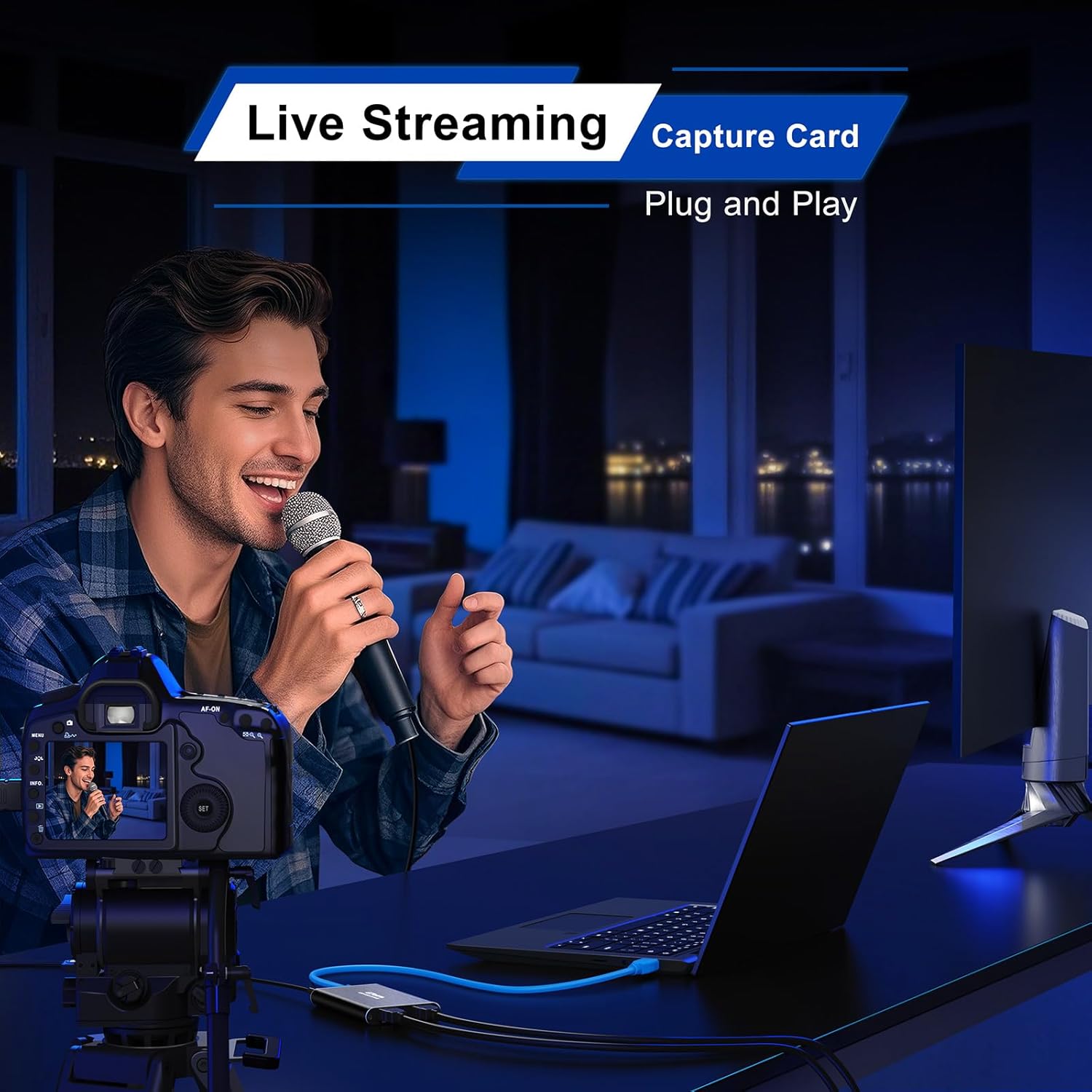
Image 5.2: Live Streaming Setup
This image shows a content creator using the Portta HDMI Video Capture Card to facilitate a live stream. A camera is connected to the capture card, which then feeds the video signal to a laptop running streaming software. A microphone is also in use, indicating comprehensive audio-visual capture.
6. Software Compatibility and OBS Studio Setup
The Portta HDMI Video Capture Card is compatible with various UVC/UAC-compliant applications. OBS Studio is a popular free and open-source software for video recording and live streaming. Below are instructions for setting up the capture card with OBS Studio.

Image 6.1: Adding Video/Audio Sources in OBS Studio
This image provides a four-step visual guide for adding the capture card as a video or audio source in OBS Studio. It shows clicking the '+' button in the 'Sources' panel, selecting 'Video Capture Device', creating a new device, and then selecting 'USB3 Video' or 'USB3 Digital Audio' from the device list.
6.1. Adding Video or Audio Sources in OBS Studio:
- Nel pannello "Fonti", fare clic su "+' button in the lower left corner.
- Seleziona 'Dispositivo di acquisizione video' for video or 'Acquisizione dell'ingresso audio' for audio.
- Choose to 'Create new' and give it a name, then click 'OK'.
- In the properties window, select 'USB3 Video' for video or 'Audio digitale USB3' for audio from the 'Device' dropdown menu. Configure resolution and FPS as needed (e.g., 1920x1080, 60 FPS). Click 'OK'.

Image 6.2: Adjusting Advanced Audio Properties in OBS Studio
This image illustrates the process of configuring advanced audio settings in OBS Studio. It shows clicking the left dot of an audio input capture source, selecting 'Advanced Audio Properties', and then setting 'Audio Monitoring' to 'Monitor and Output' to hear the audio while streaming or recording.
6.2. Adjusting Advanced Audio Properties:
- In the 'Audio Mixer' panel, click the gear icon next to your audio source (e.g., 'USB3 Digital Audio').
- Seleziona 'Proprietà audio avanzate'.
- For 'Audio Monitoring', select 'Monitoraggio e uscita' if you want to hear the audio while it's being recorded/streamed.
- Once configured, click 'Inizia lo streaming' O 'Inizia la registrazione' in the 'Controls' panel to begin.

Image 6.3: macOS OBS Operation Notes - Enabling Permissions
This image provides a guide for macOS users to enable necessary permissions for OBS Studio. It shows navigating to OBS Studio's 'Settings', then 'Review App Permissions', and granting access for 'Screen Recording', 'Camera', and 'Microphone' until 'Access Granted' appears for each.
6.3. macOS OBS Operation Notes:
On macOS, you may need to grant OBS Studio specific permissions to access your screen, camera, and microphone. Follow these steps:
- Aprire OBS Studio.
- Go to 'OBS Studio' > 'Settings...' > 'Review App Permissions'.
- Follow the system prompts to grant required access for 'Screen Recording', 'Camera', and 'Microphone' until 'Access Granted' appears for each.

Immagine 6.4: Ampia compatibilità suview
This image visually summarizes the broad compatibility of the Portta HDMI Video Capture Card. It lists compatible software such as OBS, Zoom, Microsoft Teams, VLC Media Player, and Google Meet. It also shows various input devices like PS5, Xbox Series X, STB, Phone, and DSLR Camera, and supported operating systems including macOS, Windows, and Linux.
7. Manutenzione
To ensure the longevity and optimal performance of your Portta HDMI Video Capture Card, please follow these maintenance guidelines:
- Mantenere asciutto: Evitare di esporre il dispositivo a umidità o liquidi.
- Pulisci delicatamente: Utilizzare un panno morbido e asciutto per pulire l'esterno del dispositivo. Non utilizzare prodotti chimici aggressivi o detergenti abrasivi.
- Evitare temperature estreme: Store and operate the device within recommended temperature ranges.
- Maneggiare con cura: Evitare di far cadere o sottoporre il dispositivo a forti impatti.
8. Risoluzione Dei Problemi
If you encounter issues with your Portta HDMI Video Capture Card, refer to the following common problems and solutions:
- Nessun segnale / Schermo nero:
- Ensure all HDMI cables are securely connected to both the source device and the capture card.
- Verify that your HDMI source device is powered on and outputting a signal.
- Check if the source device's resolution is supported by the capture card (up to 4K@60Hz input).
- Confirm that the HDMI source is not protected by HDCP 2.2, as the capture card supports HDCP 1.4 only.
- Ensure the capture software (e.g., OBS Studio) is correctly configured to select the 'USB3 Video' device.
- Nessun audio:
- Check that your headphones or speakers are properly connected to the 3.5mm Audio Output port.
- In your capture software, ensure 'USB3 Digital Audio' is selected as the audio input device and that audio monitoring is enabled (e.g., 'Monitor and Output' in OBS Studio).
- Verify the audio settings on your source device.
- Note: Microphone audio is not routed to the 3.5mm Audio Output or HDMI Loop Output.
- Video in ritardo o a scatti:
- Assicurarsi che la scheda di acquisizione sia collegata a un USB 3.0 port on your computer. USB 2.0 ports may not provide sufficient bandwidth.
- Check your computer's system requirements: Quad-core Intel Core i5 / Ryzen 5 or higher CPU, 8 GB RAM or more, DirectX 10.1 or OpenGL 3.3 compatible GPU (DirectX 11 / Metal recommended).
- For high-bitrate recording, an SSD (Solid State Drive) is recommended for storage.
- Chiudere le applicazioni non necessarie in esecuzione in background per liberare risorse di sistema.
- Dispositivo non riconosciuto:
- Try connecting the capture card to a different USB 3.0 port on your computer.
- Riavvia il computer.
- Ensure your operating system is up to date (Windows 7/8/10/11+, macOS 10.8+, Linux kernel 2.6.38+).
9. Specifiche
| Caratteristica | Specificazione |
|---|---|
| Numero di modello | HCC101-BK |
| Dimensioni del prodotto (L x P x A) | 4.02 x 2.72 x 0.49 pollici |
| Peso dell'articolo | 2.4 once |
| Colore | Nero |
| Dispositivi compatibili | Gaming Console, PC, Television |
| Tipo di connettore | HDMI, USB 3.0 |
| Risoluzione ingresso HDMI | Up to 4K@60Hz (YUV 4:2:0) |
| Cattura risoluzione | 1080p@60Hz via USB 3.0 |
| Supporto HDCP | HDCP 1.4 (input only) |
| Porte audio | 3.5mm Audio Out, 3.5mm Mic In |
| Compatibilità del sistema operativo | Windows 7/8/10/11+, macOS 10.8+, Linux (kernel 2.6.38+) |
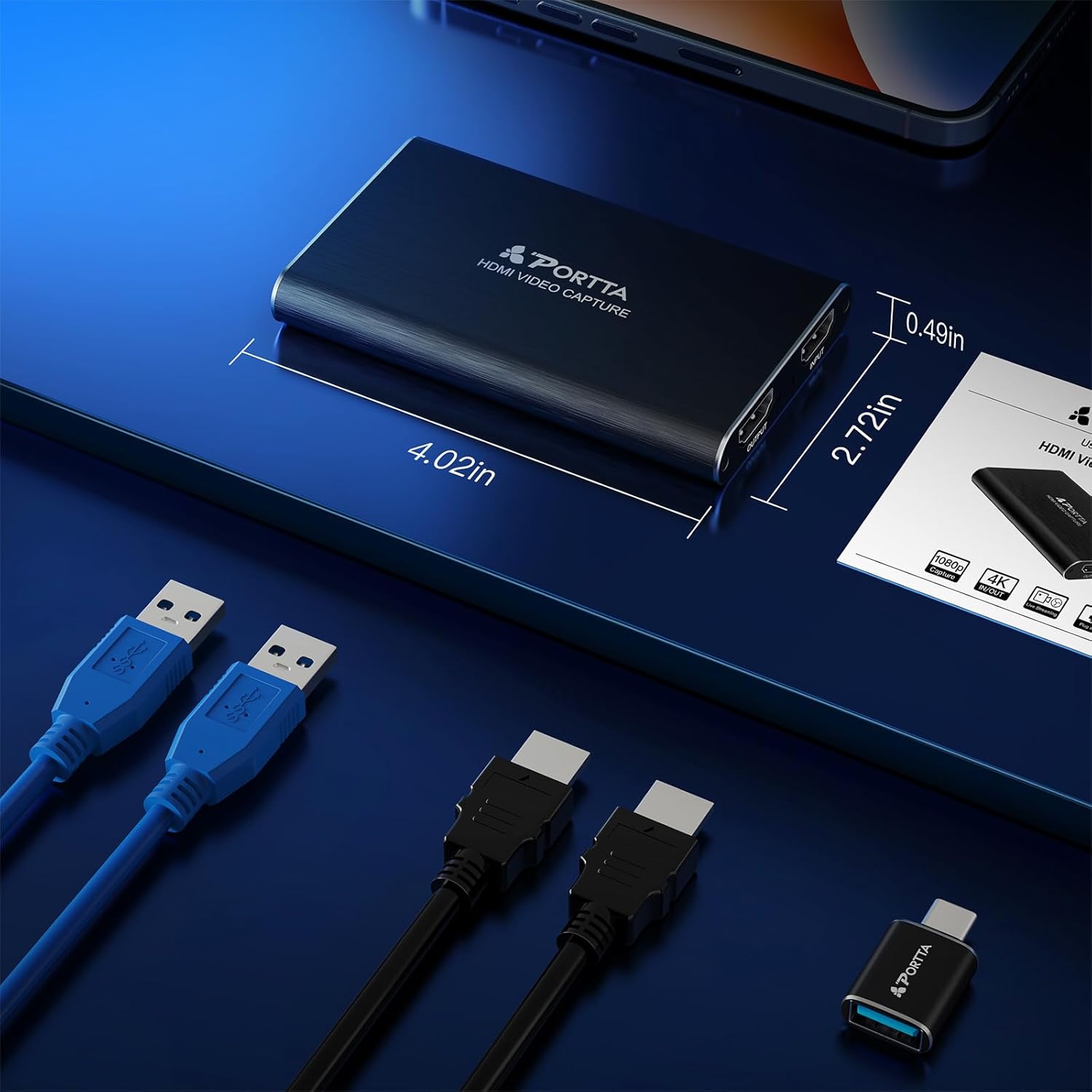
Immagine 9.1: Dimensioni del prodotto
This image provides a visual representation of the Portta HDMI Video Capture Card's physical dimensions, indicating its length as 4.02 inches, width as 2.72 inches, and height as 0.49 inches.
10. Garanzia e Supporto Tecnico
Portta stands behind the quality of its products. The Portta HDMI Video Capture Card comes with a Garanzia di 2 anno, covering manufacturing defects and ensuring reliable performance.
Additionally, we offer supporto tecnico a vita to assist you with any questions or issues you may encounter during the setup or operation of your device. Our friendly customer service team is available to provide guidance and solutions.
For technical assistance or warranty claims, please contact Portta customer service through the official websito o sulla tua piattaforma di acquisto.


