
1. Introduzione
Thank you for choosing the eSynic Mini Portable Thermal Printer ESY337. This compact and inkless thermal printer is designed for convenience, allowing you to print photos, labels, notes, and more directly from your mobile device. This manual provides essential information for setup, operation, maintenance, and troubleshooting to ensure optimal performance.

Figure 1: The eSynic Mini Portable Thermal Printer in its compact pink design.
2. Cosa c'è nella scatola
Dopo aver disimballato, assicurarsi che siano inclusi tutti i seguenti articoli:
- eSynic Mini Portable Thermal Printer (ESY337)
- 5 x Rolls of Standard Thermal Paper
- 5 x Rolls of Adhesive Thermal Paper
- Cavo di ricarica USB
- Manuale d'uso
- Adesivi decorativi

Figure 2: The complete package includes the mini portable printer, 5 rolls of thermal paper, 5 rolls of adhesive thermal paper, a USB charging cable, and decorative stickers.
3. Guida all'installazione
3.1. Caricamento della carta termica
Follow these steps to correctly load the thermal paper into your printer:
- Aprire il coperchio della stampante: Gently slide or lift the cover of the printer to access the paper compartment.
- Inserire il rotolo di carta: Place the thermal paper roll into the compartment. Ensure the smooth, printable side of the paper faces downwards.
- Alimentazione carta: Pull approximately 1 cm (0.4 inches) of paper out of the printer slot.
- Chiudi copertina: Securely close the printer cover until it clicks into place.
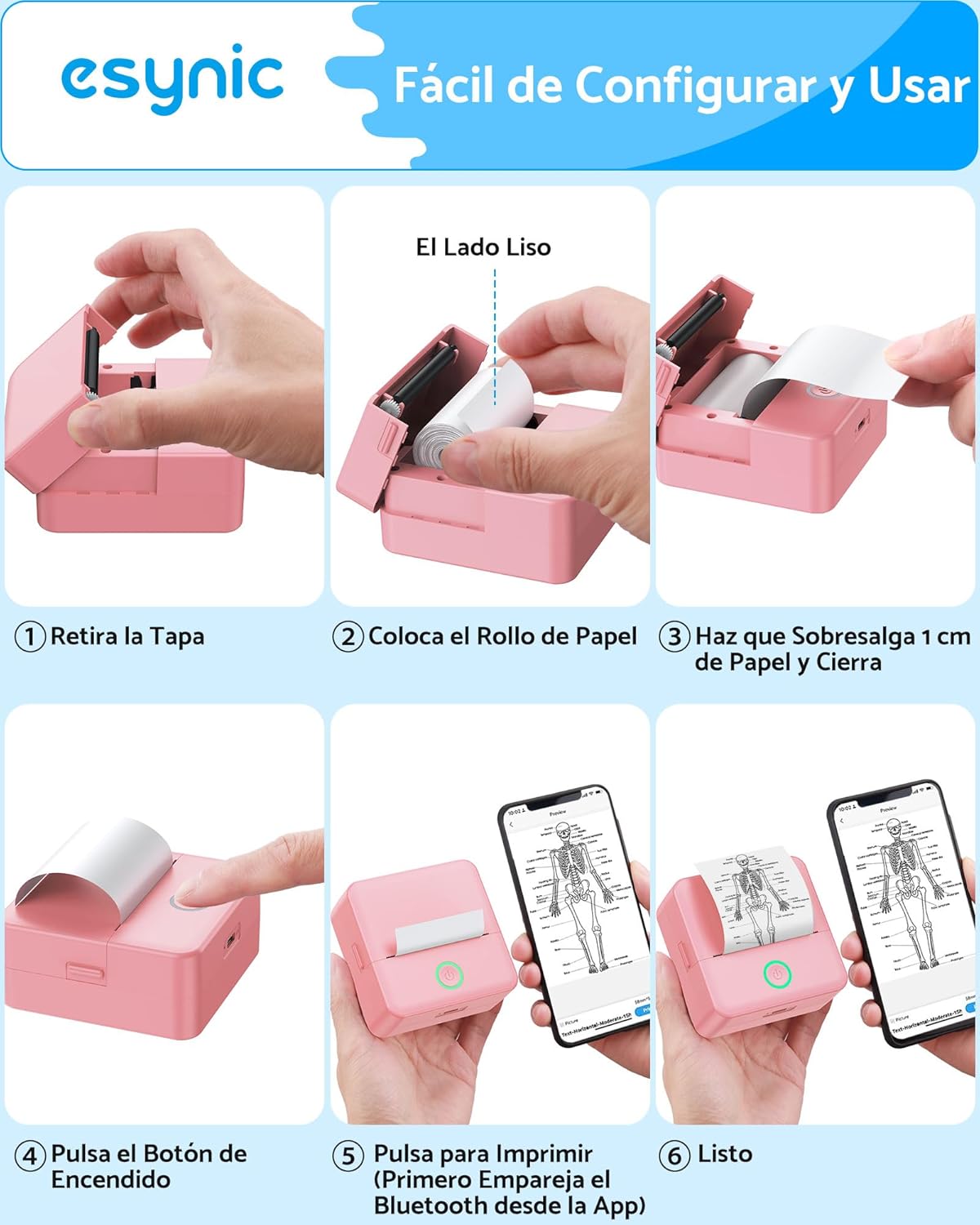
Figure 3: Visual instructions for loading paper: 1. Remove the cover. 2. Place the paper roll with the smooth side facing down. 3. Pull out about 1 cm of paper and close the cover. 4. Press the power button. 5. Connect via the "Tiny" app. 6. Ready to print.
3.2. Connessione tramite Bluetooth
The printer connects wirelessly to your smartphone or tablet:
- Caricare la stampante: Before first use, fully charge the printer using the provided USB cable.
- Accensione: Tenere premuto il pulsante di accensione della stampante finché la spia non si accende.
- Scarica l'app: Download the "Tiny" app from your device's app store (available for iOS and Android).
- Apri l'app e connettiti: Open the "Tiny" app, enable Bluetooth on your device, and follow the in-app instructions to connect to the printer. The connection typically takes about 2 seconds.

Figure 4: The printer connects quickly via Bluetooth 4.0 to both iOS and Android devices using the "Tiny" app, allowing instant printing of various documents like grocery lists.
4. Istruzioni per l'uso
4.1. Stampa di base
Once connected, you can print various content:
- Seleziona Contenuto: Within the "Tiny" app, choose what you want to print (e.g., photo, text, label, note).
- Regola impostazioni: You can adjust print depth (intensity) and other settings as needed. The printer supports monochrome (black and white) output only.
- Stampa: Tap the print button in the app. The printer will quickly produce your output.
4.2. Advanced App Features
The "Tiny" app offers a range of creative and functional features:
- Funzioni dell'intelligenza artificiale: Explore AI-powered tools for cartoonish portraits, line art, and various scene creations.
- Editing grafico: Utilize graphic editing tools for artistic photos and creative painting.
- Modelli: Access free materials and templates for labels, notes, to-do lists, and more.
- Riconoscimento del testo: Convert printed text into editable digital text.
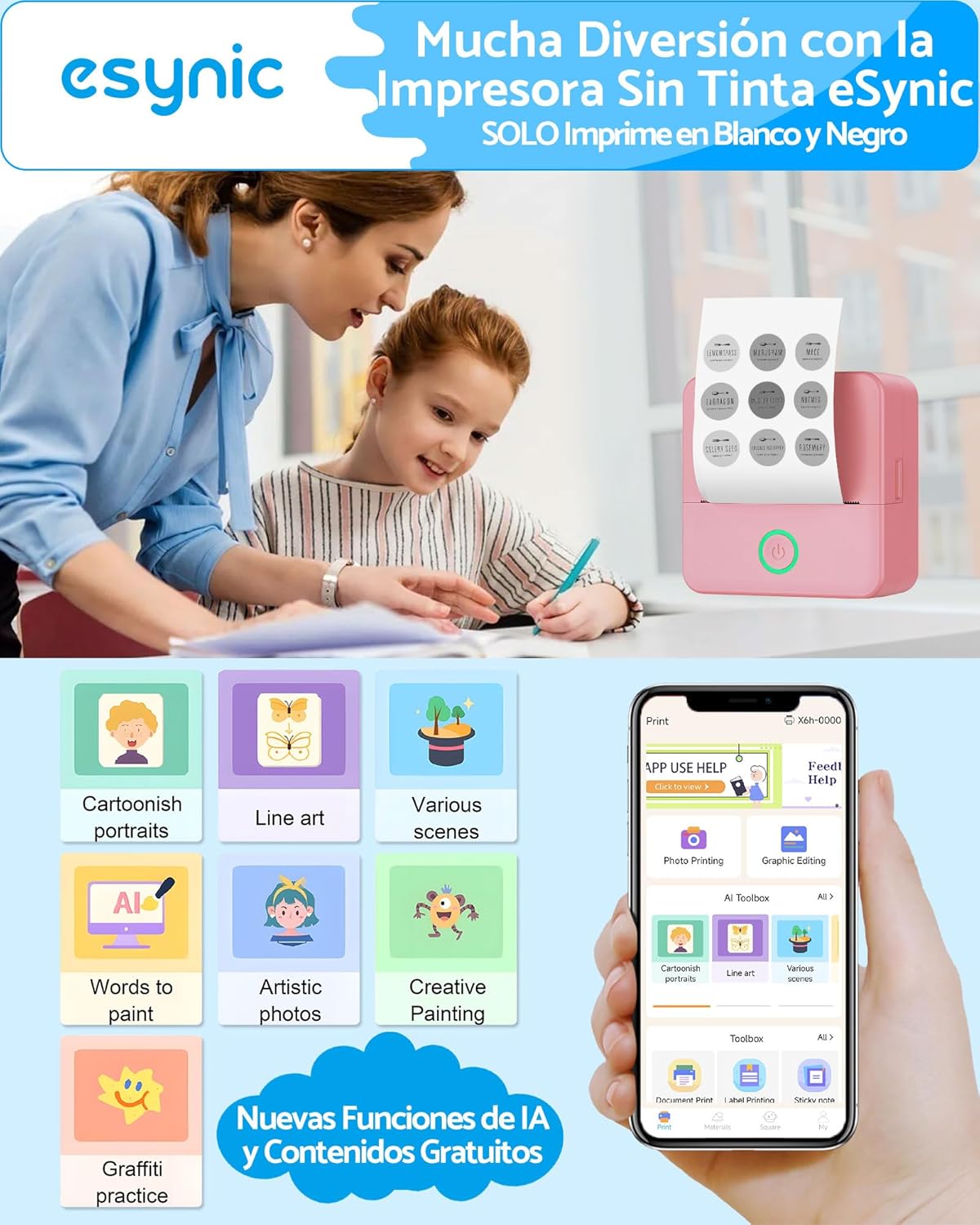
Figure 5: The "Tiny" app offers advanced features including AI functions for cartoonish portraits, line art, various scenes, text-to-paint, artistic photos, creative painting, and graffiti practice.
4.3. Creating Adhesive Labels
Use the included adhesive thermal paper to create custom stickers and labels:
- Load an adhesive paper roll as described in Section 3.1.
- Design your label in the "Tiny" app.
- Stampa l'etichetta.
- Carefully peel off the backing and apply the sticker to your desired surface.
5. Manutenzione
To ensure the longevity and optimal performance of your eSynic Mini Portable Thermal Printer, follow these maintenance guidelines:
- Pulizia della testina di stampa: Pulire periodicamente la testina di stampa termica con un panno morbido e privo di lanugine, leggermente dampcon alcol isopropilico. Assicurarsi che la stampante sia spenta e completamente asciutta prima dell'uso.
- Pulizia esterna: Pulire l'esterno della stampante con un panno morbido e asciutto. Evitare l'uso di prodotti chimici aggressivi o materiali abrasivi.
- Conservazione della carta: Conservare la carta termica in un luogo fresco e asciutto, lontano dalla luce solare diretta e dal calore, per evitare che sbiadisca o si danneggi prematuramente.
- Cura della batteria: If the printer will not be used for an extended period, charge it periodically to maintain battery health.
6. Risoluzione Dei Problemi
If you encounter issues with your printer, refer to the following common problems and solutions:
| Problema | Possibile causa | Soluzione |
|---|---|---|
| La stampante non si accende | Batteria scarica; pulsante di accensione non premuto correttamente | Caricare la stampante; tenere premuto il pulsante di accensione per alcuni secondi. |
| Impossibile connettersi tramite Bluetooth | Bluetooth off; App not detecting printer; Printer too far | Ensure Bluetooth is enabled on your device; Restart the app and printer; Move printer closer to device (within 10m). |
| Scarsa qualità di stampa / Stampe sbiadite | Print head dirty; Paper loaded incorrectly; Low print depth setting | Clean the print head (see Maintenance); Ensure smooth side of paper faces down; Increase print depth in the app. |
| Inceppamento della carta | Carta caricata in modo errato; Oggetto estraneo nel percorso della carta | Open cover, remove paper, re-load correctly; Carefully check for and remove any obstructions. |
| La stampante non risponde | System error; App crash | Restart the printer and the "Tiny" app. If issue persists, contact support. |
7. Specifiche
| Caratteristica | Dettaglio |
|---|---|
| Numero di modello | ESY337 |
| Marca | eSynic |
| Dimensioni del prodotto | Dimensioni: 8.5 x 4.5 x 4.5 cm |
| Peso del prodotto | 485 grammi |
| Tecnologia di connettività | Bluetooth |
| Tecnologia di stampa | Termico |
| Uscita della stampante | Monocromatico (bianco e nero) |
| Max Print Resolution B/W | 200 dpi |
| Supporti di stampa compatibili | Etichette, carta termica |
| Larghezza massima della carta | 57 millimetri |
| Stampa fronte-retro | No (Semplice) |
| Fonte di alimentazione | 1 D battery (included) / USB-C Charging |
| Usi specifici | School, Home, Office |

Figure 6: The printer's compact dimensions (8.5cm x 8.5cm x 4.0cm) highlight its portability, easily fitting into a backpack for on-the-go use.
8. Guida video del prodotto
Watch this video for a visual demonstration of the eSynic Mini Portable Thermal Printer's features and operation:
Video 1: This video provides a visual guide on how to unbox the eSynic Mini Portable Thermal Printer, load the thermal paper, connect it to your smartphone via the "Tiny" app, print an image, and apply a printed sticker.
9. Garanzia e supporto
The eSynic Mini Portable Thermal Printer ESY337 comes with an Garanzia del prodotto di 18 mesi from the date of purchase. For technical support, warranty claims, or any inquiries, please refer to the contact information provided in the packaging or visit the official eSynic websito.