
Introduzione
This manual provides essential information for setting up, operating, maintaining, and troubleshooting your Acer AL15-33P laptop. Please read this guide thoroughly to ensure proper use and to maximize the lifespan of your device.
Impostare
1. Disimballaggio e ispezione iniziale
Carefully remove the laptop and all accessories from the packaging. Check for any visible damage. The package should include the laptop, power adapter, and this user manual.

Davanti view of the Acer AL15-33P laptop with the screen displaying the Windows desktop.
2. Collegamento dell'alimentazione
- Connect the AC adapter cable to the power adapter.
- Plug the DC output connector of the power adapter into the power input port on the side of your laptop.
- Collegare il cavo di alimentazione CA a una presa elettrica.
La batteria inizierà a caricarsi automaticamente. Si consiglia di caricare completamente la batteria prima del primo utilizzo.
3. Avvio iniziale e configurazione di Windows
- Apri il coperchio del portatile.
- Press the power button, typically located on the keyboard deck or side, to turn on the laptop.
- Follow the on-screen instructions to complete the Windows 11 setup process. This includes selecting your region, language, accepting terms, and setting up a user account.
Utilizzo del tuo laptop
1. Utilizzo della tastiera e del touchpad
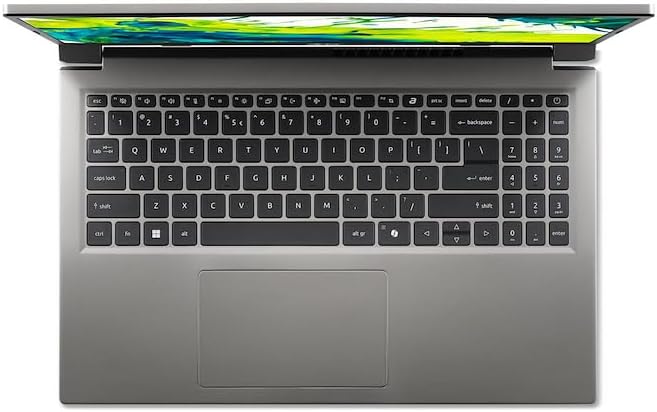
Top-down view della tastiera e del touchpad del portatile.
- Tastiera: The laptop features a full-size keyboard. Use the function (Fn) key in combination with F-keys for special functions like adjusting brightness, volume, or enabling/disabling Wi-Fi.
- Touchpad: The integrated touchpad supports multi-touch gestures. Tap to click, use two fingers to scroll, and pinch to zoom.
2. Collegamento di periferiche
Your Acer AL15-33P laptop is equipped with various ports for connecting external devices.

Right side of the laptop showing ports including USB and audio jack.

Left side of the laptop showing ports including power, USB-C, HDMI, and USB-A.
- Porte USB: Collegare dispositivi USB come dischi rigidi esterni, mouse o tastiere.
- Porta HDMI: Connect an external monitor or TV for a larger display.
- Jack audio: Collega cuffie o altoparlanti esterni.
- Porta USB-C: For data transfer and potentially display output or charging, depending on the specific model configuration.
3. Connettività wireless
- Wifi: Per connettersi a una rete wireless, fare clic sull'icona Wi-Fi nella barra delle applicazioni, selezionare la rete e immettere la password, se richiesta.
- Bluetooth: To pair Bluetooth devices, go to Windows Settings > Bluetooth & devices, and turn on Bluetooth.
4. Gestione energetica
- Modalità risparmio: Chiudere il coperchio o selezionare "Sospensione" dal menu Start per mettere il portatile in modalità di risparmio energetico.
- Fermare: To turn off the laptop completely, go to the Start menu, click the Power icon, and select 'Shut down'.
- Ricomincia: To restart the laptop, go to the Start menu, click the Power icon, and select 'Restart'.
Manutenzione
1. Pulizia del portatile
- Utilizzare un panno morbido e privo di lanugine leggermente dampcon acqua o un detergente per schermi per pulire il display.
- Per la tastiera e lo chassis, utilizzare un panno morbido. Evitare prodotti chimici aggressivi o materiali abrasivi.
- Utilizzare periodicamente aria compressa per rimuovere la polvere dalle prese d'aria di raffreddamento ed evitare il surriscaldamento.
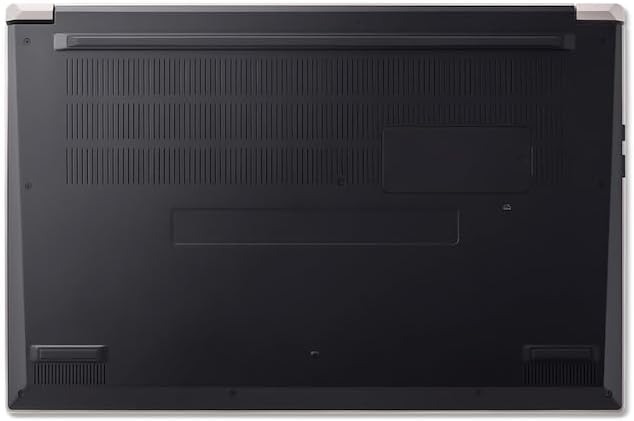
Metter il fondo a view of the laptop, highlighting the ventilation grilles.
2. Cura della batteria
- Evitare di scaricare completamente la batteria frequentemente.
- Se si conserva il portatile per un periodo prolungato, assicurarsi che la batteria sia carica circa al 50-70%.
- Operate the laptop in a moderate temperature environment.
3. Aggiornamenti software
Regularly update your operating system and drivers to ensure optimal performance and security. Windows Update can be accessed via Settings > Windows Update.
4. Gestione dell'archiviazione
Periodicamente riview ed eliminare ciò che non è necessario files to free up storage space. Utilize cloud storage or external drives for backups of important data.
Risoluzione dei problemi
This section addresses common issues you might encounter with your Acer AL15-33P laptop.
| Problema | Possibile soluzione |
|---|---|
| Il portatile non si accende. | Ensure the power adapter is securely connected and the outlet is working. Try a different outlet. If the battery is completely drained, it may take a few minutes to show signs of life after plugging in. |
| Il display è vuoto o nero. | Check if the laptop is powered on. Try pressing Fn + F6 (or the corresponding display toggle key) to cycle through display modes. Connect an external monitor to check if the issue is with the laptop's screen. |
| Problemi di connessione Wi-Fi. | Ensure Wi-Fi is enabled (Fn + F3 or check Windows settings). Restart your router and modem. Check if other devices can connect to the Wi-Fi network. Update Wi-Fi drivers. |
| Il portatile è lento. | Close unnecessary applications. Check Task Manager for processes consuming high CPU or memory. Run a disk cleanup. Ensure Windows and drivers are up to date. |
Specifiche
The following are key specifications for the Acer AL15-33P model. Note that specific configurations may vary.
- Modello: Acer AL15-33P
- Processore: Intel Core i3-N355
- Memoria RAM: 8 GB
- Magazzinaggio: SSD da 512 GB
- Display: 15.6 pollici
- Sistema operativo: Finestre 11
- Marca: Acero
Garanzia e supporto
Your Acer AL15-33P laptop comes with a standard manufacturer's warranty. Please refer to the warranty card included with your product for specific terms and conditions, including the warranty period and coverage details.
Per supporto tecnico, download di driver o richieste di assistenza, visitare il supporto ufficiale Acer website or contact Acer customer service directly. Have your laptop's serial number ready when contacting support.
Supporto Acer Websito: www.acer.com/support