
1. Introduzione
Thank you for choosing the Tukio Air Tracker Tags. These Apple MFi Certified Bluetooth trackers are designed to help you locate your valuable items quickly and efficiently using the Apple Find My network. This manual provides comprehensive instructions for setting up, operating, maintaining, and troubleshooting your new tracker tags. Please read this manual carefully before use.
Important Note: These tracker tags are only compatible with iOS devices (iPhone, iPad, Mac) and do not support Android devices.
2. Cosa c'è nella scatola
Si prega di verificare che tutti gli articoli elencati di seguito siano inclusi nel pacchetto:
- 4 x Tukio Air Tracker Tags
- 4 x Protective Silicone Cases
- 4 portachiavi
- 4 x cordini
- 4 x CR2032 Batteries (pre-installed in the product)
- 1 x Manuale utente
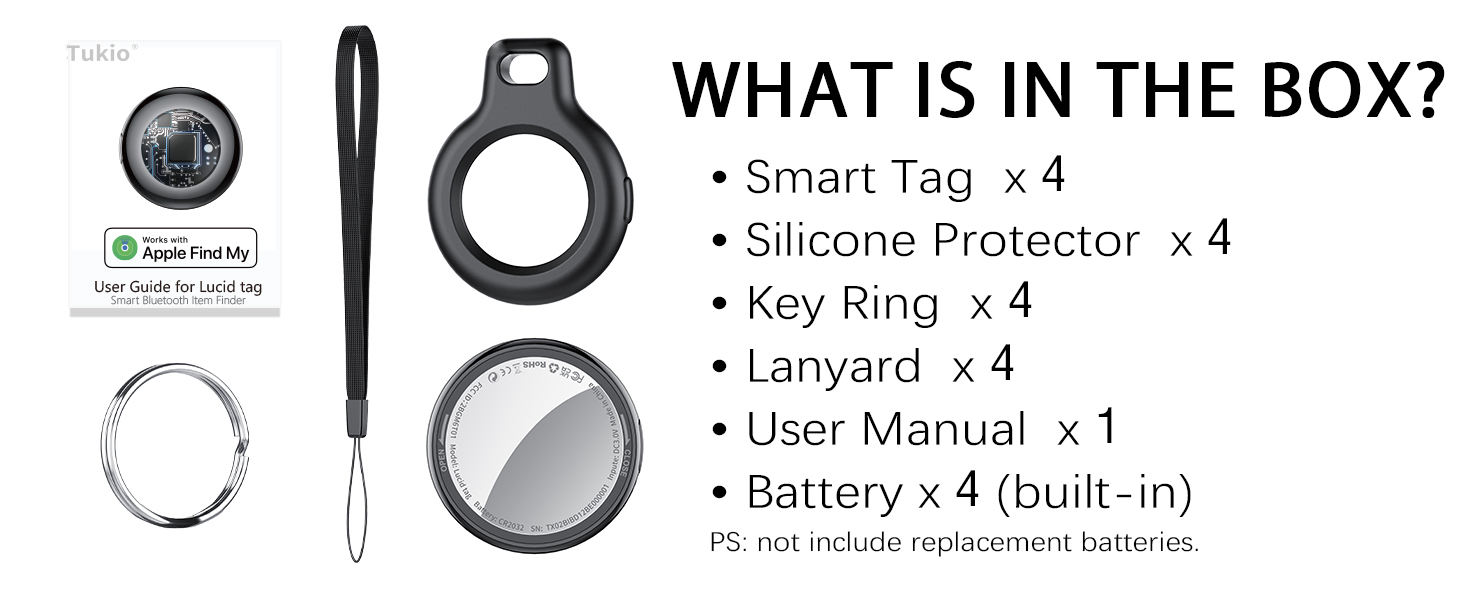
Figura 2.1: Contenuto della confezione
3. Guida all'installazione
3.1 Attivazione iniziale e associazione
The Tukio Air Tracker Tags are designed for quick and seamless integration with your Apple devices via the Find My app. Ensure your iOS device is updated to iOS 17/iPadOS 17/macOS 14 or above for full functionality, especially for sharing features.
- Prepare your iOS Device: Open the 'Find My' application on your iPhone, iPad, or Mac. Ensure Bluetooth and network functions are enabled.
- Attiva il Tracker Tag: Locate the function button on the side of the tracker tag. Press and hold this button for 2 seconds until you hear a single beep, indicating it's ready for connection.
- Aggiungi nuovo elemento: In the 'Find My' app, navigate to the 'Items' tab. Tap on 'Add New Item', then select 'Other Supported Item'. Non selezionare 'Aggiungi ariaTag'.
- Collegare: Place the tracker tag close to your iOS device. The 'Find My' app will search for and detect 'Lucid tag'. Tap 'Connect' and follow the on-screen prompts, tapping 'Continue' until the setup is complete.
- Personalizza: Once connected, you can assign a name to your tracker tag and choose an emoji to easily identify it within the 'Find My' app.

Figure 3.1: Pairing with Apple Find My App
3.2 Reimpostazione del tracker Tag
If you need to reset your tracker tag to factory settings, press and hold the function button for 11 seconds until you hear a long beep. This will clear all previous pairing information.
4. Istruzioni per l'uso
4.1 Individuazione degli oggetti nelle vicinanze
When your item is within Bluetooth range (up to 200 feet or 60 meters in open areas), you can use the 'Find My' app to locate it:
- Riprodurre l'audio: In the 'Find My' app, select your tracker tag and tap 'Play Sound'. The tracker will emit an 80-100dB beep to help you pinpoint its location.
- Chiedi a Siri: You can also ask Siri for assistance. For example, say "Hey Siri, where are my keys?" if your tracker is attached to your keys.
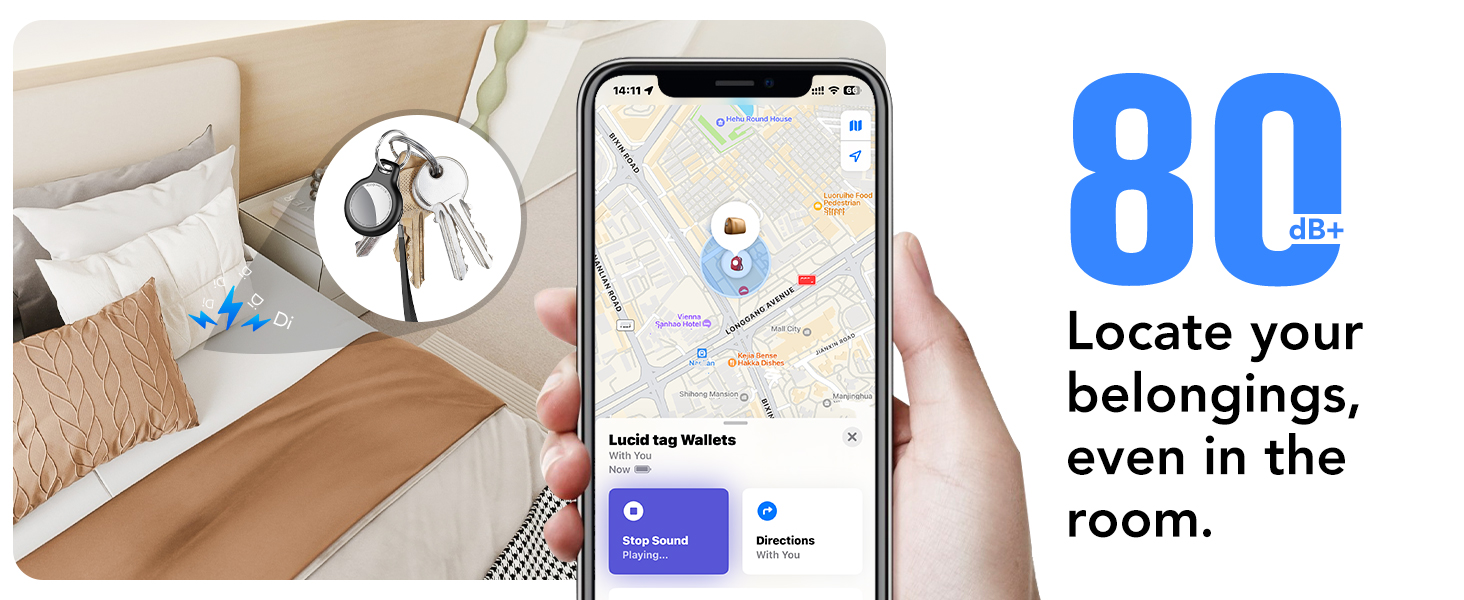
Figure 4.1: Locating Items by Sound
4.2 Locating Far-Away Items (Find My Network)
If your item is out of Bluetooth range, the Apple Find My network can help you locate it. Hundreds of millions of Apple devices worldwide anonymously and securely relay the location of your tracker tag to the 'Find My' app, allowing you to see its last known location on a map.
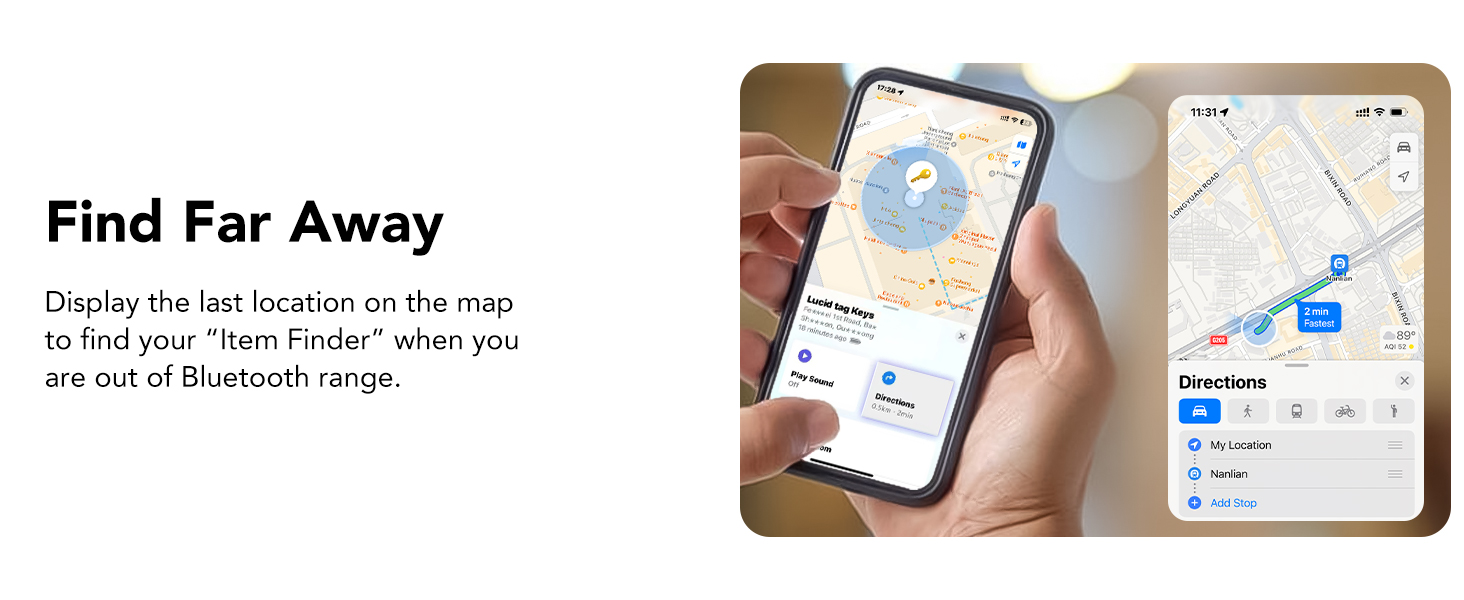
Figure 4.2: Finding Items Far Away
4.3 Promemoria per oggetti dimenticati
Receive instant notifications on your iOS device if you leave your tracker tag behind and it goes out of Bluetooth range. The notification will include the last known location of the item, which you can view on the 'Find My' app.
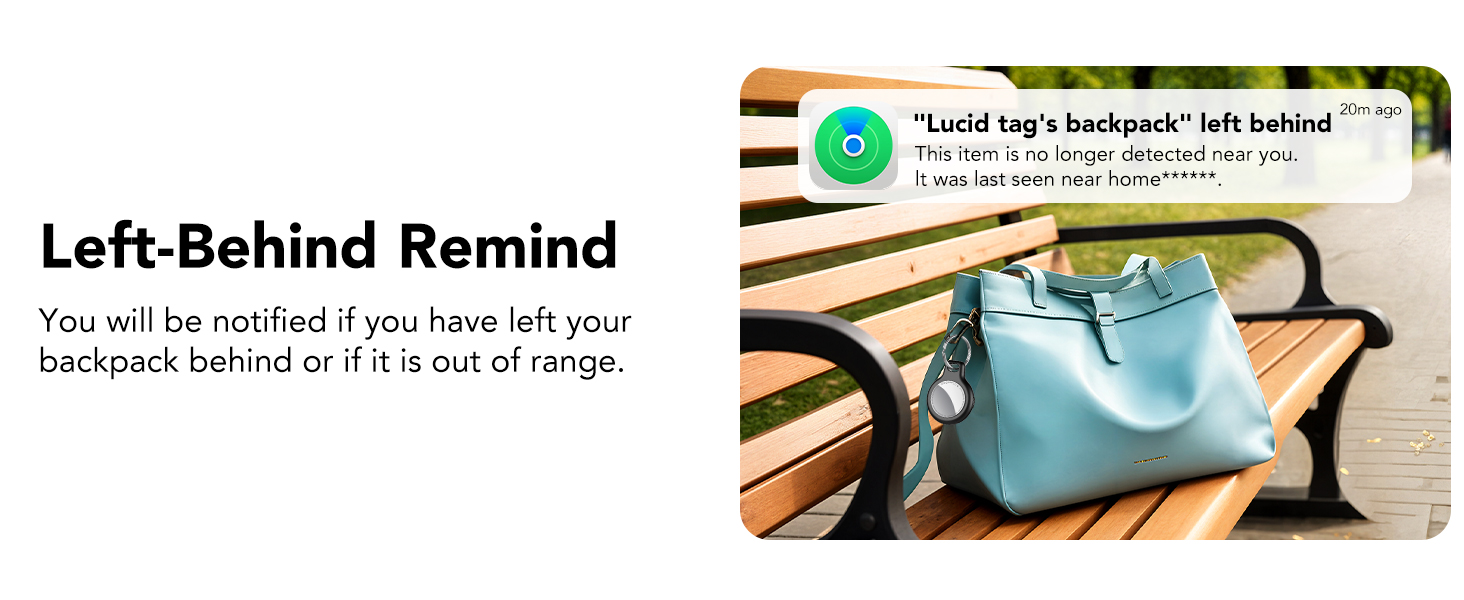
Figure 4.3: Left-Behind Reminder Notification
4.4 Modalità smarrita
If an item with a tracker tag is lost, you can activate 'Lost Mode' in the 'Find My' app. This allows anyone who finds your tag to securely access your contact information (if you provide it) by tapping their NFC-enabled smartphone to the tag. They will then be able to contact you to return the item.

Figure 4.4: Activating Lost Mode
4.5 Condivisione di elementi (iOS 17+)
With iOS 17 or later, you can share the location of your tracker tags with up to 5 other individuals in the 'Find My' app. This is ideal for items used by multiple family members or friends, allowing everyone to track the item's location. Both parties must be using iOS 17/iPadOS 17/macOS 14 or later versions.
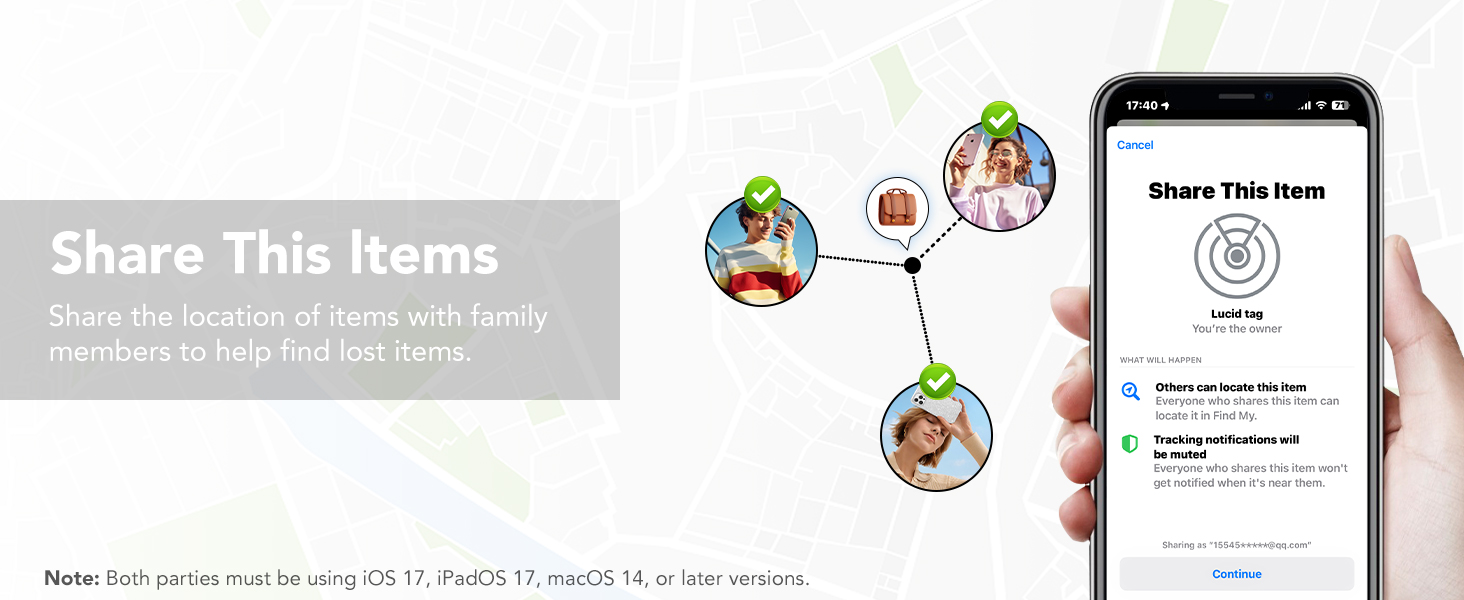
Figure 4.5: Sharing Item Location
5. Manutenzione
5.1 Sostituzione della batteria
Each Tukio Air Tracker Tag uses one CR2032 coin cell battery, providing up to 1 year of uninterrupted use. The 'Find My' app will notify you when the battery is low, prompting you to replace it.
Per sostituire la batteria:
- Turn the stainless steel battery cover counter-clockwise to remove it.
- Rimuovere la vecchia batteria CR2032.
- Inserire una nuova batteria CR2032 con il lato positivo (+) rivolto verso l'alto.
- Align the battery cover and press it gently.
- Rotate the battery cover clockwise to tighten it securely.
Caution: The unique cover design helps prevent children from opening the device. Ensure the cover is securely fastened after battery replacement.

Figura 5.1: Fasi di sostituzione della batteria
5.2 Resistenza all'acqua e alla polvere
The Tukio Air Tracker Tags have an IP67 rating, meaning they are resistant to dust and can withstand immersion in water up to 3 feet (1 meter) for 30 minutes. This makes them suitable for outdoor activities and provides protection against splashes and brief submersion. However, they are not intended for prolonged underwater use.
6. Risoluzione Dei Problemi
- Il tracker non si connette/associa:
- Assicurati che il Bluetooth sia abilitato sul tuo dispositivo iOS.
- Assicurati che il tracker tag is activated (single beep after 2-second button press).
- Confirm you are selecting 'Other Supported Item' in the 'Find My' app, not 'Add AirTag'.
- Try resetting the tracker tag to factory settings (press and hold button for 11 seconds until long beep).
- Ensure your iOS device is running a compatible version of iOS/iPadOS/macOS.
- Nessun suono dal tracker:
- Check the battery level in the 'Find My' app. Replace the battery if it's low.
- Assicurati che il tracker si trovi nel raggio d'azione del Bluetooth del tuo dispositivo iOS.
- Posizione non aggiornata:
- Assicurati che il tuo dispositivo iOS abbia una connessione Internet attiva.
- The location updates rely on the Apple Find My network. Updates may be less frequent in areas with fewer Apple devices.
- Problemi di privacy:
- The chip in this Bluetooth tracker is Apple MFi certified. All communication with the 'Find My' network is anonymous and encrypted for privacy. Location data and history are never stored on the tracker tag itself, ensuring your location data is encrypted to anyone else (even the manufacturer).
Per ulteriore assistenza, fare riferimento alle informazioni di contatto nella sezione Supporto.
7. Specifiche
| Caratteristica | Specificazione |
|---|---|
| Numero di modello | Modello TX02 |
| Dimensioni | 1.22 x 1.22 x 0.35 pollici (30.9 x 30.9 x 8.3 mm) |
| Peso dell'articolo | 0.988 once (28 grammi) |
| Tipo di batteria | Batteria a bottone CR2032 (inclusa) |
| Durata della batteria | Fino a 1 anno |
| Connettività | Bluetooth 5.3 |
| Compatibilità | iOS devices only (iPhone, iPad, Mac) |
| Resistenza all'acqua/polvere | IP67 (withstands immersion in water up to 3 feet for 30 minutes) |
| Livello sonoro | 80-100 dB |
| Materiale | Plastica |
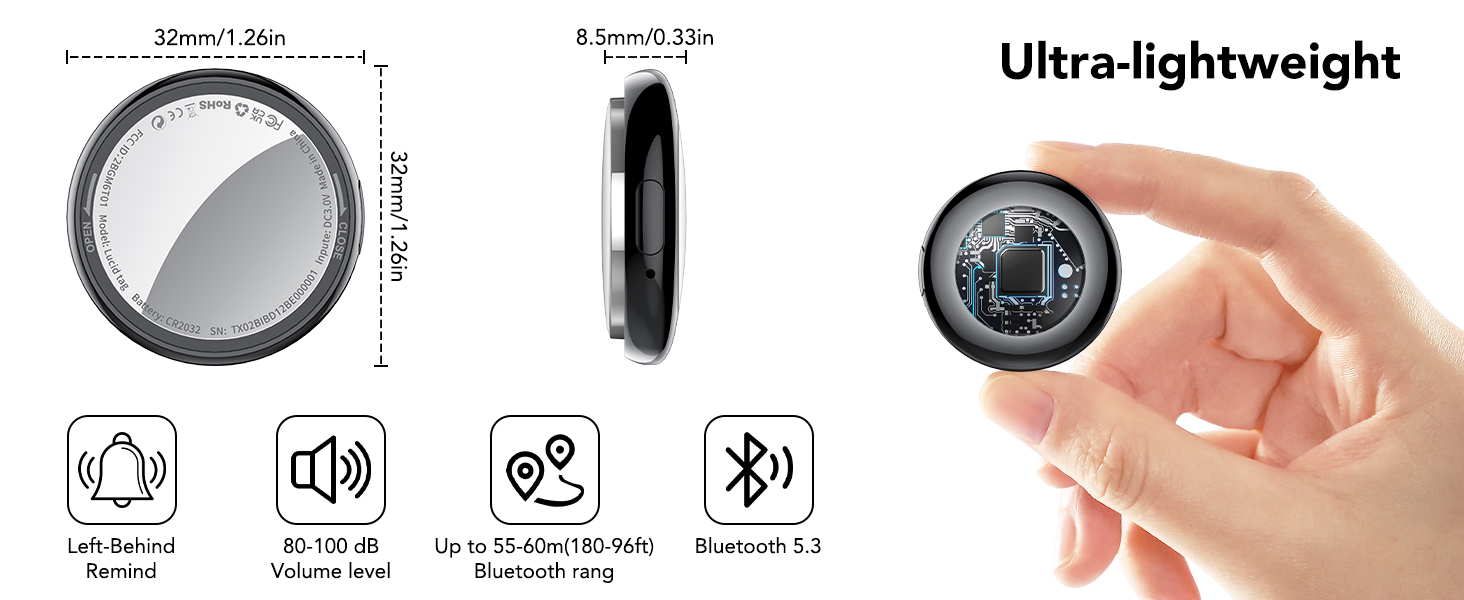
Figura 7.1: Dimensioni e caratteristiche del prodotto
8. Garanzia e supporto
8.1 Informazioni sulla garanzia
Tukio Air Tracker Tags vieni con un Garanzia di 2 anno dalla data di acquisto, coprendo difetti di fabbricazione e malfunzionamenti in condizioni di normale utilizzo. Si prega di conservare la prova d'acquisto per eventuali reclami in garanzia.

Figure 8.1: Warranty and Environmental Commitment
8.2 Assistenza clienti
Our dedicated after-sales team is always available to assist you with any questions or issues you may encounter. For prompt support, please contact us through your order page on Amazon by finding the order number and selecting 'Contact Seller'.
We strive to provide a 24-hour customer service response.
For more information about Tukio products, visit the official Tukio Store on Amazon: Tukio Store