
DigiLand MID1057-MX
DigiLand MID1057-MX 10.1-inch Android 14 Tablet
Manuale di istruzioni per l'utente
Introduzione
This manual provides essential information for the proper setup, operation, and maintenance of your DigiLand MID1057-MX 10.1-inch Android 14 Tablet. Please read this manual thoroughly before using the device to ensure optimal performance and longevity.

Image: DigiLand MID1057-MX Android 14 Tablet.
Impostare
1. Contenuto della confezione
Verificare che tutti gli articoli siano presenti nel pacco:
- DigiLand MID1057-MX Tablet
- Cavo USB di tipo C.
- Adattatore di alimentazione
- Custodia protettiva
- Guida rapida
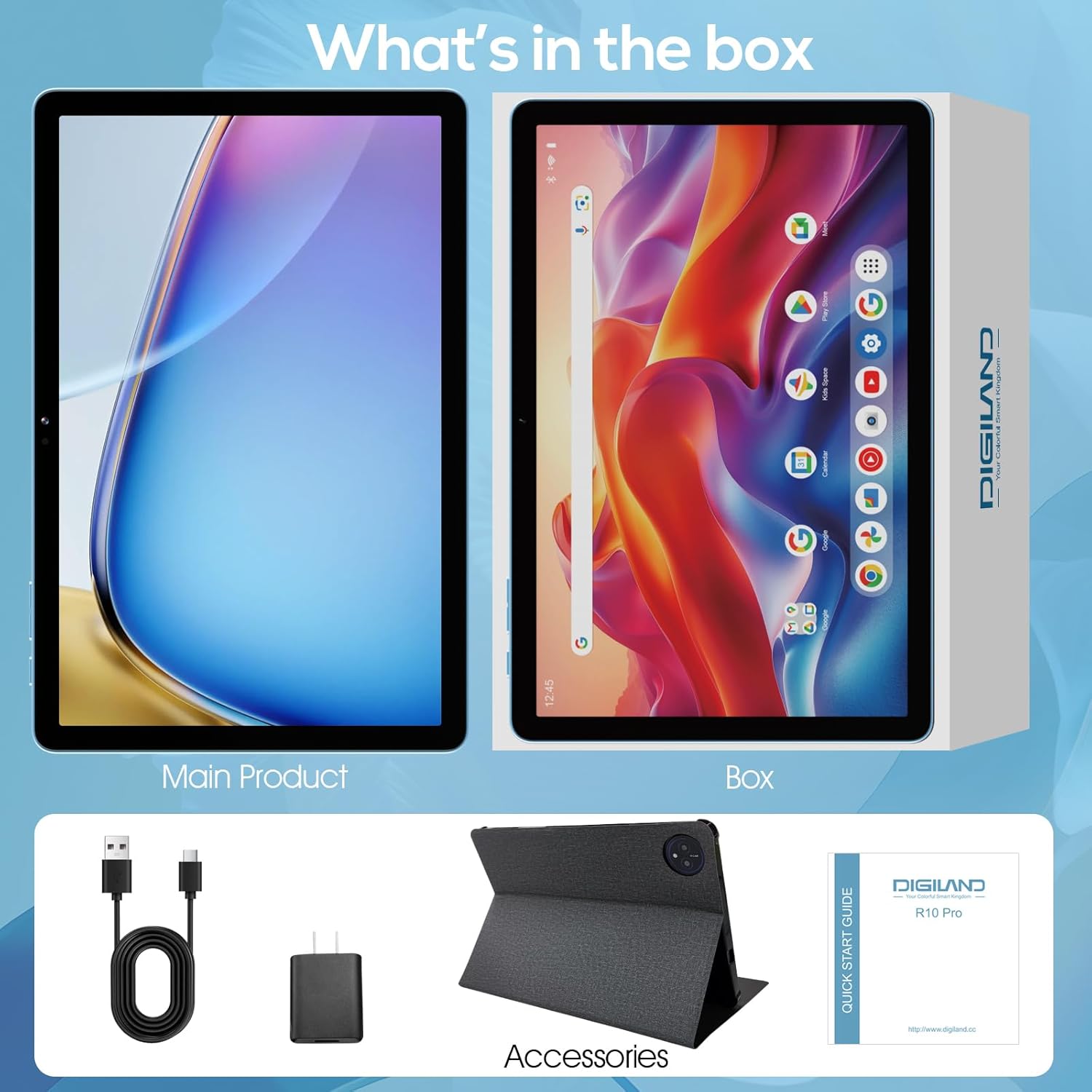
Image: Package contents of the DigiLand MID1057-MX Tablet.
2. Disposizione del dispositivo
Familiarizza con le caratteristiche fisiche del tablet:
- Pulsante di accensione: Situato sul lato, serve per accendere/spegnere il dispositivo o per riattivare/sospendere lo schermo.
- Pulsanti del volume: Regola i livelli audio.
- Porta USB di tipo C: Per la ricarica e il trasferimento dei dati.
- Jack per cuffie: Per collegare le cuffie.
- Slot per scheda MicroSD: For expandable storage (up to 1TB).
- Fotocamera frontale: Per videochiamate e selfie.
- Telecamera posteriore: Per catturare foto e video.

Immagine: Oltreview of tablet ports and buttons.
3. Carica iniziale
Before first use, fully charge the tablet. Connect the USB Type-C cable to the tablet's port and the power adapter to a wall outlet. The battery indicator on the screen will show charging status.
4. Accensione/spegnimento
- Per accendere: Press and hold the Power button until the DigiLand logo appears.
- Per spegnere: Tenere premuto il pulsante di accensione finché non viene visualizzato il menu delle opzioni di alimentazione, quindi selezionare "Spegni".
- Per dormire/svegliarsi: Premi brevemente il pulsante di accensione.
5. Configurazione iniziale
Alla prima accensione, seguire le istruzioni sullo schermo per:
- Seleziona la tua lingua.
- Connettersi a una rete Wi-Fi.
- Accedi con il tuo account Google o creane uno nuovo.
- Imposta il blocco schermo e altre funzioni di sicurezza.
Operativo
1 Gesti del touchscreen
Navigate the tablet using standard Android gestures:
- Rubinetto: Seleziona un elemento o apri un'applicazione.
- Toccare e tenere premuto: Accedi ai menu contestuali o sposta le icone.
- Scorri: Scroll through pages or navigate between screens.
- Pizzico: Ingrandisci o rimpicciolisci le immagini e web pagine.
2. Connessione al Wi-Fi
- Vai a Impostazioni > Rete e Internet > Wifi.
- Attiva/disattiva Wi-Fi On.
- Seleziona la rete desiderata dall'elenco.
- Inserisci la password se richiesta, quindi tocca Collegare.
3. Accoppiamento Bluetooth
- Vai a Impostazioni > Dispositivi connessi > Bluetooth.
- Attiva Bluetooth On.
- Assicurati che il tuo dispositivo Bluetooth sia in modalità di associazione.
- Selezionare il dispositivo dall'elenco e seguire le istruzioni visualizzate sullo schermo per completare l'associazione.
4. Installing and Uninstalling Applications
- Installare: Open the Google Play Store app, search for the desired application, and tap Installare.
- Disinstallare: Vai a Impostazioni > Applicazioni > Vedi tutte le app, select the app, then tap Disinstallare.
5. Gestione dell'archiviazione
Your tablet comes with 128GB of internal storage. You can expand this by up to 1TB using a MicroSD card (not included).
- To Insert MicroSD Card: Locate the MicroSD card slot, gently insert the card until it clicks into place.
- To Remove MicroSD Card: Vai a Impostazioni > Magazzinaggio, tap on the SD card, and select Espellere before physically removing it.

Image: Storage capacity and expansion.
6. Utilizzo della fotocamera
Il tablet è dotato di una fotocamera posteriore da 13 MP e di una fotocamera anteriore da 8 MP.
- Aprire il Telecamera applicazione.
- Tocca il pulsante di scatto per scattare una foto.
- Tocca l'icona video per registrare un video.
- Utilizzare l'icona di commutazione della fotocamera per passare dalla fotocamera anteriore a quella posteriore e viceversa.

Image: Dual camera features and exampmeno.
7. Gestione della batteria
The 6000mAh battery provides extended usage time. To optimize battery life:
- Regolare la luminosità dello schermo a un livello confortevole.
- Disattivare il Wi-Fi e il Bluetooth quando non vengono utilizzati.
- Chiudere le applicazioni non utilizzate in esecuzione in background.
- Abilita la modalità di risparmio batteria in Impostazioni > Batteria.

Immagine: Stime sulla capacità e sull'utilizzo della batteria.
Manutenzione
1. Pulizia del dispositivo
Utilizzare un panno morbido e privo di lanugine per pulire lo schermo e il corpo del tablet. Evitare l'uso di prodotti chimici aggressivi o materiali abrasivi.
2. Aggiornamenti software
Controlla regolarmente e installa gli aggiornamenti di sistema per assicurarti che il tuo tablet abbia le ultime funzionalità e patch di sicurezza. Vai a Impostazioni > Sistema > Aggiornamento del sistema.
3. Ottimizzazione dell'archiviazione
Periodicamente riview ed eliminare ciò che non è necessario files, photos, and applications to free up storage space and maintain performance. Consider moving large media filesu una scheda MicroSD esterna.
Risoluzione dei problemi
Per i problemi più comuni e le relative soluzioni, fare riferimento alla tabella sottostante:
| Problema | Possibile soluzione |
|---|---|
| Il tablet non si accende | Assicurarsi che la batteria sia carica. Collegare il dispositivo al caricabatterie per almeno 30 minuti, quindi riprovare ad accenderlo. |
| Problemi di connessione Wi-Fi | Riavvia il tablet e il router Wi-Fi. Elimina la rete dalle impostazioni e riconnettiti. |
| Prestazioni lente | Close unused apps. Clear cache for frequently used apps. Check for system updates. Free up storage space. |
| La batteria si scarica rapidamente | Reduce screen brightness. Disable Wi-Fi/Bluetooth when not in use. Limit background app activity. |
| Le app si bloccano o si bloccano | Restart the app. Clear the app's cache and data in settings. Reinstall the app. |
Specifiche
Key technical specifications for the DigiLand MID1057-MX Tablet:
| Caratteristica | Specificazione |
|---|---|
| Modello | MID1057-MX |
| Sistema operativo | Androide 14 |
| Dimensioni dello schermo | 10.1 pollici |
| Risoluzione dello schermo | 1280 x 800 pixel (IPS HD) |
| Processore | MTK Helio G80 Octa-Core (A523, Cortex A55@1.8 GHz, 22nm) |
| Memoria RAM | 12 GB (4 GB fisici + 8 GB di espansione) |
| Memoria interna | 128 GB di ROM |
| Archiviazione espandibile | Up to 1TB via MicroSD card (TF card slot) |
| Capacità della batteria | 6000mAh |
| Fotocamera frontale | 8MP |
| Telecamera posteriore | 13MP |
| Connettività | Dual-band Wi-Fi (2.4G+5G), Bluetooth 5.0, USB Type-C (OTG) |
| Dimensioni (LxWxH) | 9.5 x 6.3 x 0.3 pollici |
| Peso dell'articolo | 2.79 pounds (485g for tablet only) |

Immagine: Specifiche dettagliate del prodotto.
Garanzia e supporto
1. Informazioni sulla garanzia
Please refer to the warranty card included with your product for specific warranty terms and conditions. DigiLand provides after-sales support to address any product-related concerns.
2. Assistenza clienti
For technical assistance, troubleshooting, or any questions regarding your DigiLand MID1057-MX Tablet, please contact DigiLand customer support through the contact information provided in your Quick Start Guide or on the official DigiLand websito.
Ask a question about this manual
Ask about setup, troubleshooting, compatibility, parts, safety, or missing instructions. Manuals+ will review the question and use this page’s manual context to help answer it.