
1. Introduzione
This manual provides detailed instructions for the installation, configuration, and operation of the Intelbras iNVD 5232 32-Channel IP Digital Video Recorder. Please read this manual thoroughly before using the device to ensure proper functionality and to prevent damage.
The Intelbras iNVD 5232 is designed for professional surveillance applications, offering advanced features for recording, monitoring, and managing IP camera feeds.
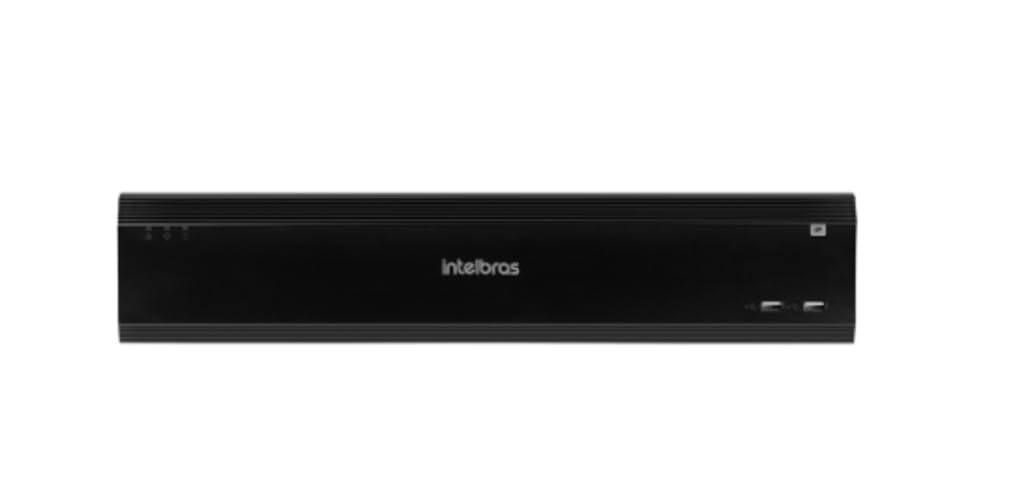
Figure 1: Intelbras iNVD 5232 Digital Video Recorder. This image shows the front panel of the iNVD 5232 unit, featuring a sleek black design with the Intelbras logo and USB ports.
2. Informazioni sulla sicurezza
Per evitare lesioni e danni al dispositivo, osservare le seguenti precauzioni di sicurezza:
- Garantire l'alimentazione voltage corrisponde ai requisiti del dispositivo.
- Non esporre il dispositivo a umidità, pioggia o temperature estreme.
- Evitare di posizionare il dispositivo alla luce diretta del sole o vicino a fonti di calore.
- Non aprire il dispositivo casing. Affidare tutti gli interventi di manutenzione a personale qualificato.
- Utilizzare solo accessori specificati dal produttore.
- Collegare correttamente a terra il dispositivo per evitare scosse elettriche.
3. Contenuto della confezione
Verificare che tutti gli articoli siano presenti nel pacco:
- Intelbras iNVD 5232 Digital Video Recorder Unit
- Adattatore di alimentazione
- Mouse USB
- Viti per l'installazione dell'HDD
- Guida rapida
- CD-ROM (contenente software e manuale completo)
4. Prodotto finitoview
4.1 Pannello frontale
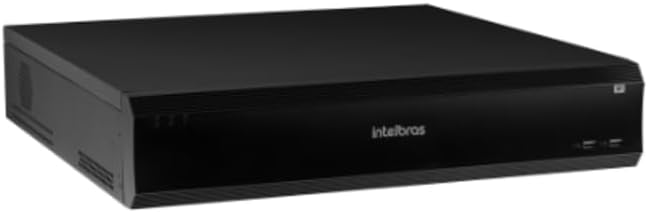
Figure 2: Front Panel of the iNVD 5232. This image displays the front of the DVR, showing LED indicators for power and status, along with two USB ports for peripheral connections.
- LED di potenza: Indica lo stato dell'alimentazione.
- LED di stato: Indica lo stato operativo del sistema.
- Porte USB: Per collegare un mouse, un'unità USB o altre periferiche.
4.2 Pannello posteriore

Figure 3: Rear Panel of the iNVD 5232. This image details the rear connections, including power input, network ports, video outputs (HDMI, VGA), audio inputs/outputs, and alarm terminals.
- Potenza in ingresso: Collegare l'adattatore di alimentazione fornito.
- Uscita HDMI: Connect to an HDMI-compatible monitor.
- Uscita VGA: Connect to a VGA-compatible monitor.
- Porte LAN: Connect to your network for IP camera communication and remote access.
- Ingresso/uscita audio: Per collegare dispositivi audio esterni.
- Alarm In/Out: For connecting external alarm sensors and actuators.
- Porte USB: Porte USB aggiuntive per periferiche.
5. Impostazione
5.1 Installazione hardware
- Installare il disco rigido (se non preinstallato): Aprire il DVR casing, mount the hard drive using the provided screws, and connect the SATA power and data cables.
- Connetti il monitor: Collegare un monitor alla porta di uscita HDMI o VGA.
- Connetti il mouse: Collegare il mouse USB a una delle porte USB.
- Connetti rete: Connect an Ethernet cable from the LAN port to your network router or switch.
- Connetti alimentazione: Plug the power adapter into the DVR's power input and then into a power outlet. The device will power on automatically.
5.2 Configurazione iniziale
Upon first boot, the system will guide you through an initial setup wizard:
- Selezione della lingua: Scegli la tua lingua preferita.
- Configurazione della password: Crea una password amministratore complessa.
- Impostazioni di rete: Configure IP address, subnet mask, gateway, and DNS. DHCP is usually enabled by default.
- Data e ora: Imposta la data, l'ora e il fuso orario corretti.
- Inizializzazione HDD: Formattare il disco rigido installato per la registrazione.
- IP Camera Search and Add: The system will scan for available IP cameras on the network. Select and add your cameras.
6. Operativo
6.1 Vivere View
Dopo la configurazione iniziale, il sistema visualizzerà il live view delle telecamere collegate. È possibile passare dalla modalità a telecamera singola view, multi-camera grids, and sequence viewutilizzando i controlli sullo schermo o il mouse.
6.2 Gestione delle registrazioni
- Programma di registrazione: Configurare programmi di registrazione continua, basata sul rilevamento del movimento o attivata da allarme per ciascuna telecamera.
- Registrazione manuale: Avviare manualmente la registrazione dal vivo view interfaccia.
- Riproduzione: Accedi a foo registratotage by date, time, and event type. Use the playback controls to navigate through recordings.
- Backup: Export recorded video clips to a USB drive or network storage.
6.3 Accesso remoto
The iNVD 5232 supports remote access via a web browser or dedicated mobile application. Ensure your network is configured for remote access (e.g., port forwarding or P2P cloud service activation).
- Web Navigatore: Enter the DVR's IP address into a web browser su un computer connesso alla stessa rete.
- Applicazione mobile: Download the official Intelbras surveillance app from your device's app store. Scan the QR code on the DVR (if available) or manually enter the device ID for connection.
7. Manutenzione
7.1 Pulizia
Pulire regolarmente l'esterno del DVR con un panno morbido e asciutto. Non utilizzare detergenti liquidi o spray. Assicurarsi che le aperture di ventilazione siano libere da polvere e ostruzioni.
7.2 Aggiornamenti firmware
Periodically check the Intelbras webSito per gli aggiornamenti del firmware. Gli aggiornamenti del firmware possono offrire nuove funzionalità, miglioramenti delle prestazioni e della sicurezza. Seguire attentamente le istruzioni fornite con il pacchetto di aggiornamento del firmware.
7.3 Gestione del disco rigido
Monitor the health of your hard drives through the system's HDD management menu. Replace failing drives promptly to avoid data loss. Configure automatic overwriting of old footage per garantire una registrazione continua.
8. Risoluzione Dei Problemi
| Problema | Possibile causa | Soluzione |
|---|---|---|
| Nessun potere | Cavo di alimentazione scollegato; adattatore di alimentazione difettoso; problema con la presa di corrente. | Check power connections; test power adapter; try a different outlet. |
| Nessuna uscita video | Monitor off/disconnected; incorrect video output settings; faulty cable. | Ensure monitor is on and connected; check video cable; try a different output port or cable. |
| Cannot connect IP cameras | Network issue; incorrect camera IP address/credentials; camera not powered. | Verify network connectivity; ensure cameras are powered and configured correctly; check camera credentials. |
| Nessuna registrazione | HDD not initialized/full; recording schedule not set; camera disconnected. | Initialize HDD; check recording schedule; verify camera connection and status. |
9. Specifiche
| Caratteristica | Descrizione |
|---|---|
| Modello | iNVD 5232 |
| Ingresso video | 32 Canali IP |
| Uscita video | 1 HDMI, 1 VGA |
| Ingresso/uscita audio | Specific ports (e.g., RCA) |
| Risoluzione di registrazione | Up to 8MP (depending on camera) |
| Capacità di riproduzione | Multi-channel synchronous playback |
| Magazzinaggio | Multiple SATA HDD bays (HDDs not included) |
| Interfaccia di rete | Porte Gigabit Ethernet |
| Interfaccia USB | Porte USB 2.0/3.0 |
| Alimentazione elettrica | DC 12V (adattatore incluso) |
| Temperatura di esercizio | da 0°C a 50°C (da 32°F a 122°F) |
10. Garanzia e supporto
For warranty information, please refer to the warranty card included with your product or visit the official Intelbras website. Technical support is available through Intelbras authorized service centers and online resources.
Intelbras Official Websito: www.intelbras.com.br
Quando contatti l'assistenza, tieni a portata di mano il modello e il numero di serie del tuo prodotto.