
Introduzione
The CyberPowerPC Gamer Supreme Liquid Cooled Gaming Desktop Computer is engineered for elite gaming performance, making it an ideal choice for serious gamers and content creators alike. Powered by the formidable Intel Core Ultra 9 285K processor, clocked at 3.7GHz, this gaming powerhouse delivers exceptional speed and responsiveness, ensuring seamless gameplay and efficient multitasking.
Equipped with a colossal 4TB SSD, this gaming desktop offers lightning-fast boot times and ample storage space for your extensive game library and multimedia files. The inclusion of the cutting-edge NVIDIA GeForce RTX 5080 graphics card with 16GB of dedicated memory ensures breathtaking visuals and real-time ray tracing, allowing you to enjoy the latest AAA titles at their highest settings. Running on Windows 11 Home, the CyberPowerPC Gamer Supreme provides a user-friendly interface and enhanced gaming features, optimizing your overall experience.
Informazioni sulla sicurezza
Please read all safety instructions carefully before operating your CyberPowerPC Gamer Supreme computer. Failure to follow these instructions may result in electric shock, fire, or damage to the equipment.
- Fonte di energia: Use only the power supply provided with your computer. Ensure the power outlet is properly grounded.
- Ventilazione: Do not block any ventilation openings. Ensure adequate airflow around the computer to prevent overheating.
- Raffreddamento a liquido: The liquid cooling system is sealed and requires no user maintenance. Do not attempt to open or modify the cooling system.
- Ambiente: Operate the computer in a dry, stable environment. Avoid extreme temperatures, humidity, and direct sunlight.
- Manutenzione: Do not attempt to service the computer yourself. Refer all servicing to qualified service personnel.
Contenuto della confezione
Verifica che tutti gli articoli siano presenti nel tuo pacco:
- CyberPowerPC Gamer Supreme Liquid Cooled Gaming Desktop Computer
- Cavo di alimentazione
- Gaming Keyboard (may vary by bundle)
- Gaming Mouse (may vary by bundle)
- Documentazione (Guida rapida, Informazioni sulla garanzia)
- Driver/Software Discs (if applicable, drivers may also be pre-installed or available online)
Impostare
1. Disimballaggio e posizionamento
Carefully remove the computer and all accessories from the packaging. Place the desktop tower on a flat, stable surface with adequate ventilation around all sides. Avoid placing it directly against a wall or inside an enclosed cabinet.

Image: The CyberPowerPC Gamer Supreme desktop tower shown with an accompanying gaming keyboard and mouse, illustrating a typical setup.
2. Collegamento di periferiche
- Monitorare: Connect your monitor to the graphics card (NVIDIA GeForce RTX 5080) ports (HDMI or DisplayPort). Do not connect to the motherboard's video ports if a dedicated graphics card is installed.
- Tastiera e mouse: Connect your keyboard and mouse to any available USB ports on the back of the computer.
- Rete: For wired internet, connect an Ethernet cable to the LAN port. For wireless, ensure Wi-Fi antennas are connected (if applicable) or use a USB Wi-Fi adapter.
- Audio: Collegare gli altoparlanti o le cuffie ai jack audio.
3. Collegamento elettrico
Connect the power cord to the power supply unit (PSU) at the back of the computer, then plug the other end into a grounded electrical outlet or surge protector.
4. Avvio iniziale
Press the power button on the front or top of the computer. The system will begin the initial boot process. Follow the on-screen prompts to complete the Windows 11 Home setup, including language, region, and user account creation.
5. Installazione e aggiornamenti dei driver
While most essential drivers are pre-installed, it is recommended to update your graphics drivers (NVIDIA GeForce RTX 5080) and other system drivers to the latest versions for optimal performance and stability. Visit the NVIDIA website for the latest graphics drivers and the CyberpowerPC support website for other system drivers.
Istruzioni per l'uso
Funzionamento di base
Your CyberPowerPC Gamer Supreme runs on Windows 11 Home. Familiarize yourself with the operating system's interface, Start Menu, and settings. For general Windows 11 usage, refer to Microsoft's official documentation.
Prestazioni di gioco
This system is designed for high-performance gaming. Ensure your games are installed on the 4TB NVMe SSD for fastest loading times. Utilize NVIDIA's GeForce Experience software to optimize game settings for your RTX 5080 graphics card and keep drivers updated.
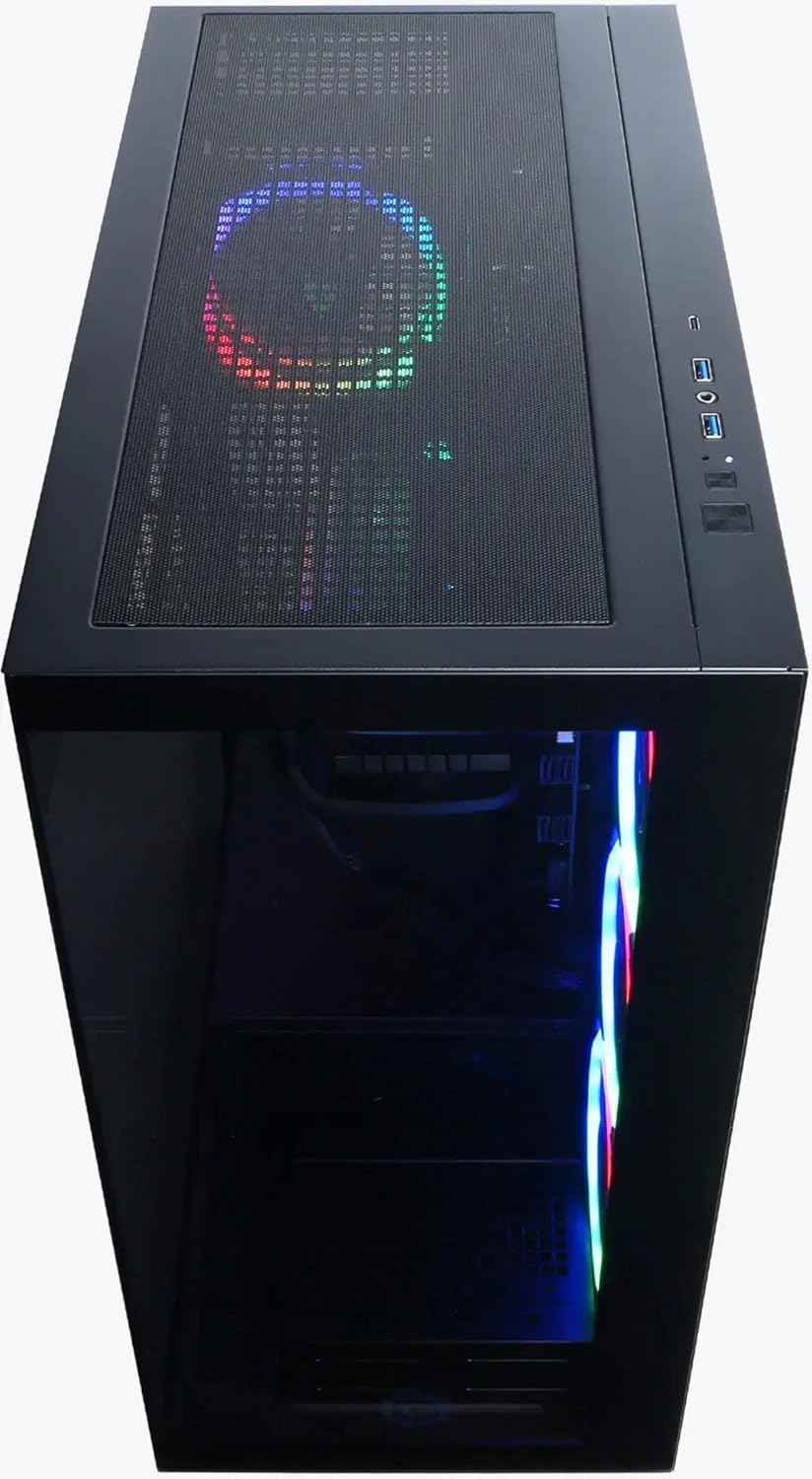
Immagine: Un interno view of the CyberPowerPC Gamer Supreme desktop, highlighting the liquid cooling system and vibrant RGB fans, which contribute to optimal performance.
Aggiornamenti di sistema
Regularly check for Windows updates via Settings > Windows Update. Keep your graphics drivers, chipset drivers, and other component drivers updated to ensure system stability and performance.
Manutenzione
Pulizia
To maintain optimal performance and longevity, regularly clean your computer. Use compressed air to clear dust from ventilation grilles and fan blades. Wipe exterior surfaces with a soft, damp cloth. Ensure the computer is powered off and unplugged before cleaning.
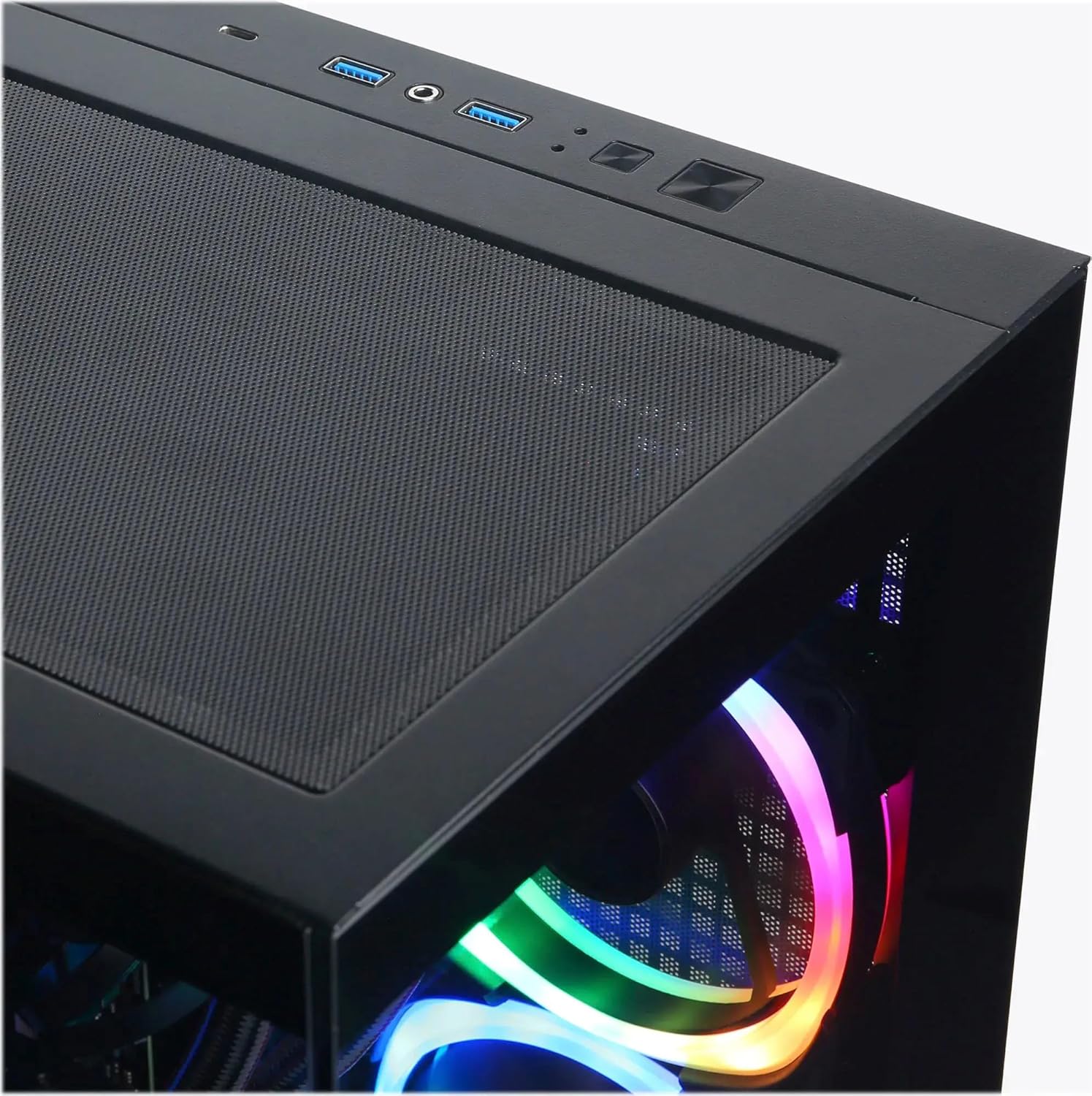
Immagine: dall'alto verso il basso view of the CyberPowerPC Gamer Supreme desktop, illustrating the mesh top panel designed for efficient heat dissipation and airflow.
Manutenzione del software
- Antivirus: Keep your antivirus software updated and perform regular scans.
- Pulizia disco: Eseguire periodicamente la Pulizia disco per rimuovere i dati temporanei files.
- Defragmentation (HDD only): While your system uses an SSD (which does not require defragmentation), if you add a traditional hard drive, consider defragmenting it regularly.
Risoluzione dei problemi
Questa sezione fornisce soluzioni ai problemi più comuni che potresti riscontrare.
| Problema | Possibile causa | Soluzione |
|---|---|---|
| Il computer non si accende. | Power cord loose; PSU switch off; faulty power outlet. | Check power cord connections; ensure PSU switch is ON; try a different outlet. |
| Nessuna visualizzazione sul monitor. | Monitor cable loose; connected to wrong port; monitor off. | Ensure monitor cable is securely connected to the graphics card port; check monitor power. |
| Il sistema è lento o si blocca. | Too many programs running; outdated drivers; overheating. | Close unnecessary programs; update drivers; ensure proper ventilation. |
| Periferiche (tastiera/mouse) non funzionanti. | Loose connection; faulty peripheral; driver issue. | Reconnect peripherals; try different USB ports; check device manager for driver issues. |
If you encounter issues not listed here or require further assistance, please contact CyberpowerPC customer support.
Specifiche
| Componente | Dettaglio |
|---|---|
| Processore | Intel Core Ultra 9 285K (3.7GHz, 24 Cores, up to 5.7GHz boost) |
| Scheda grafica | NVIDIA GeForce RTX 5080 16 GB GDDR7 |
| Memoria RAM | 64 GB DDR5 6400 MHz |
| Magazzinaggio | SSD PCIe 4.0 NVMe da 4 TB |
| Sistema operativo | Windows 11 Casa |
| Raffreddamento | Sistema di raffreddamento a liquido |
| Dimensioni (LxWxH) | 25 x 21 x 13 pollici |
| Peso | 46 libbre |
Garanzia e supporto
Your CyberPowerPC Gamer Supreme Liquid Cooled Gaming Desktop Computer comes with a standard manufacturer's warranty. Please refer to the warranty card included in your package for specific terms and conditions, including warranty duration and coverage details.
For technical support, troubleshooting assistance, or warranty claims, please contact CyberpowerPC customer service. You can typically find contact information on the CyberpowerPC official websito o nella documentazione fornita con il computer.
Visit the official CyberpowerPC store on Amazon for more information: CyberpowerPC Amazon Store