
1. Introduzione
This manual provides detailed instructions for the installation, operation, and maintenance of your Hikity Android 15 Car Stereo. This unit is designed to enhance your driving experience with advanced features such as wireless CarPlay, Android Auto, GPS navigation, and a high-resolution touchscreen. Please read this manual thoroughly before use to ensure proper installation and optimal performance.
2. Contenuto della confezione
Verifica che tutti gli articoli elencati di seguito siano inclusi nel tuo pacchetto:
- Unità stereo per auto Android
- Decoder Canbus
- Antenna GPS
- AHD posteriore View Telecamera
- Microfono esterno
- Cavo di alimentazione
- Cavi USB (x2)
- Cavo di ingresso della telecamera
- RCA
- Strumento di installazione

Image: Product dimensions, rear port layout, and a visual list of all included accessories.
3. Configurazione e installazione
3.1 Compatibilità del veicolo
This car stereo is specifically designed for a perfect fit and integration with:
- Citroën Berlingo (2015-2018)
- Peugeot Partner (2008-2019)

Image: Car stereo integrated into a compatible vehicle dashboard.
3.2 Cablaggio e collegamenti
Refer to the wiring diagram provided with your unit for specific connections. Ensure all cables are securely connected to their corresponding ports. Incorrect wiring can damage the unit or vehicle electronics.

Immagine: Posteriore view of the car stereo with labeled connection ports.
3.3 Installazione della telecamera di backup
Il retrovisore AHD incluso view camera provides parking assistance. Connect the camera as follows:
- Connect the red cable (power) to the vehicle's backup light positive ('+').
- Connect the black cable (ground) to the vehicle's ground ('GND').
- Plug the video signal cable into the camera input port on the car stereo.
To activate guidelines: Navigate to Car Info > About > Custom Set. Turn on 'show dynamic trackline' and 'show static trackline'.

Image: Backup camera wiring diagram.

Immagine: Example of backup camera display with parking guidelines.
3.4 Configurazione del controllo del volante
To enable original steering wheel controls:
- Vai a Impostazioni > Impostazioni di fabbrica (Password: 1234).
- Selezionare Impostazioni del protocollo.
- Scegli quello corretto Marchio Protocol Box (refer to the label on your Canbus protocol box).
- Follow the on-screen instructions to learn each steering wheel button function.

Immagine: Interfaccia di apprendimento dei comandi al volante.
4. Istruzioni per l'uso
4.1 Display touchscreen
The unit features a 9-inch IPS capacitive touchscreen with a resolution of 1280x720, providing clear and vibrant visuals. Use gentle touches for navigation and selections.

Image: High-resolution IPS touchscreen display.
4.2 Wireless and Wired CarPlay & Android Auto
Connect your smartphone seamlessly via Bluetooth or USB cable to access CarPlay or Android Auto. This allows for integrated use of navigation, music, messages, and voice assistants (Siri/Google Assistant) directly from the car stereo display.
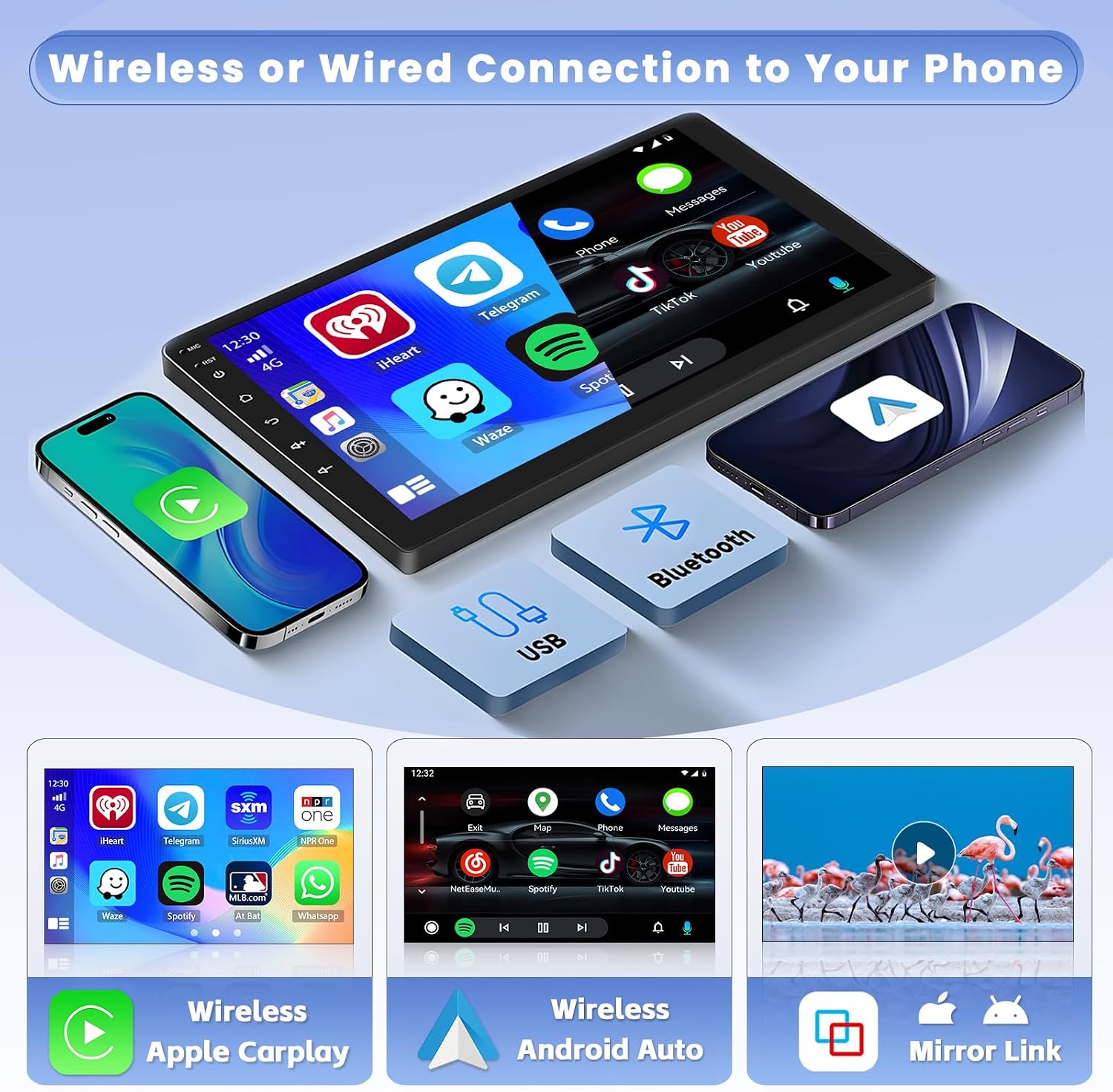
Image: Wireless and wired connectivity for CarPlay and Android Auto.
4.3 Navigazione GPS e Wi-Fi
Utilize the built-in GPS for navigation with both online and offline maps. Connect to Wi-Fi or a mobile hotspot to access real-time traffic updates, browse the internet, stream videos, and download applications from the app store.

Image: GPS navigation and Wi-Fi connectivity features.
4.4 Bluetooth 5.0 and Voice Control
Bluetooth 5.0 ensures faster transmission speeds for hands-free calling, phonebook download, and audio streaming. Use voice commands via Siri or Google Assistant for safe operation while driving.

Image: Bluetooth 5.0 hands-free calling and voice control.
4.5 FM/RDS Radio and 32-Band DSP
The unit includes an FM/RDS radio with 30 preset stations to keep you informed and entertained. The pre-installed 32-band DSP (Digital Sound Processor) software allows for precise audio frequency adjustments, optimizing your sound experience.

Image: FM/RDS radio interface and 32-band DSP equalizer settings.
4.6 Interfaccia utente e personalizzazione
The car stereo offers a user-friendly interface with 59 customizable UI themes. You can personalize your home screen by long-pressing to move frequently used applications for quick access.

Image: Customizable user interface with app icons.
4.7 Schermo diviso e collegamento mirror
The split-screen function allows you to run two applications simultaneously, such as GPS navigation and video playback. Mirror Link enables you to display your smartphone's content directly on the car stereo's large screen.
5. Manutenzione
Per garantire la longevità e le prestazioni ottimali dell'autoradio, seguire queste linee guida per la manutenzione:
- Pulizia: Utilizzare un panno morbido e asciutto per pulire lo schermo e l'esterno. Evitare detergenti abrasivi o solventi.
- Aggiornamenti software: Controllare periodicamente la presenza di aggiornamenti software e installarli per garantire che il sistema funzioni in modo efficiente e disponga delle funzionalità e delle patch di sicurezza più recenti.
- Temperatura: Evitare di esporre l'unità a temperature estreme, sia calde che fredde, per periodi prolungati.
- Energia: Ensure the vehicle's electrical system is stable to prevent power surges that could damage the unit.
6. Risoluzione Dei Problemi
Se riscontri problemi con l'autoradio, fai riferimento ai seguenti problemi comuni e alle relative soluzioni:
- Nessun potere:
Controllare tutti i collegamenti elettrici. Assicurarsi che l'accensione del veicolo sia inserita. Verificare che il fusibile non sia bruciato. - Nessun suono:
Controllare i collegamenti degli altoparlanti. Assicurarsi che il volume non sia disattivato o impostato al minimo. Verificare le impostazioni di uscita audio. - Touchscreen non reattivo:
Restart the unit by pressing and holding the power button. If the issue persists, a factory reset might be necessary (note: this will erase personal data). - Segnale GPS perso:
Assicurarsi che l'antenna GPS sia installata correttamente e abbia una visuale libera view of the sky. Move the vehicle to an open area away from tall buildings or interference. - Problemi di connettività Bluetooth/Wi-Fi:
Ensure Bluetooth/Wi-Fi is enabled on both the car stereo and your device. Try restarting both devices. For Wi-Fi, ensure the network password is correct. - CarPlay/Android Auto non si connette:
Ensure your phone's operating system is up to date. Try a different USB cable if using a wired connection. Restart both the phone and the car stereo.
Per problemi persistenti, contattare l'assistenza clienti.
7. Specifiche
| Caratteristica | Specificazione |
|---|---|
| Marca | Stravagante |
| Numero di modello | Hikity-A7878A3453H1MI2EU26-C304 |
| Tecnologia di connettività | Bluetooth, USB, Wi-Fi |
| Tipo di controllore | Android |
| Caratteristiche speciali | Android Auto, Integrated Bluetooth, GPS Navigation, FM Tuner |
| Dispositivi compatibili | Smartphone |
| Tipo di connettore | CVBS, AHD, 3.5 mm jack |
| Modalità di uscita audio | Stereo |
| Configurazione del canale audio surround | 4.0 |
| Codifica video | MKV, RMVB, AVI, MP4, MDV |
| Peso dell'articolo | 1.4 chilogrammi |
| Potenza di uscita | 45 Watt |
| Numero di canali | 4 |
| Internet Applications | Google TV, Browser, Prime Video, iTunes |
| Metodo di controllo | Tocco |
| Tipo di uscita audio | Bluetooth, FM/RDS |
| Formato multimediale digitale | AVI, MP3 audio, WMA |
| Paese di origine | Cina |
8. Garanzia e supporto
L'autoradio Hikity è dotata di un Garanzia di 12 mesi. We offer lifetime online assistance for inquiries and aim to respond within 24 hours.
For product support, technical assistance, or warranty claims, please contact Hikity customer service through the platform where you purchased the product or refer to the contact information provided in your purchase documentation.
Inoltre, per gli acquisti idonei è disponibile una politica di reso/sostituzione di 30 giorni.