
Introduzione
The Samsers KF06X Foldable Bluetooth Keyboard is a full-size wireless keyboard designed for portability and multi-device compatibility. It features a numeric keypad, adjustable 7-color backlight, and supports connection to up to three devices simultaneously. This manual provides essential information for setting up, operating, maintaining, and troubleshooting your keyboard.
Contenuto della confezione
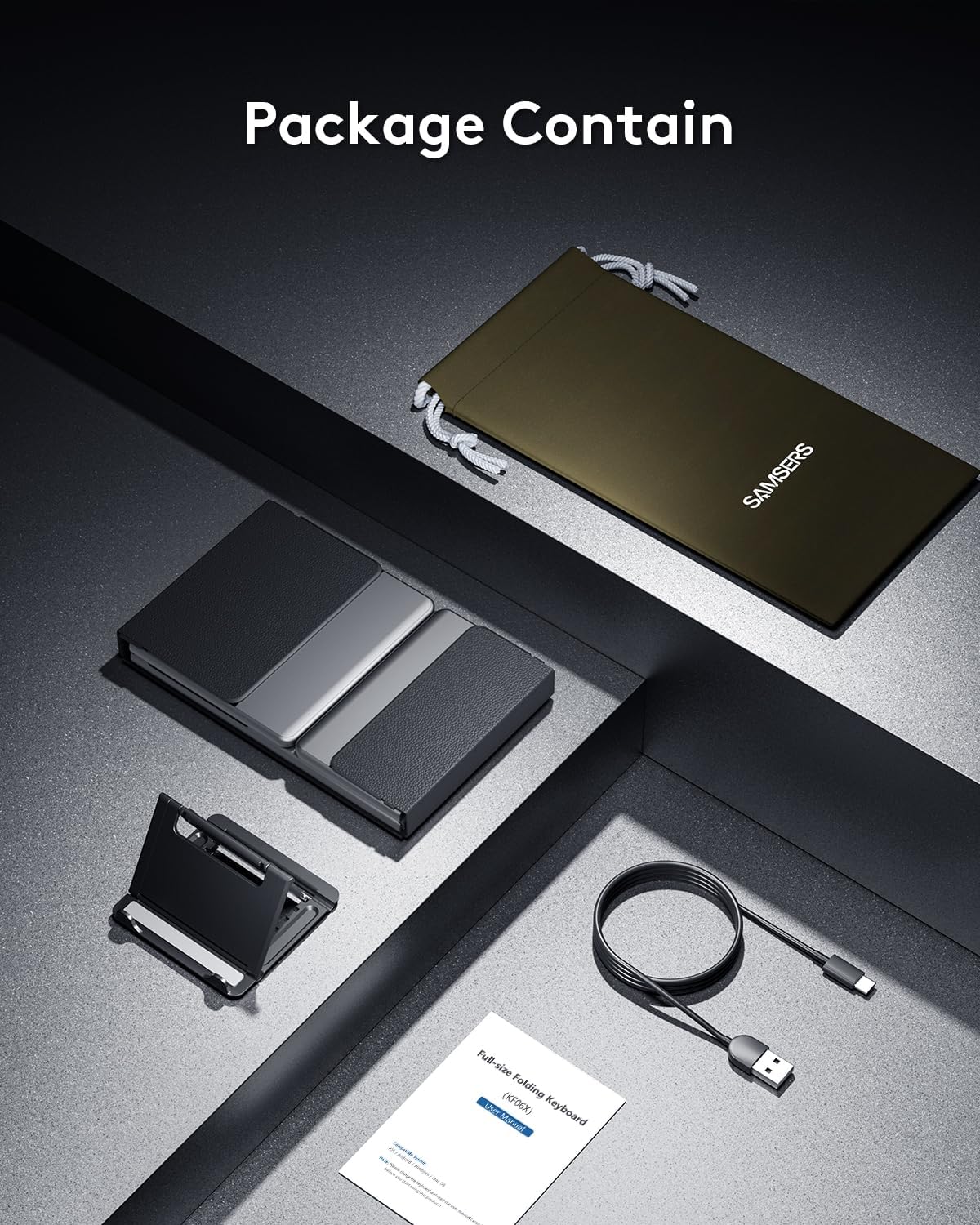
Si prega di verificare che tutti gli articoli siano presenti nel pacco:
- 1 x Foldable Keyboard with backlight
- 1 cavo di ricarica di tipo C
- Supporto del telefono 1 x
- 1 x Borsa portaoggetti in velluto
- 1 x Manuale di istruzioni
Impostare
1. Ricarica iniziale
Before first use, fully charge the keyboard for 2-3 hours using the provided Type-C cable. A low battery may affect keyboard functionality.

2. Accensione/spegnimento
Per accendere la tastiera, aprirla completamente. La tastiera si accenderà automaticamente. Per spegnerla, ripiegarla. Si spegnerà automaticamente per risparmiare la batteria.
3. Accoppiamento Bluetooth
The Samsers KF06X keyboard supports pairing with up to three devices. Follow these steps to pair your device:
- Aprire la tastiera per accenderla.
- Premere il tasto Modello BT1, Modello BT2, O Modello BT3 key once to select the desired Bluetooth channel.
- Premere e tenere premuto il tasto selezionato BT key (e.g., BT1) for 5 seconds until its indicator light starts flashing blue. This indicates the keyboard is in pairing mode.
- Sul tuo dispositivo (smartphone, tablet, laptop), vai alle impostazioni Bluetooth e abilita il Bluetooth.
- Cercare available devices. The keyboard will appear as Samsers KF06X.
- Selezionare Samsers KF06X to connect. The indicator light will stop flashing and remain solid blue once connected.
- Repeat these steps for other devices using BT2 and BT3 channels.
Istruzioni per l'uso
1. Typing and Layout
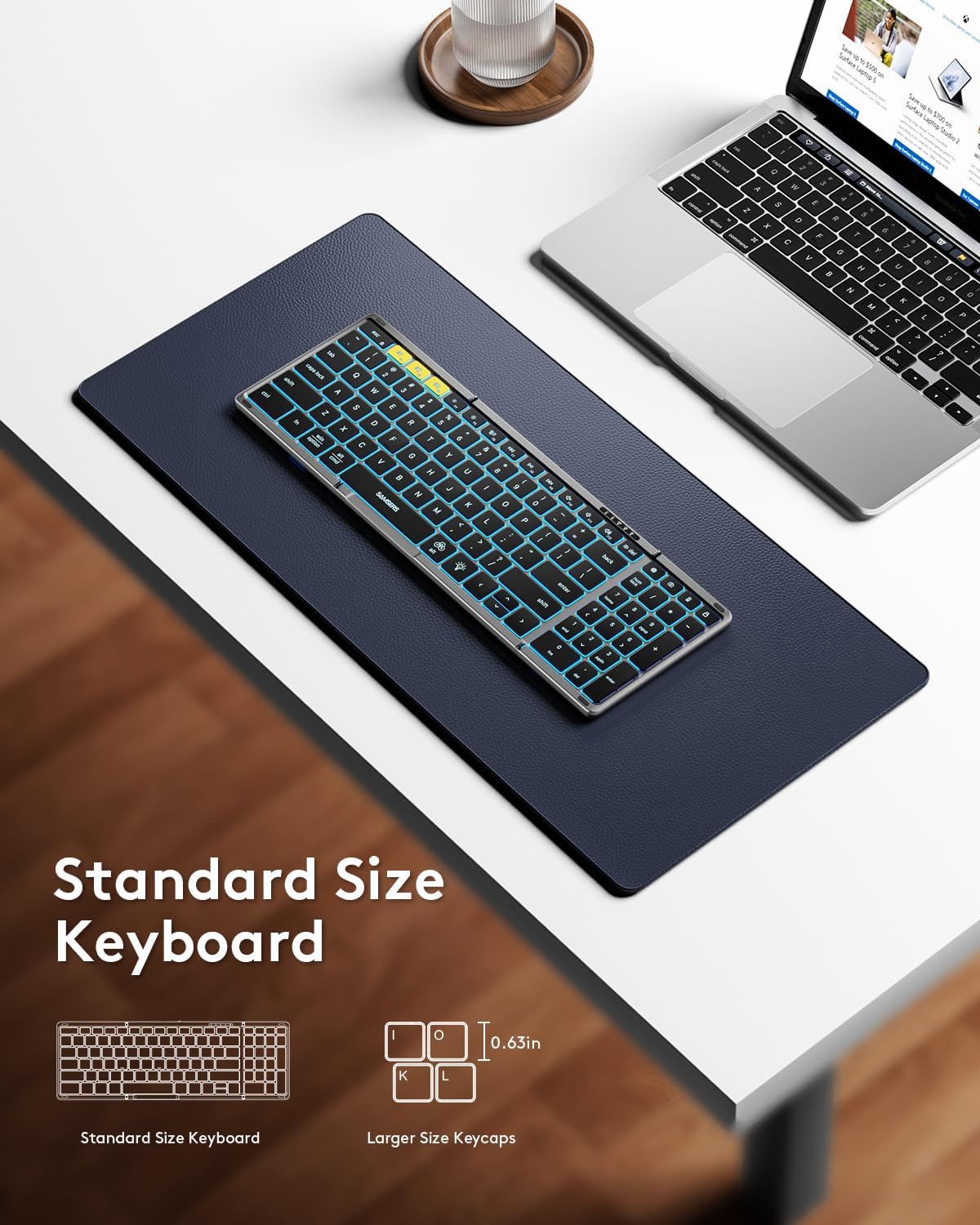
The keyboard features a full-size layout with standard 0.63-inch keys and a dedicated numeric keypad for efficient data entry. The scissor-switch keys provide a quiet and comfortable typing experience.

2. Controllo della retroilluminazione
The keyboard features an adjustable backlight with 7 colors and 4 brightness levels:
- Regola luminosità: Premere il tasto Chiave dell'icona della lampadina (usually F4 or a dedicated key) to cycle through 4 brightness levels (High-Medium-Low-Off).
- Cambiare colore: Premere Fn + Alt to cycle through 7 available backlight colors (Green, Purple, Blue, Yellow, White, Cyan, Red).

3. Funzioni multimediali
Access multimedia shortcuts and other functions by pressing the Fn key in combination with the corresponding F-keys (F1-F12) or other designated keys. Refer to the key legends for specific functions.
4. Device Switching
To switch between paired devices, simply press the corresponding Modello BT1, Modello BT2, O Modello BT3 key once. The keyboard will seamlessly switch its connection to the selected device.
Manutenzione
To ensure the longevity and optimal performance of your Samsers KF06X keyboard, follow these maintenance guidelines:
- Keep the keyboard clean by wiping it with a soft, dry cloth. Avoid abrasive cleaners or solvents.
- Proteggere la tastiera da temperature estreme, luce solare diretta e umidità.
- Store the keyboard in its velvet storage bag when not in use to prevent scratches and dust accumulation.
- Handle the folding mechanism gently to avoid damage to the seamless metal hinge.
Risoluzione dei problemi
If you encounter issues with your Samsers KF06X keyboard, refer to the following common solutions:
- La tastiera non si connette/associa: Ensure the keyboard is fully charged. On your device, delete/remove/forget any previous pairing records for the keyboard before attempting to re-pair. Make sure Bluetooth is enabled on your device and the keyboard is in pairing mode (flashing blue indicator).
- Typing lag or unresponsiveness: Check the keyboard's battery level and recharge if necessary. Ensure there are no other strong wireless signals or devices interfering with the Bluetooth connection. Try disconnecting and reconnecting the keyboard.
- Retroilluminazione non funzionante: Press the Light Bulb icon key to cycle through brightness levels. Ensure the keyboard is powered on.
- Numeric keypad not functioning: Ensure the 'Num Lock' function is activated if required by your operating system.
Specifiche
| Numero di modello | KF06X |
| Dimensioni del prodotto (aperto) | 13.5 x 4.5 x 0.35 pollici |
| Peso dell'articolo | 11 once |
| Tecnologia di connettività | Bluetooth 5.1 |
| Dispositivi compatibili | Laptop, PC, Smartphone, Tablet (iOS, Android, Windows, Mac OS) |
| Caratteristiche speciali | Backlit (7 colors, 4 brightness levels), Foldable, Lightweight, Numeric Keypad, Rechargeable |
| Batteria | 500 mAh agli ioni di litio (inclusi) |
| Battery Life (no backlight) | Fino a 150 ore |
| Tempo di standby | Fino a 300 giorni |
Garanzia e supporto
Samsers provides the following for your product:
- Garanzia di 1 anni: Your keyboard is covered by a 1-year guarantee for quality and guidance.
- 30-Day Free Return or Replacement Policy: If you are not satisfied with your purchase, you may return or replace it within 30 days.
- Servizio a vita: Samsers offers technical service and support for the lifetime of the product.
For further assistance, please contact Samsers customer support.


