
1. Introduzione
Thank you for choosing the Gawfolk 34-inch Ultrawide Curved Gaming Monitor. This manual provides essential information for setting up, operating, and maintaining your monitor. Please read it thoroughly before use to ensure optimal performance and safety.
The Gawfolk GF340C monitor features a 34-inch 1500R curved VA panel, UWQHD (3440x1440) resolution, a 165Hz refresh rate, and a 1ms response time (GtG). It supports FreeSync technology for smooth gaming and includes Eye Care Technology to reduce eye strain during extended use. The monitor also offers multiple connectivity options and VESA mount compatibility.

Figura 1: Fronte view of the Gawfolk 34-inch Ultrawide Curved Gaming Monitor.
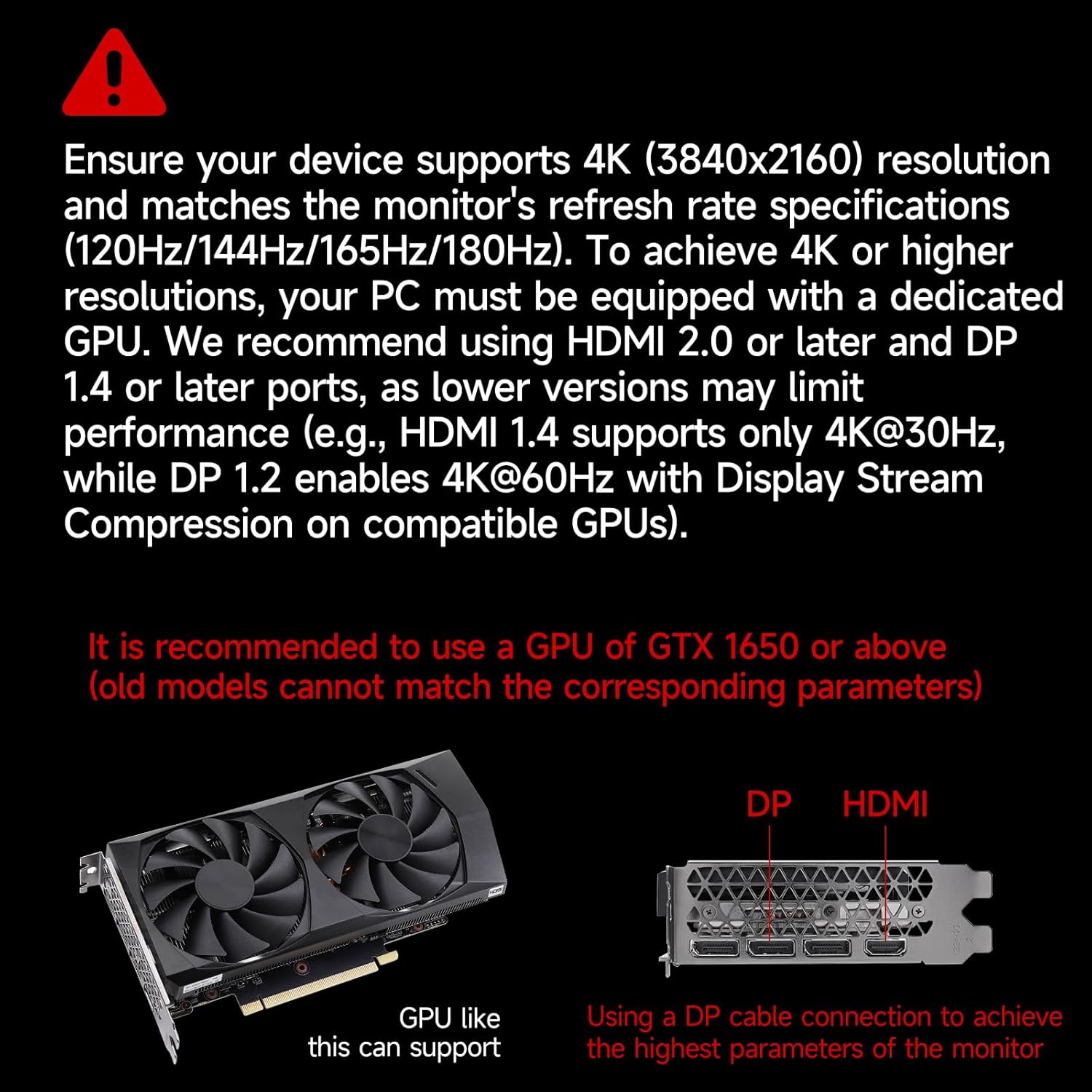
Figura 2: Dall'alto verso il basso view illustrating the 1500R curvature of the monitor, designed for immersive gameplay.
2. Cosa c'è nella scatola
Disimballare con cura la scatola e assicurarsi che tutti gli articoli siano presenti e in buone condizioni. Se alcuni articoli risultano mancanti o danneggiati, contattare l'assistenza clienti.
- Gawfolk 34-inch Ultrawide Curved Gaming Monitor
- Monitor Stand (Chassis)
- Cavo di alimentazione
- Cavo HDMI
- Cavo DisplayPort (DP)
- Manuale dell'utente (questo documento)
3. Impostazione
3.1 Montaggio del supporto
- Posizionare lo schermo del monitor a faccia in giù su una superficie morbida e pulita per evitare graffi.
- Attach the stand neck to the back of the monitor until it clicks into place or is secured with screws (refer to the diagram for specific screw locations).
- Attach the base to the stand neck and tighten the thumb screw or screws securely.
- Sollevare con cautela il monitor assemblato e posizionarlo su una superficie piana e stabile.
3.2 Installazione con montaggio VESA (opzionale)
The monitor supports VESA 75 x 75 mm mounting. If you plan to use a VESA mount (not included), remove the stand and attach the VESA mount bracket to the monitor's VESA holes using appropriate screws. Ensure the VESA mount can support the monitor's weight (approximately 5.55 kg).
3.3 Connessione ai dispositivi
The monitor provides multiple input ports for various devices. Ensure your device supports the required resolutions and refresh rates for optimal performance.
- DisplayPort (DP 1.4): Connect your PC or laptop using the provided DP cable for resolutions up to 3440x1440 at 165Hz.
- HDMI (HDMI 2.0): Connect your PC, laptop, or gaming console (e.g., PS5, Xbox) using an HDMI cable. HDMI 2.0 supports up to 3440x1440 at 120Hz.
- Uscita audio: Collegare altoparlanti esterni o cuffie al jack audio da 3.5 mm.
Important: For 4K (3840x2160) resolutions, your PC must be equipped with a dedicated GPU. We recommend using HDMI 2.0 or later and DP 1.4 or later ports. Lower versions may limit performance (e.g., HDMI 1.4 supports only 4K@30Hz, while DP 1.2 enables 4K@60Hz with Display Stream Compression on compatible GPUs). It is recommended to use a GPU of GTX 1650 or above.

Figure 3: Diagram illustrating various device connections (PC, Notebook, PS5, Xbox) and their supported resolutions/refresh rates via DP 1.4 and HDMI 2.1 (note: product specs list HDMI 2.0).

Figure 4: Visual guide for GPU compatibility and recommended port types (DP 1.4, HDMI 2.0 or later) for optimal display performance.
4. Istruzioni per l'uso
4.1 Accensione/spegnimento
Connect the power cable to the monitor and a power outlet. Press the power button, usually located on the back or bottom right of the monitor, to turn it on or off.
4.2 Menu di visualizzazione su schermo (OSD)
The OSD menu allows you to adjust various monitor settings. Use the buttons on the back or bottom of the monitor to navigate the menu. Common settings include:
- Luminosità/Contrasto: Regola la luminanza dell'immagine.
- Impostazioni colore: Modifica la temperatura del colore, la gamma e la saturazione.
- Sorgente di input: Selezionare manualmente tra gli ingressi HDMI e DisplayPort.
- Modalità Immagine: Seleziona le modalità di visualizzazione preimpostate (ad esempio, Standard, Gioco, Film).
- Modalità salva vista: Reduces blue light emissions to minimize eye fatigue.
- Sincronizzazione libera: Enable/disable adaptive synchronization for tear-free gaming.
4.3 Funzionalità di visualizzazione
The Gawfolk GF340C monitor offers several features to enhance your viewesperienza di gioco e di gioco:
- UWQHD 3440x1440 Resolution: Provides a wide and detailed viewzona di ingaggio.
- Frequenza di aggiornamento 165Hz: Ensures smooth motion and reduced input lag, especially beneficial for gaming.
- Tempo di risposta 1 ms (GtG): Minimizes ghosting and motion blur for crisp visuals.
- Supporto HDR: Enhances contrast and color depth for a more vivid image.
- Multi-Tasking (PIP/PBP): Display multiple sources simultaneously. Refer to the OSD menu for Picture-in-Picture (PIP) and Picture-by-Picture (PBP) settings.

Figure 5: The monitor's capability for multi-tasking, showing multiple programs and external device connections, including PIP/PBP mode.

Figure 6: Highlighting the 165Hz refresh rate and 1ms GtG response time for superior gaming performance.

Figure 7: Demonstrating the monitor's ability to capture fine details with Adaptive Sync and 300 cd/m² brightness.

Figure 8: The Eye Saver Mode, which reduces blue light and flicker for comfortable extended use.
5. Manutenzione
5.1 Pulizia del monitor
- Prima di pulire il monitor, scollegarlo sempre dalla presa di corrente.
- Utilizzare un panno morbido e privo di lanugine leggermente dampcon acqua o con un detergente per schermi delicato e non abrasivo.
- Non spruzzare il detergente direttamente sullo schermo. Applicalo prima sul panno.
- Evitare l'uso di prodotti chimici aggressivi, alcol o materiali abrasivi, poiché potrebbero danneggiare la superficie dello schermo.
5.2 Conservazione
If storing the monitor for an extended period, ensure it is clean, dry, and stored in its original packaging or a protective cover to prevent dust and damage.
6. Risoluzione Dei Problemi
Se riscontri problemi con il tuo monitor, fai riferimento alle seguenti soluzioni comuni:
| Problema | Possibile soluzione |
|---|---|
| Nessuna immagine sullo schermo | Ensure the power cable is securely connected and the monitor is turned on. Check that the video cable (HDMI/DP) is firmly connected to both the monitor and your device. Select the correct input source via the OSD menu. |
| Sfarfallio o distorsione dell'immagine | Check video cable connections. Ensure your graphics card drivers are up to date. Try a different video cable. Disable FreeSync in the OSD menu to see if the issue persists. Verify your device's resolution and refresh rate settings are compatible with the monitor. |
| Pixel morti o pixel bloccati | A small number of dead or stuck pixels is common in LCD/LED technology and may not indicate a defect. If the number of pixels exceeds manufacturer specifications, contact customer support. |
| I pulsanti non rispondono | Unplug the monitor, wait 30 seconds, then plug it back in. Ensure no buttons are physically stuck. |
| Nessun audio dalle cuffie/altoparlanti | Ensure external audio devices are properly connected to the 3.5mm audio out port. Check audio settings on your connected device and the monitor's OSD menu. |
If the problem persists after trying these solutions, please contact Gawfolk customer support.
7. Specifiche
Below are the technical specifications for the Gawfolk GF340C monitor:
| Caratteristica | Specificazione |
|---|---|
| Marca | Gente di Gawfolk |
| Nome del modello | GF340C |
| Dimensioni dello schermo | 34 pollici |
| Risoluzione | UWQHD 3440 x 1440p |
| Proporzioni | 21:9 |
| Curvatura | 1500R |
| Tipo di pannello | VA |
| Frequenza di aggiornamento | Frequenza 165 Hz |
| Tempo di risposta | 1 ms (GtG) |
| Luminosità | 350 cd/m² (lumens) |
| Rapporto di contrasto | 3000:1 |
| Gamma di colori | 99% sRGB (8-bit, 16.7 million colors) |
| Viewangolo di ing | 178 gradi |
| Sincronizzazione adattiva | Sincronizzazione gratuita |
| Connettività | 2 x HDMI (2.0), 2 x DisplayPort (1.4), 1 x Audio Out (3.5mm) |
| Supporto VESA | 75 x 75 millimetri |
| Consumo energetico | 12 Watt |
| Dimensioni (P x L x A) | 23P x 80L x 44H centimetri |
| Peso | 5.55 chilogrammi |
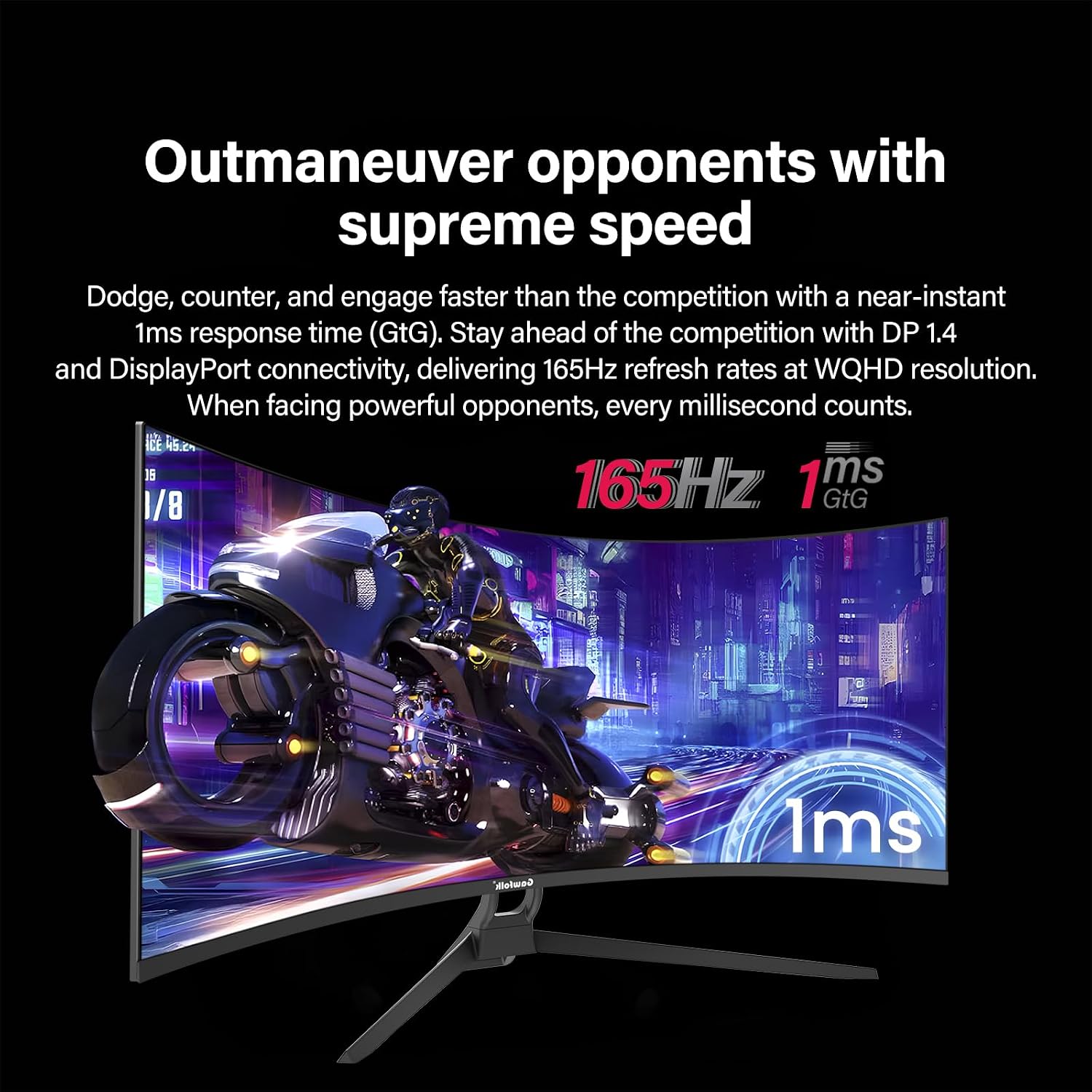
Figure 9: Comparison of the 21:9 ultrawide aspect ratio with a traditional 16:9 display, highlighting the increased screen real estate.
8. Garanzia e supporto
8.1 Garanzia del produttore
This Gawfolk monitor comes with a Garanzia del produttore di 1 anni dalla data di acquisto. La presente garanzia copre i difetti di materiali e di fabbricazione in condizioni di normale utilizzo. Non copre i danni causati da uso improprio, incidenti, modifiche non autorizzate o fattori esterni.
Conservare la prova d'acquisto per eventuali richieste di garanzia.
8.2 Assistenza clienti
For technical assistance, warranty claims, or any questions regarding your Gawfolk monitor, please contact Gawfolk customer support. Refer to the official Gawfolk websito o nella documentazione di acquisto per i dettagli di contatto.
Note: The provided product data did not include specific contact information for support. Please refer to the product packaging or the official brand websito per i canali di supporto più aggiornati.