
Unitree Unitree 4D LiDAR L2 3D Laser Radar Navigation Obstacle Avoidance Slam Ultra-Wide Angle 360-Degree Depth Scan
Manuale utente Unitree 4D LiDAR L2
Model: Unitree 4D LiDAR L2 3D Laser Radar Navigation Obstacle Avoidance Slam Ultra-Wide Angle 360-Degree Depth Scan
Marca: Unitree
1. Introduzione
This manual provides essential information for the safe and effective operation of the Unitree 4D LiDAR L2. The L2 is a cutting-edge 3D laser radar designed for precise navigation, obstacle avoidance, and comprehensive depth scanning in various environments.
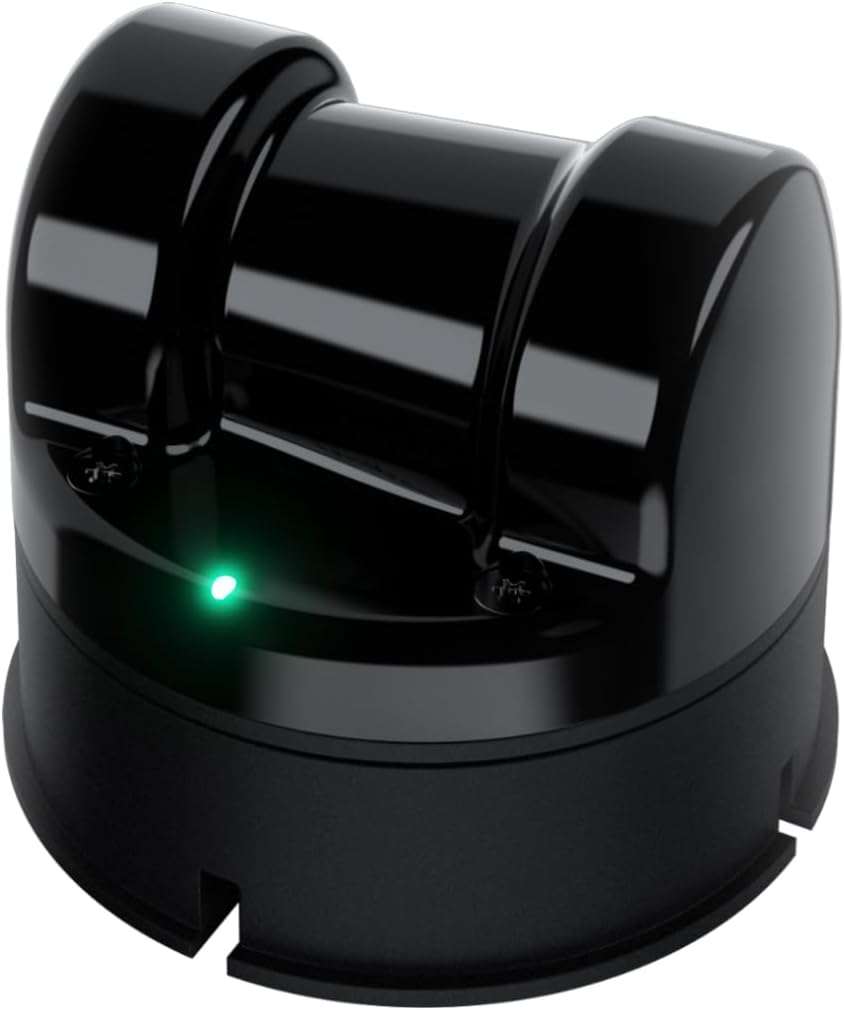
Image: The Unitree 4D LiDAR L2 device, a compact black unit with a green indicator light.
Caratteristiche principali:
- Cutting-edge 4D LiDAR technology: For precise navigation and obstacle avoidance.
- Extensive range: Detects objects up to 30 meters away with 64,000 points per second.
- Wide-angle scanning: 360° x 96° ultra-wide field of view for comprehensive depth scanning.
- La sicurezza prima di tutto: Class 1 eye-safe laser, resistant to strong environmental light, suitable for indoor and outdoor use.
- Compatibilità versatile: Supports ROS1/ROS2/WINDOWS, offers open-source SLAM solutions, SDK documentation, and technical assistance.

Image: Visual representation of Unitree 4D LiDAR L2's performance metrics, including 64,000 points/s effective frequency, 360°x96° FOV, and 4.5mm distance resolution.
2. Impostazione
Proper setup is crucial for optimal performance of your Unitree 4D LiDAR L2. Follow these general guidelines:
- Disimballaggio: Carefully remove the LiDAR unit and all accessories from the packaging. Inspect for any visible damage.
- Montaggio: Securely mount the L2 unit in the desired location. Ensure a stable, vibration-free surface. Consider the field of view requisiti per la tua candidatura.
- Collegamento elettrico: Connect the L2 to a stable power source using the provided direct wiring. Ensure the power supply meets the specifications outlined in the 'Specifications' section.
- Connessione dati: Connect the L2 to your host system (e.g., computer, robot controller) using the appropriate communication interface (ENET/TTL UART). Refer to the SDK documentation for specific wiring diagrams and connection protocols.
- Installazione del software: Install the necessary drivers and SDKs (Software Development Kits) on your host system. The L2 supports ROS1, ROS2, and Windows environments.

Image: The Unitree 4D LiDAR L2 shown with key specifications such as 360°x96° ultra-wide angle scanning, 64000 points/s effective frequency, 2cm measurement accuracy, 30m range, 230g weight, ENET/TTL UART communication, 0.05m near blind spot, and 75x75x65mm compact size.
3. Istruzioni per l'uso
Once the Unitree 4D LiDAR L2 is physically set up and connected, you can begin operation. The L2 is designed for advanced applications requiring precise environmental mapping and object detection.
3.1. Initializing the Sensor
- Ensure the L2 is powered on. The indicator light should show a stable green.
- Launch the appropriate software interface or ROS node on your host system.
- Verify that the system recognizes the L2 and is receiving data streams.
3.2. Data Acquisition and Processing
- The L2 generates 64,000 points per second, providing high-density point cloud data.
- Utilize the provided SDKs and open-source SLAM solutions (e.g., POINT-LIO algorithm available on GitHub) to process the raw point cloud data for mapping, navigation, and obstacle avoidance.
- The L2's ultra-wide angle 360° x 96° non-repetitive scanning ensures comprehensive coverage and detailed environmental reconstruction.

Immagine: Example of LiDAR point cloud data visualizing a staircase, demonstrating the L2's ability to capture detailed 3D structural information.

Image: Illustration of the L2's open-source SLAM solution and non-repetitive scanning capabilities, showing detailed point cloud generation.
3.3. Considerazioni ambientali
- The L2 is designed to be resistant to strong environmental light, making it suitable for both indoor and outdoor applications.
- Under strong light conditions (e.g., 100Klux outdoors), the L2 maintains stable ranging and high-precision mapping.

Immagine: Examples of LiDAR point cloud data demonstrating the L2's effectiveness in both indoor whole-house dynamic scanning and outdoor real-scene dynamic scanning.
4. Manutenzione
Regular maintenance ensures the longevity and consistent performance of your Unitree 4D LiDAR L2.
- Pulizia: Gently clean the optical window and housing with a soft, lint-free cloth. Avoid abrasive materials or harsh chemicals that could scratch the lens or damage the casing.
- Protezione ambientale: While resistant to environmental light, avoid exposing the unit to extreme temperatures, excessive moisture, or direct physical impact.
- Aggiornamenti del firmware: Periodically check the Unitree Robotics official website or support channels for firmware updates. Keeping the firmware current can improve performance and add new features.
- Ispezione dei cavi: Regularly inspect all power and data cables for signs of wear, fraying, or damage. Replace damaged cables immediately to prevent operational issues or safety hazards.
5. Risoluzione Dei Problemi
This section addresses common issues you might encounter with your Unitree 4D LiDAR L2.
| Problema | Possibile causa | Soluzione |
|---|---|---|
| No power/Indicator light off | Loose power connection, faulty power supply, unit not receiving power. | Check power cable connections. Verify power supply output. Try a different power outlet or supply if available. |
| No data output/Software not detecting L2 | Incorrect data cable connection, driver issues, incorrect software configuration, network issues (for ENET). | Ensure data cables are securely connected. Reinstall drivers/SDK. Check software configuration settings (IP address for ENET). Restart host system and L2. |
| Inaccurate or noisy point cloud data | Dirty optical window, excessive vibration, strong external interference, incorrect mounting. | Clean the optical window. Ensure the mounting is stable. Minimize sources of vibration. Re-evaluate mounting position to avoid obstructions. |
| Surriscaldamento dell'unità | Poor ventilation, prolonged operation in high ambient temperatures. | Ensure adequate airflow around the unit. Operate within specified temperature ranges. Reduce operating time if necessary. |
If you encounter issues not listed here or require further assistance, please contact Unitree technical support.
6. Specifiche
Detailed technical specifications for the Unitree 4D LiDAR L2.
| Caratteristica | Descrizione |
|---|---|
| Modello | Unitree 4D LiDAR L2 |
| Tecnologia | LiDAR 4D |
| Frequenza effettiva | 64,000 punti/s |
| Campo di View (campo visivo) | 360° x 96° (Ultra-wide angle scanning) |
| Precisione della misurazione | 2 centimetri |
| Allineare | Up to 30 meters (@90% reflectivity) |
| Near Blind Spot | 0.05 metri |
| Classe laser | Class 1 (Eye-safe) |
| Resistenza ambientale | Resistant to strong environmental light (stable ranging up to 100Klux outdoors) |
| Interfaccia di comunicazione | ENET/TTL UART |
| Dispositivi compatibili | Various vehicles, ROS1/ROS2/WINDOWS systems |
| Fonte di alimentazione | Cablaggio diretto |
| Dimensioni | 75 x 75 x 65 mm (Compact size) |
| Peso | 230 grammi |
7. Garanzia e supporto
Unitree Robotics provides technical assistance and support for the L2 LiDAR unit. For warranty information, please refer to the documentation included with your purchase or visit the official Unitree Robotics websito.
For technical inquiries, SDK documentation, or open-source SLAM solutions, please visit the Unitree Robotics developer resources or contact their customer support team.
Informazioni sui contatti: Please refer to the Unitree Robotics official websito per i dettagli di contatto più aggiornati.
Ask a question about this manual
Ask about setup, troubleshooting, compatibility, parts, safety, or missing instructions. Manuals+ will review the question and use this page’s manual context to help answer it.