
SCULPFUN S9 Pro
Manuale di istruzioni per l'incisore laser SCULPFUN S9 Pro 10W
Model: S9 Pro | Brand: SCULPFUN
Prodotto finitoview
The SCULPFUN S9 Pro is a high-precision 10W laser engraver and cutter machine designed for versatile applications. It offers powerful engraving and cutting capabilities on a wide range of materials, including wood, leather, plastic, acrylic, and metal. With its advanced features, the S9 Pro ensures detailed and efficient results for various crafting and prototyping projects.

Figure 1: SCULPFUN S9 Pro 10W Laser Engraver, showcasing its robust frame and laser module.
Caratteristiche principali
- Potente modulo laser da 10 W: Enables precise engraving and cutting on various materials. Capable of cutting up to 20mm wood and 15mm acrylic.
- Ampia area di lavoro: A generous 400mm x 410mm (15.75" x 16.14") area for diverse project sizes.
- Alta precisione: Features a 0.06mm ultra-fine laser focus and 0.01mm precision for detailed work.
- Ampia compatibilità: Compatible with popular engraving software like LaserGRBL and LightBurn, supporting Windows and MAC systems. Supports various file formats including JPG, PNG, DXF, SVG, AI, G-code, NC, and BMP.
- Maggiore sicurezza: Equipped with a laser filter cover that blocks 98% of ultraviolet light, double safety power switch, and pre-drilled holes for secure wiring. Includes a steel pad to protect surfaces and mitigate fire hazards.
Guida all'installazione
The SCULPFUN S9 Pro is designed for straightforward assembly. Follow these steps for initial setup:
- Disimballaggio: Rimuovere con cautela tutti i componenti dall'imballaggio. Verificare che siano presenti tutti i pezzi elencati nella lista di imballaggio.
- Assemblaggio del telaio: Assemble the main frame of the engraver. The parts are typically labeled for easy identification. Refer to the included quick-start guide for visual instructions.
- Installazione del modulo laser: Securely attach the laser module to the gantry. Ensure it is firmly in place.
- Cablaggio: Connect all necessary cables, including power and data cables, according to the provided diagrams. Ensure connections are secure.
- Installazione del software: Install the recommended engraving software (e.g., LaserGRBL or LightBurn) on your computer. Drivers may be required for proper communication.
- Calibrazione iniziale: Perform initial calibration steps as outlined in the software or quick-start guide to ensure proper laser alignment and focus.
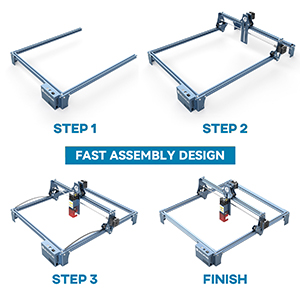
Figure 2: Visual representation of the fast assembly process for the SCULPFUN S9 Pro.

Figure 3: Diagram illustrating the 400x410mm large carving area of the engraver.
Istruzioni per l'uso
Operating the SCULPFUN S9 Pro involves preparing your design, setting up the material, and initiating the engraving or cutting process through the software.
Software Compatibility and Usage
The S9 Pro is compatible with a variety of mature engraving software, ensuring flexibility for users:
- Software supportato: LaserGRBL, LightBurn, Benbox, GrblController, LiteFire.
- Sistemi operativi: Supports Windows (XP, 7, 8, 10) and MAC systems (with LightBurn).
- File Formati: Compatible with JPG, PNG, DXF, SVG, AI, G-code, NC, BMP, and more.

Figure 4: Illustration of the broad software compatibility, including LaserGRBL and LightBurn.
Material Preparation and Laser Focus
Proper material placement and laser focusing are crucial for optimal results.
- Posizionamento materiale: Place your material flat on the working area. Use the included steel pad to protect your work surface from laser damage and fire hazards.
- Messa a fuoco laser: The S9 Pro features a 0.06mm ultra-fine laser focus. Adjust the laser module height to achieve the sharpest possible focus on your material. This ensures precise engraving and cutting.
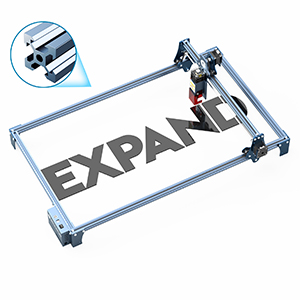
Figure 5: Demonstrating the adjustment of the laser module for optimal focus on the material.

Figure 6: Illustration of the high-density and sharp laser beam, highlighting its effective cutting range and ultra-fine focus.
Engraving and Cutting Materials
The S9 Pro is capable of processing a wide array of materials:
| Tipo di materiale | Capacità | Appunti |
|---|---|---|
| Legna | Engraving & Cutting (up to 20mm) | Plywood, light wood, walnut, teak. Adjust settings for different wood densities. |
| Acrilico | Engraving & Cutting (up to 15mm) | Clear and colored acrylic. |
| Pelle | Incisione e taglio | Ideal for personalized leather goods. |
| Metallo | Incisione | Requires specific settings for different metal types. |
| Plastica | Incisione e taglio | Test on a small area first to avoid melting or fumes. |
| Fabric/Cloth | Incisione | Suitable for denim and other textiles. |

Figura 7: Esamples of cutting depth on various materials like plywood, MDF, light wood, acrylic, walnut, and teak.

Figura 8: Esempio visivoamples of wood carving, leather carving, acrylic carving, steel carving, wood cutting, leather cutting, acrylic cutting, and cloth carving.
Manutenzione
Regular maintenance ensures the longevity and optimal performance of your SCULPFUN S9 Pro.
- Pulizia: Regularly clean the laser lens and the working area to remove dust, debris, and residue from engraving/cutting. Use a soft, lint-free cloth and appropriate cleaning solutions if necessary.
- Sistema di assistenza all'aria: If using an air assist system, ensure the nozzle is clear and free from blockages to maintain efficient airflow.
- Raffreddamento: To prevent overheating and prolong laser module life, allow the laser to cool for approximately 15 minutes after every 4 hours of continuous operation.
- Durata del modulo laser: The laser module has a finite lifespan, typically around one year with regular use. Performance may decline over time, particularly for cutting thicker materials. Replacement modules can be sourced from the manufacturer or authorized dealers.
- Lubrificazione: Periodically check and lubricate the moving parts, such as the guide rails and lead screws, to ensure smooth operation.
Risoluzione dei problemi
This section addresses common issues you might encounter with your SCULPFUN S9 Pro.
| Problema | Possibile causa | Soluzione |
|---|---|---|
| Il laser non si accende o ha un'uscita debole | Loose connection, laser module issue, incorrect software settings, dirty lens. | Check all cable connections. Verify laser power settings in software. Clean the laser lens. If issues persist, the laser module may need replacement. |
| Poor engraving/cutting quality (e.g., blurry, incomplete cuts) | Incorrect focus, wrong speed/power settings, material issues, dirty lens. | Re-focus the laser. Adjust speed and power settings based on material type and thickness. Ensure material is flat and clean. Clean the laser lens. |
| Il software non si connette all'incisore | Incorrect COM port, driver issues, software version incompatibility. | Verify the correct COM port is selected in the software. Reinstall drivers. Ensure software is up-to-date or compatible with your firmware. Restart both computer and engraver. |
| La macchina non si muove o si muove in modo irregolare | Loose belts, motor issues, power supply problem, software command error. | Check and tighten timing belts. Ensure power supply is stable. Restart software and machine. Consult manufacturer support if motors are unresponsive. |
For more detailed troubleshooting, refer to the official SCULPFUN support resources or online communities for LaserGRBL and LightBurn.
Specifiche
- Modello: S9 Pro
- Potenza di uscita laser: 10,000 mW (10 W)
- Classe Laser: 4
- Precisione dell'incisione: 0.01mm
- Messa a fuoco laser: 0.06mm ultra-fine
- Area di lavoro: 400 mm x 410 mm (15.75" x 16.14")
- Dimensioni del prodotto: 22.4 x 20.4 x 3 pollici
- Peso dell'articolo: 9.68 libbre
- Produttore: SCULPFUN
- Paese di origine: Cina
Garanzia e supporto
For detailed warranty information, product support, or to purchase replacement parts (such as laser modules), please refer to the official SCULPFUN webo contattare direttamente il servizio clienti. Conservare la ricevuta d'acquisto come prova d'acquisto per eventuali reclami in garanzia.
SCULPFUN Official Store: Visit SCULPFUN Store on Amazon
Ask a question about this manual
Ask about setup, troubleshooting, compatibility, parts, safety, or missing instructions. Manuals+ will review the question and use this page’s manual context to help answer it.