Introduzione
This manual provides comprehensive instructions for setting up, operating, and maintaining your Wacom Intuos Pro Medium Bluetooth Professional Graphic Drawing Tablet. Designed for creative professionals, this 2025 Edition tablet offers advanced features for digital art, photo editing, and design.
For optimal performance, please read this manual thoroughly before using your device.
Cosa c'è nella scatola
Upon unboxing your Wacom Intuos Pro Medium, ensure all the following components are present:
- Wacom Intuos Pro Medium tablet
- Penna Wacom Pro 3
- Pen stand with replacement nibs
- USB-C to USB-A charging/connection cable
- Adattatore da USB-A a USB-C
- Quick start guide & regulation sheet

Image: All items included in the Wacom Intuos Pro Medium package, laid out clearly.
Caratteristiche principali
The Wacom Intuos Pro Medium offers a range of features designed to enhance your creative workflow:
- Penna Wacom Pro 3: Experience unparalleled precision with 8192 pressure levels and ±60° tilt recognition. The pen is customizable with different grips and weight balance for personalized comfort.
- Connettività versatile: Connect seamlessly via Bluetooth 5.3 for wireless freedom or USB-C for a stable wired connection.
- Ultra-Slim and Durable Design: Featuring an ultra-slim profile (4-7 mm thickness) and a durable magnesium build, the tablet is both portable and robust.
- Durata prolungata della batteria: Enjoy up to 16 hours of continuous use on a single charge, ensuring long creative sessions without interruption.
- Controlli personalizzabili: Utilize the customizable dials and ExpressKeys™ for quick access to your favorite shortcuts, streamlining your workflow.

Immagine: dettagliata view of the Wacom Pro Pen 3, illustrating its modular design with interchangeable grips and internal weights for user customization.

Image: A close-up of a hand interacting with the customizable dials and ExpressKeys on the Wacom Intuos Pro tablet, designed for quick shortcuts.
Impostare
Follow these steps to set up your Wacom Intuos Pro Medium tablet:
- Disimballare il dispositivo: Rimuovere con attenzione tutti i componenti dalla confezione.
- Connettiti all'alimentazione: Connect the USB-C to USB-A cable to the tablet and a power source (e.g., computer USB port or wall adapter). Ensure the tablet is charged before first use.
- Installa i driver: Visit the official Wacom webposto (wacom.com/start/intuospro) to download and install the latest drivers for your operating system (Mac or Windows). Restart your computer after installation if prompted.
- Scegli il metodo di connessione:
- Connessione USB: Keep the USB-C cable connected to your computer.
- Connessione Bluetooth:
- Assicurati che il Bluetooth del tuo computer sia abilitato.
- On the tablet, slide the USB/Bluetooth selector switch to one of the Bluetooth positions (BT1 or BT2).
- Follow the pairing instructions provided in your operating system's Bluetooth settings.
- Personalizza impostazioni: Open the Wacom Desktop Center application (installed with the drivers) to customize pen settings, ExpressKeys, and Touch Ring functions to suit your preferences.

Image: An illustration detailing the USB and dual Bluetooth connectivity options available on the Wacom Intuos Pro tablet, allowing seamless switching between devices.
Istruzioni per l'uso
The Wacom Intuos Pro Medium is designed for intuitive use. Here are basic operating guidelines:
- Using the Pro Pen 3: Hold the pen like a regular pencil. The pen tip acts as your mouse cursor. Pressing the pen tip to the tablet surface registers a click.
- Pulsanti della penna: The buttons on the side of the Pro Pen 3 can be customized for various functions (e.g., right-click, scroll, undo). Configure these in the Wacom Desktop Center.
- ExpressKey ™: The physical buttons located on the tablet's top edge (or side, depending on orientation) are programmable shortcuts. Assign frequently used commands or keystrokes to these keys for efficiency.
- Touch Ring/Dials: The circular dials provide quick control over functions like brush size, zoom, or canvas rotation. Rotate the dial to adjust, and press the center button to cycle through assigned functions.
- Area di lavoro: The active drawing area of the tablet corresponds to your monitor screen. Movement on the tablet translates directly to cursor movement on the screen.
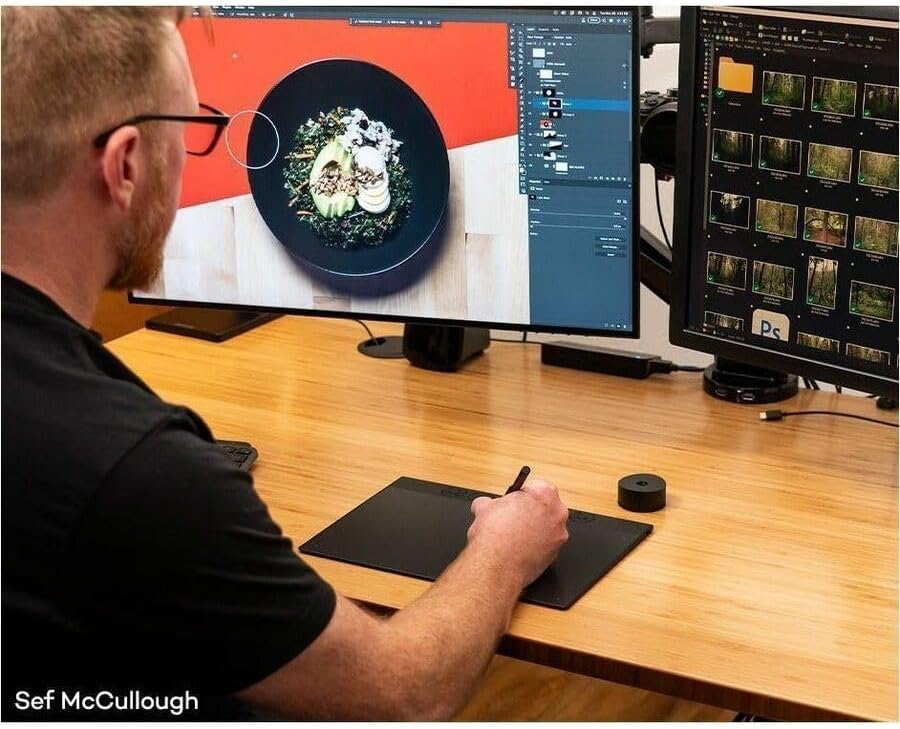
Image: A user demonstrating the Wacom Intuos Pro tablet in action, performing image editing tasks on a dual-monitor setup, showcasing its integration into a professional workflow.
Video: An official Wacom video demonstrating image editing techniques using the Intuos Pro tablet, highlighting its precision and efficiency for digital artists and retouchers.
Manutenzione
Proper care and maintenance will extend the life of your Wacom Intuos Pro Medium:
- Pulizia: Use a soft, lint-free cloth to gently wipe the tablet surface and pen. For stubborn marks, slightly dampLavare il panno con acqua. Evitare prodotti chimici aggressivi o materiali abrasivi.
- Nibs Replacement: The Pro Pen 3 nibs will wear down over time. Replace them when they become too short or sharp to maintain optimal drawing feel. Spare nibs are stored in the pen stand.
- Magazzinaggio: When not in use, store the tablet and pen in a safe place to prevent scratches or damage. Consider a protective sleeve for travel.
- Cura della batteria: For optimal battery longevity, avoid fully discharging the tablet frequently. Charge it regularly, especially if storing for extended periods.
Risoluzione dei problemi
If you encounter issues with your Wacom Intuos Pro Medium, try the following solutions:
| Problema | Possibile soluzione |
|---|---|
| La penna non risponde. |
|
| Problemi di connettività Bluetooth. |
|
| Tablet not recognized by software. |
|
| ExpressKeys or Dials not working. |
|
Specifiche
| Caratteristica | Dettaglio |
|---|---|
| Dimensioni del prodotto | 11.46 x 8.11 x 0.04 pollici |
| Peso dell'articolo | 14.6 once |
| Numero di modello | PTK670K0A |
| Batterie | 1 batteria ai polimeri di litio (inclusa) |
| Tecnologia di connettività | Bluetooth 5.3, USB-C |
| Sensibilità alla pressione | 8192 livelli |
| Riconoscimento dell'inclinazione | ±60° |
| Compatibilità del sistema operativo | Finestre, Mac |
| Caratteristica speciale | Ergonomic, Ultra-slim profile (da 4 a 7 millimetri) |
| Produttore | Wacom Technology Co |
Garanzia e supporto
Wacom products are designed for reliability and performance. For detailed warranty information specific to your region, please refer to the regulation sheet included in your product packaging or visit the official Wacom support websito.
For technical assistance, driver downloads, FAQs, and community forums, please visit the Wacom Support page:
Additionally, consider available protection plans for extended coverage, such as the 2-Year or 4-Year Protection Plans, or the Complete Protect plan for comprehensive coverage, as offered by various retailers.