
zeloti F33
Manuale utente del mouse trackball wireless zelotes
Modello: F33
Introduzione
Grazie per l'acquistoasing the zelotes Wireless Trackball Mouse. This ergonomic mouse is designed to provide precise and comfortable cursor control, reducing strain on your wrist and arm. It features versatile connectivity options, adjustable DPI settings, and a long-lasting rechargeable battery. Please read this manual thoroughly to ensure proper use and maintenance of your device.
Cosa c'è nella scatola
- 1 x Trackball Bluetooth Wireless Mouse
- Ricevitore USB 1 x
- 1 x Cavo di ricarica
- 1 x Manuale utente
Prodotto finitoview
Familiarize yourself with the components of your zelotes Wireless Trackball Mouse.

Immagine: dall'alto verso il basso view of the zelotes F33 Wireless Trackball Mouse, showcasing its ergonomic design, trackball, and blue LED lighting.

Immagine: Lato view of the zelotes F33 Wireless Trackball Mouse, highlighting the trackball and button layout.
Video: Un oltreview of the F33 Bluetooth Trackball Mouse, demonstrating its features including rechargeable battery and DPI settings.
Guida all'installazione
1. Ricarica del mouse
The mouse comes with a built-in 730mAh rechargeable battery. For the best experience, fully charge the mouse before first use.
- Connect the included USB charging cable to the charging port on the mouse.
- Collegare l'altra estremità del cavo a una fonte di alimentazione USB (ad esempio, una porta USB del computer, un adattatore USB da parete).
- Il mouse può essere utilizzato durante la ricarica.

Image: The zelotes F33 mouse connected via its USB charging cable, illustrating the rechargeable battery feature.
2. Modalità di connessione wireless
This mouse supports two wireless connection modes: 2.4GHz USB wireless and Bluetooth (BT1, BT2). It can connect to three devices simultaneously.
2.1. 2.4GHz USB Wireless Mode
- Individuare il ricevitore USB riposto nello scomparto inferiore del mouse.
- Collegare il ricevitore USB a una porta USB disponibile sul computer o sul dispositivo.
- Accendi il mouse utilizzando l'interruttore di alimentazione in basso.
- Il mouse si collegherà automaticamente al ricevitore.
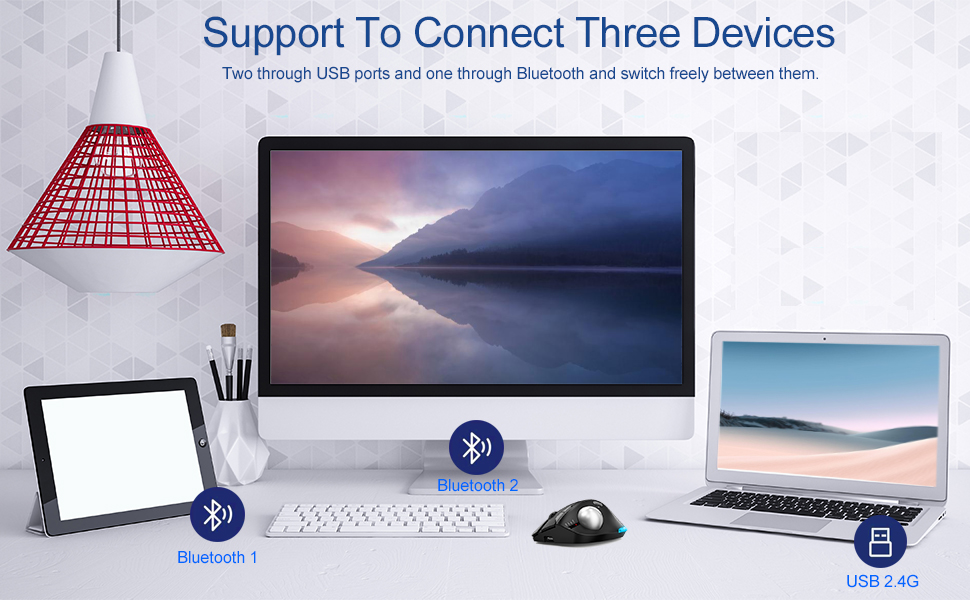
Image: Illustration of the mouse's ability to connect to three devices simultaneously: two via Bluetooth and one via 2.4G USB.
2.2. Bluetooth Mode (BT1 / BT2)
- Accendere il mouse utilizzando l'interruttore di alimentazione.
- Press the mode switch button on the bottom of the mouse to select either BT1 or BT2 mode. The corresponding indicator light will flash.
- Sul tuo dispositivo (laptop, tablet, telefono), vai alle impostazioni Bluetooth e cerca nuovi dispositivi.
- Select "zelotes F33" (or similar name) from the list of available devices to pair.
- Una volta accoppiato, l'indicatore luminoso smetterà di lampeggiare e rimarrà fisso.
3. Passaggio da un dispositivo all'altro
To switch control between connected devices, simply press the mode switch button on the bottom of the mouse to cycle through 2.4G, BT1, and BT2 modes.
Istruzioni per l'uso
1. Thumb Operation
The trackball is designed for thumb operation, allowing you to move the cursor precisely without moving your wrist or arm. This ergonomic design helps reduce muscle strain during prolonged use.
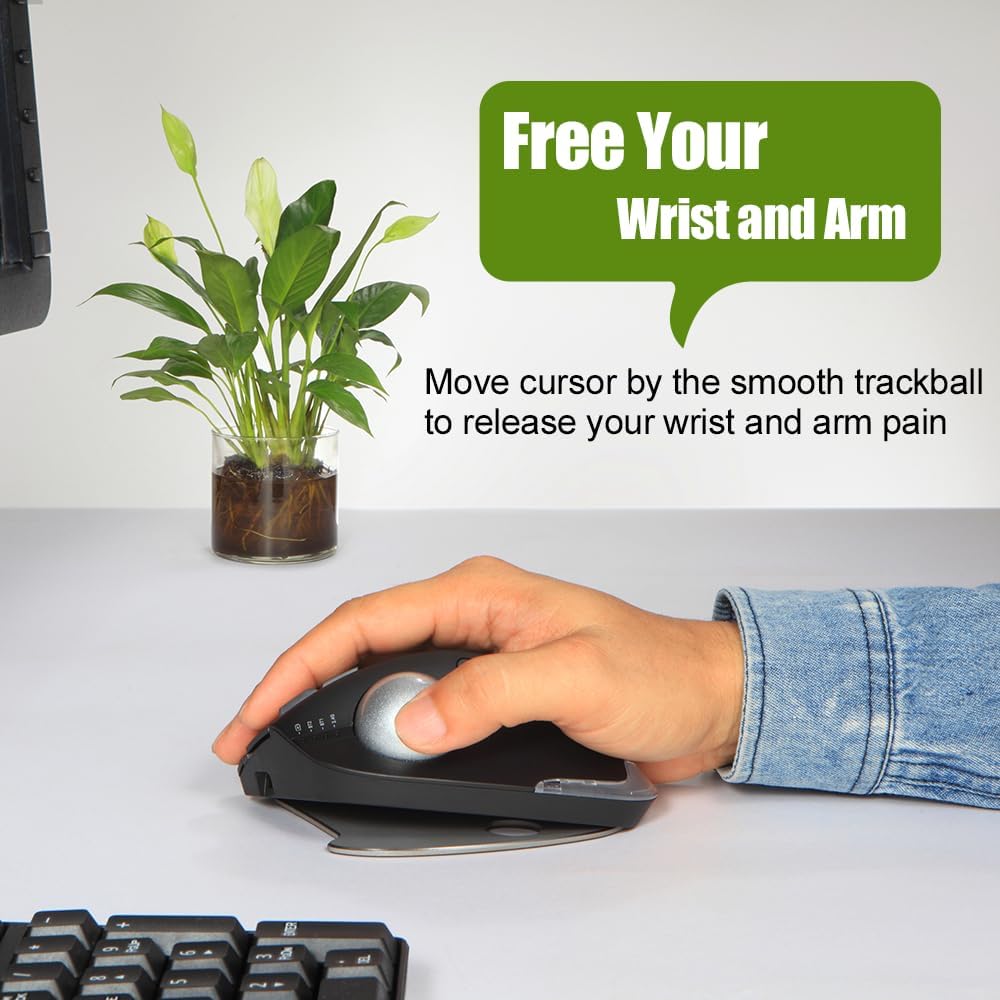
Image: A hand demonstrating the thumb-operated trackball, emphasizing the ergonomic benefit of reducing wrist and arm strain.
2. Impostazioni DPI regolabili
The mouse features 5 adjustable DPI settings to suit your preference and task requirements:
- 800 DPI
- 1200 DPI
- 1600 DPI
- 2400 DPI
- 4800 DPI
Press the DPI button (usually located near the scroll wheel or on the side) to cycle through the settings. A higher DPI provides faster cursor movement, while a lower DPI offers more precise control.
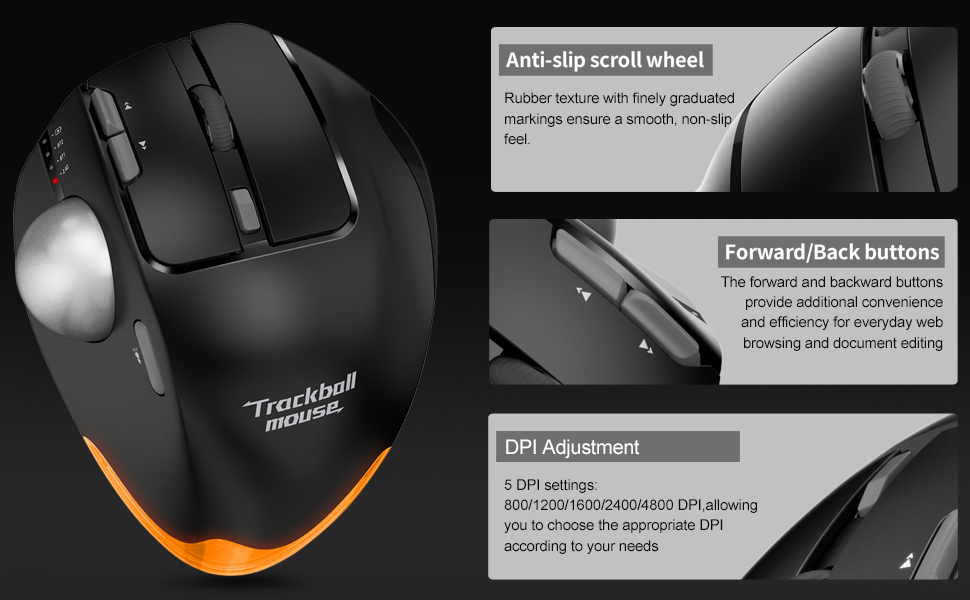
Immagine: dettagliata view of the mouse highlighting the anti-slip scroll wheel, forward/back buttons, and the DPI adjustment feature.
3. Pulsanti Avanti/Indietro
Conveniently located on the side of the mouse, the forward and back buttons enhance efficiency for web browsing and document editing.
4. Adjustable Angle Design
The mouse features an innovative adjustable angle design with a detachable aluminum alloy base, allowing you to switch between 0-degree and 18-degree angles. This helps maintain a natural palm position for long-term comfort.

Image: Comparison showing the zelotes F33 mouse with its base adjusted to 0-degree and 18-degree angles for ergonomic comfort.
5. Illuminazione a LED
The mouse features vibrant LED lighting with 16.8 million colors. You can switch lighting colors using independent buttons. The lighting can be turned off if preferred.

Image: The zelotes F33 mouse showcasing its customizable LED lighting in different colors.
Guida alla manutenzione
Regular cleaning of the trackball ensures smooth and precise movement.
Pulizia del trackball:
- Fase 1: The trackball can be pushed out from the trackball socket at the bottom of the mouse.
- Fase 2: Remove the trackball and gently clean the trackball socket with a cotton cloth.
- Fase 3: Place the trackball back into the mouse to complete the cleaning process.
* If the surface of the trackball needs cleaning, gently wipe it with water and allow it to air dry. Avoid using chemical agents.

Image: Visual guide detailing the steps for disassembling and cleaning the trackball for optimal performance.
Risoluzione dei problemi
| Problema | Soluzione |
|---|---|
| Il mouse non risponde (2.4 GHz) |
|
| Il mouse non si connette (Bluetooth) |
|
| Cursor movement is erratic or sticky |
|
| Le luci LED non funzionano o sono bloccate |
|
Specifiche
- Modello: F33
- Connettività: Bluetooth 5.0/3.0 + 2.4GHz USB Receiver
- Impostazioni DPI: 800/1200/1600/2400/4800 DPI
- Batteria: Built-in 730mAh Lithium Ion rechargeable battery
- Pulsanti: 8 Buttons (including trackball, scroll wheel, forward/back, DPI, mode switch)
- Dimensioni: 5.2 x 4 x 0.04 pollici
- Peso dell'articolo: 13.4 once
- Compatibilità: Win11, Win10, Win8, Win7, Mac OS, Chrome OS, Android 5.0 o versioni successive
- Caratteristiche speciali: Wireless, Portable, Programmable Buttons, Ergonomic Design, Rechargeable, Adjustable Angle (0°/18°), LED Lighting
- Produttore: zeloti
- Paese di origine: Cina
Garanzia e supporto
For warranty information or technical support, please refer to the product packaging or contact zelotes customer service through their official webo al rivenditore presso cui è stato acquistato il prodotto. Conservare la ricevuta d'acquisto per eventuali reclami in garanzia.
Ask a question about this manual
Ask about setup, troubleshooting, compatibility, parts, safety, or missing instructions. Manuals+ will review the question and use this page’s manual context to help answer it.