
1. Introduzione
Thank you for choosing the Zelotes Wireless Trackball Mouse. This ergonomic device is designed to provide comfort and efficiency for various computing tasks, reducing wrist and arm strain. It offers versatile connectivity options, including 2.4 GHz wireless and Bluetooth, allowing seamless switching between up to three devices. This manual provides detailed instructions for setup, operation, maintenance, and troubleshooting to ensure you get the most out of your new trackball mouse.

Image: The Zelotes F33 Wireless Trackball Mouse, showcasing its ergonomic design and trackball.
2. Caratteristiche del prodotto
- Design ergonomico: Utilizes a trackball for cursor movement, minimizing wrist and arm motion. Features an innovative adjustable angle (0° to 18°) with a removable aluminum alloy base for natural palm positioning and reduced fatigue during prolonged use.
- Connettività multimodale: Supports both 2.4 GHz USB wireless and Bluetooth connections. Connects simultaneously to three devices (one via USB, two via Bluetooth) and allows seamless switching between them.
- Batteria ricaricabile integrata: Equipped with a 730mAh rechargeable Lithium-ion battery and includes a USB charging cable. The mouse can be used while charging.
- DPI regolabile: Offers 5 adjustable DPI settings: 800, 1200, 1600, 2400, and 4800 DPI, allowing you to customize cursor sensitivity to your preference.
- 8 pulsanti programmabili: Includes standard left/right click, scroll wheel, and dedicated forward/back side buttons for enhanced navigation and file gestione.
- Illuminazione a LED: Features vibrant LED lighting with 16.8 million color options, which can be turned off if desired.
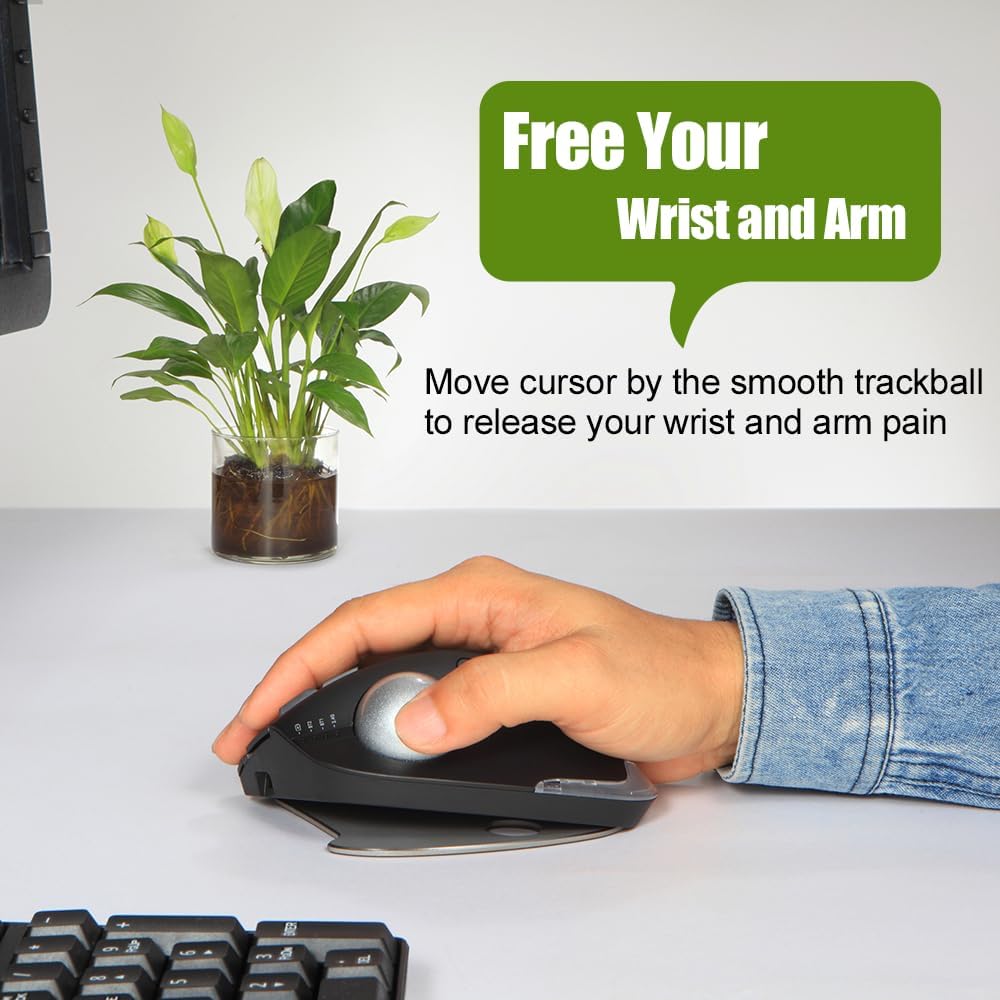
Image: A hand resting comfortably on the trackball mouse, illustrating how it helps free the wrist and arm from strain.

Image: The trackball mouse demonstrating its adjustable angles (0° and 18°) for personalized comfort.
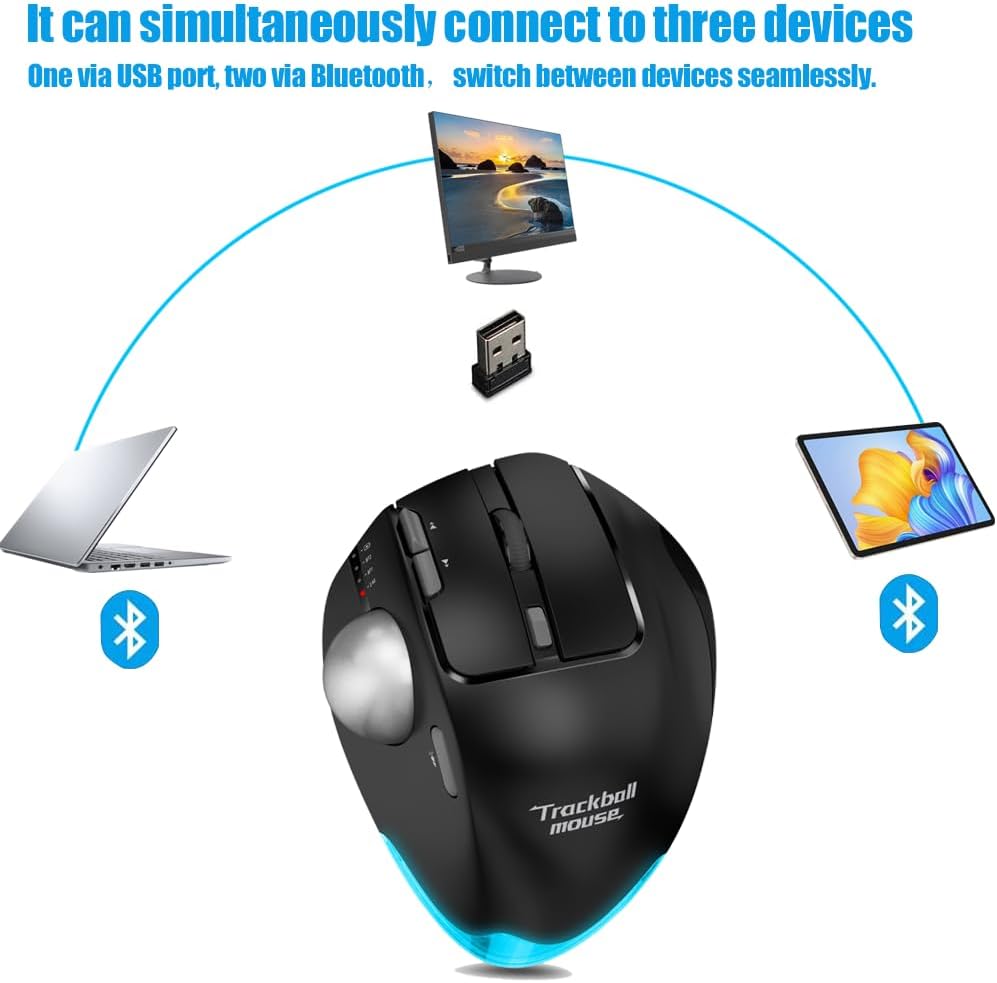
Image: Diagram showing the trackball mouse simultaneously connected to a laptop (Bluetooth), desktop (USB), and tablet (Bluetooth).

Image: The trackball mouse being charged via a USB cable, with an indicator showing its 730mAh battery capacity.

Image: The trackball mouse displaying its customizable LED lighting in various colors.
3. Contenuto della confezione
Si prega di controllare la confezione per verificare la presenza dei seguenti elementi:
- Zelotes Wireless Trackball Mouse (F33)
- Ricevitore USB (conservato nel vano batteria del mouse)
- Cavo di ricarica USB
- Manuale dell'utente (questo documento)
4. Impostazione
4.1 Carica iniziale
For optimal performance, fully charge the mouse before first use.
- Collegare il cavo di ricarica USB in dotazione alla porta di ricarica sulla parte anteriore del mouse.
- Collegare l'altra estremità del cavo USB a una fonte di alimentazione USB (ad esempio, una porta USB del computer, un adattatore da parete USB).
- The charging indicator light will illuminate. Once fully charged, the light may change color or turn off (refer to mouse indicators for specific behavior).
4.2 Connessione wireless a 2.4 GHz
Questa modalità utilizza il ricevitore USB incluso per una connessione wireless stabile.
- Individuare il ricevitore USB, solitamente alloggiato in uno slot nella parte inferiore del mouse.
- Collega il ricevitore USB a una porta USB disponibile sul tuo computer.
- Accendi il mouse utilizzando l'interruttore di alimentazione in basso.
- Switch the mouse to 2.4G mode (indicated by a specific light or switch position, refer to mouse markings). The mouse should automatically connect to your computer.
4.3 Connessione Bluetooth (BT1 / BT2)
The mouse supports two independent Bluetooth connections.
- Accendi il mouse.
- Switch the mouse to either BT1 or BT2 mode using the mode switch on the mouse. The corresponding indicator light will blink, indicating pairing mode.
- Sul tuo dispositivo (PC, tablet, smartphone), vai alle impostazioni Bluetooth e cerca nuovi dispositivi.
- Select "Zelotes F33" (or similar name) from the list of available devices to pair.
- Once paired, the indicator light will become solid. Repeat for a second Bluetooth device using the other BT mode (BT2 if you used BT1 first).
4.4 Passaggio da un dispositivo all'altro
To switch between connected devices (2.4G, BT1, BT2), simply use the mode switch button on the mouse. The mouse will seamlessly transition control to the selected device.
5. Istruzioni per l'uso
5.1 Regolazione DPI
The mouse features a dedicated DPI button to cycle through sensitivity settings.
- Press the DPI button (usually located near the scroll wheel or trackball) to change the cursor speed.
- The available DPI settings are 800, 1200, 1600, 2400, and 4800.
- Observe the indicator lights or on-screen feedback (if supported by your OS) to confirm the current DPI setting.
5.2 Funzioni dei pulsanti
The Zelotes F33 mouse has 8 buttons with default functions:
- Clic sinistro: Selezione standard.
- Clic destro: Menu contestuale.
- Rotella di scorrimento: Vertical scrolling; press for middle click.
- Pulsanti Avanti/Indietro: Navigare web pagine o cartelle.
- Pulsante DPI: Regola la sensibilità del cursore.
- Pulsante di cambio modalità: Switch between 2.4G, BT1, and BT2 modes.
- Sfera rotante: Move the cursor by rotating the trackball with your thumb.
Note: Some buttons may be programmable via software (not included) for custom functions depending on your operating system.
5.3 Regolazione ergonomica dell'angolo
The mouse comes with a removable aluminum alloy base that allows you to adjust its angle for improved comfort.
- Gently detach the base from the bottom of the mouse.
- Reattach the base in the desired orientation to achieve either a 0° (flat) or 18° (tilted) angle.
- Ensure the base is securely attached before use.
6. Manutenzione
6.1 Guida alla pulizia del trackball
Regular cleaning of the trackball ensures smooth and precise cursor movement.
- Fase 1: The trackball can be pushed out from the trackball socket at the bottom of the mouse.
- Fase 2: Remove the trackball and gently clean the trackball socket with a cotton cloth.
- Fase 3: Place the trackball back into the mouse to complete the cleaning process.

Image: A visual guide demonstrating the three steps to disassemble and clean the trackball for smoother operation.

Image: The trackball separated from the mouse, showing the socket for cleaning.
* If the surface of the trackball needs cleaning, gently wipe it with water and allow it to air dry. Avoid using chemical agents.
6.2 Pulizia generale
Wipe the exterior of the mouse with a soft, dry, or slightly damp stoffa. Non utilizzare prodotti chimici aggressivi o detergenti abrasivi.
6.3 Cura della batteria
Per prolungare la durata della batteria, evitare di scaricare completamente il mouse frequentemente. Ricaricarlo quando appare l'indicatore di batteria scarica.
7. Risoluzione Dei Problemi
| Problema | Possibile causa | Soluzione |
|---|---|---|
| Mouse not responding / Cursor erratic | Low battery; Trackball dirty; Connection issue; USB receiver not plugged in (2.4G mode) | Charge the mouse; Clean the trackball and socket (refer to Section 6.1); Re-pair Bluetooth or re-insert USB receiver; Ensure correct mode is selected. |
| Impossibile connettersi tramite Bluetooth | Mouse not in pairing mode; Device Bluetooth off; Already connected to max devices | Ensure mouse is in BT1/BT2 pairing mode (blinking light); Turn on Bluetooth on your device; Disconnect from another device if necessary. |
| Il mouse non si carica | Cable faulty; Power source issue; Charging port damaged | Try a different USB cable; Use a different USB port or power adapter; Contact customer support if port is damaged. |
| Pulsanti non funzionanti | Software conflict; Physical damage | Restart your computer; Test on another device; Contact customer support. |
8. Specifiche
| Caratteristica | Specificazione |
|---|---|
| Marca | zeloti |
| Nome del modello | F-33 (F33) |
| Colore | Nero |
| Tecnologia di connettività | Bluetooth, 2.4 GHz USB Wireless |
| Tecnologia di rilevamento del movimento | Tracciatore |
| Numero di pulsanti | 8 |
| Impostazioni DPI | 800 / 1200 / 1600 / 2400 / 4800 |
| Orientamento della mano | Giusto |
| Tipo di batteria | Agli ioni di litio |
| Capacità della batteria | 730 mAh (circa) |
| Ricaricabile | SÌ |
| Sistemi operativi compatibili | Win11, Win10, Win8, Win7, Mac OS, Chrome OS, Android 5.0 or later |
| Dispositivi compatibili | Personal computer, Tablet, Smartphone, Game console |
| Caratteristiche speciali | Programmable button, Ergonomic design, LED light, Rechargeable, Adjustable angle (0°/18°) |
9. Garanzia e supporto
Zelotes products are manufactured to high-quality standards. For information regarding warranty coverage, technical support, or service inquiries, please refer to the warranty card included with your product or visit the official Zelotes websito. Conservare la prova d'acquisto per eventuali reclami in garanzia.