
1. Introduzione
This manual provides essential information for the proper setup, operation, and maintenance of your NexiGo NG17QH 4K Portable Monitor. Please read this manual thoroughly before using the device to ensure optimal performance and to prevent damage. Keep this manual for future reference.

Image: The NexiGo NG17QH 4K Portable Monitor, showcasing its sleek design and smart cover.
2. Contenuto della confezione
Verify that all items listed below are included in your package. If any items are missing or damaged, please contact NexiGo customer support.
- NexiGo NG17QH 4K Portable Monitor
- Smart Cover / Stand
- Cavo da USB-C a USB-C
- Cavo da mini HDMI a HDMI
- Cavo di alimentazione da USB-A a USB-C
- Adattatore di alimentazione
3. Prodotto finitoview
Familiarize yourself with the ports and controls on your NexiGo NG17QH portable monitor.
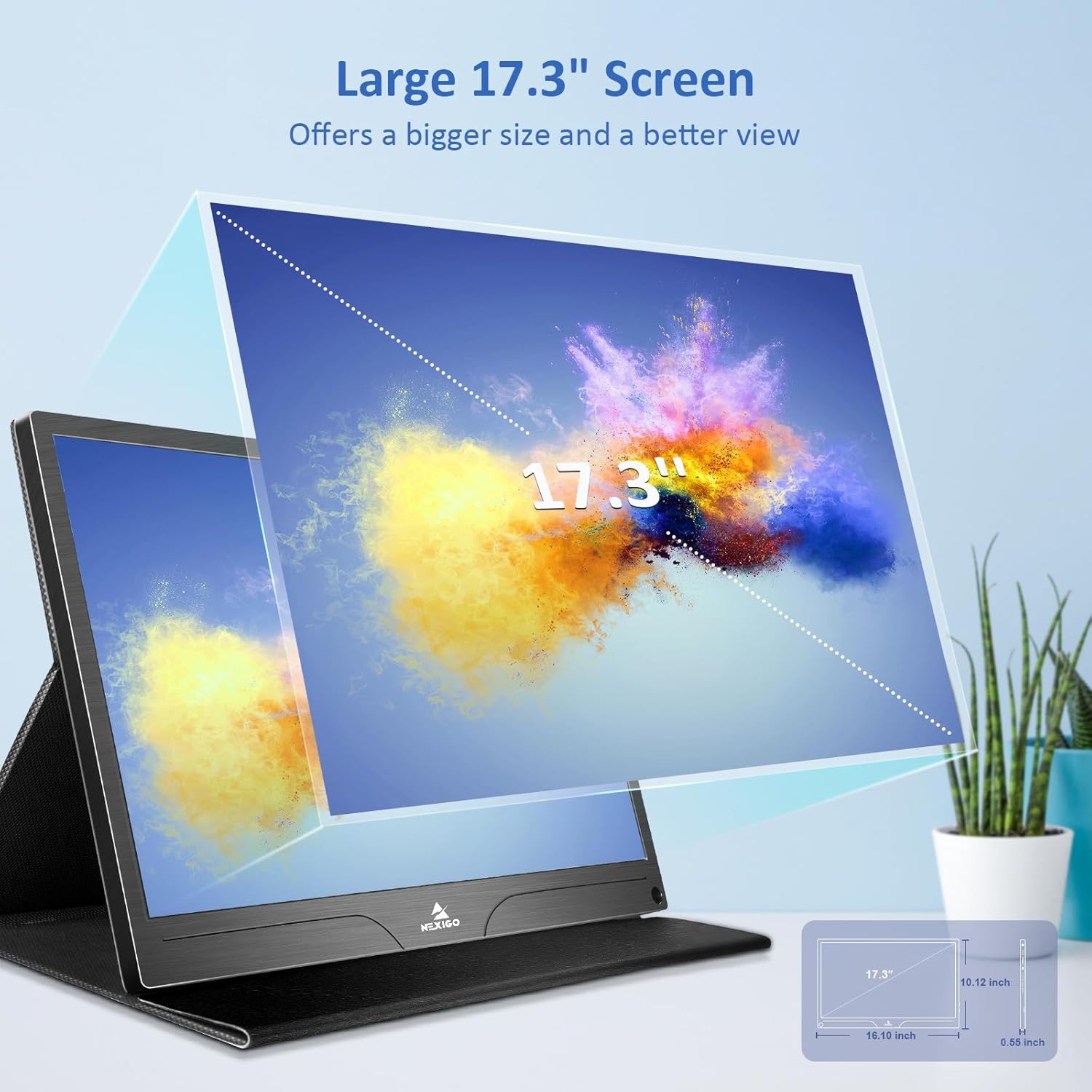
Immagine: dettagliata view delle porte e dei controlli del monitor.
Porte e pulsanti:
- Porta USB-C completa: Used for power, video, and audio transmission with compatible devices.
- Mini porta HDMI: Used for video and audio transmission with HDMI-compatible devices.
- Pulsante di accensione: Press and hold to power the monitor on or off. Short press to access the OSD menu.
- Indicatore luminoso di alimentazione: Indicates the monitor's power status.
- Multi-Function Key: Used to navigate the OSD menu and adjust settings.
- OTG Interface (USB-C): Allows connection of USB peripherals like keyboards or mice when the monitor is connected via the full-featured USB-C port.
- Jack per cuffie da 3.5 mm: Per collegare dispositivi audio esterni.
4. Impostazione
Follow these steps to set up your NexiGo NG17QH portable monitor.
4.1 Alimentazione del monitor
- Using a single USB-C cable (Full-Featured): If your device (laptop, smartphone) supports full-featured USB-C output, connect the monitor to your device using the provided USB-C to USB-C cable. This single cable can provide both power and display signal.
- Using an external power adapter: If your device does not provide sufficient power or if you are using the Mini HDMI port, connect the provided USB-A to USB-C power cable to the monitor's full-featured USB-C port and plug the USB-A end into the power adapter, then into a wall outlet.
4.2 Connessione ai dispositivi
- Laptop/PC (USB-C): Connect the monitor to your laptop/PC using the USB-C to USB-C cable. Ensure your laptop's USB-C port supports DisplayPort Alternate Mode.
- Laptop/PC (HDMI): Connect the monitor to your laptop/PC using the Mini HDMI to HDMI cable. Ensure the monitor is powered externally via the USB-C power cable.
- Gaming Consoles (PS5, Xbox, Switch): Connect the monitor to your console using the Mini HDMI to HDMI cable. Ensure the monitor is powered externally via the USB-C power cable.
- Smartphone: Connect the monitor to your smartphone using the USB-C to USB-C cable. Ensure your smartphone's USB-C port supports video output.
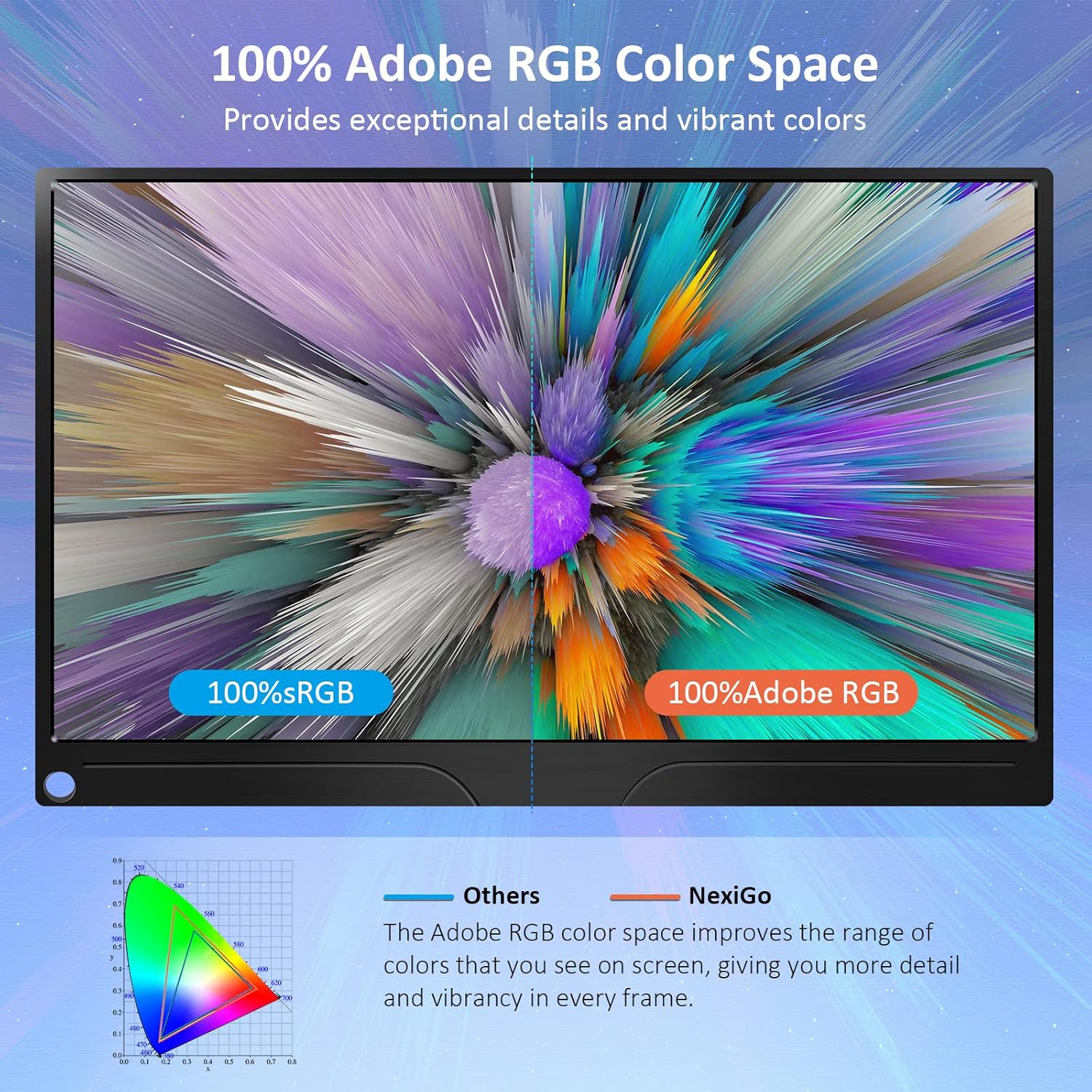
Image: The portable monitor connected to a laptop, demonstrating an extended display setup.
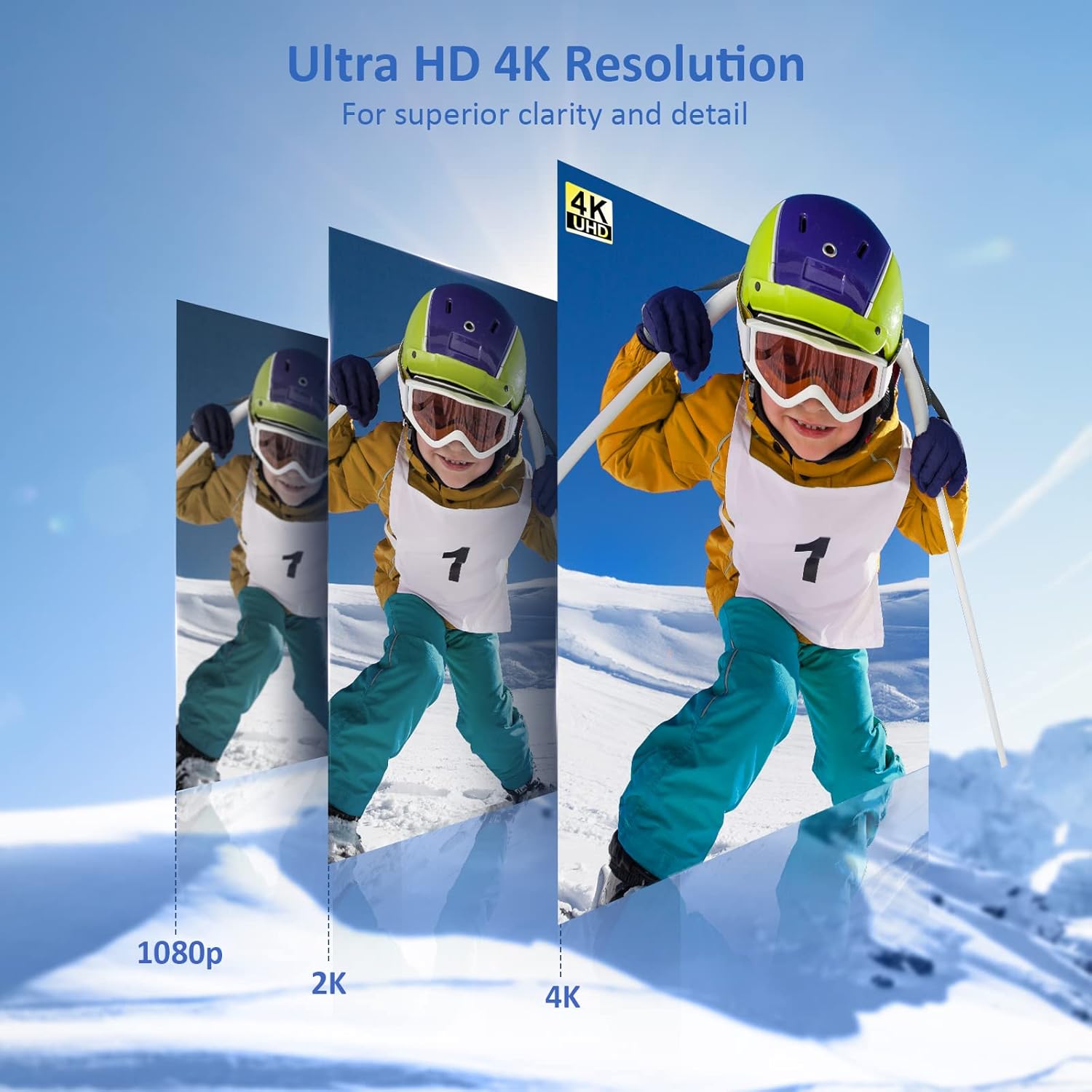
Image: The portable monitor connected to a smartphone, displaying content.
4.3 Montaggio VESA
The monitor is compatible with VESA mounts (75x75mm). To mount the monitor, remove the smart cover and attach it to a compatible VESA arm or wall mount using appropriate screws (not included).
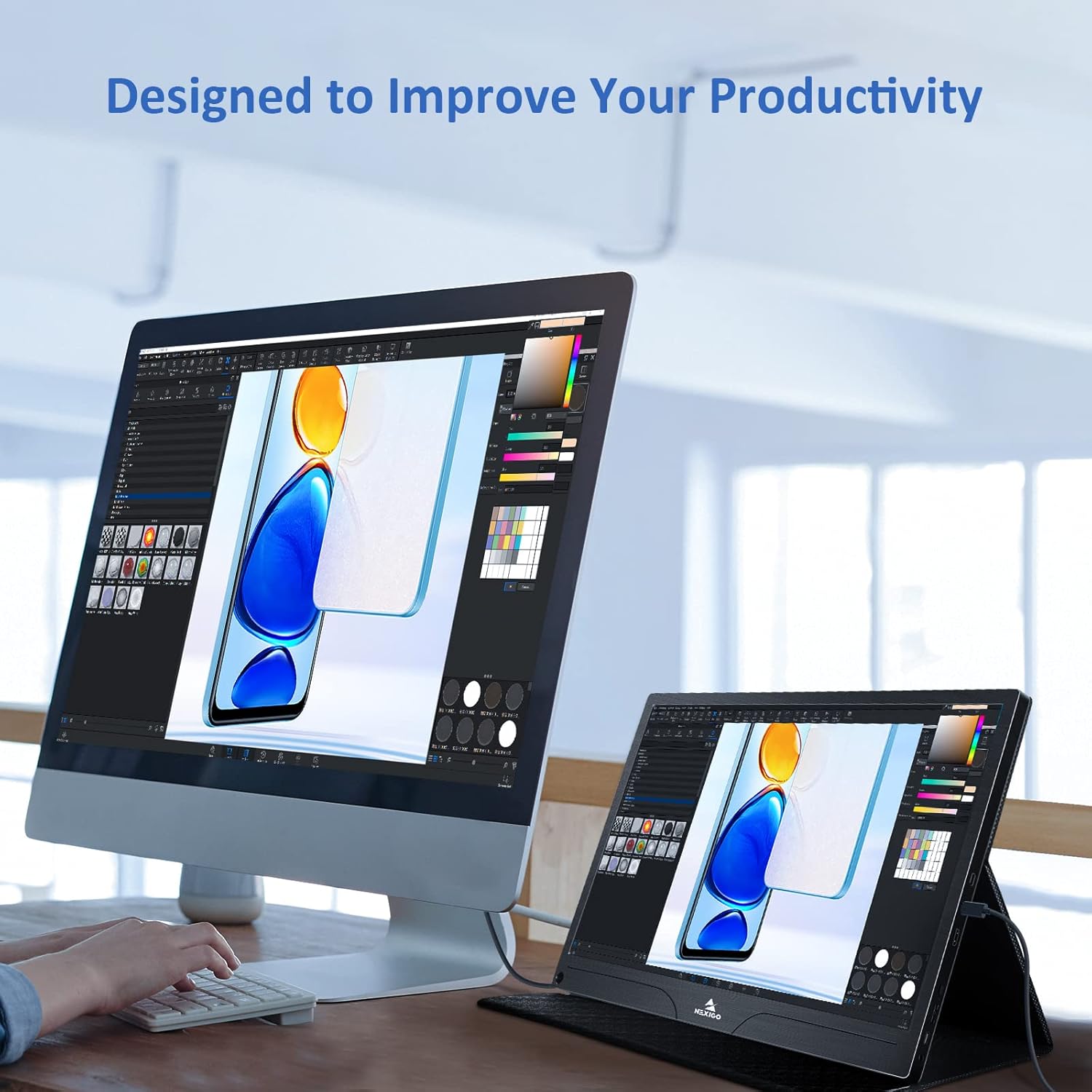
Image: The monitor mounted on a VESA-compatible desk arm.
5. Funzionamento del monitor
5.1 Accensione/spegnimento
Premere e tenere premuto il tasto Pulsante di accensione for approximately 3 seconds to turn the monitor on or off.
5.2 Menu di visualizzazione su schermo (OSD)
The OSD menu allows you to adjust various display settings. Short press the Pulsante di accensione to open the OSD menu. Use the Tasto multifunzione per navigare e selezionare le opzioni.
- Sottosopra: Move the Multi-Function Key up or down to navigate through menu options.
- Inserisci: Press the Multi-Function Key inward to select an option or confirm a setting.
- Uscita: Press the Power Button to exit the current menu or the OSD.
5.3 Impostazioni di visualizzazione
- Luminosità/Contrasto: Regola la luminosità e il contrasto complessivi del display.
- Impostazioni colore: Modifica la temperatura del colore, la tonalità e la saturazione.
- Modalità HDR: Enable or disable High Dynamic Range for enhanced visual quality with compatible content.
- Sincronizzazione libera: Enable FreeSync for smoother gaming experiences by synchronizing the monitor's refresh rate with your GPU's frame rate.
- Proporzioni: Regola il rapporto di aspetto dello schermo (ad esempio, 16:9, 4:3).
5.4 Impostazioni audio
Adjust the volume of the built-in dual speakers or connected headphones through the OSD menu.
6. Manutenzione
- Pulizia dello schermo: Utilizzare leggermente un panno morbido e privo di lanugine dampcon acqua o un detergente per schermi non abrasivo. Non spruzzare il liquido direttamente sullo schermo.
- Pulizia del Casing: Pulisci il monitor casing with a soft, dry cloth. Avoid using harsh chemicals or solvents.
- Magazzinaggio: When not in use, store the monitor in a cool, dry place, preferably in its original packaging or smart cover to protect it from dust and scratches.
- Evitare condizioni estreme: Non esporre il monitor a temperature estreme, umidità o luce solare diretta.
7. Risoluzione Dei Problemi
Se riscontri problemi con il monitor, consulta la tabella seguente per i problemi più comuni e le relative soluzioni.
| Problema | Possibile causa | Soluzione |
|---|---|---|
| Nessun display / messaggio "Nessun segnale" | Collegamento del cavo errato, alimentazione insufficiente, sorgente di ingresso errata. | Ensure cables are securely connected. Verify external power is supplied if needed. Check the input source setting in the OSD menu. |
| Il monitor non si accende | No power supply, faulty cable. | Ensure the power adapter is connected and working. Try a different USB-C cable or power source. |
| Schermo tremolante | Faulty cable, unstable power, incompatible resolution/refresh rate. | Replace the cable. Ensure stable power. Adjust the display resolution or refresh rate on your connected device. |
| Nessun audio | Volume too low, incorrect audio output setting, faulty cable. | Increase volume via OSD or connected device. Ensure the monitor is selected as the audio output device on your source. Check cable connections. |
| OTG port not working | Monitor not powered via full-featured USB-C, device incompatibility. | Ensure the monitor is connected to a device via the full-featured USB-C port that supports OTG functionality. |
8. Specifiche
Detailed technical specifications for the NexiGo NG17QH 4K Portable Monitor.
| Caratteristica | Specificazione |
|---|---|
| Numero di modello | NG17QH |
| Dimensioni dello schermo | 17.3 pollici |
| Risoluzione | Risoluzione 3840 x 2160 (4K UHD) |
| Tipo di pannello | Informazione pubblica |
| Luminosità | 400 cd/m² |
| Gamma di colori | 100% Adobe RGB |
| Proporzioni | 16:9 |
| Viewangolo di ing | 178° |
| Caratteristiche | FreeSync, HDR, Eye Care Screen |
| Altoparlanti | Doppi altoparlanti integrati |
| Connettività | Full-Featured USB-C (x1), Mini HDMI (x1), OTG USB-C (x1), 3.5mm Audio Jack (x1) |
| Compatibilità VESA | 75 x 75 millimetri |
| Dimensioni del prodotto | 16.1 x 10.12 x 0.55 pollici |
| Peso dell'articolo | 6.39 libbre |

Image: Visual comparison of 1080p, 2K, and 4K resolutions, demonstrating the clarity of the 4K display.
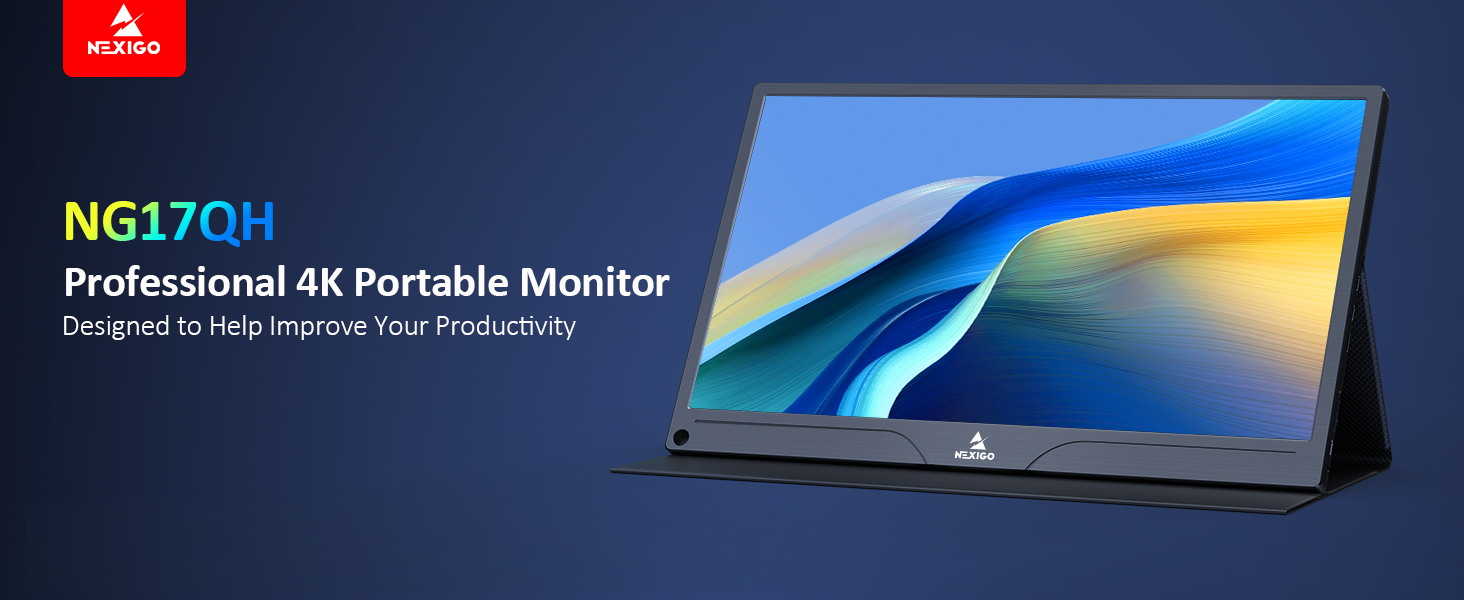
Image: A visual representation of 100% Adobe RGB color space coverage, indicating vibrant and detailed color reproduction.
9. Garanzia e supporto
Your NexiGo NG17QH Portable Monitor comes with a manufacturer's warranty. For detailed warranty information, product registration, or technical support, please visit the official NexiGo webo contattare direttamente il servizio clienti. Conservare la ricevuta d'acquisto come prova d'acquisto per eventuali reclami in garanzia.
NexiGo Official Websito: www.nexigo.com