
Topyond F270
Topyond F270 WiFi Endoscope Camera User Manual
Modello: F270
1. Introduzione
This manual provides detailed instructions for the safe and effective use of your Topyond F270 WiFi Endoscope Camera. Please read this manual thoroughly before operating the device and retain it for future reference.
The Topyond F270 is a portable WiFi endoscope camera designed for industrial inspection. It features a 1080P resolution camera with 8 adjustable LED lights, an 8mm lens, and IP67 waterproof rating for the lens, making it suitable for various inspection tasks, including those in damp o ambienti sommersi.
2. Informazioni sulla sicurezza
Osservare le seguenti precauzioni di sicurezza per evitare lesioni o danni al dispositivo:
- Non tentare di smontare o modificare il dispositivo. Modifiche non autorizzate possono causare malfunzionamenti e invalidare la garanzia.
- Tenere il dispositivo lontano da temperature estreme, dalla luce solare diretta e da liquidi corrosivi.
- Ensure the charging port is dry before connecting the USB charging cable.
- The lens is IP67 waterproof; however, the main control unit is not. Do not submerge the control unit in water.
- Utilizzare solo il cavo di ricarica fornito o un caricabatterie certificato da 5 V/1 A.
- This device is intended for inspection purposes only and should not be used for medical or personal examination.
3. Contenuto della confezione
Verificare che tutti gli articoli siano presenti nel pacco:
- WiFi Endoscope Camera (10-meter cable)
- Cavo di ricarica USB
- Attacco magnetico
- Attacco a specchio
- Attacco a gancio
- Replacement Buckles (2x)

Figura 3.1: Included accessories with the Topyond F270 WiFi Endoscope Camera.
4. Prodotto finitoview
Familiarize yourself with the components of your endoscope camera.

Figura 4.1: Topyond F270 WiFi Endoscope Camera connected to a smartphone.

Figura 4.2: Control unit with labeled buttons and charging interface.
- 1. Adjust the light button: Controls the brightness of the 8 LED lights on the camera.
- 2. Turn on/off button: Accende o spegne il dispositivo.
- 3. Taking pictures button: Cattura immagini fisse.
- 4. Interfaccia di ricarica: Porta micro USB per caricare la batteria interna.
- 5. Signal indicator: Displays WiFi connection status and battery level.
5. Impostazione
5.1 Ricarica del dispositivo
Before first use, fully charge the endoscope camera. Connect the provided USB charging cable to the charging interface (4) on the control unit and to a 5V/1A USB power adapter (not included). The signal indicator (5) will show charging status.
The internal 1800mAh lithium battery provides approximately 4 hours of working time on a full charge.
5.2 Download e installazione dell'app
A view the camera feed and control the device, you need to download the companion application on your smartphone or tablet.
- Scan the QR code provided in the product packaging or search for the recommended app (e.g., "WiFi View" or similar, specific app name not provided in product data) in your device's app store (Google Play Store for Android, Apple App Store for iOS).
- Scarica e installa l'applicazione.
5.3 Connessione tramite Wi-Fi
Follow these steps to establish a WiFi connection between the endoscope and your smart device:
- Press and hold the "Turn on/off" button (2) on the control unit to power on the endoscope. The signal indicator (5) will illuminate.
- On your smartphone or tablet, go to your WiFi settings.
- Locate and connect to the WiFi network named "YPC_XXXXXX" or similar (the exact name will be on the device or in the app instructions). No password is typically required for this direct connection.
- Once connected, open the installed endoscope application. The camera feed should now be visible on your device's screen.

Figura 5.1: Wireless connection setup for the endoscope camera.
6. Istruzioni per l'uso
6.1 Accensione/spegnimento
Press and hold the "Turn on/off" button (2) for a few seconds to power the device on or off.
6.2 Regolazione della luminosità del LED
Press the "Adjust the light button" (1) repeatedly to cycle through different brightness levels for the 8 LED lights on the camera head. This helps illuminate dark inspection areas.
6.3 Scattare foto e video
Mentre viewing the live feed in the app:
- To take a photo, press the "Taking pictures" button (3) on the control unit or use the corresponding button within the app.
- To record video, use the video recording function within the app.
Captured images and videos will be saved directly to your smartphone or tablet's gallery.
6.4 Utilizzo degli allegati
The endoscope comes with several attachments for specialized tasks:
- Magnete: Useful for retrieving small metallic objects from hard-to-reach places.
- Specchio: Fornisce un lato view for inspecting walls of pipes or other confined spaces.
- Gancio: Can be used to retrieve small non-metallic items.
To attach, carefully slide the desired accessory onto the camera head until it is securely in place. Ensure the accessory does not obstruct the camera lens or LED lights.
6.5 Es. applicazioneamples
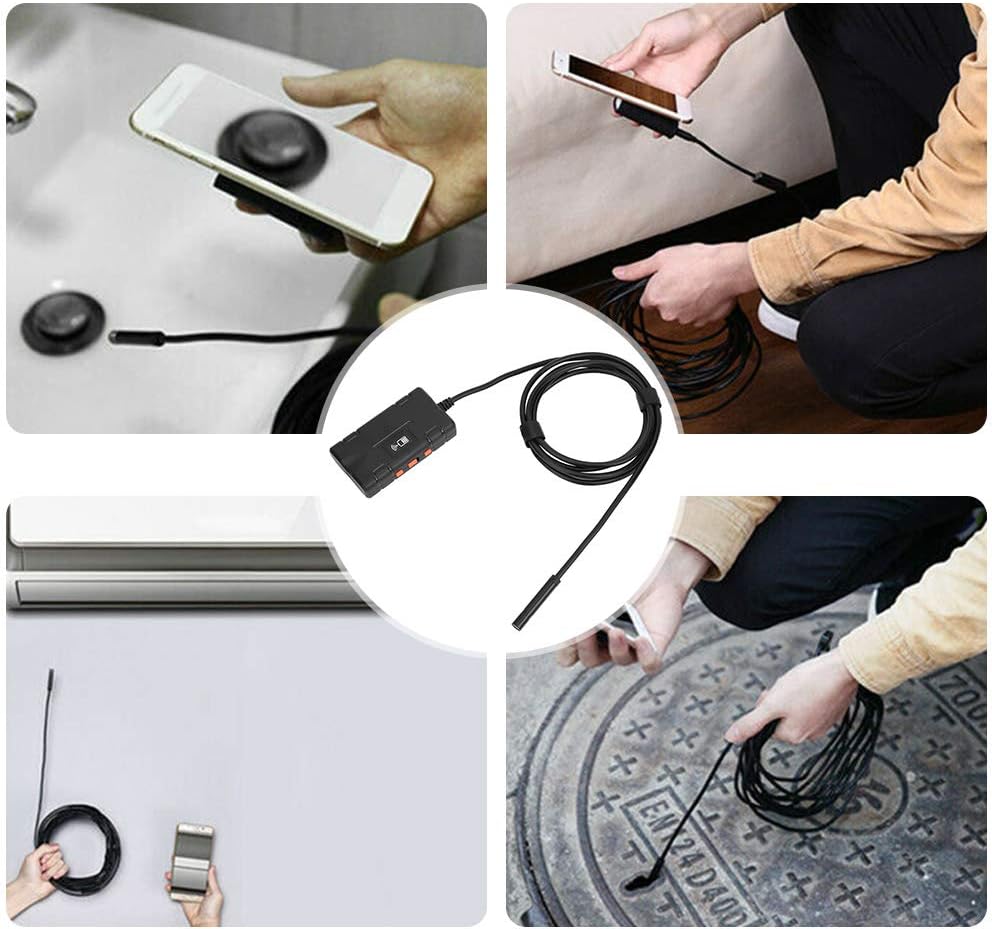
Figura 6.1: Various uses for the Topyond F270 endoscope camera.

Figura 6.2: Examples of endoscope use in household inspections.
7. Manutenzione
- Pulizia della lente: After use, especially in dirty or wet environments, gently wipe the camera lens with a soft, dry cloth. For stubborn dirt, a slightly damp È possibile utilizzare un panno e asciugare. Non utilizzare detergenti abrasivi o solventi.
- Magazzinaggio: Store the endoscope camera in a cool, dry place, away from direct sunlight and extreme temperatures. Coil the cable neatly to prevent kinks or damage.
- Cura della batteria: Per prolungare la durata della batteria, evitare di scaricarla completamente frequentemente. Se si prevede di non utilizzarla per un periodo prolungato, caricare la batteria fino a circa il 50% ogni pochi mesi.
8. Risoluzione Dei Problemi
| Problema | Possibile causa | Soluzione |
|---|---|---|
| Nessuna immagine sullo schermo / App non connessa |
|
|
| L'immagine è scura o poco chiara |
|
|
| Dispositivo non in carica |
|
|
9. Specifiche
| Modello | F270 |
| Diametro della lente | 8mm |
| Risoluzione della fotocamera | 1280 x 1080 (2.0 MP) |
| Sorgente luminosa della fotocamera | 8 luci LED regolabili |
| Grado di impermeabilità (lente) | Grado di protezione IP67 |
| Lunghezza focale | 5cm ~ ∞ |
| Viewangolo di ing | 70 gradi |
| Batteria | Batteria al litio da 1800 mAh |
| Orario di lavoro | Circa 4 ore |
| Potenza in ingresso | DC 5V 500 mAh / 1A |
| Temperatura di esercizio | 0-45 ℃ (32-113 ℉) |
| Formato foto | Formato JPEG |
| Formato video | MP4 |
| Lunghezza del cavo | 10 metri (32.8 piedi) |
| Peso dell'articolo | 0.23 chilogrammi (8.1 once) |
10. Garanzia e supporto
Topyond products are designed for reliability and performance. For warranty information and technical support, please refer to the contact details provided with your purchase or visit the official Topyond websito. Conserva la ricevuta d'acquisto come prova d'acquisto.
Ask a question about this manual
Ask about setup, troubleshooting, compatibility, parts, safety, or missing instructions. Manuals+ will review the question and use this page’s manual context to help answer it.