
1. Introduzione
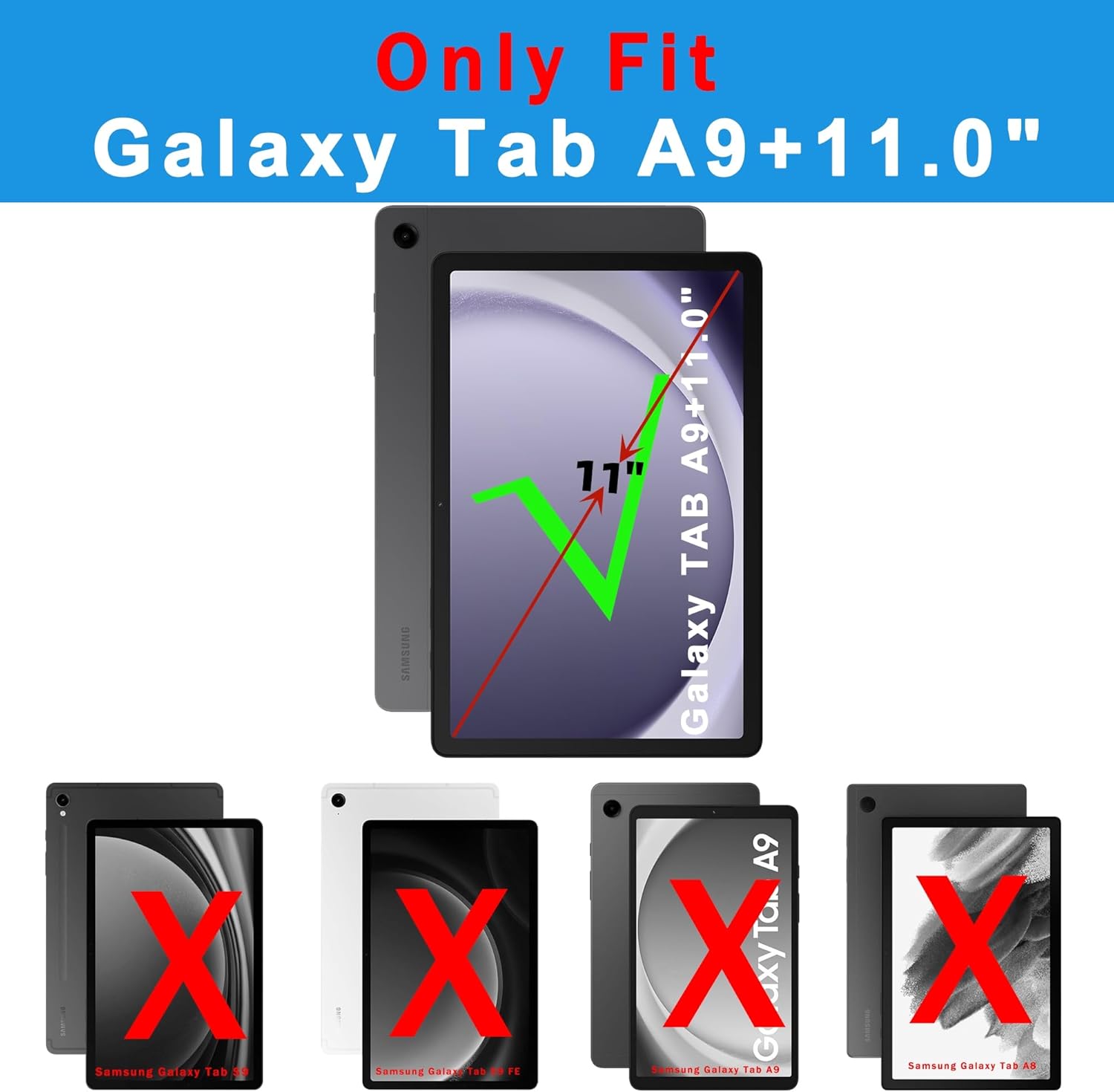
This manual provides detailed instructions for the SNOODU Keyboard Case designed for the Samsung Galaxy Tab A9+ Plus 11-inch (Models: SM-X210/X216/X218). This accessory integrates a wireless keyboard with a multi-touch trackpad, 7-color backlit keys, and a protective folio cover with a pen holder and kickstand, enhancing your tablet's functionality.
2. Contenuto della confezione
Si prega di verificare che tutti gli articoli siano presenti nel pacco:
- Wireless Keyboard Case for Samsung Tab A9+ 11-inch
- Cavo di ricarica USB-C
- Manuale dell'utente (questo documento)
3. Specifiche del prodotto
| Caratteristica | Specificazione |
|---|---|
| Dispositivi compatibili | Samsung Galaxy Tab A9+ A9 Plus 11.0" (SM-X210/X216/X218) |
| Tecnologia di connettività | Bluetooth |
| Tipo di tastiera | Wireless, Flexible, US Layout |
| Caratteristiche speciali | Backlit (7 colors, 3 brightness levels), Hotkeys, Media Keys, Portable, Rechargeable, Multi-touch Trackpad, S Pen Holder, Adjustable Kickstand, Auto Sleep/Wake |
| Retroilluminazione della tastiera | RGB (7 colori) |
| Batteria | 1 batteria ai polimeri di litio (inclusa) |
| Materiale | Acrilonitrile Butadiene Stirene (ABS) |
| Peso dell'articolo | 1.63 libbre |
| Produttore | SNOODU |
4. Istruzioni per l'installazione
4.1 Installazione del tablet
- Gently align your Samsung Galaxy Tab A9+ 11-inch with the case.
- Press the tablet firmly into the protective frame of the case until it is securely seated. Ensure all ports and buttons are accessible through the precise cutouts.
4.2 Ricarica della tastiera
Prima del primo utilizzo, caricare completamente la tastiera.
- Individuare la porta di ricarica USB-C sulla tastiera.
- Connect the provided USB-C cable to the keyboard's charging port and the other end to a USB power adapter (not included).
- La spia di carica si illuminerà. Una volta completata la carica, la spia cambierà colore o si spegnerà.
4.3 Associazione Bluetooth
To connect the keyboard to your Samsung Galaxy Tab A9+:
- Ensure the keyboard is charged and powered on. The power switch is typically located on the side of the keyboard.
- Sul tuo Samsung Galaxy Tab A9+, vai a Impostazioni > Dispositivi connessi > Bluetooth.
- Attiva il Bluetooth sul tuo tablet.
- Premere il tasto Collegare button on the keyboard (often a dedicated Bluetooth pairing button or a combination like Fn+C). The Bluetooth indicator light on the keyboard will start blinking.
- On your tablet, select the detected keyboard (e.g., "Bluetooth Keyboard") from the list of available devices.
- Seguire le istruzioni visualizzate sullo schermo per completare il processo di associazione. Una volta completata l'associazione, la spia Bluetooth sulla tastiera smetterà di lampeggiare.

5. Istruzioni per l'uso
5.1 Funzioni della tastiera
- Digitando: Use the keyboard for comfortable and accurate text input.
- Tasti di scelta rapida: The keyboard includes a full row of Android OS shortcut keys for quick access to common functions.
- Controllo della retroilluminazione: Premere Fn + Invio to cycle through 7 backlight colors. Press Fn + Alt (or a similar key combination, refer to keyboard markings) to adjust the 3 brightness levels.

Video 1: Demonstrates how to change the 7 backlight colors and 3 brightness levels on the keyboard.
5.2 Utilizzo del trackpad
The multi-touch trackpad allows for precise navigation and gesture control, similar to a laptop.
- Tocco con un solo dito: Fare clic con il pulsante sinistro del mouse.
- Tocco con due dita: Fare clic con il tasto destro del mouse (menu contestuale).
- Scorrimento con due dita: Scorri verso l'alto o verso il basso.
- Pizzica per ingrandire: Per ingrandire o ridurre la visualizzazione, usa due dita.
- Multi-gesture Control: Refer to your tablet's settings for additional trackpad gestures.
Video 2: Shows the multi-function trackpad in use, demonstrating navigation and interaction with the tablet interface.
5.3 Supporto regolabile
Il cavalletto integrato consente più viewing angles (105° to 180°).
- Gently unfold the back panel of the case to create a stable stand.
- Adjust the angle to your preference for typing, viewing o disegno.

Portapenne 5.4 S
The case includes a dedicated slot for your S Pen, ensuring it is securely stored and accessible. The design accommodates both magnetic attachment and charging on the tablet's side or back.

5.5 Funzione di sospensione/riattivazione automatica
The case supports the tablet's auto sleep/wake feature. Closing the case will put the tablet to sleep, and opening it will wake the tablet, conserving battery life.

6. Manutenzione
- Pulizia: Pulisci la custodia e la tastiera con un panno morbido eamp panno. Evitare prodotti chimici aggressivi o materiali abrasivi.
- Magazzinaggio: When not in use for extended periods, ensure the keyboard is turned off and stored in a cool, dry place.
- Cura della batteria: Per prolungare la durata della batteria, evitare di scaricare completamente la tastiera frequentemente. Ricaricarla regolarmente.
7. Risoluzione Dei Problemi
- La tastiera non si connette:
- Assicurarsi che la tastiera sia carica e accesa.
- Verifica che il Bluetooth sia abilitato sul tuo tablet.
- Re-attempt the Bluetooth pairing process (Section 4.3).
- Riavviare sia il tablet che la tastiera.
- I tasti non rispondono:
- Verificare che la tastiera sia correttamente connessa tramite Bluetooth.
- Assicurarsi che la batteria della tastiera non sia scarica.
- Pulisci eventuali detriti attorno ai tasti.
- Il trackpad non funziona:
- Assicurarsi che la tastiera sia collegata.
- Check tablet settings for trackpad functionality.
- Pulisci la superficie del trackpad.
- Backlight not changing colors/brightness:
- Assicurati che la tastiera sia accesa.
- Confirm correct key combinations are being used (Fn + Enter for color, Fn + Alt for brightness).
8. Garanzia e supporto
For warranty information or technical support, please refer to the product packaging or contact SNOODU customer service through the retailer where the product was purchased. Keep your purchase receipt for warranty claims.