
1. Introduzione
This manual provides detailed instructions for the setup, operation, and maintenance of your SNOODU Keyboard Case for the Samsung Galaxy Tab A9+ A9 Plus 11.0" (SM-X210/X216/X218). Please read this guide thoroughly before using the product to ensure optimal performance and longevity.

Image: SNOODU Keyboard Case with Samsung Galaxy Tab A9+ A9 Plus 11.0 inch tablet inserted, showing the keyboard and tablet in a laptop-like setup.
2. Contenuto della confezione
Verifica che tutti gli articoli elencati di seguito siano inclusi nel tuo pacchetto:
- Wireless keyboard for Samsung Tab A9+ Plus 11-inch
- Case with Pencil Holder
- Cavo USB
- Manuale dell'utente (questo documento)
3. Caratteristiche del prodotto
- Compatibilità: Specifically designed for Samsung Galaxy Tab A9+ A9 Plus 11.0" (SM-X210/X216/X218) 2023 models.
- Tastiera retroilluminata: Features 3 zones with 7 color options and 3 brightness levels for enhanced visibility in various lighting conditions.
- Trackpad multi-touch: Integrated trackpad supports various gestures for navigation, providing a laptop-like experience without an external mouse.
- Design staccabile: The wireless Bluetooth keyboard is magnetically attached, allowing for flexible use as a lightweight laptop or a standalone tablet.
- Protezione intelligente: Durable leather case with a TPU shockproof design offers 360° protection against scratches and impacts.
- Multi-View Angoli: Adjustable stand provides multiple viewing angles for typing, watching, reading, or video calls.
- Portapenne S: Conveniently stores your S Pen to prevent loss.
- Batteria a lunga durata: Equipped with a 750 mAh Lithium Polymer battery for extended use.

Image: SNOODU Keyboard Case in use, demonstrating typing and media consumption modes.

Image: Illustration of the magnetically detachable keyboard feature.
4. Guida all'installazione
4.1 Ricarica della tastiera
Before initial use, fully charge the keyboard using the provided USB-C cable. Connect one end of the USB-C cable to the keyboard's charging port and the other end to a USB power adapter (not included) or a computer's USB port. The charging indicator light will show the charging status.
4.2 Associazione Bluetooth
Follow these steps to pair your keyboard with your Samsung Galaxy Tab A9+ A9 Plus 11.0":
- Assicurarsi che la tastiera sia carica e accesa.
- Premere e tenere premuto il tasto Fn+C keys simultaneously for 3 seconds until the blue Bluetooth indicator light blinks. This indicates the keyboard is in pairing mode.
- On your Samsung Galaxy Tab A9+ A9 Plus 11.0", go to Impostazioni > Connessioni > Bluetooth.
- Attiva il Bluetooth. Il tuo tablet cercherà i dispositivi disponibili.
- Select "Wireless Keyboard" from the list of available devices.
- Confirm the pairing request on your tablet. The blue indicator light on the keyboard will turn off once successfully paired.
Video: This video demonstrates the Bluetooth pairing process for the SNOODU Keyboard Case with a Samsung Galaxy Tab A9+ A9 Plus 11.0". It shows how to activate pairing mode on the keyboard and connect it via the tablet's Bluetooth settings.
5. Istruzioni per l'uso
5.1 Controllo della retroilluminazione
The keyboard features a 3-zone, 7-color backlit system with adjustable brightness. Use the following key combinations:
- Premere Fn + LA to cycle through 7 backlight colors for the left zone.
- Premere Fn+S to cycle through 7 backlight colors for the middle zone.
- Premere Fn + RE to cycle through 7 backlight colors for the right zone.
- Premere Fn + icona lampadina to adjust backlight brightness (3 levels) or turn off the backlight.
- The backlight will enter a breathing light mode for 15 seconds when idle to conserve power.

Image: Keyboard layout highlighting keys for backlight color and brightness control.
Trackpad multi-touch 5.2
The integrated trackpad supports various gestures for efficient navigation:
- Tocco con un solo dito: Fare clic con il pulsante sinistro del mouse.
- Tocco con due dita: Fare clic con il pulsante destro del mouse.
- Scorrimento con due dita: Scorri verso l'alto o verso il basso.
- Pizzica per ingrandire: Per ingrandire o ridurre la visualizzazione, usa due dita.
- To lock or unlock the trackpad, press Fn + Trackpad icon.
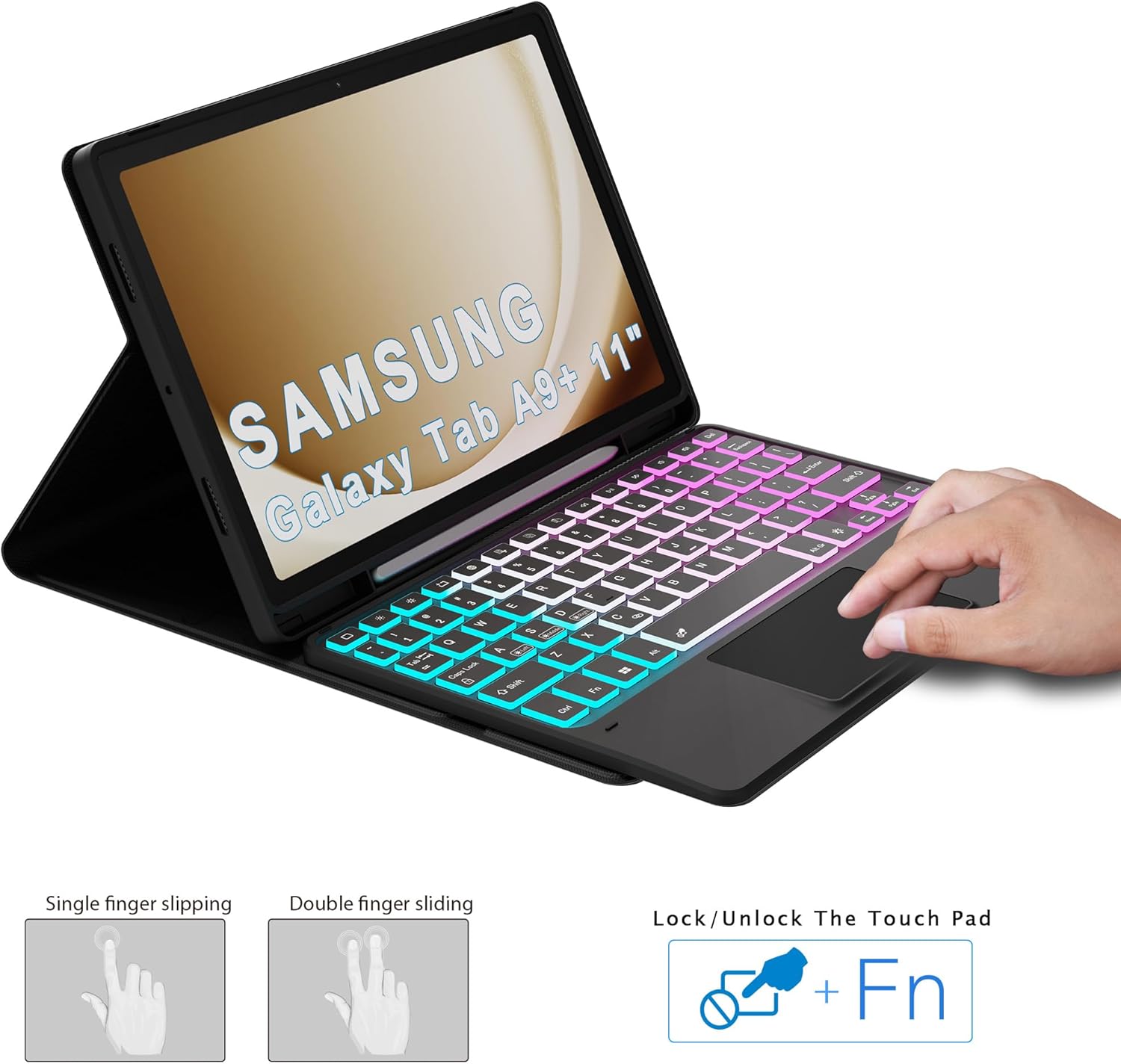
Image: Visual guide for trackpad gestures and lock function.
5.3 Android OS Shortcut Keys
The keyboard includes dedicated shortcut keys for common Android OS functions. Refer to the key labels for specific actions such as home, back, search, volume control, and media playback.

Immagine: Oltreview of Android OS shortcut keys on the keyboard.
6. Manutenzione
- Mantenere la tastiera e la custodia pulite pulendole con un panno morbido e asciutto.
- Evitare di esporre il prodotto a temperature estreme, umidità o luce solare diretta.
- Non utilizzare prodotti chimici aggressivi o detergenti abrasivi.
- Store the keyboard and case in a safe place when not in use to prevent damage.
7. Risoluzione Dei Problemi
7.1 La tastiera non si associa
- Assicurarsi che la tastiera sia completamente carica.
- Verifica che il Bluetooth sia abilitato sul tuo tablet.
- Make sure the keyboard is in pairing mode (blue light blinking after pressing Fn + C).
- If previously paired, try forgetting the device on your tablet and re-pairing.
- Riavviare sia il tablet che la tastiera.
7.2 Retroilluminazione non funzionante
- Assicurati che la tastiera sia accesa.
- Premere Fn + icona lampadina per scorrere i livelli di luminosità e assicurarsi che non sia spento.
- The backlight automatically turns off after 15 seconds of inactivity to save power. Press any key to reactivate.
7.3 Il trackpad non risponde
- Ensure the trackpad is not locked. Press Fn + Trackpad icon to toggle its status.
- Verificare che la tastiera sia correttamente connessa tramite Bluetooth.
- Riavviare la tastiera e il tablet.
8. Specifiche
| Dimensioni del prodotto | 11 x 6.7 x 11 pollici |
| Peso dell'articolo | 1.72 libbre |
| Produttore | SNOODU |
| Dispositivi compatibili | Samsung Galaxy Tab A9+ A9 Plus 11.0" (SM-X210/X216/X218) |
| Tecnologia di connettività | Bluetooth |
| Descrizione della tastiera | Wireless, Flexible |
| Caratteristiche speciali | Backlit, Ergonomic, Hotkeys and Media Keys, Rechargeable, Trackpad |
| Supporto del colore della retroilluminazione della tastiera | RGB (7 colori) |
| Tipo di batteria | Polimeri di litio (750 mAh) |
9. Garanzia e supporto
For warranty information and customer support, please refer to the documentation provided with your purchase or contact SNOODU customer service directly. Keep your purchase receipt for warranty claims.