
1. Prodotto finitoview
The Brother DCP-L2665DW is a versatile 3-in-1 monochrome laser multifunction printer designed to enhance productivity in both home and office environments. It offers high-speed printing, scanning, and copying capabilities, along with automatic duplex printing and efficient paper handling.
Le caratteristiche principali includono:
- Print speeds up to 34 pages per minute (ppm).
- Automatic duplex printing at up to 16 faces per minute.
- Scan speeds up to 22.5 faces per minute.
- 6.8cm color touchscreen control panel.
- Ethernet, 5GHz WiFi, and USB connectivity.
- 256 MB memory.
- 50-sheet Automatic Document Feeder (ADF).
- 250-sheet paper input tray.
- Comes with a 1,200-page starter toner.
- Optional 3,000-page toner available.

Figura 1.1: Fronte view of the Brother DCP-L2665DW multifunction laser printer. This image shows the compact design and the main components including the paper tray and control panel.

Figure 1.2: Diagram highlighting key features of the Brother DCP-L2665DW. This includes the 6.8cm touchscreen display, automatic document feeder (ADF), duplex printing capability, 250-sheet paper capacity, and toner information.
2. Guida all'installazione
2.1 Disimballaggio e posizionamento iniziale
Carefully remove the printer from its packaging. Ensure all protective tapes and packing materials are removed from the exterior and interior of the device. Place the printer on a stable, flat surface with adequate space around it for ventilation and access to connections.

Figure 2.1: A user unboxing and preparing the Brother DCP-L2665DW for initial setup. Ensure all packaging materials are removed before powering on.
2.2 Installazione della cartuccia del toner e dell'unità tamburo
- Aprire il coperchio anteriore della stampante.
- Remove the toner cartridge and drum unit assembly from its protective bag.
- Inserire delicatamente la cartuccia del toner nel tamburo finché non scatta in posizione.
- Insert the combined toner and drum unit assembly into the printer.
- Chiudere saldamente il coperchio anteriore.
2.3 Caricamento della carta
Aprire il vassoio della carta e regolare le guide della carta in base al formato della carta (ad esempio, A4). Caricare fino a 250 fogli di carta comune nel vassoio. Assicurarsi che la carta non sia piegata o piegata.urled. Close the paper tray.
2.4 Connecting Power and Initial Power On
Connect the power cord to the printer and then to a power outlet. Press the power button to turn on the printer. Follow the on-screen instructions on the 6.8cm color touchscreen for initial setup, including language selection.
2.5 Connettività di rete e USB
The DCP-L2665DW supports Ethernet, 5GHz WiFi, and USB connections.
- Connessione USB: Collegare un cavo USB dalla stampante al computer.
- Connessione Ethernet: Collegare un cavo Ethernet dalla stampante al router o allo switch di rete.
- Connessione wifi: On the printer's touchscreen, navigate to the network settings. Select "WLAN" or "Wi-Fi" and follow the prompts to connect to your wireless network. You may need to enter your network password.

Figura 2.2: Posteriore view of the Brother DCP-L2665DW, illustrating the available connectivity ports for USB and Ethernet connections.
2.6 Driver Installation and Mobile Connect App
For full functionality, install the latest drivers from the official Brother support website. For mobile printing and scanning, download the Connessione mobile Brother application from your device's app store. This app allows you to print and scan directly from your smartphone or tablet.

Figure 2.3: A user interacting with the Brother Mobile Connect application on a smartphone, demonstrating wireless control and functionality with the printer.
3. Istruzioni per l'uso
3.1 Stampa dei documenti
To print from your computer, ensure the printer is connected and drivers are installed. Open the document you wish to print, select "Print" from the application's menu, choose the Brother DCP-L2665DW, and adjust settings as needed (e.g., number of copies, paper size, duplex printing). Confirm to start printing.
For duplex printing, select the two-sided printing option in your print settings. The printer will automatically flip the paper to print on both sides.
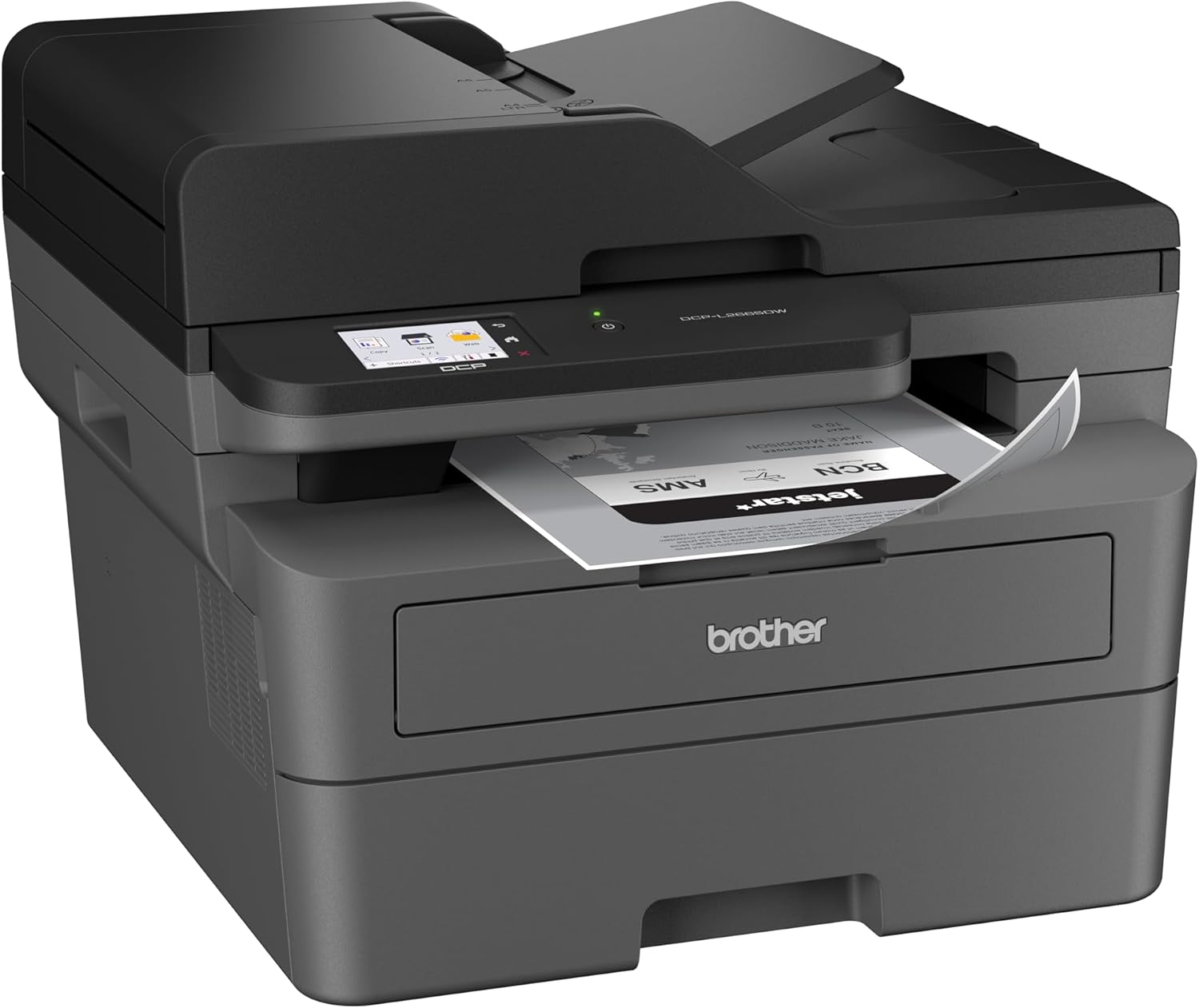
Figure 3.1: The Brother DCP-L2665DW actively printing a document, demonstrating its paper output mechanism.

Figure 3.2: A user efficiently printing shipping labels using the Brother DCP-L2665DW, highlighting its utility for business and personal use.
3.2 Scansione di documenti
The DCP-L2665DW offers both flatbed scanning and automatic document feeder (ADF) scanning for multiple pages.
- Scansione piana: Lift the scanner lid, place the document face down on the scanner glass, align it with the guide marks, and close the lid.
- Scansione ADF: Place multiple pages face up into the Automatic Document Feeder. The ADF can hold up to 50 sheets.
From the printer's touchscreen or your computer's scanning software, select the "Scan" function. Choose your desired scan destination (e.g., PC, email, cloud service) and adjust settings like resolution and color mode. Initiate the scan.
3.3 Copia dei documenti
To make copies, place your document on the scanner glass or in the ADF. On the printer's touchscreen, select "Copy". You can adjust settings such as the number of copies, enlargement/reduction, and quality. Press "Start" to begin copying.
4. Manutenzione
4.1 Sostituzione della cartuccia del toner e dell'unità tamburo
The printer will display a message when the toner cartridge or drum unit needs replacement. Follow these steps:
- Aprire il coperchio anteriore.
- Rimuovere il gruppo cartuccia toner e tamburo.
- Press the green lock lever to separate the toner cartridge from the drum unit.
- Unpack the new toner cartridge and slide it into the drum unit until it locks.
- Insert the new assembly back into the printer.
- Chiudere il coperchio anteriore.
Note: The drum unit typically needs replacement after approximately 12,000 pages, while toner cartridges vary based on capacity (1,200 or 3,000 pages).
4.2 Pulizia della stampante
- Esterno: Pulire l'esterno della stampante con un panno morbido e privo di lanugine. Non utilizzare detergenti abrasivi o solventi.
- Vetro dello scanner: Utilizzare un panno morbido e privo di lanugine dampened with a non-abrasive glass cleaner to clean the scanner glass. Ensure it is dry before closing the lid.
- Corona Wire (Drum Unit): Periodically clean the corona wire inside the drum unit by gently sliding the green tab back and forth several times. Return the tab to its home position.
4.3 Rimozione degli inceppamenti della carta
If a paper jam occurs, the printer's display will indicate the location of the jam. Carefully open the indicated covers (e.g., front cover, rear cover, duplex tray) and gently pull the jammed paper in the direction of the paper path. Avoid tearing the paper. Close all covers once the jam is cleared.
5. Risoluzione Dei Problemi
| Problema | Possibile causa | Soluzione |
|---|---|---|
| Printer not responding / Offline | Loose cable connection, incorrect network settings, printer in sleep mode. | Check power and USB/Ethernet cables. Verify Wi-Fi connection. Restart printer and computer. Check printer status in operating system. |
| Paper Jam message | Paper stuck in paper path, incorrect paper loading. | Follow on-screen instructions to locate and gently remove jammed paper. Ensure paper is loaded correctly and not overfilled. |
| Poor Print Quality (streaks, faded prints) | Low toner, dirty drum unit, dirty corona wire, incorrect print settings. | Replace toner cartridge if low. Clean the drum unit's corona wire. Perform a test print and check print settings. |
| Scanner non funzionante | Loose USB/network connection, scanner driver issue. | Ensure printer is connected and powered on. Reinstall scanner drivers if necessary. |
For more detailed troubleshooting, refer to the comprehensive online support resources available on the official Brother websito.
6. Specifiche tecniche
| Caratteristica | Specificazione |
|---|---|
| Nome del modello | Modello DCP-L2665DW |
| Tipo di prodotto | 3-in-1 Multifunction (Print/Scan/Copy) |
| Tecnologia di stampa | Laser (monocromatico) |
| Velocità di stampa massima (monocromatica) | 34 pagine al minuto |
| Stampa fronte-retro | Sì (automatico) |
| Risoluzione di stampa massima (bianco e nero) | 1200 DPI |
| Velocità massima di copia (bianco e nero) | 34 pagine al minuto |
| Tipo di scanner | Sheetfed (ADF) and Flatbed |
| Capacità dell'alimentatore automatico di documenti (ADF) | 50 fogli |
| Paper Input Tray Capacity | 250 fogli |
| Dimensione massima del supporto | A4 |
| Connettività | Ethernet, Wi-Fi (5GHz), USB |
| Memoria | 256 MB |
| Pannello di controllo | 6.8cm Color Touchscreen |
| Dimensioni (P x L x A) | Dimensioni: 39.9 x 31.9 x 41 cm |
| Peso | 11.4 chilogrammi |
| Componenti inclusi | Power cable, user manual, toner cartridges |
7. Garanzia e supporto
For detailed warranty information, please refer to the documentation included with your product or visit the official Brother support website. Brother offers comprehensive customer support and resources to assist with product setup, operation, and troubleshooting.
- Supporto online: Visita Brother's official support websito for drivers, FAQs, and troubleshooting guides.
- Contatta l'assistenza: Contact Brother customer service for personalized assistance. Contact details can be found on their websito.
- EcoPro Plan: This product may be eligible for the Brother EcoPro plan, which offers automatic toner delivery. Check the Brother website for details and eligibility, including any promotional offers like free months.